
Topic
This article explains how to enable the integration between NinjaOne and Duo Security's multi-factor authentication (MFA) tool.
Environment
- NinjaOne Integrations
- Cisco Duo
Description
NinjaOne has integrated with Duo to add an MFA option during identity authentication at login or while performing administrative actions within the platform. In addition to configuring a Web SDK application for your account, you should also consider provisioning users and updating policies to control how the end user interacts with Duo MFA when they log into NinjaOne.
NinjaOne's integration with Duo does not support MFA bypass. To learn more about MFA bypass compatibility, refer to Enable Conditional NinjaOne Multifactor Authentication Bypass (IDP).
Prerequisite: Prepare the Duo Account for Integration
Configure the Web SDK Application
Before you can enable the integration in NinjaOne, you must configure a Web SDK application in Duo.
- Log in to your Duo account and access Applications.
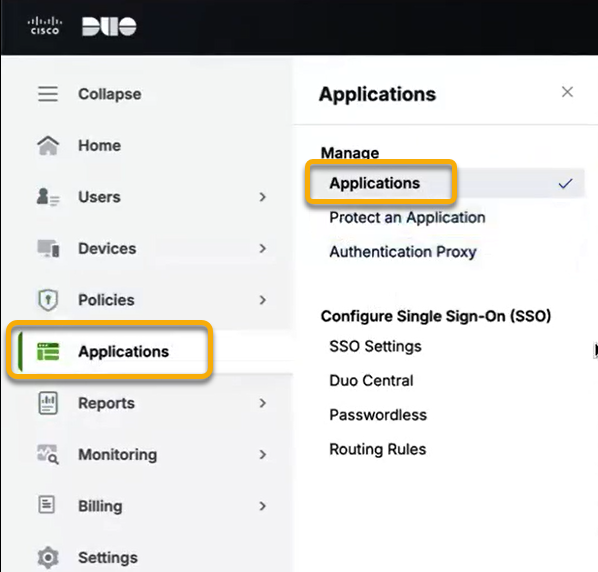
Figure 1: Configure the Web SDK application in Duo
- Click Protect an application.
- Create a new application and use the following table to complete the applicable fields.
| Field | Data |
|---|---|
| Application name | Provide a unique identifier of your choice |
| Application Type | "Web SDK" |
| User access | "Enable for all users" |
| Details | This data will automatically populate when the application is set up. Copy the data for Client ID, Client secret, and API hostname and save it in a safe place for use in the following section. |
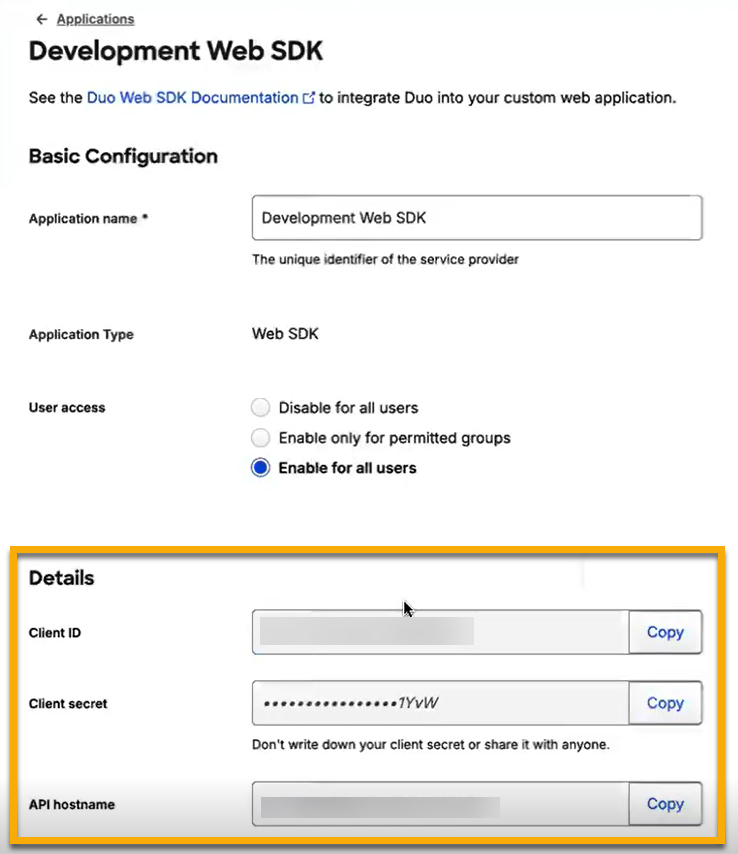
Figure 2: Copy the application details in Duo
Enable the Integration
To enable the Duo integration in NinjaOne, perform the following steps:
- In NinjaOne, navigate to Administration → Apps → Installed. Click Add app and select Duo MFA.
- On the Duo MFA configuration page, click Enable.
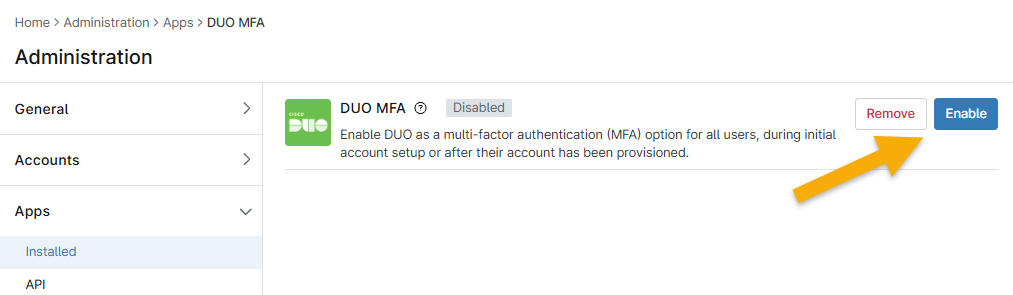
Figure 3: Enable the Duo integration app in NinjaOne
- Enter the information you obtained from the previous section into the applicable fields.
- Click Enable.
When the integration is successful, the Status will reflect "Connected."
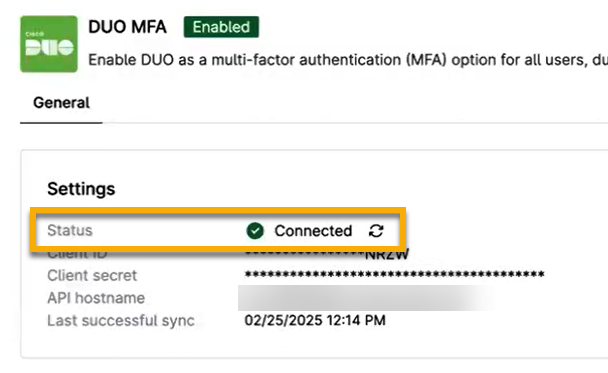
Figure 4: Confirm successful integration status in NinjaOne
Activate Duo MFA for User Accounts
When you configure an MFA option for users in NinjaOne, it will appear as an option on the login screen. If a user does not have any MFA settings applied and Duo is enabled, they can configure Duo as an MFA method when they first log in.
- In NinjaOne, open the end user or technician account. In the General section, open the Security tab.
- You can now find Duo as an option; click Configure.
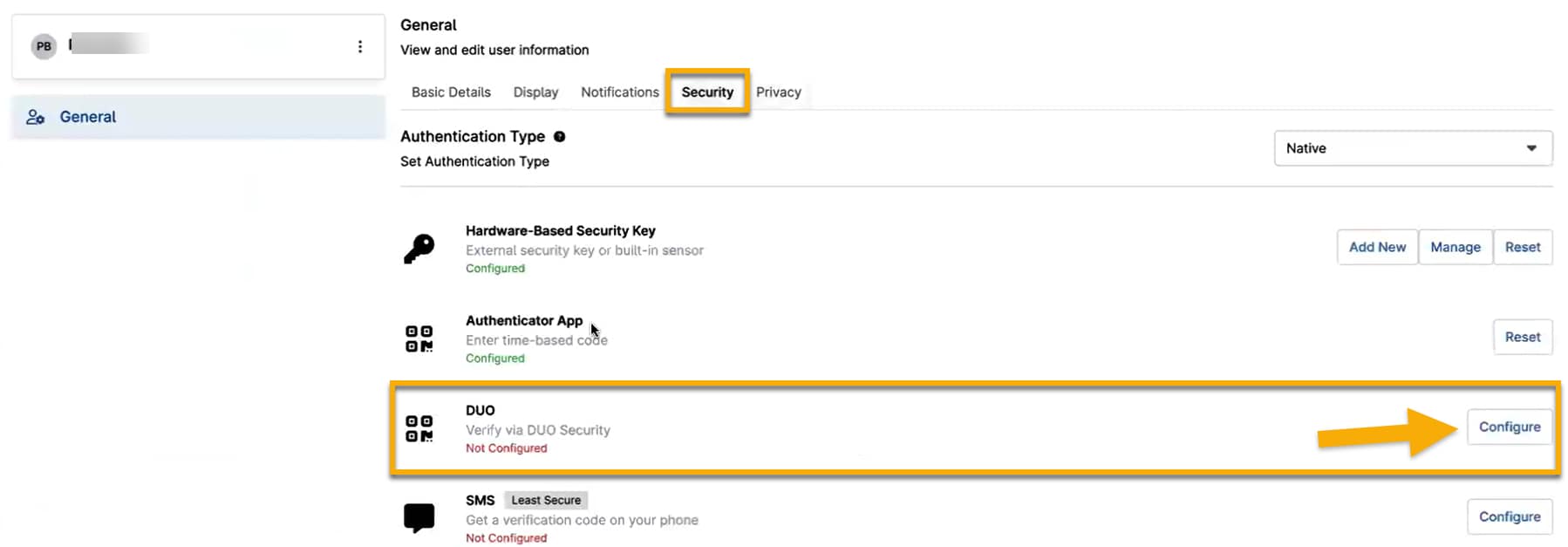
Figure 5: Configure use of Duo MFA in the NinjaOne user account (click to enlarge)
- You will be redirected to your Duo account; log in to complete the configuration.
Additional Resources
Refer to Integrations and Third-Party Apps: Resource Catalog to learn more about NinjaOne's integrations.