
Topic
This article explains how to add an override to the NinjaOne agent that allows for manually specifying antivirus (AV) information.
Environment
- NinjaOne Agent
- Linux
- Windows
- macOS
Description
To populate the AV information, use an optional av_override.json file or the Ninja - Set Antivirus Override template in the NinjaOne Automation Library.

The three fields or script variables you must update are:
- AV name or
av_name(required) - AV state or
av_statusmust be one of the following:Up-to-Date,Out-of-Date, orUnknown - AV status or
av_statemust be one of the following:on,off,expired,snoozed,unknown
The file path is:
ProgramdataNinjaRMMAgentCustomizationav_override.json
If you import the script from NinjaOne's template library, you can mark the fields as Mandatory. To do so, perform the following steps.
- Open the Ninja - Set Antivirus Override template in NinjaOne.
- Move your cursor over the variable and click the edit icon.
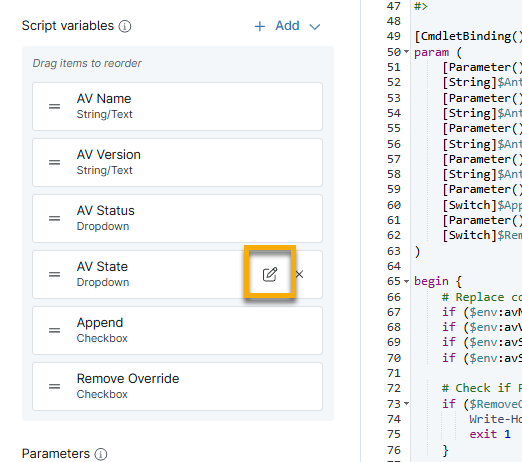
- Activate the Make variable mandatory toggle.

- Click Save.
Example
{
  "av_override": [
    {
      "av_name": "Example Antivirus",
      "av_version": "1.2.6",
      "av_status": "Out-of-Date"
      "av_state": "OFF"
    }
  ]
}
Additional Resources
Refer to NinjaOne Agent: Resource Catalog to learn how to use the NinjaOne agent.