
Topic
This article explains how to manage your ServiceNow incidents in NinjaOne.
If you have not already activated the ServiceNow integration, refer to NinjaOne Integrations: Getting Started With ServiceNow to learn how to do so.
Environment
- NinjaOne Integrations
- ServiceNow
Description
When synchronized with NinjaOne, you can use ServiceNow incident templates to resolve health status alerts and triggered conditions. You must first create the ticket template in ServiceNow using "Incident [Incident]" for the Table field and then configure the mapping in NinjaOne.
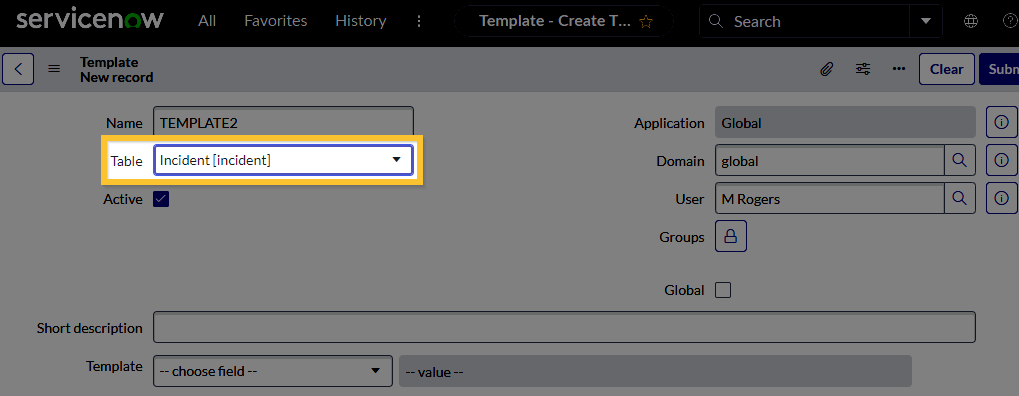
Figure 1: ServiceNow → Ticket template record → Table = Incident
If you cannot find your incident template in NinjaOne, this may be because the NinjaOne API user does not have permission to use the template or is not part of the domain that you permitted them to access. Templates with global access will always sync with the NinjaOne integration.
To learn more about creating incident templates in ServiceNow, refer to Create incident template | ServiceNow Documentation (external link). NinjaOne uses API requests to fetch data based on incident name or ID.
If you deactivate a template added to NinjaOne, it will remain deactivated or deleted in ServiceNow, and it will continue to show as Active until a condition that uses a deactivated or deleted template is triggered. At that point, NinjaOne will identify whether the template is Inactive in ServiceNow or Deleted in ServiceNow and update the user interface accordingly. The condition will then use the default or the next available template; if none exists, ServiceNow will create the ticket without a template.
Index
Select a category to learn more:
- Add an Incident Template
- Manage Incident Templates
- Use Incident Templates to Create Tickets from Triggered Policy Conditions
- Additional Resources
Add an Incident Template
To create a new incident template, follow these steps.
- In NinjaOne, open the ServiceNow configuration page and select the Incident Templates tab.
- Click Add.
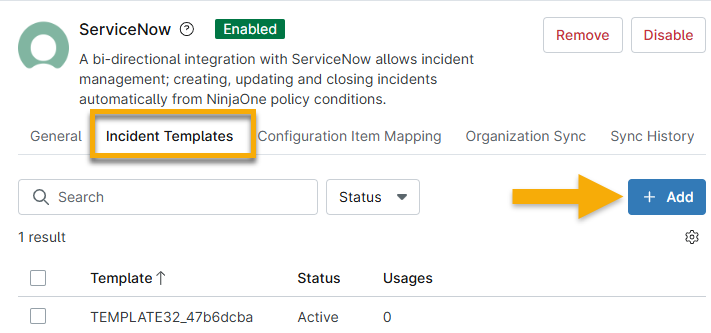
Figure 2: Add a ServiceNow incident template in NinjaOne
The Add ticket template configuration dialog displays.
- Refer to the following tables and bullets as a guide to complete the applicable fields for all sections. Click through each section in the dialog to ensure you have included all necessary data.
General:
The ServiceNow incident template must include a default for any required fields, such asCaller; otherwise, NinjaOne's incident creation may fail.Field Data Name Provide a unique identifier. ServiceNow incident template Select the ticket template you created in ServiceNow or a default template. Display notes like Define whether updates to ticket activity display as a public comment or internal worknote. Ticket creation:
Field Data Impact Set these values to your preference. You can use impact to measure the severity or describe the level of importance of an incident. Urgency Set these values to your preference. You can use urgency to describe priority or how quickly a technician should take action on an incident. Condition reset:
Field Data Action The option you select in this drop-down controls whether the subsequent fields are editable. If the status is Select one or more statuses to take action on. Change to a new status Optionally, choose to change the status of an incident if the condition is reset. Change to a new impact Optionally, choose to change the impact of an incident if the condition is reset. Change to a new urgency Optionally, choose to change the urgency of an incident if the condition is reset. - Condition retrigger: Select what will happen if an alert reoccurs in NinjaOne and the ServiceNow ticket is not in a closed status.
- Ticket closure: Select a close code or a resolution description when an incident ticket is closed.

Figure 3: Go through the ticket template sections in the configuration dialog
- Click Create.
Manage Incident Templates
Select the checkbox next to the template name to review management options, or move your cursor over the row and click the actions menu.
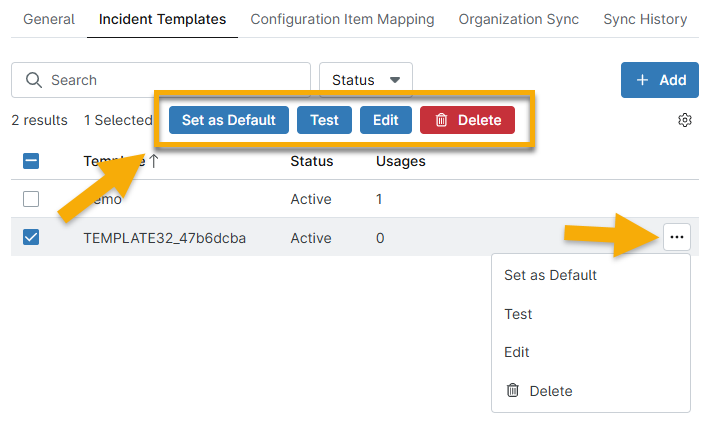
Figure 4: Manage incident templates for ServiceNow
Clicking the Test button creates a test activity that allows you to preview the template for a mapped organization in ServiceNow.
You cannot delete a template if the Usage column displays a number higher than zero. Usage indicates that the template is currently being used for a policy condition to create tickets (refer to the following section for additional information). Click the number in the Usage column to review where you are using the template.
Use Incident Templates to Create Tickets from Triggered Policy Conditions
Use incident templates to create tickets when a condition is triggered. To learn how to set a condition, refer to NinjaOne Endpoint Management: Policy Condition Configuration.
Tickets created in NinjaOne sync with ServiceNow, and the data appears in a job table on the ServiceNow Incident page. Once you select the condition, choose the template from the ServiceNow drop-down menu. The incident status displays in parentheses next to the template name.
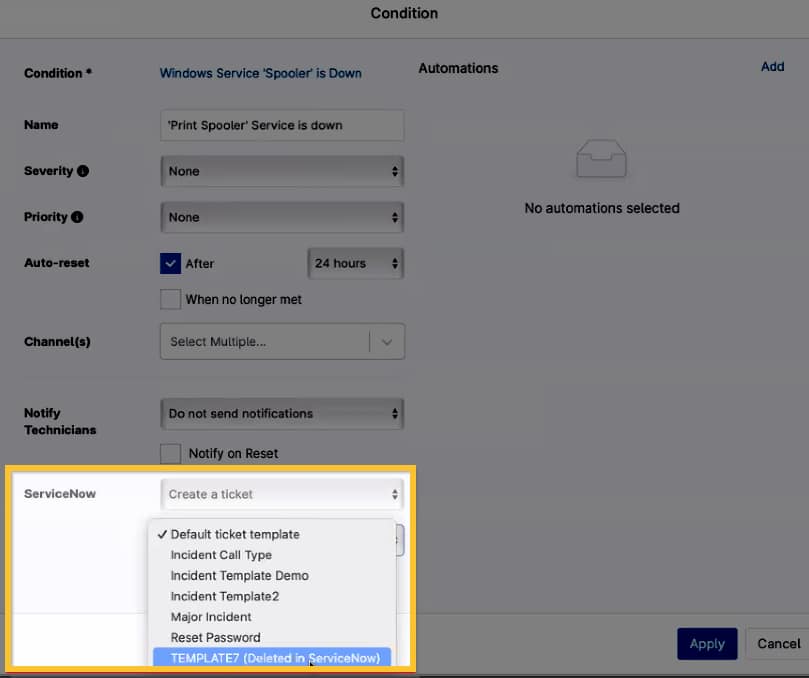
Figure 5: NinjaOne condition configuration → Create a ServiceNow ticket
Additional Resources
The following knowledge article will help you get the most out of NinjaOne's integration with ServiceNow: ServiceNow integration documentation in NinjaOne.
Refer to the following articles to learn more about configuring ServiceNow integration settings in NinjaOne: