
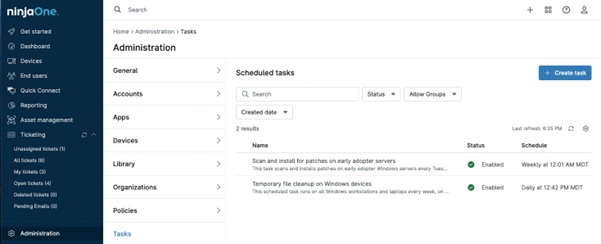
A task scheduler (or scheduled task) is a system utility that automates the execution of actions at predefined times or intervals. On a local computer, it can be used to run scripts, launch applications, or perform maintenance routines—such as clearing temporary files, applying updates, or backing up data—without requiring user intervention. By scheduling these tasks, IT administrators can ensure critical operations happen consistently, even when staff aren’t available to trigger them manually.
A remote task scheduler extends this same concept across multiple devices or networks. Instead of configuring tasks individually on each machine, administrators can centrally define, deploy, and monitor automated actions on remote endpoints. These tasks may include system scans, patch installations, software deployments, restarts, or custom scripts. The remote scheduler communicates with managed devices over secure channels, triggering execution based on the specified time, frequency, or condition, and reporting results back to a centralized console.
In an RMM (Remote Monitoring and Management) system, a remote task scheduler becomes a powerful tool for scalability and consistency. It allows IT teams to automate repetitive maintenance across hundreds or thousands of endpoints, enforce policy compliance, and minimize downtime—all without user intervention. By orchestrating automation remotely, organizations improve efficiency, reduce human error, and maintain proactive control over their IT environments, transforming routine maintenance into a streamlined, hands-free process.
Does NinjaOne have a Remote Task Scheduler?
Yes, NinjaOne has a Remote Task Scheduler. Each scheduled task has two sections or tabs: Details and Targets.
Details: In this section you create a name, description, the schedule and the automation(s) that will be performed at the scheduled time. Here you also define whether the task can be sent to a dynamic group.
Targets: In this section you define what devices will run the automation(s). You can select by
Organization: All the devices belonging to the added organization will run the automation(s).
Device: All individual devices added will run the automation(s).
Group: All devices belonging to the added groups will run the automation(s). Note that since the groups are dynamic, the group membership is calculated at the time of executing the task.
What automations can be run from a Remote Scheduled Task?
A Remote Scheduled Task can include any automation available in the Automation Library, whether it’s a native or custom. It is the responsibility of the person creating the task to ensure that the correct automation type is sent to the appropriate device role—for example, deploying a Windows automation only to Windows devices. NinjaOne does not validate or enforce this compatibility automatically.
How can I create a Remote Scheduled Task in NinjaOne?
Follow the steps below to create a Remote Scheduled Task in NinjaOne:
- In the NinjaOne console, navigate to Administration > Tasks. The remote task scheduler page will appear.

- Click +Create task. The task scheduler editor will appear.

- Fill out the fields under the Details tab: Name, Description, Schedule and select whether you want to include groups as targets.
- Click Add to add an automation. The automation library will appear.

- Select the automation you want by clicking on it. The automation name will appear in the task scheduler editor. Repeat steps 4 and 5 as needed.
- Go to the Targets tab.
- Add your target devices by selecting them individually, by organization, or by group. Any combination of these selection methods is allowed.
- Click Save. You may be required to confirm using MFA.
Can I set a Remote Scheduled Task to run based on events instead of time?
Yes, this is possible but with some limitations.
- The task can be configured to run based on the following events:
- Once at a certain time
- Once immediately
- On system startup
- On user login.
- Dynamic groups cannot be used as targets for the task; this means that the “Alow Groups” option must be disabled in the task settings.