
Topic
Email Insights allows administrators to analyze employees’ email usage. It also enables managers to track all official communications going in and out of the company. 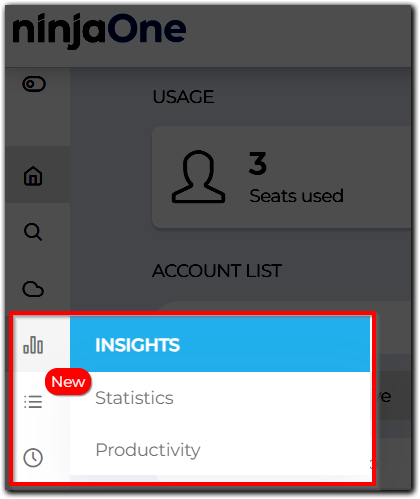
- All reports default to the past 30 days.
- Data for Insights is aggregated after each backup (successful or not).
- Time zone:
- If the user has not set the time zone, the default will be the tenant's time zone.
- If the tenant has not set the time zone, the default will be to the reseller time zone.
- Time zone:
If the administrative user wants to see the hours correctly for users, they will need to log in and change the user's time zone manually. NinjaOne will then reaggregate the data, which may take a little time.
Environment
NinjaOne SaaS Backup End-User Portal
Description
NinjaOne SaaS Backup is a cloud backup platform that helps businesses securely backup, manage, recover, and protect their business information. The automated and incremental backups simplify the backup, recovery, and compliance experience. It works with Microsoft 365 (Hosted Exchange, Groups and Teams, SharePoint, OneDrive), Gmail (including Calendars, Contacts, and Tasks), and other IMAP email servers. NinjaOne uses 256-bit (AES) encryption at rest and in transit, supporting multifactor authentication (MFA).
Index
Using the Insights Dashboards
In the NinjaOne SaaS Backup End User Portal, from either the Productivity or Statistics pages, you have the following options:
- Use the date range dropdown to select from the pre-set range of data. The dates are set to the time zone you selected in Account Settings > Personal Details.
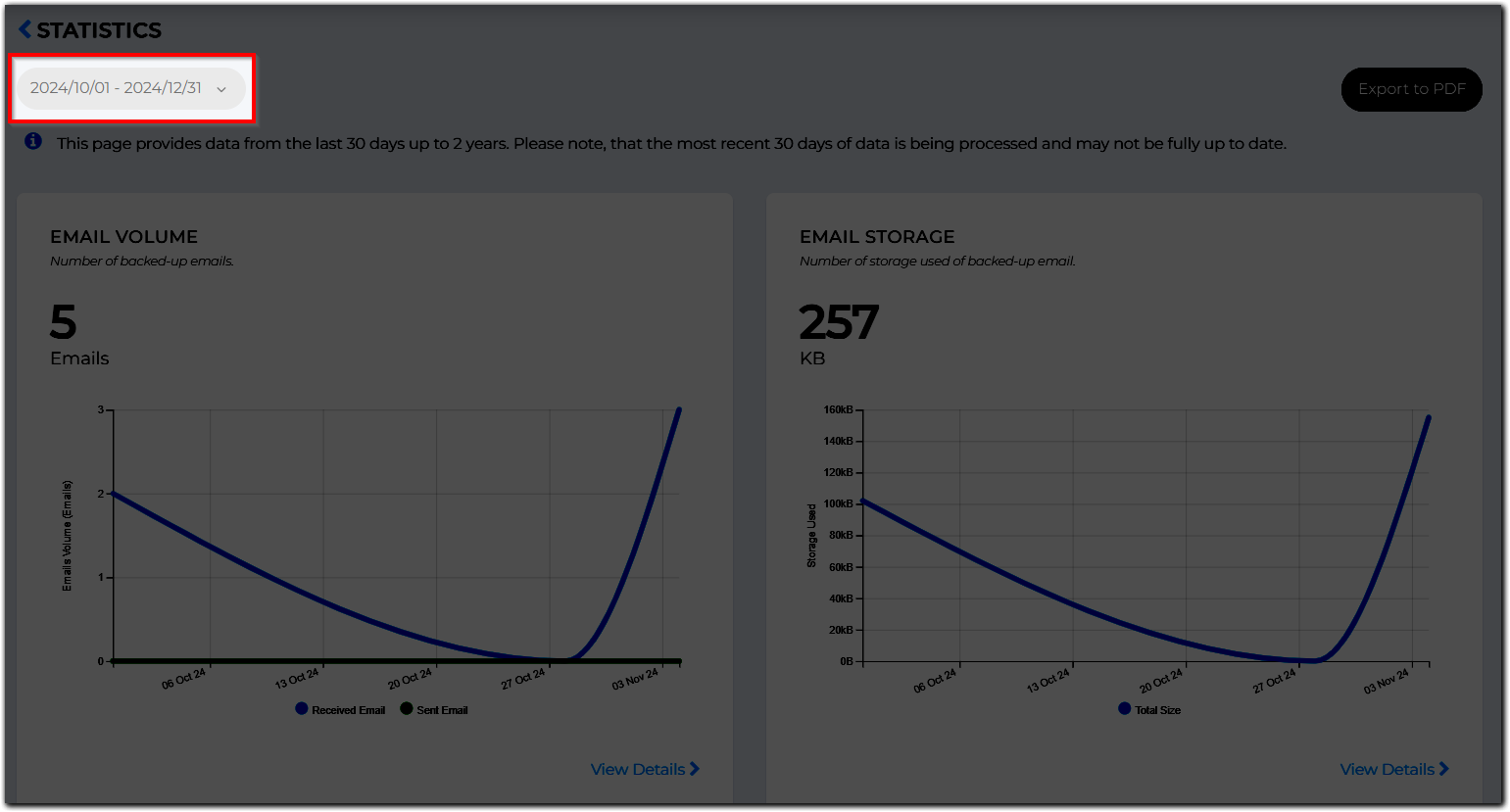
- Click View Details within any of the sections to see additional information.
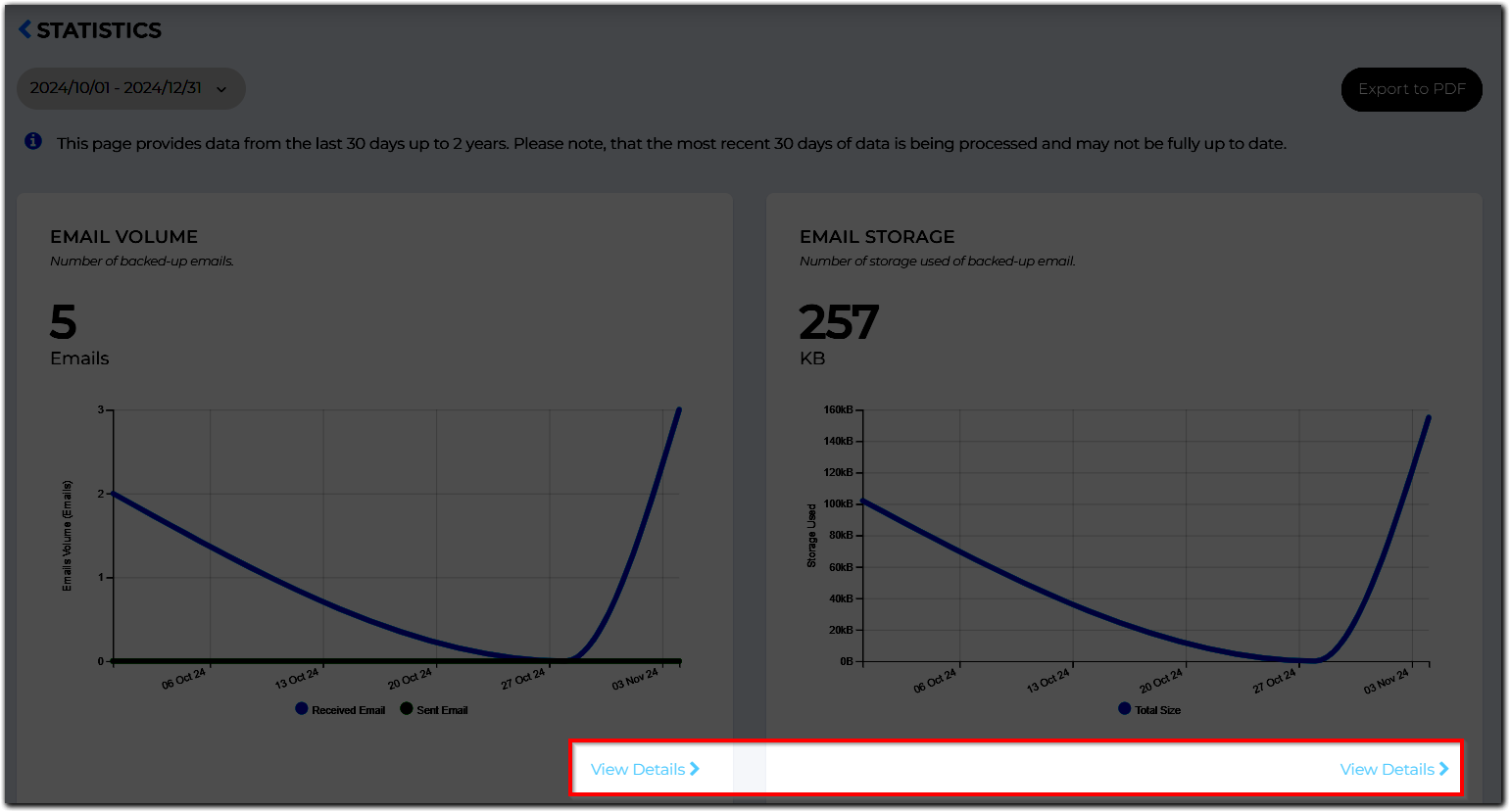
- Click Export to PDF to download the data from the selected time range to a PDF file.

Productivity
SaaS Backup displays basic productivity-related data about your company, such as:
- Top senders and recipients.
- Email response time.
- Time of sending emails.
Statistics
We display basic statistics about emails and subscriptions here, such as
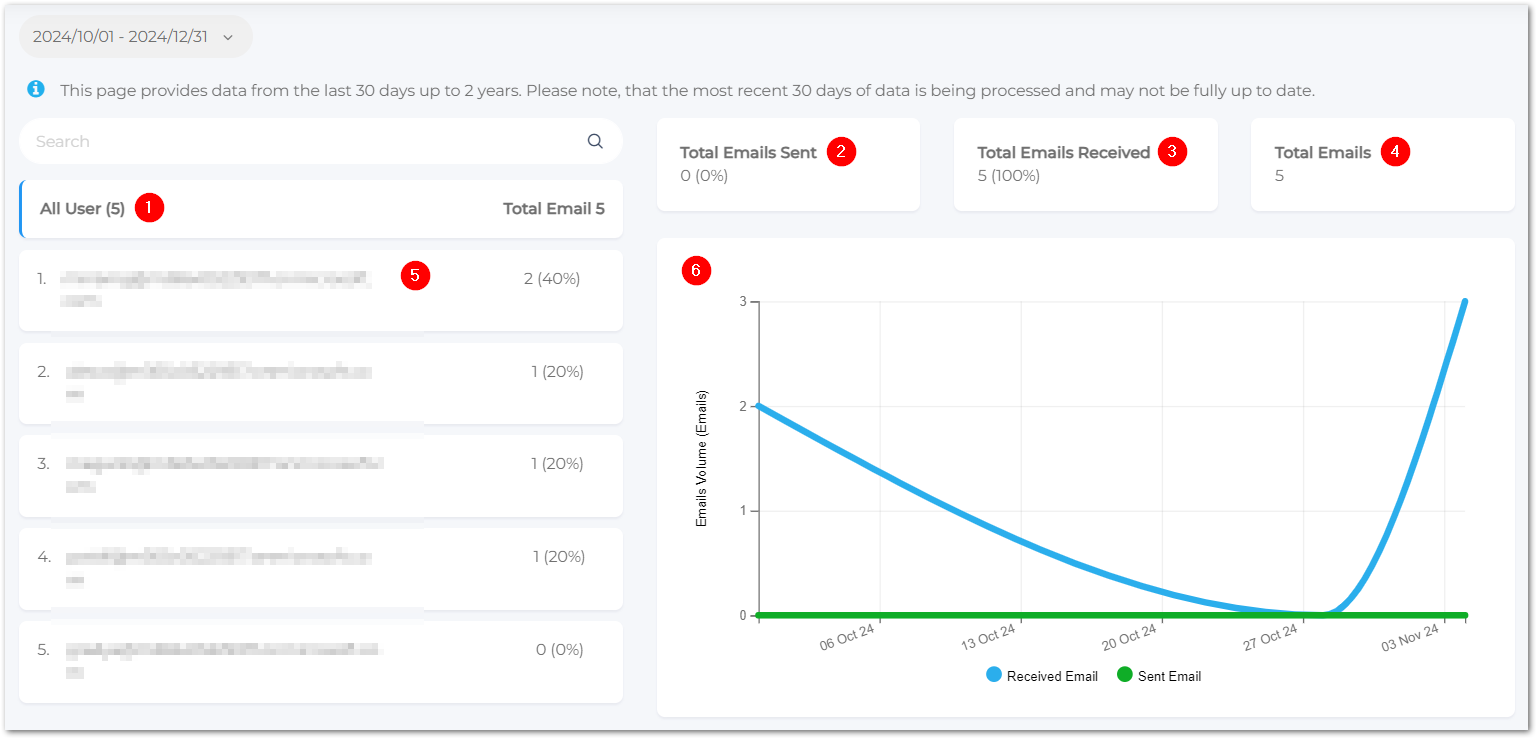
Email Volume details
Definition: Number of backed-up emails.
Data provided from the View Details link:
| Screenshot Location | Data Type | Description |
|---|---|---|
| 1 | All Users | All users selected by default date range for the past 30 days. |
| 2 | Total emails Sent | Shows the total number sent and the percentage sent out of the sum of all users selected. |
| 3 | Total Emails Received | Shows the total number received and the percentage received out of the sum of all users selected. |
| 4 | Total Emails | Sent and received total for selected date range and user(s). |
| 5 | Single user results | Click to display total emails sent and received as a percentage and a graph on the right side. |
| 6 | Emails Volume graph | The y-axis (vertical) shows the number of emails sent or received. The x-axis (horizontal) shows when the y number of emails were received or sent. |
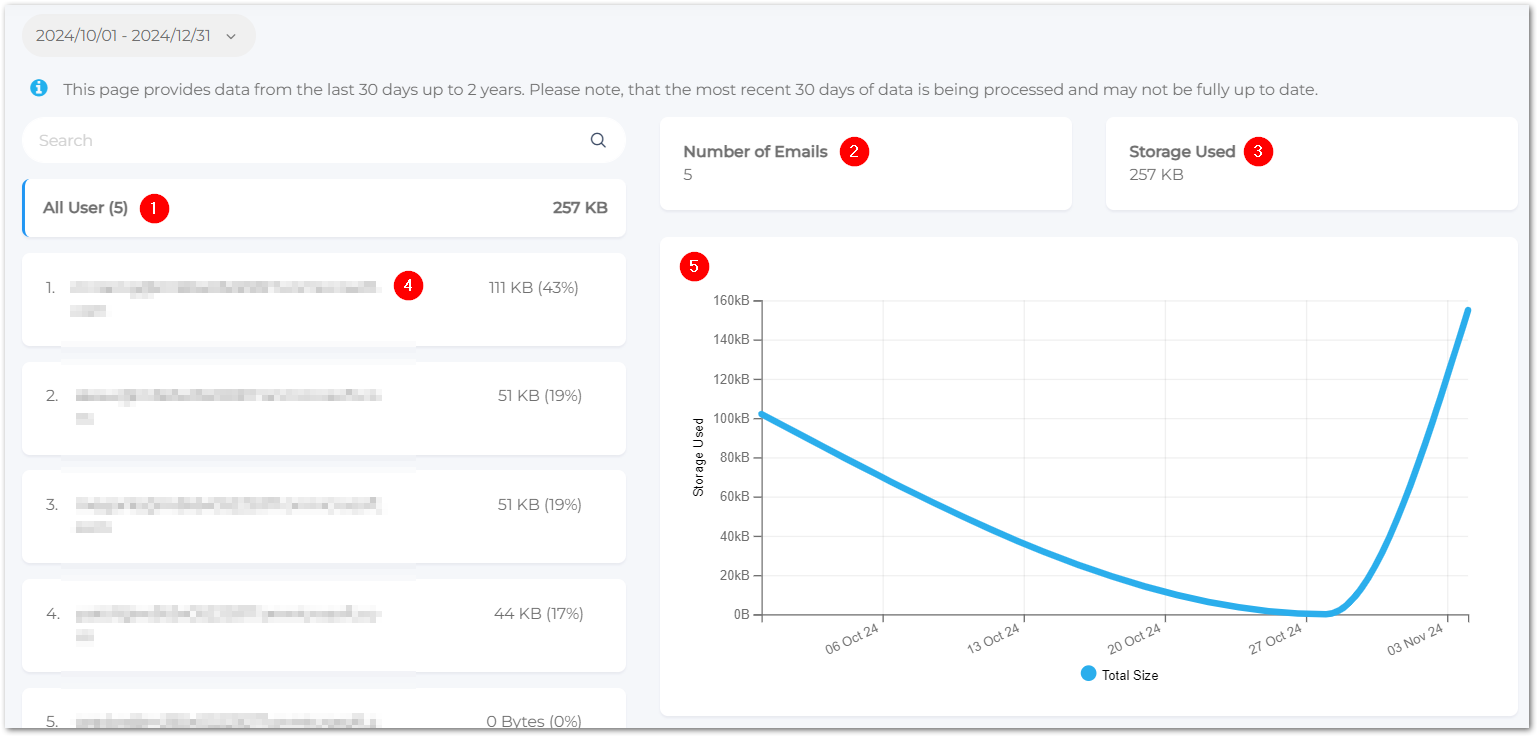
Email Storage Used details
Definition: Number of storage used of backed-up email.
Data provided from the View Details link:
| Screenshot Location | Data Type | Description |
|---|---|---|
| 1 | All Users | All users selected by default date range for the past 30 days. |
| 2 | Number of Emails | Shows the total number of emails that used storage for the selected user(s). |
| 3 | Storage Used | Shows the total amount of storage used in KB for the selected user(s). |
| 4 | Single user results | Click to display the storage data for a specific user. |
| 5 | Emails Storage graph | The y-axis (vertical) shows the amount of storage used in KB. The x-axis (horizontal) shows when the data was stored. |
Top Contact Details
Definition: Most frequently contacted account.
Data provided from the View Details link:
| Screenshot Location | Data Type | Description |
|---|---|---|
| 1 | All Users | All users selected by default date range for the past 30 days. |
| 2 | Top Internal Contacts | Shows the top internal contact and the percentage of emails they impacted. |
| 3 | Top External Contacts | Shows the top external contact and the percentage of emails they impacted. |
| 4 | Single user results | Click to display the top contact data for a specific user. |
| 5 | Top Internal/External Lists | Provides in list format, per user, the number of emails that involved a top contact, and the percentage data for that number. |

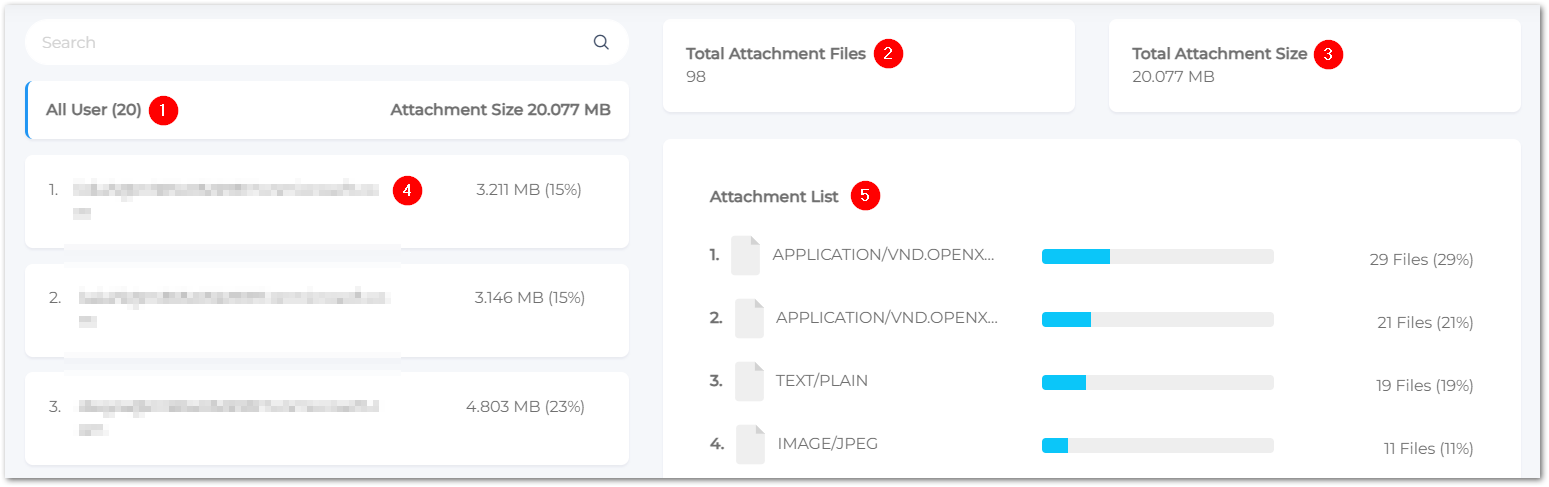
Top Attachment Details
Definition: Most backed-up the attachment files.
Data provided from the View Details link:
| Screenshot Location | Data Type | Description |
|---|---|---|
| 1 | All Users | All users selected by default date range for the past 30 days. |
| 2 | Total Attachment Files | Shows the total number of attachments backed up for all users or a selected user. |
| 3 | Total Attachment Size | Shows the total size in MB of attachments backed up for all users or a selected user. |
| 4 | Single user results | Click to display the top attachment data for a specific user. |
| 5 | Attachment List | Provides in list format the number of attachments by file type and the percentage data for each number. |
Internal / External domains
Internal domains are used to identify a company's internal contacts. They can be either a primary domain or a secondary / "alias" domain. By default, NinjaOne automatically marks the domains of all the accounts added or deleted from the dashboard as internal.
View internal / external domains in Insights
- Please log in to your business Backup+Archive account.
- In the top right corner of the Organization Email Portal, click the account profile icon and select User Management.
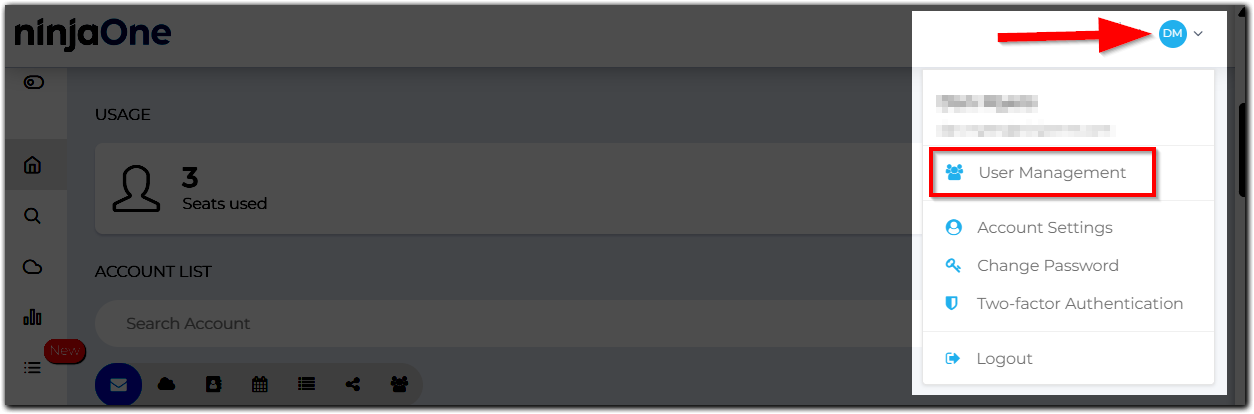
- Open the Domains tab to view the list.

Add internal domains in Insights
- Use Steps 1–3 above.
- Click Add New.
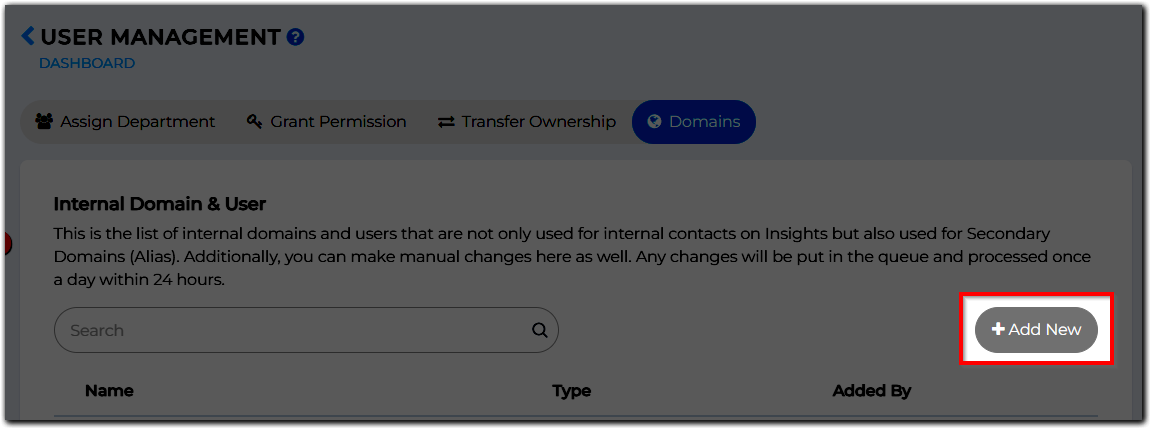
- Select the domain type you wish to add and then type the domain address into the field next to the dropdown:
- Primary Domain: Should be your default domain. You can manually add using the format “domain.com"
- Secondary Domain: These are aliases of the primary domain(s). Use this option to add a Secondary Domain (Alias). You can use this only if the corresponding Primary Domain has been created. You can manually add using the format “domain.com.”
- Public Domain User: Use this option if you use a public domain such as gmail.com, live.com, and so on; you must add a complete email address in the format [email protected] to the list.

- Use the Add More button to include multiple domains.
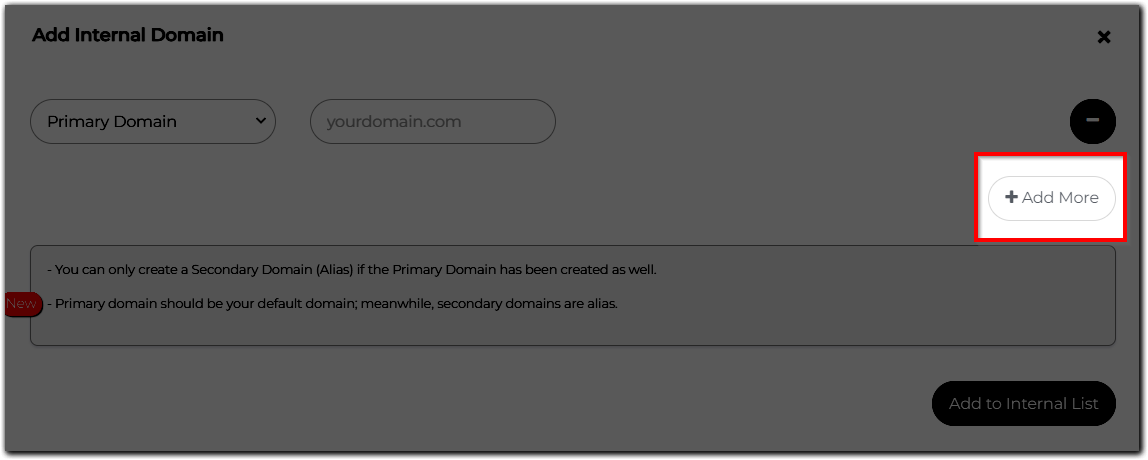
- Once you have added the domain, click Add to internal list.