Topic
This article explains how to view enrolled mobile devices by their network and carrier information in NinjaOne.
Environment
NinjaOne Mobile Device Management (MDM)
Description
NinjaOne enables you to search and filter enrolled mobile devices by phone number, carrier, and mobile network information in the Devices search grid.
Procedure
Follow these steps to filter and view your NinjaOne environment for mobile devices.
Navigate to the Devices Dashboard
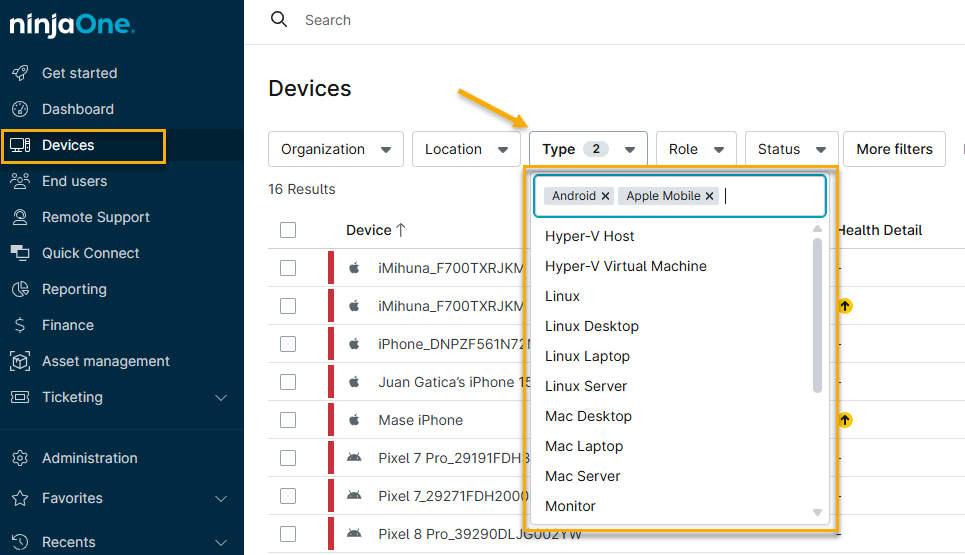
In NinjaOne, click Devices. NinjaOne will take you to the Devices dashboard, which shows all devices on your network.
Filter for Mobile Devices
Click the Type drop-down menu and select Android and Apple Mobile as the filter criteria. The dashboard will refresh and show only your enrolled mobile devices.
Add the Search Columns
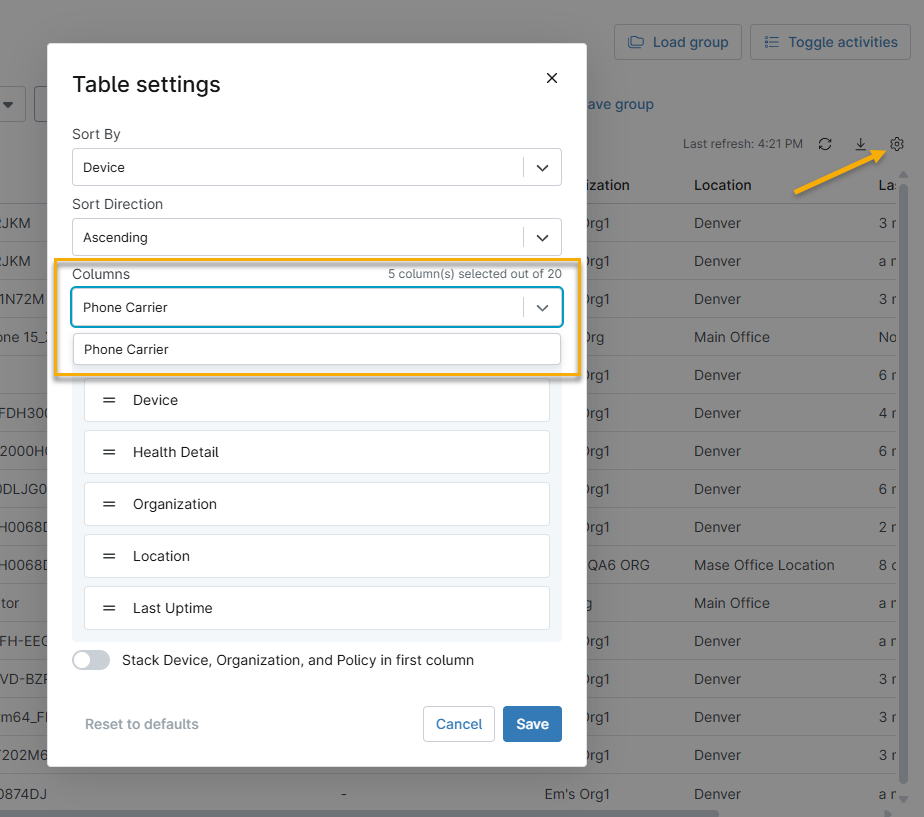
Click the gear icon to open the Table settings window, then use the Columns drop-down menu to add columns to the Devices table. You can add the following mobile network-specific columns:
- Embedded Identity Document (EID)
- International Mobile Equipment Identity (IMEI) Number
- Mobile Equipment Identifier (MEID)
- Phone Carrier
- Phone Number
Click and drag the = icons to re-order the table’s columns..
View and Sort Your Mobile Devices
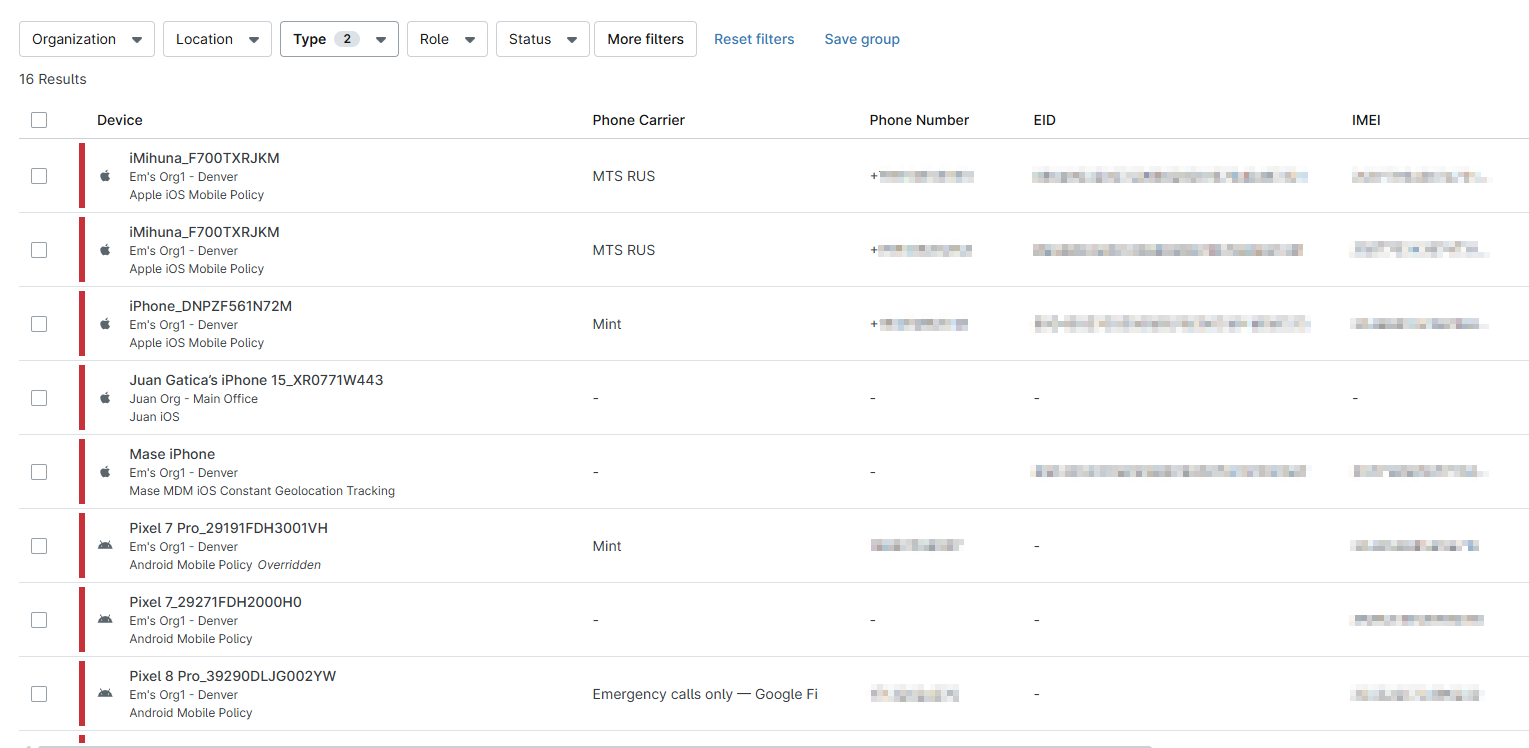
The Devices table shows your devices grouped by mobile network-specific category. Click the column names to sort ascending or descending. Click the filter drop-down menus to refine your search further.