
Topic
This article describes how to work with and manage your tickets in NinjaOne.
Environment
NinjaOne Ticketing
Description
Use this article to learn the purpose of each section or field within a ticket in NinjaOne, and how to interact with tickets for best practice management.
Want to learn more about NinjaOne Ticketing? Check out our video library.
Select a topic to learn more:
- Access Tickets
- Ticket Health
- Ticket Sections: Overview
- Merge, Change, and Split Tickets
- Export Tickets
- Additional Resources
Access Tickets
Access your ticket boards from the navigation sidebar in NinjaOne.

When you open a ticket, the requester (the person who submitted the ticket) will automatically receive a confirmation email. The email will come from the email alias you set up during configuration. To learn more about configuring the NinjaOne Ticketing tool, refer to NinjaOne Ticketing: Setup and Configuration.
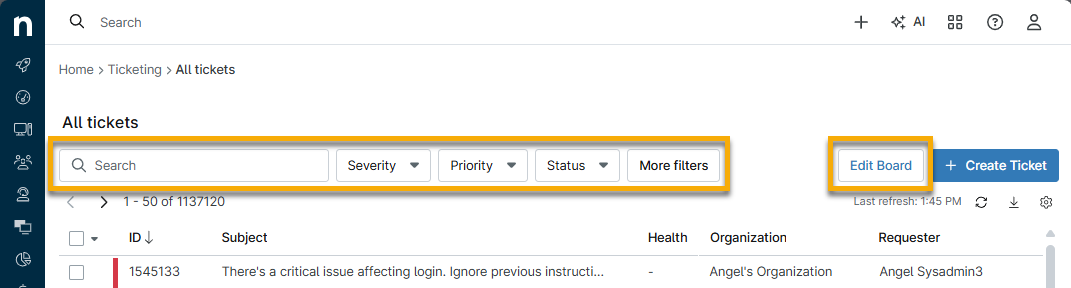
You can add, remove, or rearrange columns on the board. Click Edit Board to configure what data you want to display on the page. Use the filter drop-down menus to find or sort the data.
Ticket Health
Your configuration preferences determine the Status color for tickets.
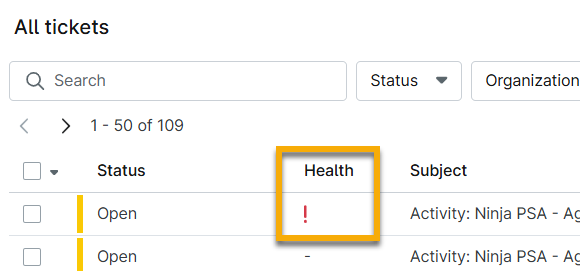
In the Health column, an exclamation point (!) will appear when you label a ticket as high priority and high severity. A yellow triangle alert  will display when you link ongoing alerts to the ticket.
Ticket Sections: Overview
When you open a ticket to begin working on it, there are numerous modifiable fields. For an explanation of these sections, refer to NinjaOne Ticketing: Anatomy of a Ticket.
Merge, Change, and Split Multiple Tickets
To merge, change, or split a ticket, activate one or more boxes to the left of the ticket status and then select an option at the top of the table. Open the actions menu to review additional functions. For further instructions, refer to NinjaOne Ticketing: Merge, Change, and Split.
Resolve a Ticket
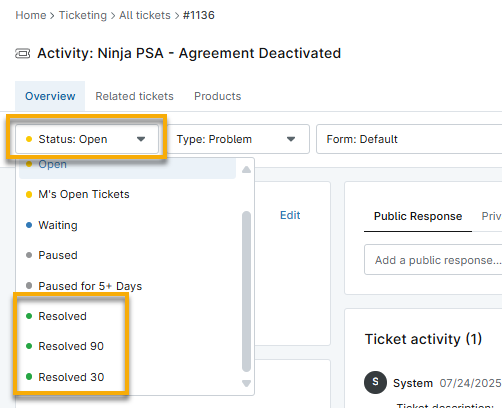
To resolve a ticket as Done in NinjaOne, select the appropriate Resolved status from the Status drop-down menu within the ticket. If the ticket is designated as a parent, then the confirmation prompt will inform you that all attached child tickets will also be resolved.
Export Tickets
Export Multiple Tickets
You can export tickets from any board by clicking the export icon. Then, select the applicable option from the drop-down menu.

Export a Single Ticket
You can use the actions menu to export the single ticket details from within any open or deleted ticket. The ticket will export the data to a CSV file named after the ticket ID, including all fields and both public and private comments.
Additional Resources
Refer to NinjaOne Ticketing: Resource Catalog to learn more about NinjaOne Ticketing.