
Topic
This article provides details and examples of how NinjaOne Ticketing behaves in different situations and examples of automation templates that you can use to improve your experience with NinjaOne Ticketing.
Environment
NinjaOne Ticketing
Description
These scenarios assume that technicians and end users have been given full permissions for Ticketing in their account profile.
Please note that most ticketing scenarios depend on the configurations set in the NinjaOne Ticketing administrator app. For details, see NinjaOne Ticketing: Setup and Configuration.
Please select from below to learn more.
- Public Response Scenarios
- Private Notes Scenarios
- Other Ticket Scenarios
- Automated Status Change Scenarios
- Ticketing Automation Templates
- Additional Resources
Status Updates and Notifications
Whether you receive notifications for ticket status changes, detail updates, or comments depends on how you set up the System Email Notifications on the Ticketing settings page in Administration → Apps.
These settings override the technician account notification settings, so if a technician has their account configured not to receive email notifications, they will receive emails related to any ticket to which they are assigned.
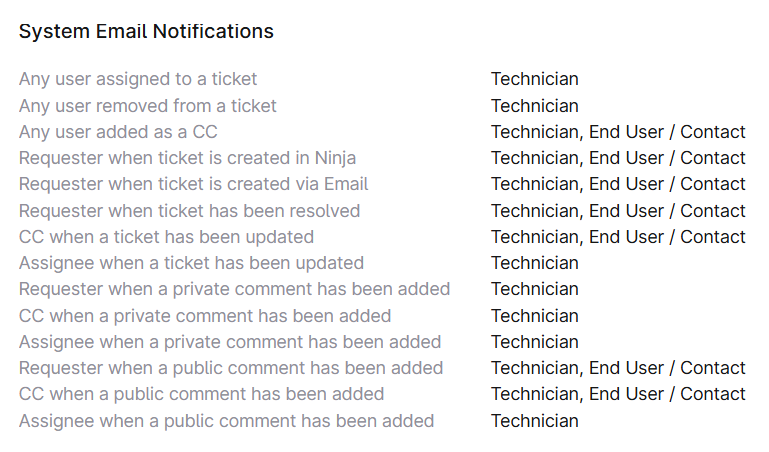
Figure 1: NinjaOne Ticketing application configuration page → System email notification settings
Public Response Scenarios
Public Response Publication
If a technician posts a Public Response from within the ticket, the following parties are notified via email:
- Assignee (unless the technician who posted the response is also the assignee)
- Requestor
- CC
Email Thread Response
- Action: End user replies to an original email thread, not a ticket (i.e., there is no ticket number in the Subject), and technician responds.
- Result: Reply is added to the ticket and does not create a new ticket.
- Action: Tickets are merged.
- Result: All replies to messages on the closed ticket will display on the ticket it was merged into.
- Action: Tickets are split.
- Result: All replies to messages will go to the original ticket.
Replies to Public Response
- Action: End user replies to a Public Response from their inbox or creates a response from their NinjaOne account.
- Result: Reply displays as a Public Response on the NinjaOne ticket.
- Action: Technician or CC replies to a Public Response from their inbox.
- Result: Reply displays as either a Private Note or Public Response on the NinjaOne ticket based on the configurations in NinjaOne Ticketing General → Settings.
Mentions Within a Public Response
- Action: End user mentions a technician.
- Result: Nothing happens.
- Action: End user mentions an unregistered email.
- Result: Nothing happens.
- Action: Technician mentions another technician.
- Result: Mentioned technician receives a notification via email.
Technician is added to the NinjaOne ticket as CC.
The mentioned technician must have permission to view tickets assigned to the organization related to the ticket.
Private Notes Scenarios
Private Note Publication
- Action: Technician posts a Private Note from within the ticket.
- Result: Assignee is notified via email (unless the assignee is the same technician who posted the Private Note).
Replies to Private Note
- Action: Technician replies to a private note via email.
- Result: Dependent on the Technician Email Response option selected under Administration → Apps → Ticketing → General → Settings.

Figure 2: NinjaOne Ticketing application configuration page → Edit Settings
Mentions Within a Private Note
- Action: Technician mentions another technician within a Private Note.
- Result: The mentioned technician receives a notification via email.
The mentioned technician is added to the NinjaOne ticket as a CC.
The mentioned technician must have permission to view tickets assigned to the organization related to the ticket.
End users and contacts are not notified on, nor able to view, Private Notes.
Other Ticket Scenarios
For information on how tickets can be created automatically based on activities or conditions, please see NinjaOne Ticketing Automation Options.
For instructions on how to create a ticket manually as a technician, please see NinjaOne Ticketing: Ticket Creation and Management.
- Action: End User creates a ticket and CCs an email (either registered as a contact in NinjaOne or not).
- Result: Ticket shows up in the NinjaOne Ticketing dashboard showing the end user message and the CC information.
- When the ticket is updated, assignee, end user, and CC receive notification via email.
- Action: Requestor or CC responds to a resolved ticket via email.
- Result: The ticket reopens with the response listed as a Public Response.
- Action: Requestor forwards a ticketing email.
- Result: The recipient will receive the email but will not be added to the ticket as a CC and will not receive additional notifications unless manually sent. They will not be able to use the embedded links in the email.
- Action: Requestor responds to a Public Response via email and CCs a new email.
- Result: The CC recipient will see the Requestor response but will not be added to the ticket as a CC and will not receive additional notifications unless manually sent. They will not be able to use the embedded links in the email.
Automated Status Change Scenarios
You can create additional automation rules under Administration → Apps → Installed → Ticketing → Automation.
- Resolved to Closed
- Technician manually sets a ticket to Resolved; the ticket automatically changes to Closed based on the configurations in NinjaOne Ticketing Custom Status.
- Resolved to Open
- Requestor or CC responds to either a status change or Public Response via email.
- Requestor adds a response to the ticket from their NinjaOne profile.
- Waiting to Open
- Requestor or CC responds to either a status change or Public Response via email.
- End user updates the ticket through the portal.
Ticketing Automation Templates
You can use event- and time-based automations within the NinjaOne Ticketing system to create custom alerts, actions, and user experiences. This section provides some examples of how to use the automations.
- Technician Alert for a New Ticket
- Automatically Escalate Critical Severity Tickets
- End User 48 Hour Ticket Reminder
- Outside of Office Hours Ticket Notification
- New Unassigned Ticket Reminder
- Assign Ticket to a Technician Based on Ticket Subject
- Assign Ticket to a Technician Based on Severity
Technician Alert for a New Ticket
The following automation is set to alert technicians when a new ticket has been submitted but has not been responded to in 2 hours.
- Refer to NinjaOne Ticketing: Automation to learn how to create automations.
Create a time-based automation with the following fields:
Field Data Conditions Add condition "Time since new" Qualifier "Greater than" Hours "2" Minutes "0" Actions Add action "Email" or "Send notification" Recipient (email) "Assignee" Subject (email) Insert a subject of your choice Body text (email) Enter a message of your choice Placeholders (email) You can use these in the ticket Subject and Body text to insert variables from the ticket, such as requester or date.
If you select "Send notification" for the action but do not want to send an email, you can send a notification through a different notification channel if you set one up in NinjaOne. To learn more, refer to Notification Channels.
Automatically Escalate Critical Severity Tickets
This automation will automatically assign an additional technician if the ticket Severity is set to "Critical" and has not been resolved within 48 hours.
- Refer to NinjaOne Ticketing: Automation to learn how to create automations.
Create a time-based automation with the following fields:
Field Data Conditions Add condition: Meets All "Time since open" Qualifier "Greater than" Hours "48" Minutes "0" Add condition: Meets All "Severity" Qualifier "Equals → Critical" Actions Add action "Update ticket → Assignee → [select technician]"
End User 48 Hour Ticket Reminder
This alert will notify end users that have not responded to the most recent ticket message in more than 48 hours.
- Refer to NinjaOne Ticketing: Automation to learn how to create automations.
Create a time-based automation with the following fields:
Field Data Conditions Add condition "Time since waiting" Qualifier "Greater than" Hours "48" Minutes "0" Actions Add action "Email" or "Send notification" Recipient (email) "Requester" Subject (email) Insert a subject of your choice Body text (email) Enter a message of your choice Placeholders (email) You can use these in the ticket Subject and Body text to insert variables from the ticket, such as requester or date.
If you select "Send notification" for the action but do not want to send an email, you can send a notification through a different notification channel if you set one up in NinjaOne. To learn more, refer to Notification Channels.
Outside of Office Hours Ticket Notification
This automation will send notifications to users if the ticket is submitted outside of business hours.
Before you create this automation, ensure your business hours are configured on the NinjaOne Ticketing configuration page under the General tab.
- Refer to NinjaOne Ticketing: Automation to learn how to create automations.
Create a time-based automation with the following fields:
Field Data Conditions Add condition "Business hours" Qualifier "Outside" Actions Add action "Email" or "Send notification" Recipient (email) "Requester" Subject (email) Insert a subject of your choice Body text (email) Enter a message of your choice Placeholders (email) You can use these in the ticket Subject and Body text to insert variables from the ticket, such as requester or date.
If you select "Send notification" for the action but do not want to send an email, you can send a notification through a different notification channel if you set one up in NinjaOne. To learn more, refer to Notification Channels.
New Unassigned Ticket Reminder
This automation will create an email alert for technicians when a new ticket is created and does not have a technician assigned to it.
- Refer to NinjaOne Ticketing: Automation to learn how to create automations.
Create an event-based automation with the following fields:
Field Data Conditions Add condition: Meets all "Action" Qualifier "Equals → Ticket Created" Add condition: Meets all "Primary assignee" Qualifier "Not present" Actions Add action "Email" or "Send notification" Recipient (email) Select one or more recipients of your choice Subject (email) Insert a subject of your choice Body text (email) Enter a message of your choice Placeholders (email) You can use these in the ticket Subject and Body text to insert variables from the ticket, such as requester or date.
If you select "Send notification" for the action but do not want to send an email, you can send a notification through a different notification channel if you set one up in NinjaOne. To learn more, refer to Notification Channels.
Assign Ticket to a Technician Based on Ticket Subject
This automation will assign tickets to technicians based on keywords found in the ticket subject.
- Refer to NinjaOne Ticketing: Automation to learn how to create automations.
Create an event-based automation with the following fields:
Field Data Conditions Add condition: Meets all "Action" Qualifier "Equals → Ticket Created" Add condition: Meets all "Subject" Qualifier "Contains → [enter keywords of your choice separated by a comma]" Actions Add action "Update ticket" Qualifier "Set primary assignee → [select a technician of your choice]"
Assign Ticket to a Technician Based on Severity
This automation will assign tickets to technicians based on Severity ticket field.
- Refer to NinjaOne Ticketing: Automation to learn how to create automations.
Create an event-based automation with the following fields:
Field Data Conditions Add condition: Meets all "Action" Qualifier "Equals → Ticket Created" Add condition: Meets all "Severity" Qualifier "Equals → [select a severity of your choice]" Actions Add action "Update ticket" Qualifier "Set primary assignee → [select a technician of your choice]"
Additional Resources
Refer to the following resource(s) to learn more about NinjaOne Ticketing: Ticketing: Resource Catalog.