
Environment
NinjaOne platform
Topic
Use the new Global Search utility to quickly locate information within your NinjaOne console. By using queries and filters, you can search for items located in the following console areas:
- All
- Backup
- Checklists
- Documents
- Organizations
- Devices
- Groups
- KB Articles
- Policies
- Users
- Ticketing
- Administration
The search bar is always accessible at the top of the NinjaOne console. From the search bar, you can conduct a basic search query using a full or partial search term, or refine your search using the advanced filtering options.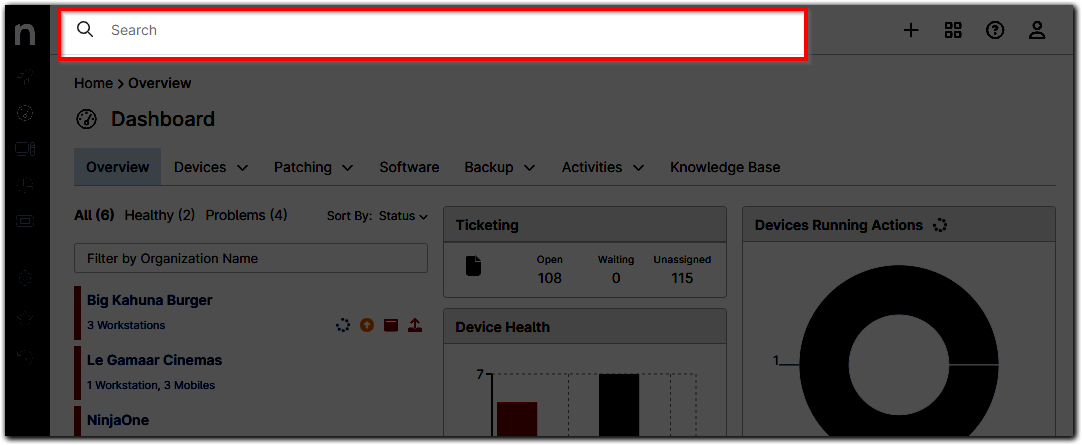
- Introduction
- Conduct a Basic Search
- Search With Filters
- Search Administration pages
- Access the Device Run Menu
- Bookmark Your Query
- Related Documentation
Conduct a Basic Search:
When you click in the search bar, the last five recent searches appear below. You can also reveal the search bar and recent searches by pressing the slash key (/) anywhere in the NinjaOne console.
To search for an item in the NinjaOne console, enter a complete or partial search term in the search bar. As you type, suggested results will appear below the search bar.
Select a suggested result or click View all results to view the complete list. 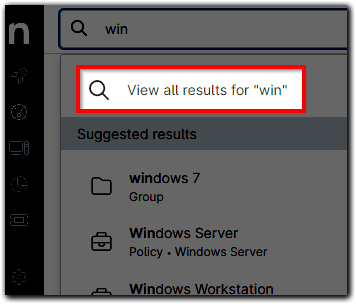
Clicking Enter or View All Results will return an expanded list of results beyond the Suggested Results drop-down list. The search will also return exact matches.
Search With Filters:
Use the filtering options to refine your search to within a specific filter category.
- To expose the Filter menu
 , click in the search bar.
- From the filter list, select a category. The selected category displays in the search bar.


You can also select a category by typing the category name in the search bar followed by a colon. To remove the filter, click the X next to the filter category. - Enter a full or partial search term next to the filter category, and then press Enter. If your query does not return a result, the Global Search utility provides advanced filtering suggestions for your search.

- While viewing all results, browse though the other filter categories using the filter options to the left of the search results.

| When searching for devices, the search results also include the last logged-in user. |
Search the Administration pages:
Use the Global Search utility to locate specific administrative information, or to locate specific sections under Administration, such as Automation or Policies.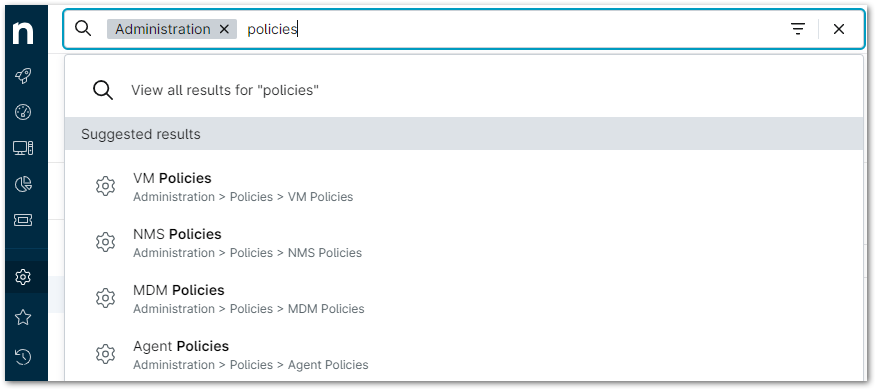
Access the Device Action Menu:
When searching for devices, you can access a device's Action menu  directly from your recent searches, or from your search results. You can also access the Action menu from your device dashboards.
Bookmark Your Query:
When you enter a search query, the filter and search term display as part of the URL in your web browser. You can use your web browser's bookmark feature to save your queries for future use. To view a bookmarked query, open a new browser tab, and then select the bookmark. You can only bookmark the query after pressing Enter or selecting View All Results in the NinjaOne console.
You can also navigate away from your search query to a different area of the console, and your latest query will remain in the console search bar.