
Topic
NinjaOne Ticketing allows NinjaOne users and technicians to create, track, and resolve tickets without the need for third-party software.
Environment
NinjaOne Ticketing
Description
Access to tickets is based on organization access, meaning a technician with access to an organization will have access to all tickets for that organization, regardless of the permissions set in the Ticketing section. The only exception is the Pending emails board; if this permission is set to No Access, the technician cannot see the ticket unless they are assigned to it.
Select a category to learn more:
- Granting Technicians Access to Ticketing
- Setting up Technician Email Signatures
- Granting End Users Access to Ticketing
- Viewing and Managing Contacts
- Additional Resources
Granting Technicians Access to Ticketing
The System Administrator role has access to NinjaOne Ticketing by default. To enable NinjaOne Ticketing for technicians, follow the steps below. These instructions will use a technician account as an example, rather than a technician role.
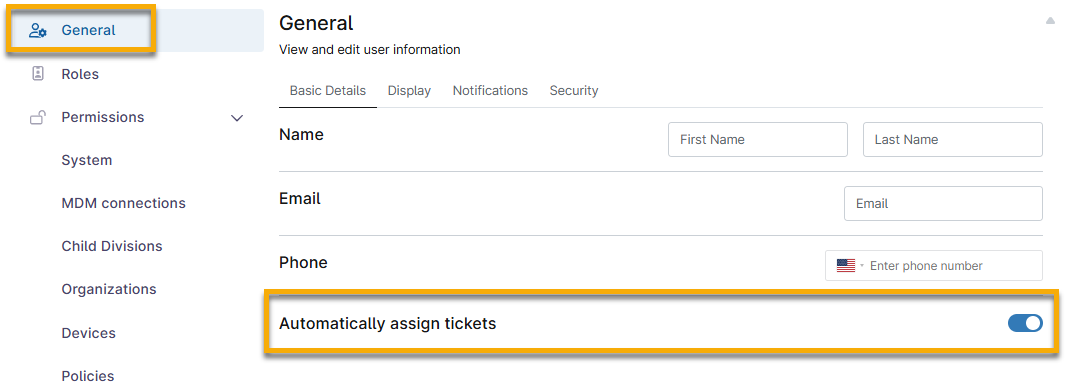
- In the General section, use the Automatically assign tickets toggle to automatically assign tickets triggered by an event-based automation. If a system administrator configures the event to auto-assign using "fewest open tickets" or "longest time since last ticket assignment," the ticket is automatically assigned (based on the selected condition) to whichever technician has the fewest open tickets or the longest time since they were last assigned a ticket. Learn more at NinjaOne Ticketing: Automation Configuration Definitions.
- Set up access to an organization at Permissions → Organizations. The technician should have at least View access to tickets for one or more organizations.
- Select the Enable access toggle to activate the permissions.
- Use the Default Access drop-down menu to control access to all organizations.
- Use the table to control access to individual organizations. Even if you set up default access, you can configure different access levels for each organization.

- Configure further permissions at Permissions → Ticketing. Select the Enable access toggle to activate the permissions.
The Board Access table controls access to the ticket board from the sidebar menu. Technicians can still access the tickets from the Ticketing tab on the organization dashboard. For more information about the available permission options, refer to NinjaOne Platform: Permission Settings for Technicians.

- After you have set the access levels you would like, click Save.
Set up Technician Email Signatures
Technicians can set up email signatures to automatically apply to the end of their public responses on a ticket.
A signature can be created from the technician account page under General → Basic Details → Signature. Technicians can use text and inline images in the WYSIWYG field.

Grant End Users Access to Ticketing
You can grant end users the ability to view, update, and create tickets in NinjaOne. Similarly to technicians, you can control access to tickets for all organizations or a specific organization.
- Configure organization access by using the Select organization drop-down menu in the Profile section.

- Expand the NinjaOne apps section and select Ticketing to configure permissions.
- Select the Enable access toggle to activate the permission settings.

Add or Edit Ticketing Permissions in Bulk
Alternatively, you can manage access to organization-specific NinjaOne tickets from the organization configuration page:
- Navigate Administration → Organizations and select an organization to edit.
- Click End Users and select the checkbox next to one or more users.
- Click Edit Ticketing Permissions.

- Move your cursor over the tooltips to view a description of each permission and use the toggle switches to control access.
- Click Save in the permissions dialog and then click Save again at the top of the organization page.
Administrators control technicians' ability to edit ticket comments by using the Allow users to edit comments toggle in Administration → Apps → NinjaOne Ticketing → General.
This setting is active by default. For more information about this setting and how it interacts with technician role permissions, refer to NinjaOne Ticketing: Configure General Settings.
View and Manage Contacts
Create contacts in NinjaOne to receive notifications for ticket communication and changes. Contacts can also submit tickets to your NinjaOne instance through the email domain you set up in Administration → Apps → NinjaOne Ticketing → Email Domain.
Create a Contact Account Section
- Navigate to Administration → Accounts → Contacts.
- Click Create Contact.
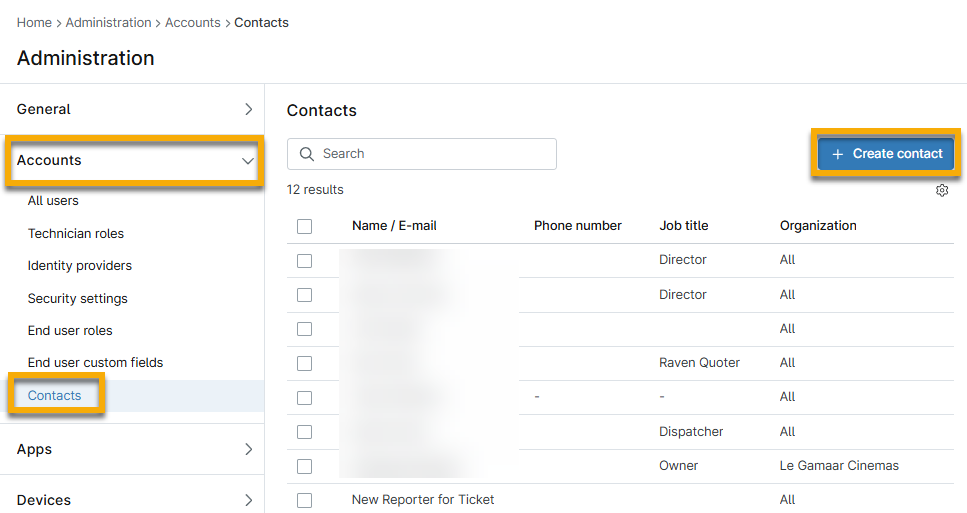
- Provide the contact's first name, last name, email address, phone number, job title, and organization (optional), and then click Save.
Import Organization Contacts
You can import contacts for the organization in bulk by copying and pasting from a CSV file. You must present the data in three columns in the following order: First Name, Last Name, and Email. All columns must contain data, and emails must be unique.
- Navigate to an organization editor.
- Click Contacts and select Import Contacts.

- Paste your user list from any spreadsheet into the Import Contacts dialog. Use Figure 10 as an example to format your data correctly.

Create New Contacts in a Ticket
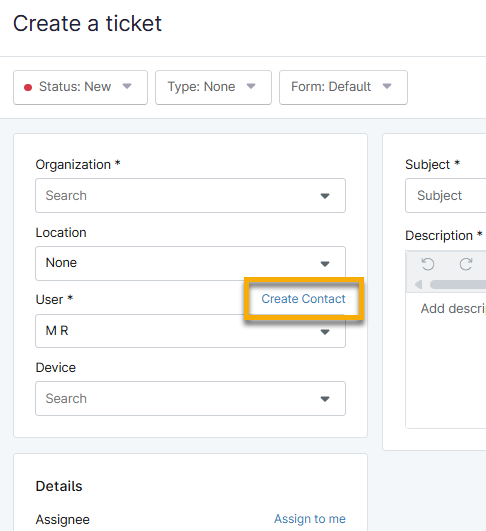
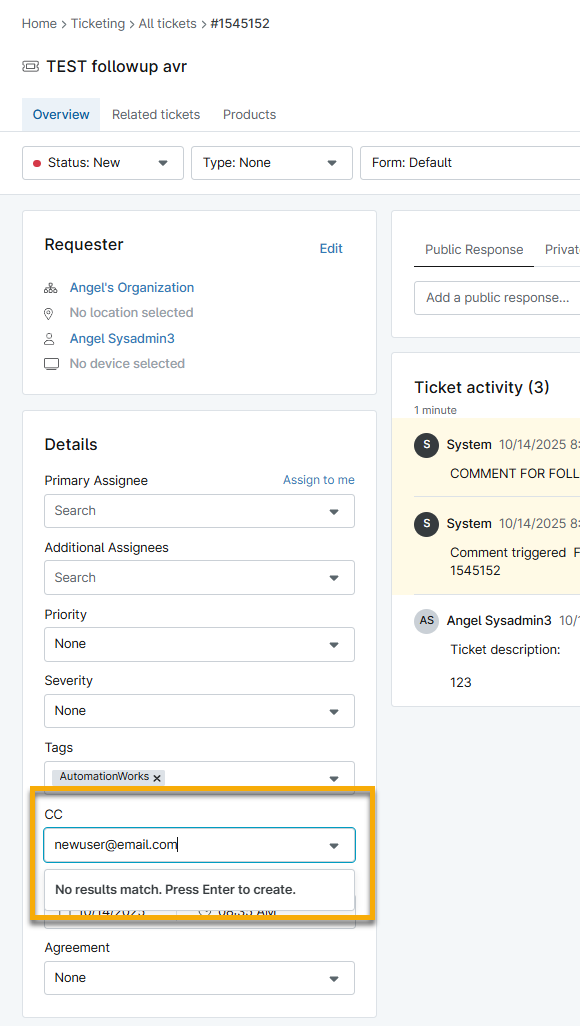
If you need to list a new contact as the ticket reporter, you can create the contact in a new ticket. If the contact needs to be added as a CC ("carbon copy," or someone who can view the correspondence on a ticket), you can add them to an existing ticket.
- New requestor contact: From within a new ticket, click Create Contact in the Requestor section.
- New CC contact: Enter the email address into the CC field and click Enter on your keyboard.
Additional Resources
Refer to NinjaOne Ticketing: Resource Catalog to learn more about NinjaOne Ticketing.