
Topic
This guide goes over how to set up the Accelo integration if you don't yet have an existing account with Accelo. If you already have an Accelo account, refer to Accelo: Setup with an existing account.
Environment
NinjaOne and Accelo integration
Description
Setting up Accelo with a New Account
- Navigate to Administration → Apps, and then click Add app.

Figure 1: NinjaOne Administration → Apps → Installed → Add app
- Locate and select Accelo from the list of apps.
- On the Accelo application configuration page, click Enable in the top right corner.
The Accelo settings modal displays. - Click the Don't have an Accelo account hyperlink and follow the prompts provided by Accelo to create a new account.

Figure 2: NinjaOne → Accelo settings → No Accelo account
- Create a custom Accelo URL for your company, select total number of employees, and select the Terms & Conditions box. Then, click Next.
Enter your profile information.
Important Notes: The Phone and Password fields are mandatory. Additionally, the "Building Your Deployment - Please Wait" message could take some time depending on your number of devices.
When deployment is finished, you'll receive a confirmation email stating that the account has been created successfully.- When prompted, choose to link your external services to Accelo or skip the integration setup.
- When you see the following screen, return to the NinjaOne platform:
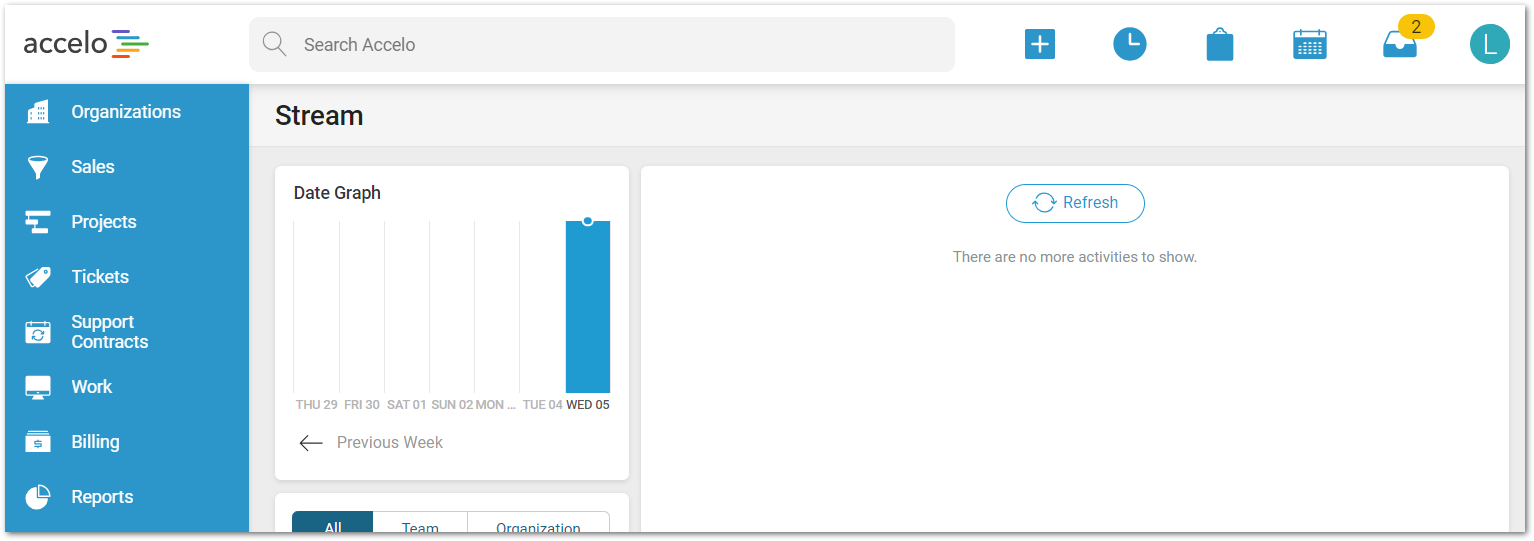
Figure 3: Accelo platform
- Click Finish to complete the integration.
You should now see the status: Enabled.
Within Accelo, you can verify the NinjaOne Integration is configured. Click on your Profile icon → Integrations → NinjaRMM.

Figure 4: Accelo platform → Profile → My Integrations
Configuring NinjaOne's Help Request Form Option for Accelo
NinjaOne's systray icon includes a help request form option, which allows end users to quickly submit requests for help from their machines. The following steps are required if you want to receive these requests in Accelo.
Email Display for the Help Request Form
Help request form submissions always come from the email '[email protected]'. To ensure these requests display properly in Accelo, you need to add that email as a contact within your Accelo environment.
The contact you create needs to be associated with an organization (i.e., "company") in Accelo. The company created does not need to be used aside from housing the contact help request form.
- Navigate to your Accelo dashboard and select Create (+) → Company. If you already have a company with which you would like to associate the contact, click Create (+) → Contact instead.
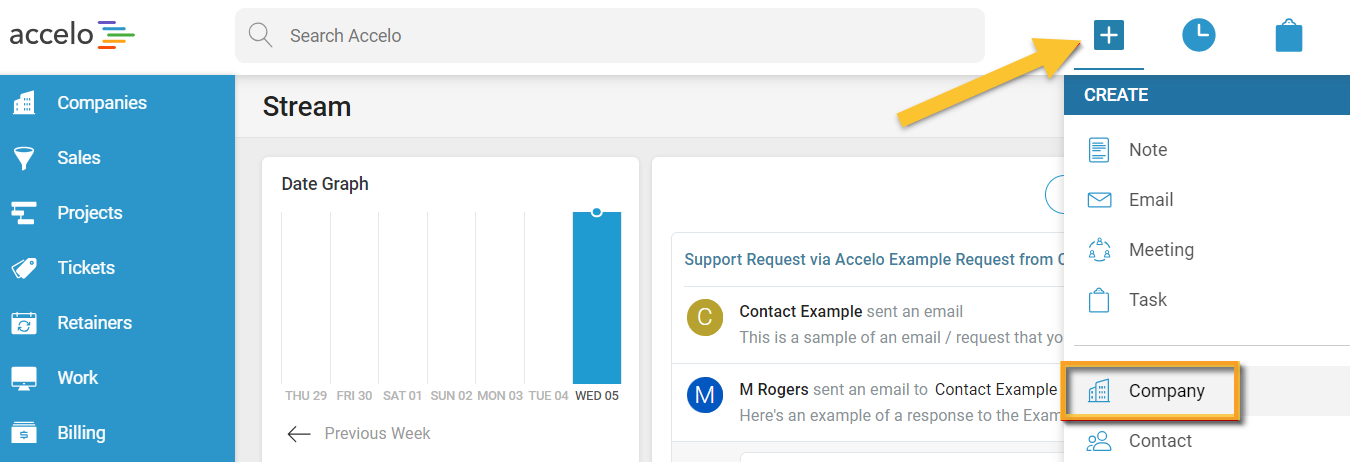
Figure 5: Accelo platform → Create company
- Designate a name for the new organization at the top of the page.
- In the process of creating the organization, you also have the option to create the contact. Fill out the fields for a new contact or click Link Existing if a contact for '[email protected]' already exists in your Accelo account.
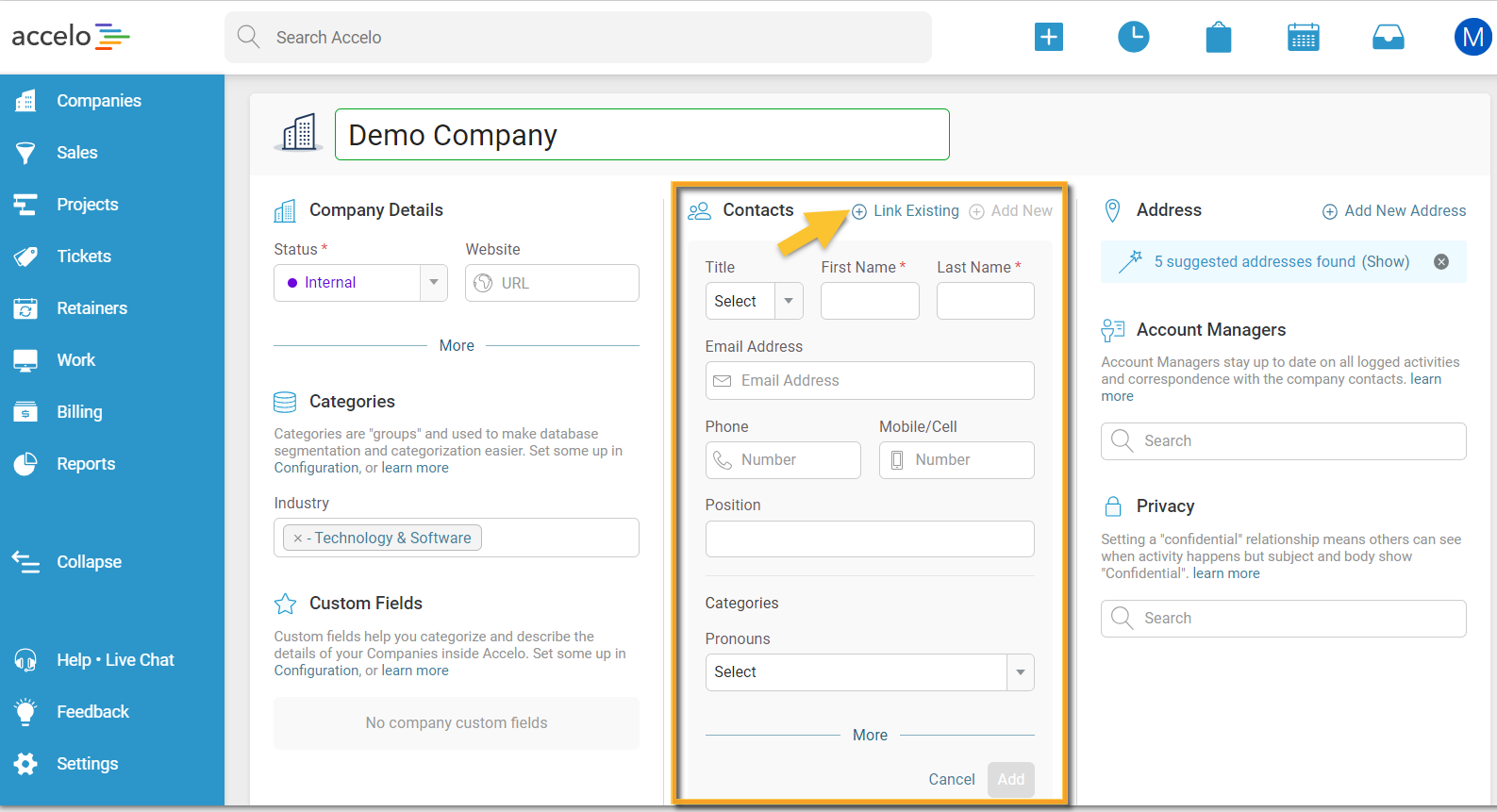
Figure 6: Accelo platform → New company → Link contact
- Click Companies in the left navigation pane and select any company on the list if you wish to add the '[email protected]' contact to additional companies.
- Once the company overview page is open, open the Contacts tab and click Add Contact.
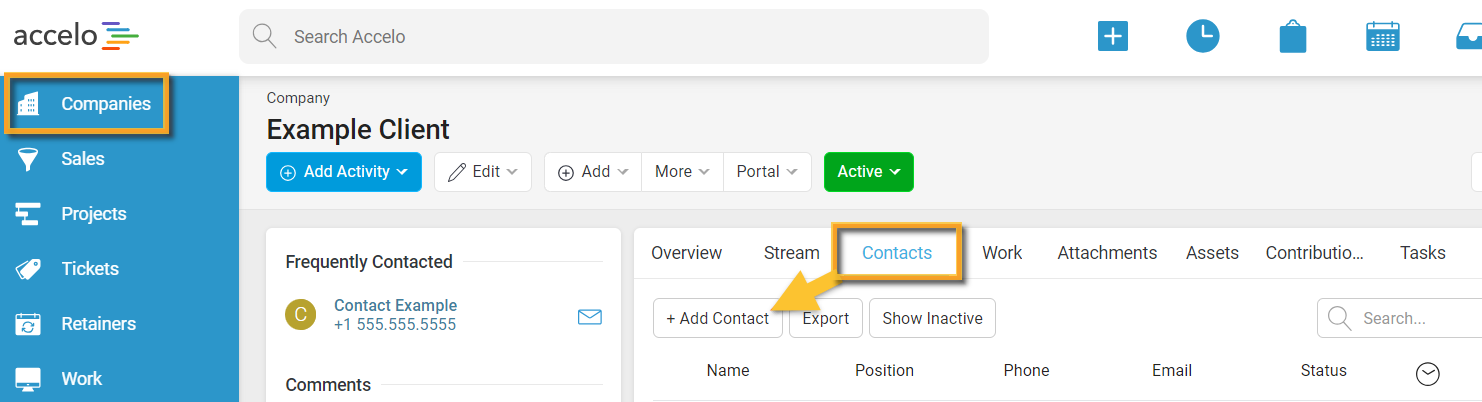
Figure 7: Accelo platform → Companies → Contacts → Add contact
For more information about creating an organization/contact, please see Accelo's documentation.
Email Request by Type
When an email address is added to a request type, any email sent to that address will be created as new requests for the type selected.
- Within Accelo, navigate to Settings (gear icon) → Requests → Types.
The Request Type List table displays to the right. - Click the title for the request type that you want to set up for receiving submissions of help request forms.
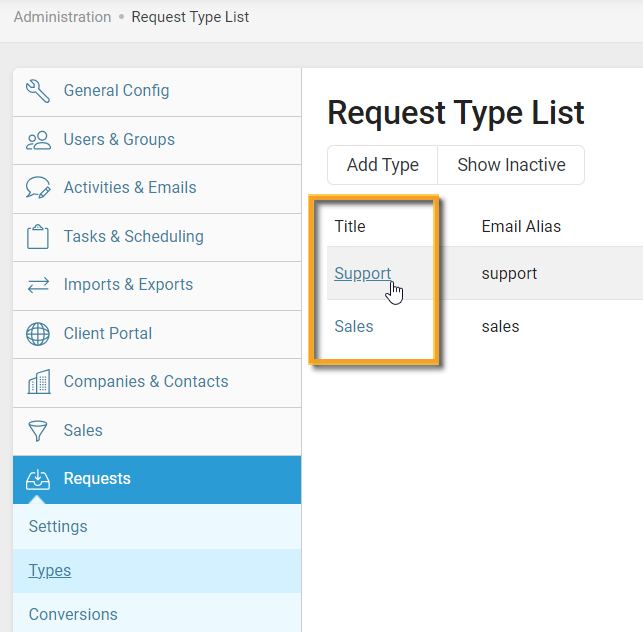
Figure 8: Accelo request type list
- Note the Incoming Capture Address listed, as this will be used in the next set of steps.
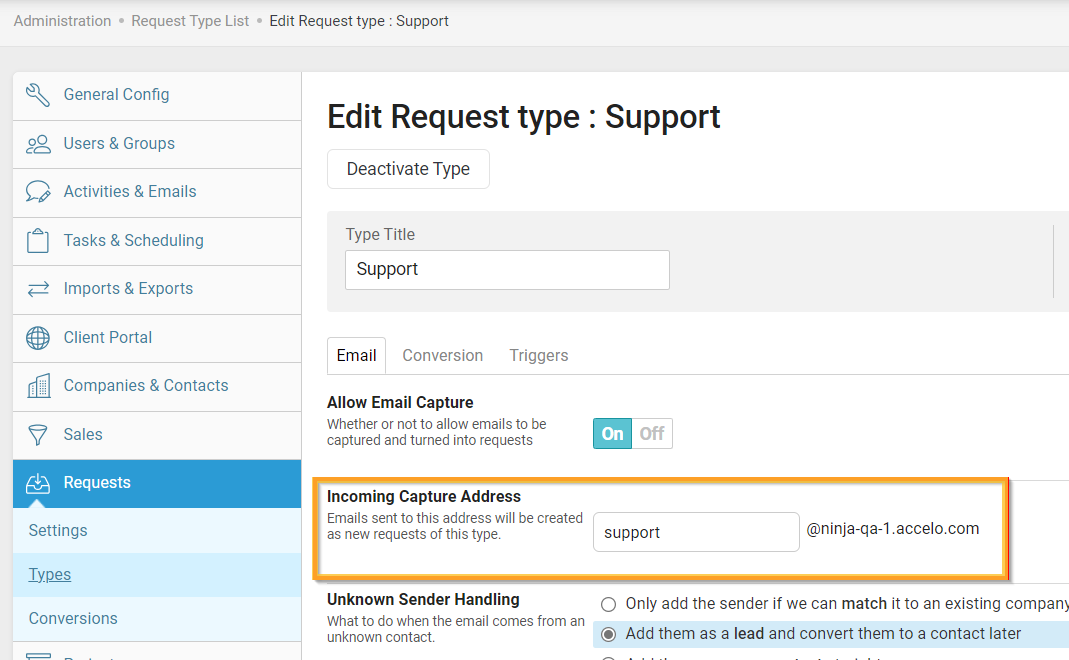
Figure 9: Accelo request type → Incoming Capture Address
Forwarding Rule for Incoming Capture Address
Within your email system, set up a rule to automatically forward help request form submission emails from NinjaOne to the Incoming Capture Address you noted in the steps above.
You should now see help request form submissions come through as Alerts in Accelo!