
Topic
This article describes how to deploy the NinjaOne agent using a generic installer tool.
Environment
NinjaOne agent
Description
NinjaOne offers a "generic" installer when deploying the NinjaOne agent to Windows, Linux, and macOS endpoints. You can also use alphanumeric tokens with the generic agent installer; to learn more, refer to NinjaOne Agent Installation: Agent Tokenization.
Installation of the generic agent is much easier to automate with a script. All you need is a way to modify the token in the script (such as a command line parameter) to create a customized installation routine for a server, organization, location, and role. And if you're migrating to NinjaOne from a platform with preexisting scripts, it's even easier.
Enable the Generic Installers
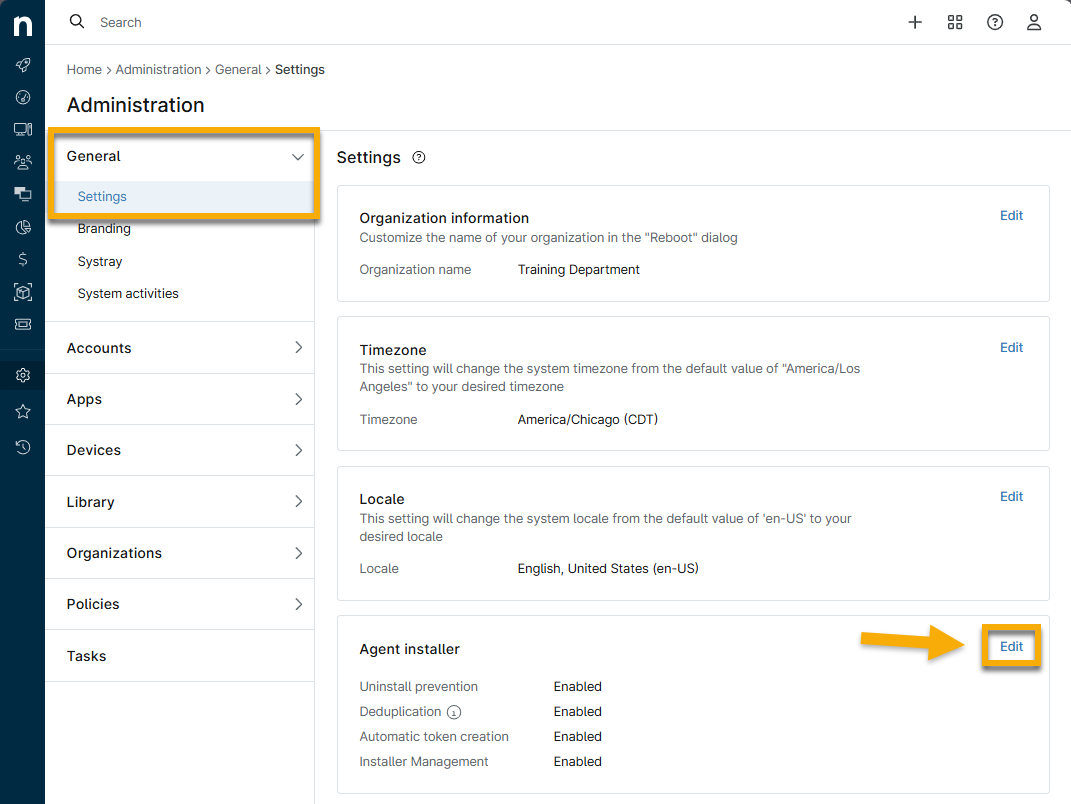
Before you can access agent installers on the dashboard, you must enable the administrator settings. To do so, perform the following steps:
- In the NinjaOne console, navigate to Administration → General → Settings.
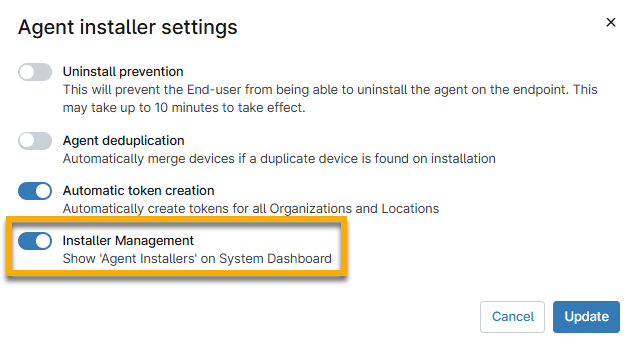
- Click Edit in the Agent installer widget.
- Activate Installer Management to show the Agent Installers feature on Dashboard pages.
Access the Generic Installers
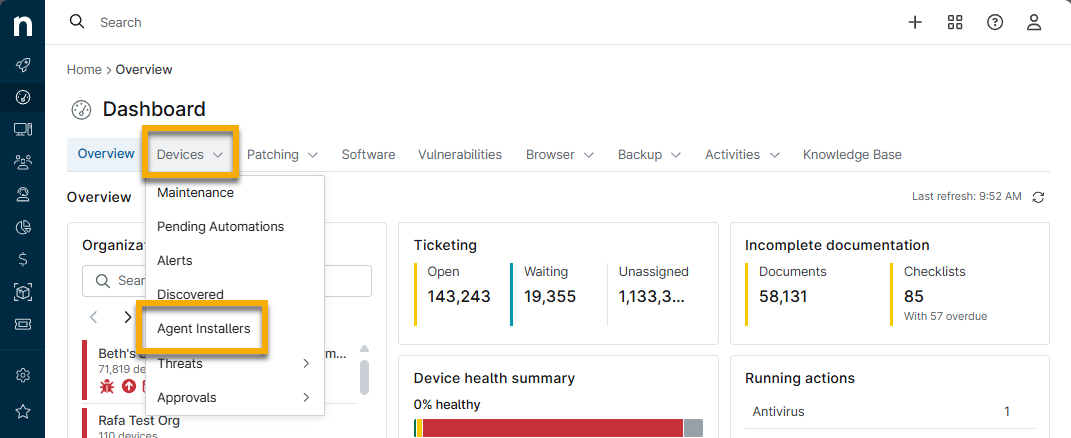
You can access the generic installers from the Dashboard page. To do so:
- In NinjaOne, access the dashboard for the selected organization or system.
- Open the Devices tab and select Agent Installers.
- Click Generic Installers.
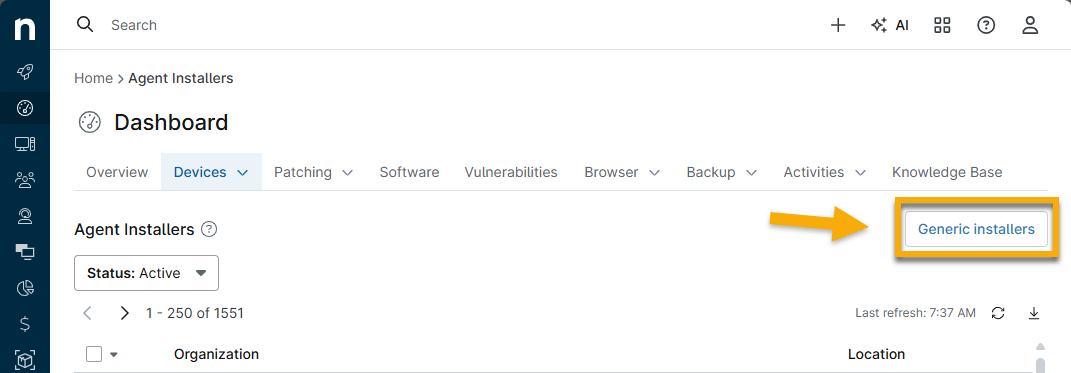
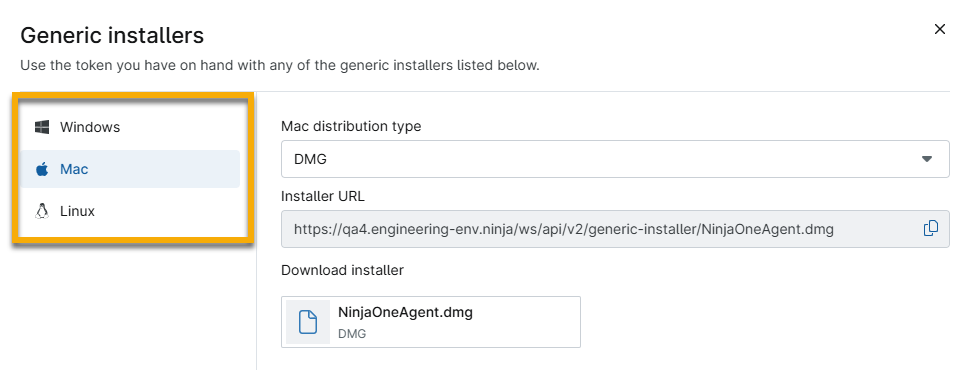
The Generic installers modal will open, providing download resources for all supported operating systems and surfacing the Installer URL value for each. Certain operating systems will allow you to select the distribution and architecture type, if applicable.
Additional Resources
To learn how to deploy the NinjaOne agent to supported endpoints, refer to the following articles:
- Tokenization Troubleshooting: Installation Issues
- Agent Installation: Add a Windows Device
- Agent Installation: Add a Mac Device
- Agent Installation: Add a Linux Device
- Learn about cross-platform software (external link)