
Topic
This article explains how to create a Runbook report in NinjaOne.
Environment
NinjaOne Reporting
Description
The Runbooks report allows you to provide a curated export of documentation in an easily readable PDF format or export information for disaster recovery. If configured, the documentation will retain branding.
Select a topic to learn more:
Create a Runbook Report
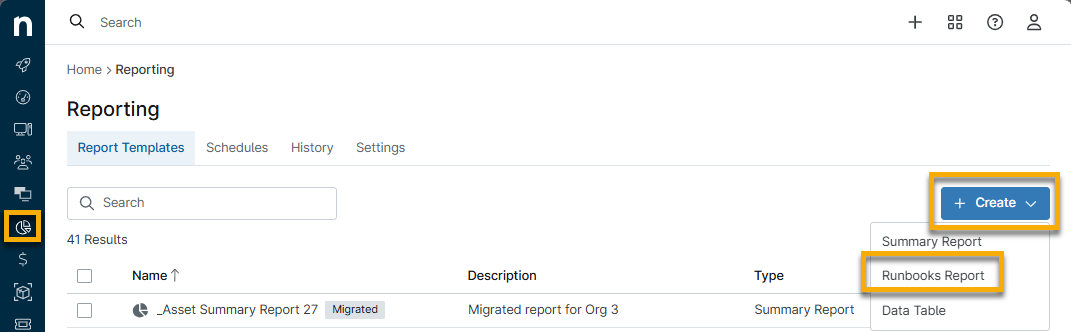
- Navigate to Reporting using the sidebar menu. Then, click Create and select Runbook Reports.
- In the Create Runbook dialog, enter a title and a description for the new data table report.
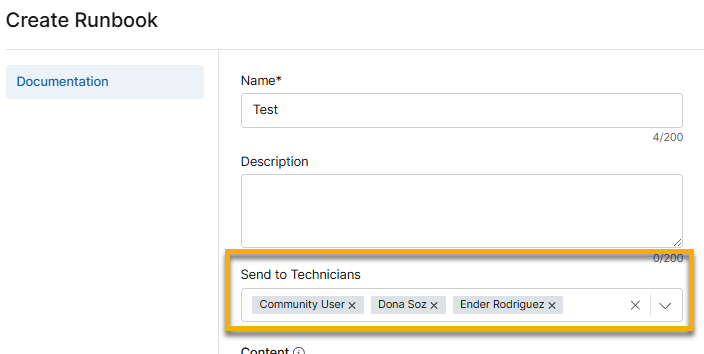
- Use the Send to Technicians menu to select which technicians or end users will receive the report. You can select multiple options from the available drop-down menu. Remove a selection by clicking the X next to the name.
- Select one or more Content checkboxes for the types of documentation you want to include in the report.
- Include global articles: Include all articles published in the Knowledge Base at the system level.
- Include organization articles: When you select this option, you can specify whether you want to add content from all organizations or specific organizations. If you select Specific organizations, you can choose one or more organizations to include from the Organizations drop-down menu.
- Include Apps & Service documents: Include documents created from a template for one or more organizations. When you select this option, you can also choose to include secure field values in the report. The PDF will also include any related items.

- Click Save.
NinjaOne will process your request and send a PDF copy of the report to your NinjaOne email from [email protected].
- Click Download Runbook in the body of the email to open the PDF in your Web browser.
Additional Resources
Refer to Reporting: Resource Catalog to learn more about our reporting tools.