
Topic
This article explains how to create search groups on the Devices search page in NinjaOne.
Environment
NinjaOne Endpoint Management
Description
Technicians with the appropriate permissions can use the search and grouping functionalities to filter devices based on certain criteria. You can customize your criteria for device groups, such as "devices are in the Up status," or "backup status is active, and device threats are quarantined." You can combine as many filters as needed to sort the devices into specific groups.
Once created, you can use these groups as a target for scheduled tasks. NinjaOne includes numerous default groups, or you can use the instructions in this guide to create your own.
Index
Select a category to learn more:
- Grant Technicians Permission to Save Search Groups
- Device Groups and Search Groups
- View Device Groups
- Additional Resources
Grant Technicians Permission to Save Search Groups
A system administrator must give the individual technician or technician role a minimum of View permission for Organizations → Default Access and Devices → Default Access. Otherwise, data will not be visible on the Devices search page, and therefore, the Save function will be inactive.
Additionally, set the System → Create Device Groups permission to Allowed.

Device Groups and Search Groups
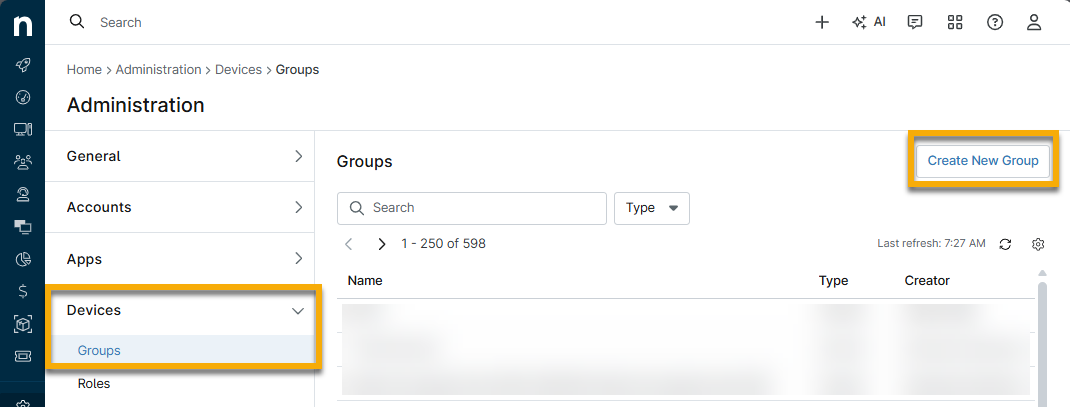
If you click Create New Group at Administration → Devices → Groups, NinjaOne will direct you to the Devices search page, where you add the filters to create the search group.
- Use the search filters on the Devices page to create the criteria for your device group. Refer to Find and Manage Endpoints from the Devices Search Page to learn more about filtering capabilities when searching for devices.
- Click Save group.

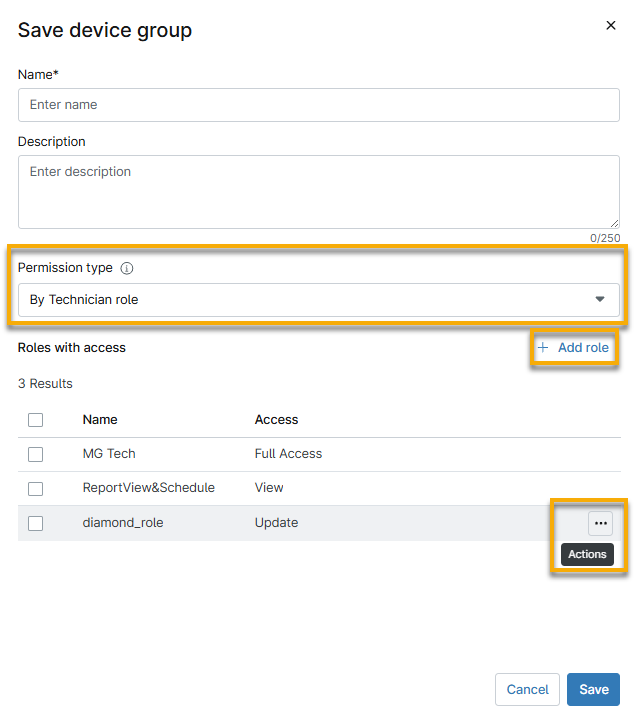
- Enter a name for the group and an optional description in the Save device group dialog.
- Use the Permission type drop-down menu to share the device group or keep it private. If you are a system administrator, you can share the device group with all technician roles. If you are a technician, you can only share the device group with roles of which you are a member.
- Click Add role to specify which technician roles have access.
- Use the Actions menu to change the access level.
- Click Save.
View Device Groups
After you create the device group, you can access it from the Devices search page or from Administration → Devices → Groups. Both pages contain your custom device groups and NinjaOne's built-in device groups.
View Device Group from the Search Page
Use the following instructions to access the device group from the Devices page.
- Click Load group.

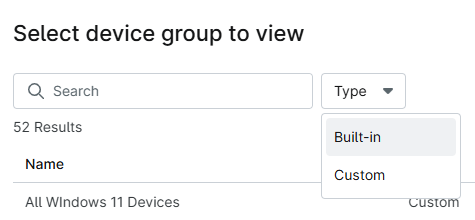
- Use the search field to find the device group by name. Optionally, you can use the Type filter to sort results by custom or built-in groups.
View Device Group from Administration
From Administration → Devices → Groups, use the search field to find the device group by name. Optionally, you can use the Type filter to sort results by custom or built-in groups.
Additional Resources
For a list of frequently asked questions about Search and Grouping, refer to NinjaOne Endpoint Management: Frequently-Asked Questions About Search and Grouping.
Refer to NinjaOne Endpoint Management: Scheduled Tasks to learn how to create scheduled tasks.