
Topic
This article explains how to run antivirus scans, sync installation, and call for messages from the Webroot backend on any device managed in NinjaOne when Webroot is deployed as the antivirus.
If you need to enable Webroot in NinjaOne, refer to Getting Started with Webroot in NinjaOne.
Environment
- NinjaOne Integrations
- Webroot or OpenText
Description
Integrating Webroot with NinjaOne allows you to deploy, scan, and remediate threats directly in NinjaOne using Webroot’s easy-to-manage cybersecurity suite.
Select a topic to learn more:
- Manually Run a Webroot Scan in NinjaOne
- Run a Webroot Sync or Poll on Windows Devices
- Additional Resources
Important Considerations
Note the following information.
- You must manage detected threats (active, blocked, or quarantined) from the Webroot Portal. NinjaOne will only show threats on the dashboard if Webroot was unable to automatically remediate them.
- You must manage the "synchronize" and "poll" actions for macOS devices through the Webroot GSM. Refer to Webroot: Installation Options on macOS 10.13.4 and Newer.
Manually Run a Webroot Scan in NinjaOne
You can run an antivirus scan on managed devices directly from the NinjaOne platform.
Run a Scan from the Device Dashboard
Move your cursor over the action button to the right of the device name. Select Antivirus and select an option.
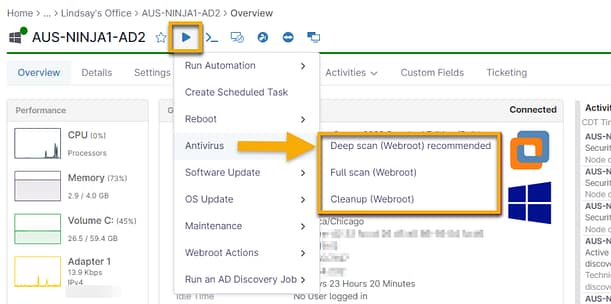
Figure 1: Run a Webroot scan from the NinjaOne device dashboard
Run a Scan from the Organization Dashboard
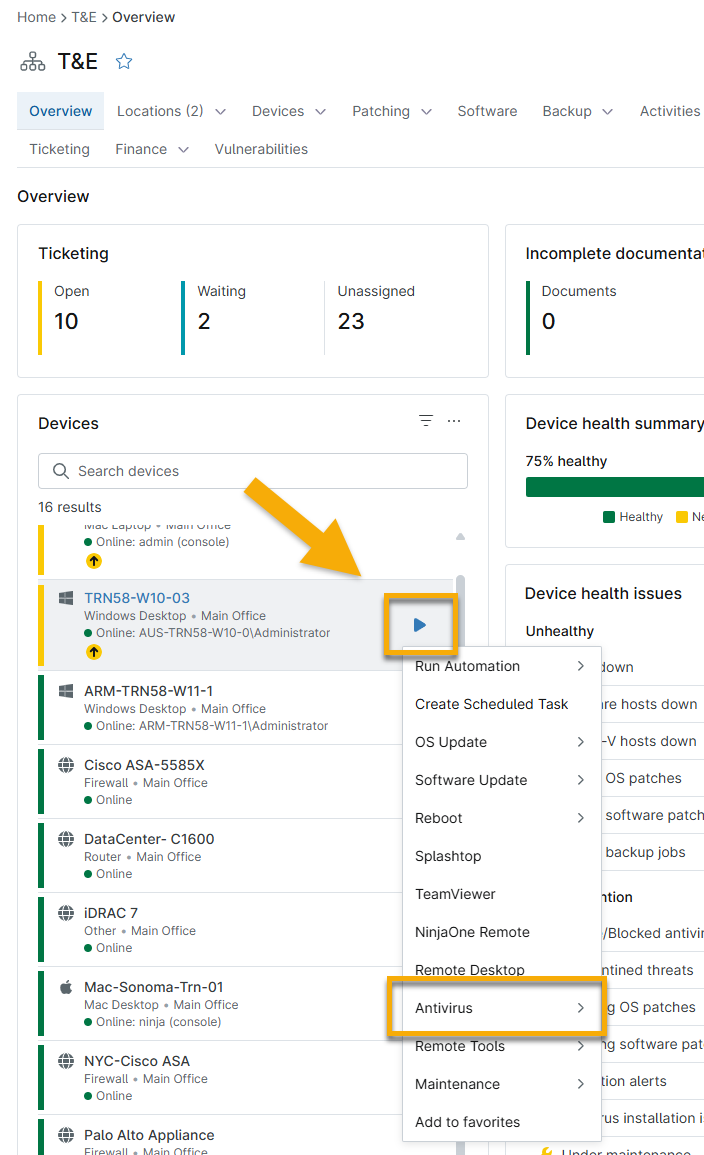
Move your cursor over the action button to the right of the device name. Select Antivirus and select an option.
Figure 2: Run a Webroot scan from the NinjaOne organization dashboard (click to enlarge)
Run a Scan from the Devices Search Page
- Click Devices in the left navigation pane and select one or more devices of the same type with Webroot deployed as the antivirus.
- Click Run at the top of the page and select Antivirus.
- Select the type of scan you want to run.
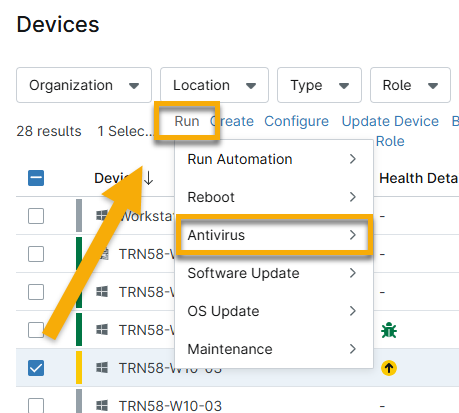
Figure 3: Run a Webroot scan from the NinjaOne Devices search page
Run a Webroot Sync or Poll on Windows Devices
There are two other Webroot actions available to perform on Windows devices in NinjaOne:
- Sync: Instructs the NinjaOne agent to reattempt syncing a new Webroot installation with the Webroot backend.
- Poll: Instructs the Webroot agent on the device to call the Webroot backend and get any messages or instructions that may be waiting for it there. If you do not manually issue this command, devices will poll on a schedule determined by the settings in the Webroot GSM console.
Similar to triggering scans, you can trigger these actions on Windows devices from the device dashboard, organization dashboard, or Devices search page. For the purpose of these instructions, we will show you what the command looks like from the device dashboard.
- Navigate to the applicable device dashboard and move your cursor over the action button.
- Select Webroot Actions and then click Synchronize or Poll now.
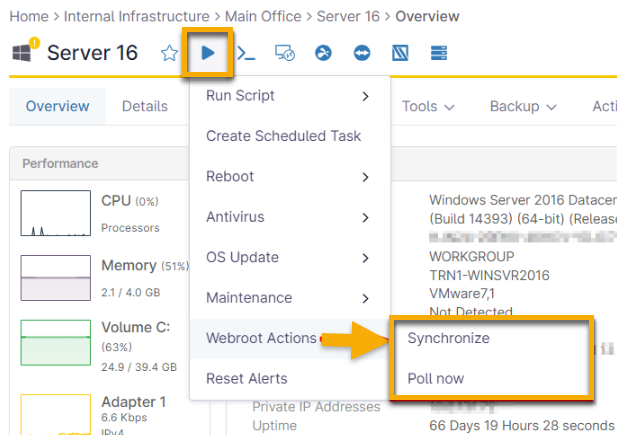
Figure 4: Run a Webroot sync or poll from the NinjaOne device dashboard
Additional Resources
- Webroot: FAQ
- Webroot: Troubleshooting
- For more information about navigating the Webroot GSM console, please see the Webroot GSM Admin Guide.