
Topic
This article answers frequently asked questions about NinjaOne's integration with Autotask.
Environment
- NinjaOne platform
- Autotask integrated vendor
Questions
Select a question to review the answer:
- How do I set the Security Level for the credentials I plan to use for the integration?
- How do I grant full protected data permissions for the integration?
- With device role mapping, can I map to the class level?
- Can I do any contract mapping in my Autotask integration?
- What happens when I delete a device in NinjaOne? Will anything change in Autotask?
How do I set the Security Level for the credentials I plan to use for the integration?
To set the Security Level for a user, perform the following steps:
- Navigate to Admin → Account Settings & Users.
- Expand the Resources/Users (HR) section and click Resources/Users.
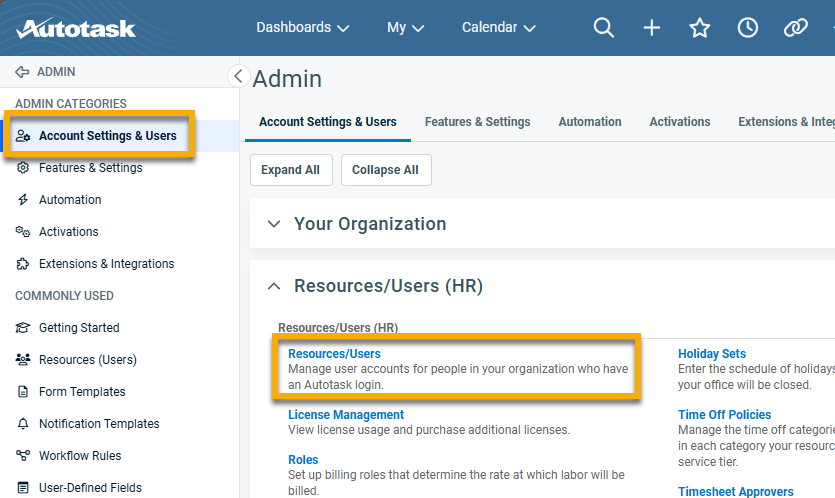
- Select the user in question to open their Resource Management page.
- Open the Security tab. Security Level configuration is located in the Security & Permissions section.

How do I grant full protected data permissions for the integration?
To set full protected data permissions for a user, perform the following steps:
- Navigate to Admin → Account Settings & Users.
- Expand the Resources/Users (HR) section and click Protected Data Permission.

- Select the Edit Protected Data checkbox for the user whose credentials you use for your Autotask integration in NinjaOne. This automatically grants permission for all other data categories.
With device role mapping, can I map to the class level?
No. Mapping currently only goes to the role level.
Can I do any contract mapping in my Autotask integration?
No. NinjaOne does not currently offer contract type mapping with the Autotask integration.
What happens when I delete a device in NinjaOne? Will anything change in Autotask?
There is a setting in the NinjaOne device role mapping to determine what happens when a device is deleted.
If you select the checkbox for Mark configuration inactive if corresponding Ninja device is deleted, then this will change the state of the Autotask configuration item mapped to that device role to "Inactive" when a device in that role is deleted.
To do so, perform the following steps:
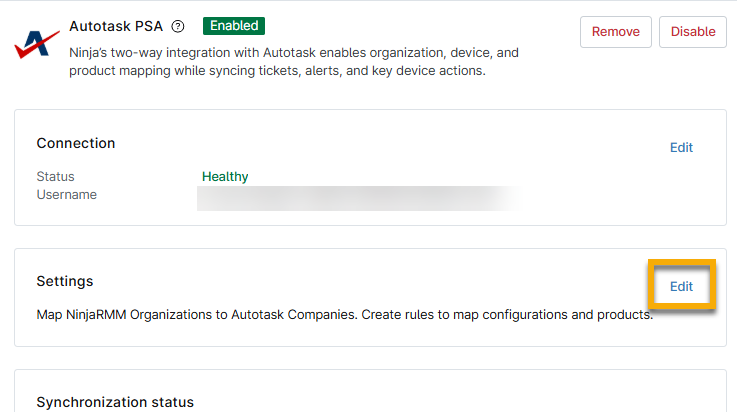
- Open the Autotask app in NinjaOne and click Edit in the Settings widget.
- Select Device Roles and click Add.
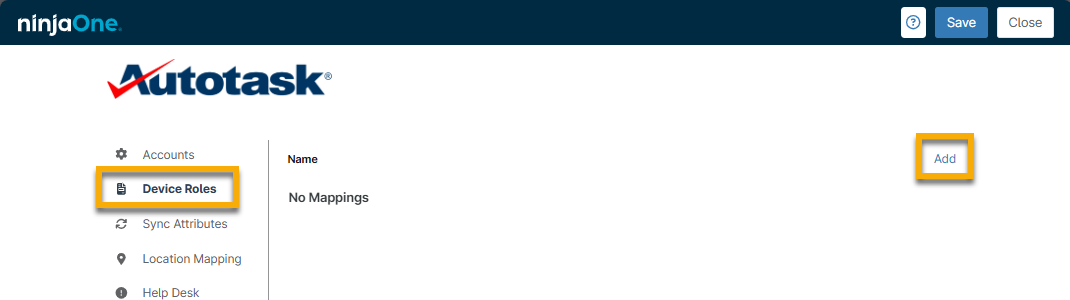
- In the Ninja Device Role Mapping modal, select the Mark configuration inactive if corresponding Ninja device is deleted checkbox.

Additional Resources
Refer to the following resource to learn more about integrated vendors in NinjaOne: Integrations and Third-Party Apps: Resource Catalog.