
Topic
This article explains how to configure tax rates for your invoices created through NinjaOne Billing.
Environment
NinjaOne Billing
Description
You can define tax rates for your invoices to customers who do not have an accounting integration. If you use one of our accounting tool integrations, such as QuickBooks, the integration will continue to calculate tax rates. When creating and defining tax rates, you can add multiple subrates and designate a compound rate. Use NinjaOne Billing to set tax rates on products and agreements for invoice creation.
Index
Select a topic to learn more.
Add a Tax Rate
Before you can add tax rates in NinjaOne, you must first activate the NinjaOne Billing feature. If you have not done so already, learn how at NinjaOne Billing: Getting Started with Professional Services Automation (PSA). Then, perform the following steps:
- From the NinjaOne Billing configuration page, select Tax rates → Active → + Add.
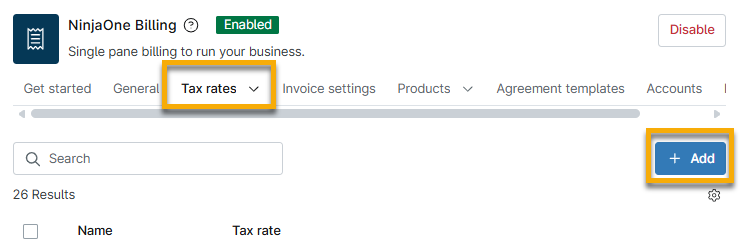
- Enter a unique identifier into the Name field and click + Add in the Create tax rate dialog.
- In the Add rate dialog, create a name and rate percentage. Select the Compound tax rate checkbox to designate it as a compound rate.
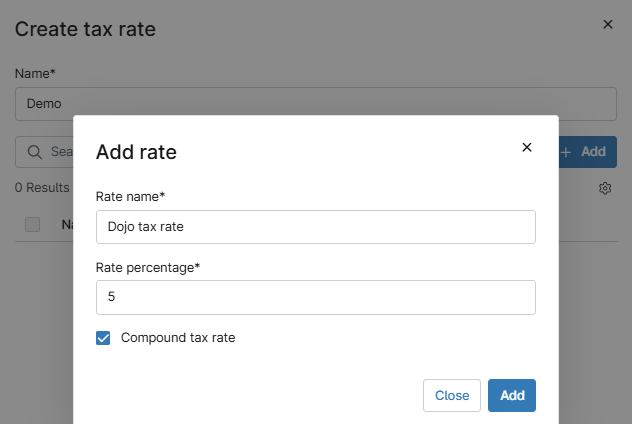
- Click Add, and then click + Add again in the Create tax rate dialog to add more tax rates.
- Click Add to save the new tax rate.
The new tax rate will appear on the Tax rates → Active page. Move your cursor over the tax rate and click the actions menu button to see options to edit or deactivate it.
Apply the Tax Rate
You can apply the tax rate to agreement services. For more information, refer to NinjaOne Billing: Agreement Services.
Additional Resources
Refer to NinjaOne Billing: Resource Catalog to view all articles related to billing and finances.