
Topic
The NinjaOne console provides native automation scripts that you can deploy to your managed devices. This article describes the functions of the scripts included with your NinjaOne subscription.
Environment
NinjaOne Endpoint Management
Description
The Automation Library provides automation scripts that you can run on devices ad hoc, on a schedule, through policy conditions, or with a scheduled task. In addition to NinjaOne's native scripts, you can access additional templates via the Automation Template Library. Find related articles in our Additional Resources section.
Native Script Categories
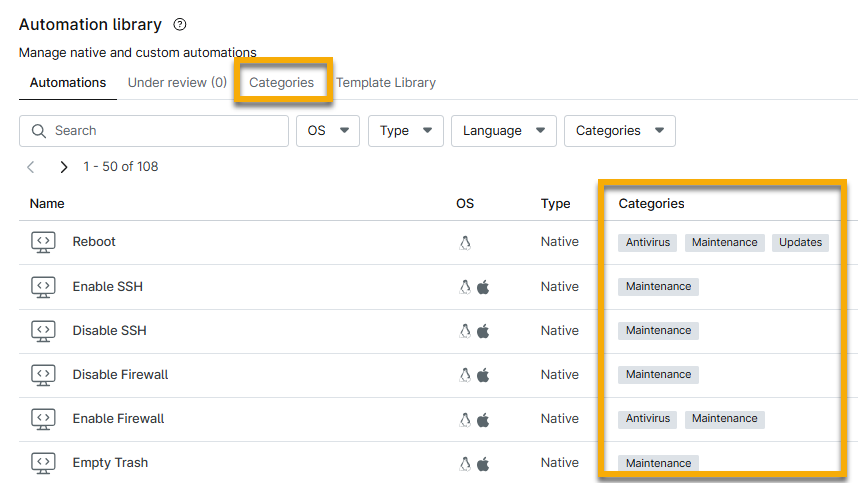
Some scripts may be compatible with multiple operating systems. NinjaOne organizes each native script by category, which you can view in the Categories column.
You can create new categories in the Categories tab and add them to the native scripts by clicking the script and selecting the new category from the drop-down menu.
Native Script Descriptions
Select your operating system (OS) to learn about the scripts we offer:
Apple macOS Native Scripts
The following tables provide a description of each native script for macOS devices.
| Script Name | Description and Requirements |
|---|---|
| Disable Mac Sleep | This script sets a macOS system to never sleep. |
| Disable/Enable ARD (Apple iOS Remote Desktop) | This script disables or enables ARD (Apple Remote Desktop) through the use of the kickstart command-line utility. |
| Disable/Enable SSH (Secure Shell) | This script disables/enables SSH. For Mac, this is done through use of the systemsetupcommand-line utility. |
| Disable/Enable VNC (Virtual Network Connection) | This script disables or enables VNC through the use of the kickstart command-line utility. |
| Download updates, don't install | This script triggers the macOS update mechanism locally on the machine to download any available updates (but not install them yet). |
| Empty Trash | This script empties the trash for each user on the device. |
| Enable Wake-on-LAN | This enables Wake-on-LAN capabilities through use of the systemsetupcommand-line utility. |
| Flush DNS | This script clears the DNS cache using different command-line utilities dependent on OS version. |
| Install all available patches | This script triggers the update mechanism locally on the machine to download and install all available patches. |
| Install all available patches, restart if required | This script triggers the update mechanism locally on the machine to download and install all available patches. If a reboot is required following the installation, it then reboots the machine. This script is only compatible with devices running macOS High Sierra and above. |
| Install only recommended patches | This script triggers the macOS update mechanism locally on the machine to download and install only the recommended (as classified by Apple) patches. |
| Install only recommended patches, restart if required (requires 10.13.4 or newer) | This script triggers the macOS update mechanism locally on the machine to download and install only the recommended (as classified by Apple) patches and then reboots the machine if a reboot is required following the install. This script is only compatible with devices running macOS High Sierra and above. |
| Kill Core Audio | This script resets the audio services daemons. |
| List all available patches | This script queries the update mechanism locally on the machine to provide a list of all available patches. The list will then be visible in the Activity table. If no available patches are found upon running this script, the "Action: Completed" entry in the Activity Feed will simply state "Finding available software" (with no actual patches listed). |
| OS patch apply | This script applies available operating system updates. |
| OS patch scan | This script triggers a scan for operating system updates. |
| Purge Disk Cache | This script clears the disk cache using the purge command-line utility. |
| Reapply user permissions | This script runs chown and chmod commands for all users. |
| Reboot | This script will reboot a device. This script uses the shutdown command line utility to force a reboot. |
| Repair Disk Perms | This script runs repair disk permissions on "/". |
| Repair SSH | This stops SSH (secure shell) connections and reinitializes the SSH daemon. |
| Repair TeamViewer | This script reinitializes TeamViewer, stops the service, and restarts it. |
| Reset Launcher Services | This script resets launch services. For more information, refer to the launch services database (external). |
| Reset Printing | This script performs the following actions:
|
| Turn Automatic Updates Off | This script sets the AutoUpdateRestartRequired setting in Preferences to "FALSE". |
| Wake Display Up | This script wakes the display through the use of the pmset command-line utility. |
Microsoft Windows Native Scripts
The following table provides a description of each native script for Windows devices.
| Script Name | Description and Requirements |
|---|---|
| Clear DNS Cache | This script runs the following command: IPCONFIG /FLUSHDNS. |
| Clear Event Logs | This clears out all backup and security event logs for all users. |
| Defrag | This runs hard drive defragmentation on the endpoints. You can exclude the boot volume or the recovery volume. |
| Delete Temporary Files | This script deletes temporary files in the following locations (when the location is not locked):
|
| Disable/Enable CD-ROM Drives | This toggles a registry key to disable/enable the respective drives. Depending on the OS, some machines may require a reboot to ensure this change is enforced. |
| Disable/Enable Floppy Drives | This toggles a registry key to disable or enable the respective drives. |
| Disable/Enable USB Drives | This script disables/enables the use of USB storage devices through a registry setting. |
| Disable/Enable User Access Control | This toggles the following registry key with a value of "1" (enable) or "0" (disable):SOFTWARE\Microsoft\Windows\CurrentVersion\Policies\SystemEnable UAC uses "1" as a value (0x00000001) which is not a return to the windows default ("5" / 0x00000005) |
| Empty Recycle Bin | This allows you to run "empty recycle bin" on all drives or for all users on the corresponding endpoints for Windows 7 and newer. This script does not refresh the folder, so the icon may still show "full" until the recycle bin is refreshed. |
| Fix File System Errors | This script runs the following command: CHKDSK /ROnce this option is selected, you will need to schedule a reboot for this action to finish running. |
| Fix rebuild performance counters | This runs a script to clear and rebuild performance counters. |
| Forced Reboot | This script utilizes WINAPI (Windows application programming interface) to run the InitiateSystemShutdown command with the forced parameter and executes after 5 seconds. |
| Group policy force update | This runs the following command: gpupdate /force |
| Log Off Current User | This script allows you to log out all logged-in users from an endpoint. |
| OS patch apply | This script applies available operating system updates. |
| OS patch scan | This script triggers a scan for operating system updates. |
| Reboot | This script will reboot a device. This script utilizes WINAPI to run the InitiateSystemShutdown command without the forced parameter and executes after 30 seconds. |
| Reboot (pending reboot devices) | This script utilizes WINAPI to run the InitiateSystemShutdown command and will only run on devices that have a pending reboot at the time when the script is run. |
| Release & Renew IP Address | This runs the following commands: IPCONFIG /RELEASE and IPCONFIG /RENEW. |
| Removable Media | This script allows you to disable or enable the use of USB, CD-ROM, and Floppy drives through a registry setting. |
| Remove Google/Yahoo toolbar | For these scripts, NinjaOne reads the uninstall key and then runs the uninstall string. |
| Run Windows Cleanup | This runs the Windows Disk cleanup tool with the option /SAGERUN:1 The full command is: (CLEANMGR /SAGERUN:1)Refer to cleanmgr | Microsoft Learn (external) and Automating Disk Cleanup tool - Windows Server | Microsoft Learn (external) for more information. |
| SFC Scannow | This script triggers an SFC (System File Checker) scan as the currently logged-in user. This requires Vista or greater OS, and a user with admin permissions must be logged in to the device. |
| System Restore | This script toggles the registry key to 0 or 1 to enable/disable the ability to perform a system restore. The registry key that is responsible for system restore is: HKEY_LOCAL_MACHINESOFTWAREPoliciesMicrosoftWindows NTSystemRestore |
| Windows Service | This allows you to start or stop a Windows service. The list of services in the dropdown menu is created by cumulating all the services from all devices within your NinjaOne environment, so it’s a superset of all the services for the devices in your environment. |
Ubuntu Linux Native Scripts
The following table provides a description of each native script for Linux devices.
| Script Name | Description and Requirements |
|---|---|
| Disable/Enable Sleep | This script sets the Linux system to never sleep or enables the system to sleep. |
| Disable/Enable SSH (Secure Shell) | This script disables/enables SSH. For Mac, this is done through use of the systemsetup command-line utility. |
| Empty Trash | This script empties the trash for each user on the device. |
| Flush DNS | This script clears the DNS cache using different command-line utilities dependent on OS version. |
| Force logout | This script forces logout for the currently-logged-in user. |
| Install all available patches | This script triggers the update mechanism locally on the machine to download and install all available patches. |
| Install all available patches, restart if required | This script triggers the update mechanism locally on the machine to download and install all available patches. It then reboots the machine if a reboot is required following the install. |
| Install only security patches | This script triggers the update mechanism locally on the machine to download and install only the security (as classified by Linux) patches. |
| Install only security patches, restart if required | This script triggers the update mechanism locally on the machine to download and install only the security (as classified by Linux) patches and then reboots the machine if a reboot is required following the install. |
| List all available patches | This script queries the update mechanism locally on the machine to provide a list of all available patches. The list will then be visible in the Activity table. If no available patches are found upon running this script, the "Action: Completed" entry in the Activity Feed will simply state "Finding available software" (with no actual patches listed). |
| List only security patches | This script queries the update mechanism locally on the machine to provide a list of all available security patches. The list will then be visible in the Activity table. If no available patches are found upon running this script, the "Action: Completed" entry in the Activity Feed will simply state "Finding available software" (with no actual patches listed). |
| OS patch apply | This script applies available operating system updates. |
| OS patch scan | This script triggers a scan for operating system updates. |
| Reboot | This script will reboot a device. |
Additional Resources
Use the following resources to learn more about automation in NinjaOne: