Already a NinjaOne customer? Log in to view more guides and the latest updates.

Device Actions

reviewed by Ian Crego

NinjaOne Device Actions are powerful features that allow IT administrators to automate and streamline their workflows. With this feature, you can execute scripts, reboot devices, perform device security actions, manage services, access device information, and much more directly from the NinjaOne console. Whether you’re managing a small network or a large enterprise, NinjaOne Device Actions provides the tools you need to keep your IT infrastructure running smoothly.

How to Perform Device Actions Without NinjaOne

To perform device actions without NinjaOne, you would need to manually manage each device using various tools. This involves using software deployment tools like SCCM, running scripts via PowerShell, applying patches with WSUS, and managing configurations through Group Policy. Each task must be scheduled and monitored separately, making the process more complex and time-consuming.

Executing Device Actions through NinjaOne

With NinjaOne’s user-friendly ‘single pane of glass’ interface, you have the power to effortlessly carry out device actions from various points such as the Organization Dashboard, Device List, directly from the device, or even from tickets linked to the device. This integration enhances the efficiency of the remediation process. This design not only amplifies your control but also simplifies the management of your IT infrastructure. Here are some of the readily accessible actions you can perform:

  • NinjaOne Remote: Connect to the device through a secure remote session or use background mode to access the system without interrupting the end user.
  • Automation: Execute scripts, native automations, install applications, run applications, or transfer files to quickly perform routine tasks.
  • CMD: Open a command-line session in System 32‑bit, System 64‑bit, Logged‑in User 32‑bit, or Logged‑in User 64‑bit mode for advanced command execution.
  • PowerShell: Launch a PowerShell session under System or Logged‑in User context to run administrative or user‑level PowerShell commands.
  • Remote Tools: Access advanced troubleshooting utilities such as Remote Registry, Task Manager, File Browser, Service Manager, and Active Directory to diagnose and manage device components remotely.
  • Patching: Perform an OS scan to identify missing updates or initiate an OS update to keep the device secure and fully patched.
  • AD Discovery: Run an Adhoc discovery or a Scheduled discovery to detect Active Directory devices and keep your inventory accurate.
  • Maintenance Mode: Temporarily pause monitoring and alerting for a device to prevent unnecessary notifications during planned maintenance or troubleshooting.
  • Backup: Generate an authorization key or download the restore manager to support device imaging, recovery, and restore operations.
  • Create Scheduled Task: Configure a task to run automatically at a specified time or interval, reducing manual intervention.
  • Reset Alerts: Clear existing alerts on the device to acknowledge and reset its alert status.
  • Add to Favorites: Add the device to your favorites list for quick access across the console.
  • Wake‑on‑LAN: Send a Wake‑on‑LAN signal to remotely power on supported offline devices.
  • Reboot: Restart the device immediately or schedule it for a later time.
  • Security Actions: Perform mobile‑device security operations such as locking the device, resetting or clearing the passcode, or initiating a full device wipe to protect sensitive data.

These actions, available at your fingertips, empower you to manage your IT infrastructure effectively and efficiently.
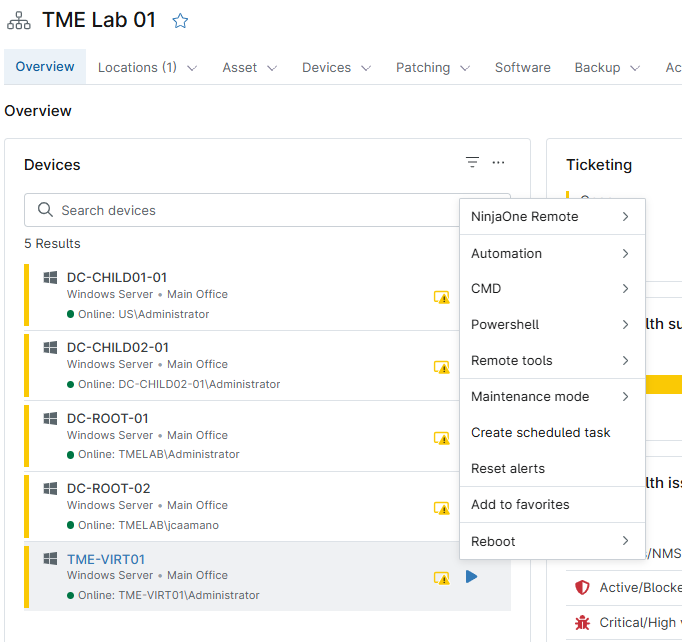
Overview device actions

Benefits of Using NinjaOne

NinjaOne Device Actions are powerful tools designed to streamline IT workflows. Here are three key benefits of using them:

  • Efficiency and TimeSaving: By automating routine tasks, NinjaOne Device Actions significantly reduce the time and effort required by IT administrators, allowing them to focus on more strategic initiatives.
  • Enhanced Control and Management: The ability to execute actions directly from the console gives IT administrators enhanced control over their IT infrastructure. This includes managing services, accessing device information, and performing security actions.
  • Error Reduction: Automation of tasks and reduction of manual intervention with NinjaOne Device Actions minimizes the risk of human error, leading to more reliable and consistent IT operations.

Best Practices

NinjaOne Device Actions are robust tools for IT management. Here are three best practices for using them:

  • Plan Your Actions: Before executing any action, ensure you understand its impact. This helps prevent unintended consequences and ensures smoother operations.
  • Use Automation Wisely: While automation can save time and reduce errors, it’s important to use it judiciously. Not all tasks may benefit from automation, and some may require a human touch.
  • Monitor and Review: Regularly review the actions performed for any anomalies or errors. This helps in early detection of issues and keeps your IT infrastructure healthy.

Remember, effective use of NinjaOne Device Actions can significantly enhance your IT management capabilities.

Practical Uses and Applications of NinjaOne Device Actions

NinjaOne Device Actions is a powerful feature that IT administrators can leverage for efficient and effective management of IT infrastructure. Here’s why and how they would use it:

Remote Access to a PC/Server

Imagine you’re a system administrator working from home, and you receive an urgent request to fix a critical issue on a server located in your company’s office. With NinjaOne, you can handle this situation without leaving your home. By simply clicking the ‘Remote Desktop’ action button in your NinjaOne dashboard, you can initiate a secure remote connection to the server.

Running Automation

As an IT manager, suppose you need to deploy a security patch to all the PCs in your organization. Instead of manually installing the patch on each PC, you can use NinjaOne’s automation feature. Using the ‘Run Automation’ action button in your NinjaOne dashboard, you can execute the automation script on all selected PCs, remotely installing the security patch.

In essence, NinjaOne Device Actions provide IT professionals, specialists, and managers with a versatile tool to streamline operations, enhance security, and improve overall IT management efficiency.

FAQ

A device action is a task or operation performed on a device, such as installing software, running scripts, updating configurations, applying security patches, or enforcing policies. It streamlines IT management by automating and executing these tasks efficiently across multiple devices.

Device properties are specific attributes and settings associated with a device. These can include hardware specifications (like CPU, RAM, and storage), operating system details, network configurations, installed software, security settings, and user assignments. Device properties help IT administrators manage, monitor, and configure devices effectively within an IT environment.

To find your device’s properties on different operating systems:

On Windows, right-click on “This PC” or “My Computer” on your desktop or in File Explorer, then select “Properties” to see basic system information. For more detailed properties, search for “Device Manager” in the Start menu and open it.

On a Mac, click the Apple menu in the top-left corner and select “About This Mac” for an overview of your system’s specifications. For more detailed information, click “System Report” in the “About This Mac” window.

On Linux, open a terminal and type uname -a for basic system information. For detailed hardware information, use the command lshw (you may need to install it first using sudo apt-get install lshw on Debian-based distributions) and run sudo lshw for a comprehensive report.

Using NinjaOne simplifies these tasks by providing a centralized platform to view and manage device properties across different operating systems, enhancing efficiency and consistency in IT management.

Having device actions at our fingertips is advantageous because it allows for quick and efficient management of multiple devices, saving time and effort. It ensures consistency, enhances productivity, and enables prompt responses to issues, ultimately improving overall IT operations.