
Topic
This guide explains the extra steps required to use the Secure Token Check - macOS script template in NinjaOne's Automation Library.
Environment
NinjaOne Automation Library
Description
The script named Secure Token Check - macOS shows the current secure token status for all accounts on the system. You will typically use tokens for Apple macOS patch management; refer to NinjaOne Patching: Apple macOS Patching Policy Setup for more information.
The script Create Secure Token for Account grants secure token access to a service account. If the account does not exist, the script will create one as a service account. Service accounts do not appear when logging in to the desktop.
Both of these scripts work with macOS and use the ShellScript language.
Where to Find the Scripts
You can find native scripts in our Automation Library.
- Navigate to Administration → Library → Automation in NinjaOne and open the Template Library tab.
- Type "secure token" into the search bar.

Figure 1: Access the Automation Template Library in NinjaOne
How to Use the Scripts
Before running the scripts, create two role custom fields. To learn how to create role custom fields, refer to NinjaOne Custom Fields: Getting Started. Then, perform the following steps.
- Create a text field titled TokenName.
- Create a secure field titled TokenPassword.
- Navigate to Administration → Devices → Roles.
- Expand the Mac Desktops and Laptops section, move your mouse cursor over Mac Desktop, and click Edit.
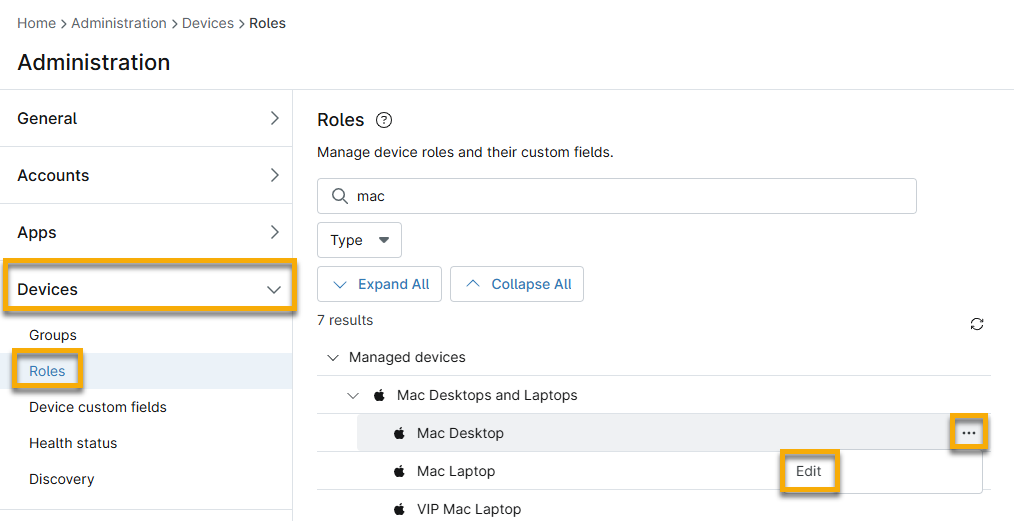
Figure 2: Manage device roles and their custom fields
- Add the custom fields you created earlier in Steps 1 and 2.
- Import and run the script from the Template Library.
- The New Account Username field should include a user who is not a system administrator on the device.
- Add the TokenPassword custom field to the New Account Password Custom Field field.
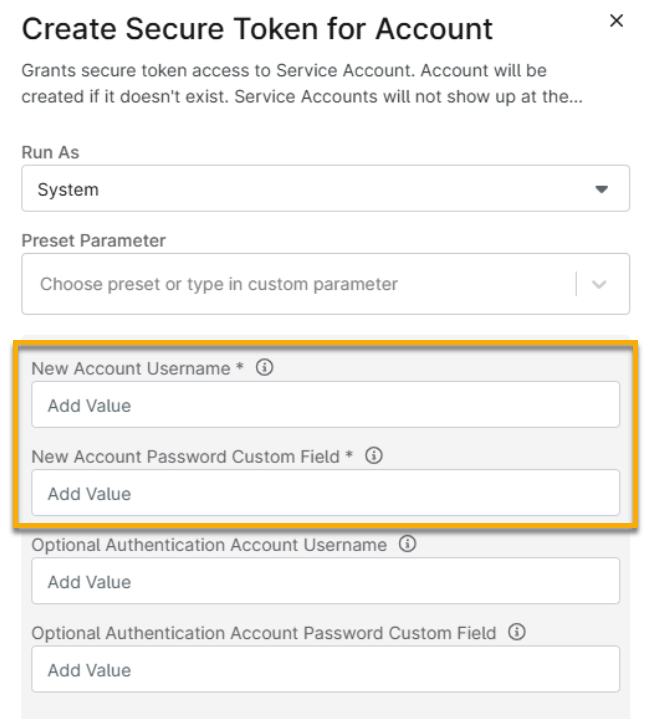
Figure 3: Add the username and password custom field for the script
- The device you are enabling the secure token on will display a prompt. Input the username and password.
Additional Resources
Use the following resources to optimize your experience with NinjaOne automation tools.