
Topic
NinjaOne users can schedule scripts/applications to run or run them manually. For instructions on scheduling a script/application, please look at Policies: Scheduled Automations. For instructions on creating scripts/applications that can be run on devices, please see Automation Library.
Users have two options to run scripts/applications manually: from the specific device or for multiple devices simultaneously.
When a script or application is run, either manually or through a schedule, the values sent from the NinjaOne script engine are viewable under the Activities tab on both the system and device dashboards. Viewing the activity details can help you see exactly what was sent through the script and can be used to debug scripts that are not working.
Important Notes:
- Currently, automated applications can be run only from Windows devices. However, you can still schedule an application using a Mac device.
- Existing install/run applications can be only read and/or deleted. To generate new or edit existing install/run applications, you must generate a new install application—please see Automation Library for instructions.
Environment
NinjaOne automation and scripting
Options
Run an Automation from the Device Dashboard
- Navigate to any device dashboard and click the action button next to the device name. Select Run Automation and choose the automation type.
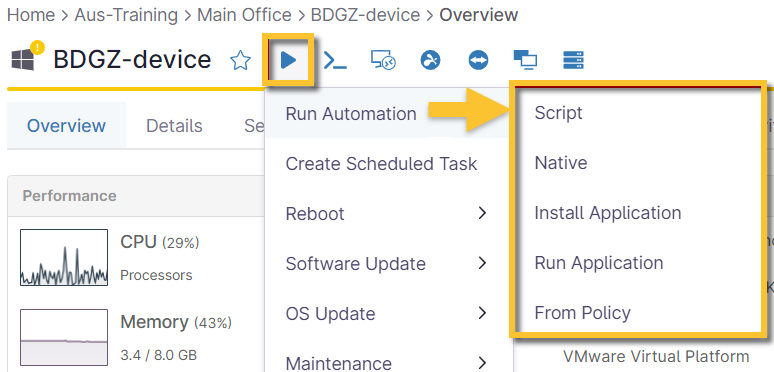
Figure 1: NinjaOne device dashboard → Action → Run Automation
- When you make a selection, you can modify the search to include other options from the Type drop-down list.
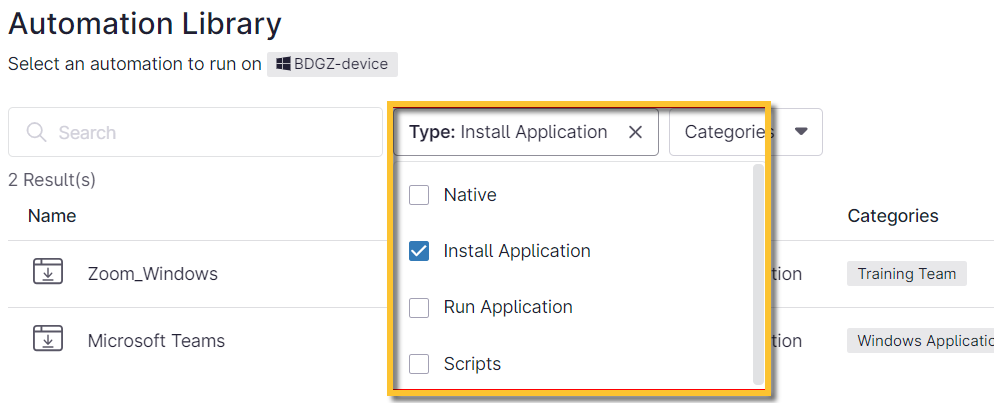
Figure 2: NinjaOne → Run Automation
- After selecting an automation, specify how it will run and add any preset or custom parameters. To learn more about preset parameters, please see Automation Library: Parameters.
- Click Run.
Run a Script for Multiple Devices
- On the left navigation pane, click Devices.
- Select checkboxes next to two or more devices, and then click Run at the top of the page.
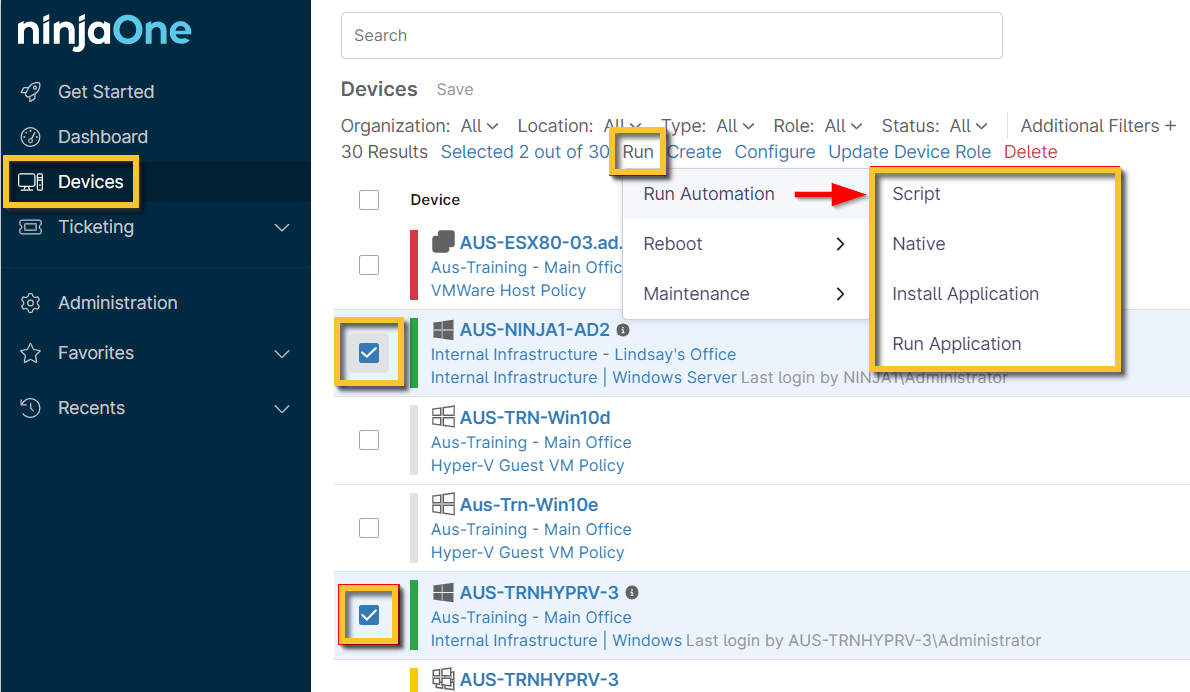
Figure 3: NinjaOne → Devices → Run Automation