
Topic
This guide explains how to add and manage cloud monitors in NinjaOne.
Environment
NinjaOne Endpoint Management
Description
Cloud monitors are agent-less monitors that are created by sending a request from NinjaOne Amazon servers that query an IP for various services like ping, ports, and DNS information.
- The monitor only works if the destination has a public IP address.
- NinjaOne retains up to 2 hours or 25 entries of historical data for cloud monitors.
- Cloud monitors will not accept URLs with underscores in them. Please enter a valid Hostname or IP to avoid errors.
Index
- Terminology
- Types of Cloud Monitors Supported in NinjaOne
- How to Add a Cloud Monitor in NinjaOne
- Additional Resources
Terminology
This section defines the acronyms used throughout this article. For additional definitions, refer to our NinjaOne Terminology.
| Term | Definition |
|---|---|
| DNS | "Domain Name System" is a memorable name for websites, internal devices or hosts, and other services on the Internet. DNS translates domain names into IP addresses, allowing you to access an Internet location by its domain name. |
| FQDN | "Fully Qualified Domain Name" or "absolute domain name" is a complete address that specifies the exact location of a computer or a server on the Internet. |
| HTTP and HTTPS | "Hypertext Transfer Protocol" (for HTTPS, the "S" means it is encrypted for security) |
| IMAP | "Internet Message Access Protocol" is the recommended method when you need to check your emails from several different devices, such as a phone, laptop, and tablet. Refer to What are IMAP and POP? - Microsoft Support (external) for more information. |
| IP | "Internet Protocol" is an identifying numerical label for computers on a network. To be monitored by NinjaOne NMS, the devices must have an IP address assigned. |
| POP | "Post Office Protocol" works by contacting your email service and downloading all of your new messages from it. Refer to What are IMAP and POP? - Microsoft Support (external) for more information. |
| SMTP | "Simple Mail Transfer Protocol" is a tool for sending, receiving, and relaying outgoing mail between email senders and receivers. |
| SSL | "Secure Socket Layer" is a computing protocol that encrypts data sent through the Internet. |
| TCP | "Transmission Control Protocol" is a standard communication protocol for reliable data transmission between network devices, ensuring all data packets arrive in order. By default, NinjaOne Remote uses a hybrid TCP/UDP transmission to provide a balanced and effective stream. |
| URL | "Uniform Resource Locator" is the address of a specific webpage or file on a network. |
Types of Cloud Monitors Supported in NinjaOne
NinjaOne supports the following types of cloud monitors. Select a type to learn more about the information displayed in the NinjaOne console:
Ping
A ping is used to test the accessibility or reachability of a device that uses an IP network.
During setup, you will select the frequency (how frequently the request will be sent), the ping timeout (how long the request lasts), and the server or IP you want to ping.
There are four different types of conditions available for ping monitors:
- Result allows you to monitor whether the host is unreachable before the timeout.
- Packet Transmission allows you to monitor the number of times that data does not reach its destination at a specified threshold percentage.
- TTL (time-to-live) allows you to monitor the amount of time that a packet is set to stay in the network by a threshold percentage.
- Round Trip allows you to monitor for a specified round-trip threshold.
After setting up a ping cloud monitor, use the device dashboard to view a chart of all data points, time, result, resolved IP, packet transmission, TTL, and round-trip data.
DNS
The DNS monitor checks all the DNS records for a particular domain and notifies if there are any deviations from expected behavior.
During setup, you will select the frequency (how frequently the request will be sent), the timeout (when the request stops being sent), and the server or IP you want to check.
There are four different types of conditions available for DNS monitors:
- Query Timed Out allows you to monitor whether the DNS query timed out.
- No Resolution allows you to monitor when the DNS doesn’t resolve for the domain.
- Record Type allows you to monitor whether a specific record type contains or doesn’t contain a specific keyword.
- WHOIS expires in allows you to monitor for situations in which the WHOIS (a computer protocol for querying databases) registration date expires within a designated number of days.
After setting up a DNS cloud monitor, viewing the device dashboard will show you a table of the data points that have been recorded. The dashboard includes the time, result, and content (including WHOIS information).
Port Scan
The Port Scan monitor tests an IP address for TCP port state, which determines the reliability of data transmission.
During setup, you will select the frequency, timeout, and IP address or FQDN of the device you want to monitor and then add the ports you want to monitor.
There are two different types of conditions available for Port Scan monitors:
- State allows you to monitor whether the port can accept incoming connections.
- Response Time allows you to monitor the time it takes (in milliseconds) for the port-status query to return a response a specified number of times.
After setting up a Port Scan cloud monitor, viewing it will show you a table of the data points that have been recorded. The table includes the time, result, DNS resolution, and port status.
The Email monitor is used to test the mail-flow of a mail server. NinjaOne can check send settings (SMTP only), or both send and receive (SMTP, POP, and IMAP).
During setup, you will select the frequency, timeout and options (Send Only or Send & Receive).
- For the outbound (Send) settings, select the SMTP host and a test account with username/password.
- For the inbound (Receive) settings, specify the POP and IMAP server (depending upon your setup), along with the login credentials and the port used. This option does not display if you selected "Send Only" as an option during the Setup phase.
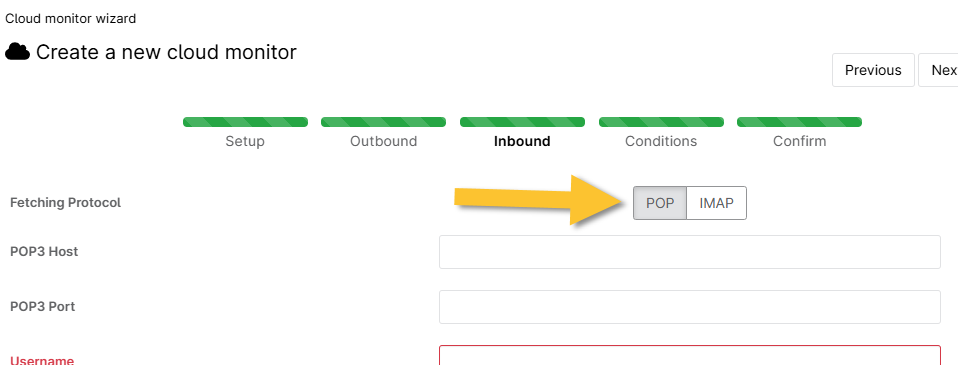
There are two different types of conditions available for email monitors:
- Failure allows you to monitor for when an email send/receive fails a specified number of times.
- SSL Certificate allows you to monitor for whether the certificate expires in a specified number of days.
After setting up an Email cloud monitor, viewing it will show you a table of the data points that have been recorded. The table includes the time, result, and protocol status.
HTTP/HTTPS
The HTTP and HTTPS monitor checks a website for any potential issues ranging from HTTP request failure, high response time exceeding a certain threshold, or HTTP response message type.
Please note that in order to properly monitor a website, the SSL certificate must be valid. The date on which the SSL certification expires is listed under the monitor and provided as a link to view the SSL certificate.
During setup, select the frequency, timeout, host, HTTP method (supports various HTTP methods: GET, PUT, HEAD, POST), HTTP authentication, and response body (an option to save the webpage which saves a snapshot of the landing page).
There are four different types of conditions available for HTTP monitors:
- Failure allows you to monitor for when the HTTP request fails a specified number of times.
- Status Code allows you to monitor for when the HTTP request returned a particular code a specified number of times. Click here (external) for a list of common HTTP status codes.
- Response Time allows you to monitor the time it takes (in milliseconds) for the HTTP query to return a response a specified number of times.
- Keyword allows you to monitor for whether the webpage contains or does not contain a particular keyword.
- SSL certificate expires in allows you to monitor for situations in which the SSL certificate will expire within a designated number of days.
After setting up a HTTP cloud monitor, viewing it will show you a table of the data points that have been recorded. The table includes the time, result, protocol Version, HTTP Status, response time, SSL certificate expiration date, and SSL certificate.
How to Add a Cloud Monitor in NinjaOne
- Click the + sign in the top right corner of the console, and then click Device.
- Select Cloud monitor.
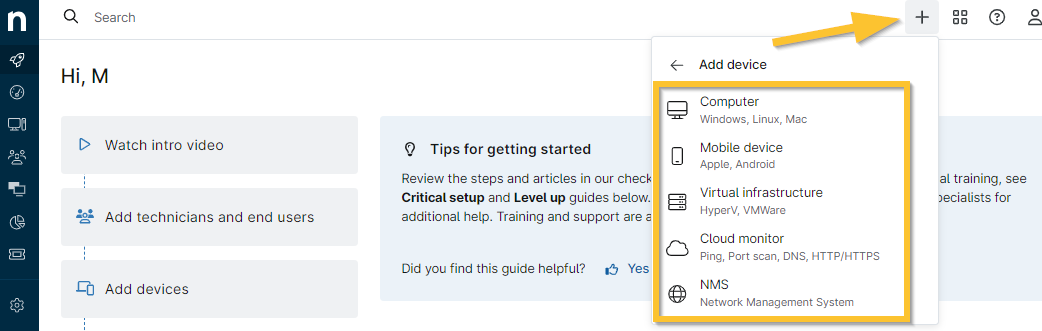
The Cloud monitor wizard modal displays.
- Select the organization and location under which you would like to create the new cloud monitor, the type of monitor, and a display name. Then, fill out any other information per the type of monitor you selected (such as frequency, timeout, and server).
- Click Next to proceed.
Required fields will be highlighted if you attempt to proceed without filling in the data. - Add any conditions you wish to monitor for with this cloud monitor. The types of conditions available depend on the type of cloud monitor you are creating (for example, an email monitor was added to and the "Fail" condition was added to create the data in the screenshot below).
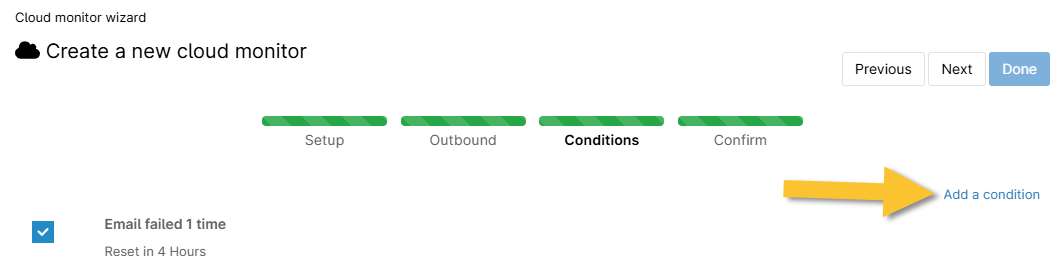
Click Next again in the top right; on the next page confirm the settings for your new cloud monitor and then click Done to complete the setup process.
Additional Resources
Refer to the following resource(s) to learn more about managing devices in NinjaOne: Device Enrollment & Management: Resource Catalog.