
Topic
This article explains how to view vulnerability and Common Vulnerabilities and Exposures (CVE) data on the NinjaOne dashboards.
Environment
NinjaOne Endpoint Management
Description
You can view vulnerabilities from several locations, including the system, organization, and device dashboards.
Select a category to learn more:
Dashboard Vulnerabilities Tab
This tab is available on the system, organization, and device dashboards. The page groups data by CVE, with each row of the dashboard's table representing a single CVE and the related devices. NinjaOne filters the data based on the set of devices visible to the calling user, so the dashboard shows only counts for those devices.

- Click the number in the Managed devices or Unmanaged devices column to navigate to the Devices search page, where NinjaOne automatically filters the device list to show devices related to the specified CVE ID. From the Devices search page, you can run automations, create scheduled tasks, and more. Refer to Find and Manage Endpoints from the Devices Search Page for more information. Unmanaged devices reflect data that NinjaOne could not map to an existing device.
- Click the number in the Organizations column to open a dialog that lists all organizations impacted by that CVE ID. If you click the organization name in the dialog, you will navigate to the Devices search page, where NinjaOne filters to show all devices in that organization affected by the CVE.
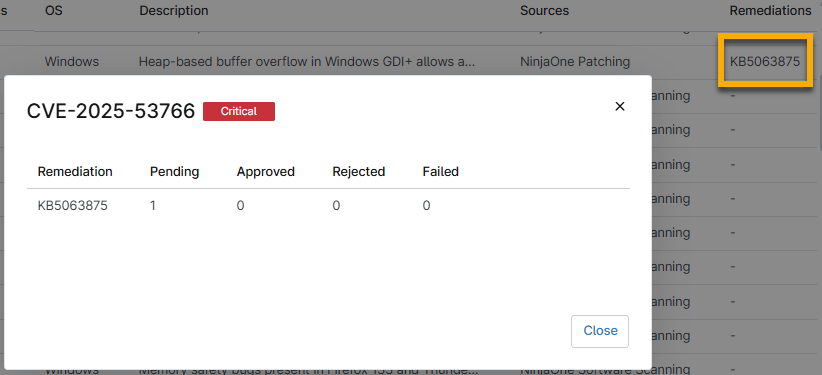
- Click the KB link in the Remediations column to view whether the remediation is pending, approved, rejected, or failed.
CVE Details
Click the hyperlink in the CVE ID column. This action will open a new page that provides risk information, the Common Vulnerability Scoring System (CVSS) score, scan group information, impacted sources, impacted devices, and references.
- Click the device, organization, or location name to navigate to that applicable dashboard in NinjaOne.
- Access vulnerability remediation in the Patching statuses widget by clicking the number that displays in the Pending, Approved, Rejected, or Failed columns. You will navigate to the applicable OS Patching data dashboard to take action.
- The link next to the CVE number will take you to the National Vulnerability Database, which provides enrichment data for the CVE record and improves troubleshooting efficiency.
- If you are accessing this page from the system or organization dashboard, an additional section will be available for Total devices impacted. When opened from the organization dashboard, this section shows all devices managed by the organization that contain the selected CVE. When opened from the system dashboard, this section includes both managed and unmanaged devices separated by tabs. You can click the device name hyperlink to navigate to the device dashboard.

Additional Resources
Refer to the following resources to learn more about vulnerabilities and patching in NinjaOne: