
Topic
This article provides instructions for running or installing automations on a device and configuring default parameters.
Environment
NinjaOne Endpoint Management
Description
NinjaOne empowers you to install and run app automations. The Run and Install automation application options allow you to create a library of installed and running application scripts to add to a policy or scheduled task, or run on demand. For example, if you run CCleaner on endpoints, you can use NinjaOne to call it.
Once you install an application in the Automation Library, you can use it multiple times across different organizations and devices.
View additional tutorials in our video library.
Index
Select a category to learn more:
Add Automated Applications: Installation
To install an application automation:
- Navigate to Administration → Library → Automation. Then, click Add → Installation.
Figure 1: Install an app automation in NinjaOne (click to enlarge)
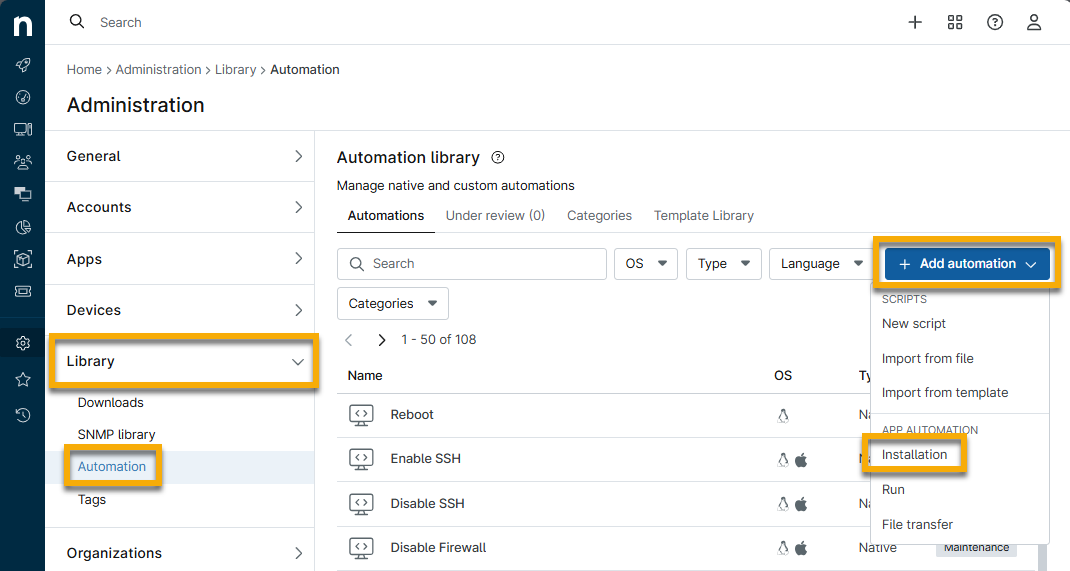
The Install application dialog displays with the General tab open by default.
- Use the table below to help complete the fields.
| Field Name | Description |
|---|---|
| Name | Give the application a unique identifier. |
| Operating System | Select whether the application is to run on Apple macOS or Windows devices. |
| Architecture | Select whether the application will run as 32-bit, 64-bit, or both. Apple macOS can only run on 64-bit. |
| Installer | Use the drop-down menu to select whether to upload the installer or provide the path to the MSI or EXE using an HTTPS URL. Apple macOS installers use PKG and DMG. |
| Categories | Select one or more categories that best describe how you will use the application. |
| Run As | Both macOS and Windows allow the application to run as the system. Depending on the OS selected, you may have additional options to run as the current user or utilize the preferred Windows local or domain admin credentials from your credential store. Some software may require you to deploy the installation with specific credentials. |
| Parameters | When adding preset parameters, click Add at the top right of the Parameters field. If the installer requires a specific silent parameter, add it here. For more information about preset parameters, refer to Automation Library: Parameters. MSI installers automatically run with the following parameters:
|
- Open the Additional Settings tab to view more configuration options.
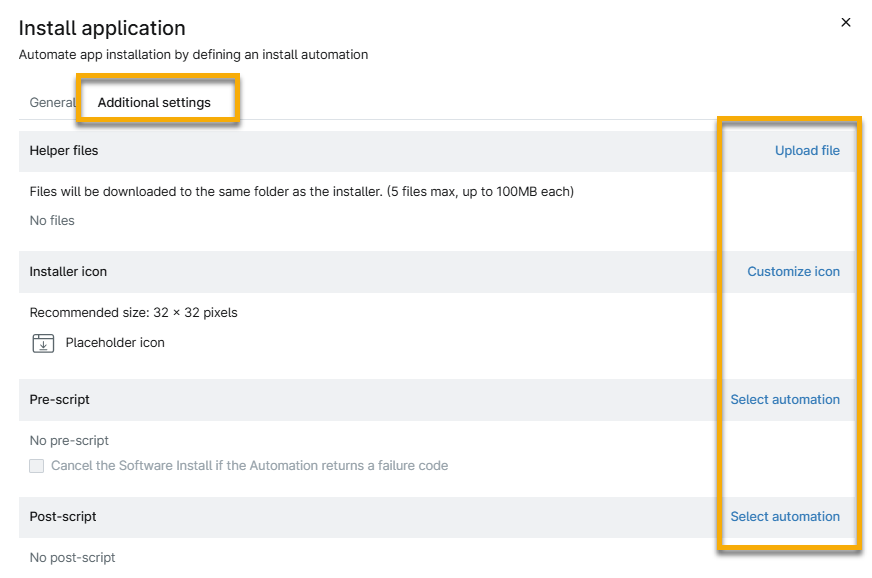
Figure 2: Install an app automation in NinjaOne → Configuration tabs
| Field Name | Description |
|---|---|
| Helper Files | You can include helper files with the installer. An example of a helper file might be a license file you need to deliver with a software installation. |
| Installer Icon | You can display a custom icon for the application within the NinjaOne console (this icon appears only in the Automation Library, not on the devices). |
| Pre-script | Choose an installed custom automation from the library to run before the installed application. Native scripts are not available for this purpose. |
| Post-script | Choose an installed custom automation from the library to run after the installed application. Native scripts are not available for this purpose. |
- Click Submit.
If there are errors or failures when attempting to add the application, the affected fields turn red and show an exclamation point icon. Move your mouse cursor over the icon to see the reason for failure.
The application moves to the Under Review tab, where NinjaOne validates it to ensure the primary and helper files are free of malware or viruses. It moves to the Automations tab after the scan is successful.
Add Automation Applications: Run
You can install or execute an application without transferring files using the app automation Run option. You can use a file that already exists on the endpoint. The run automation tool only works for Windows devices.
- Navigate to Administration → Library → Automation. Then, click Add automation → Run.
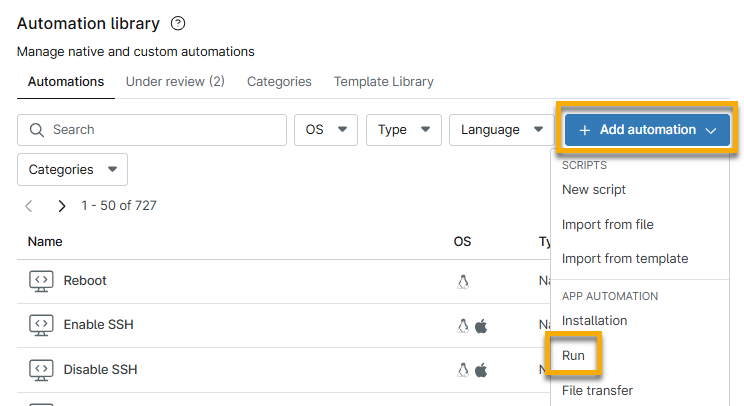
Figure 3: Run an app automation in NinjaOne
The Run application dialog displays.
- Use the table below to help complete the fields.
| Field Name | Description |
|---|---|
| Name | Give the application a unique identifier. |
| Categories | Select one or more categories that best describe how you will use the application. |
| Architecture | Select whether the application will run as 32-bit, 64-bit, or both. Apple macOS can only run on 64-bit. |
| Path | Local path only. |
| Run As | Windows allows the application to run as the system. Depending on the OS selected, you may have additional options to run as the current user or utilize the preferred Windows local or domain admin credentials from your credential store. Some software may require you to deploy the installation with specific credentials. |
| Parameters | When adding preset parameters, click Add at the top right of the Parameters field. If the installer requires a specific silent parameter, add it here. For more information about preset parameters, refer to Automation Library: Parameters. Examples of common EXE silent parameters: /silent /Silent /S /s -silent --silent |
- Click Save.
The application moves to the Under Review tab, where NinjaOne validates it to ensure the primary and helper files are free of malware or viruses. It moves to the Automations tab after the scan is successful.
Example: Install and Run Automated Applications
For this example, we will demonstrate how to deploy Microsoft 365 using the app installation automation and customize helper files within NinjaOne. We'll start by navigating to a Microsoft website for the Office Customization Tool, such as Office Customization Tool - Microsoft 365 Apps admin center (external link). This tool will help you generate an XML file you can customize to deploy certain settings as part of the Office installation.
- On the Office Customization Tool page, click Export, select Office Open XML formats, and then accept the license agreement.
- Enter a file name. This file name is the one that you will use to reference the helper files.
- Click Export.
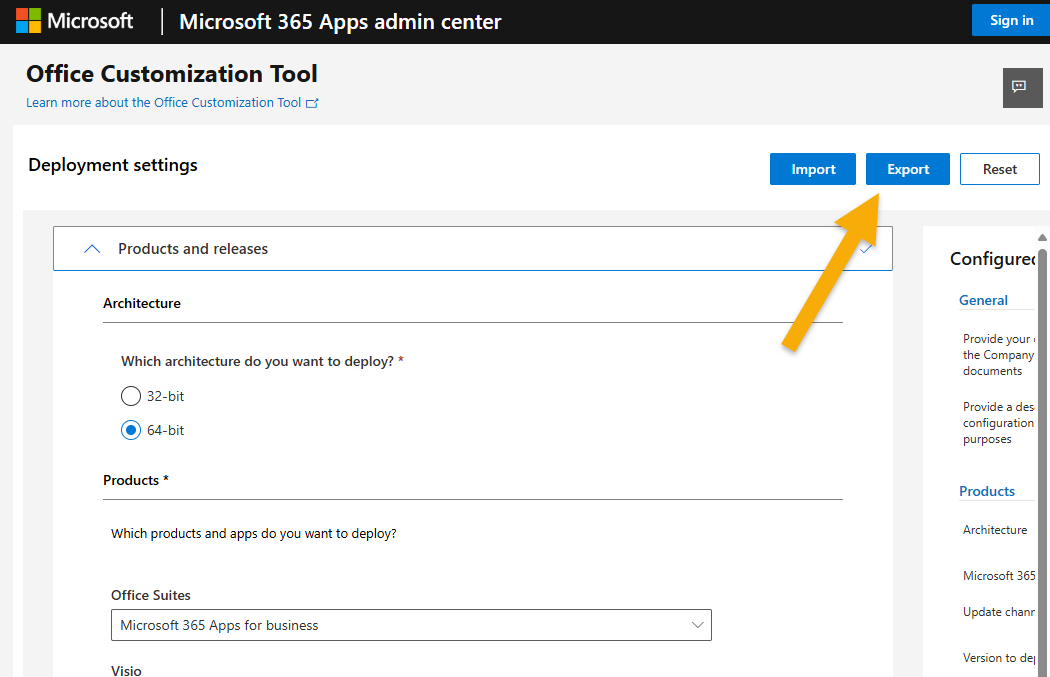
Figure 4: Microsoft Office customization tool → Export
Now you must configure the Office Deployment Tool. This is the actual file that installs Microsoft Office. Once you've downloaded this file, you will receive a self-extracting executable with a file called setup.exe. This is the file that you need to deploy through NinjaOne.
- Return to NinjaOne and navigate to Administration → Library → Automation.
- In the upper-right section of the page, click Add automation and select Installation.
The Install application dialog displays.
- For this example, we will name the app installation Microsoft 365 Custom and describe it as Custom.
- From the Installer drop-down menu, select the setup.exe installation. You must add the correct parameter for Microsoft 365; this is forward slash configure (/configure) and must match the name of the custom XML file you just generated. In this case, it will be /configure Configuration.xml.
- In the Parameters field, enter /configure Configuration.xml and click Add.
- Open the Additional Settings tab.
- Click Upload File, then select the configuration XML file if it's not already displayed.
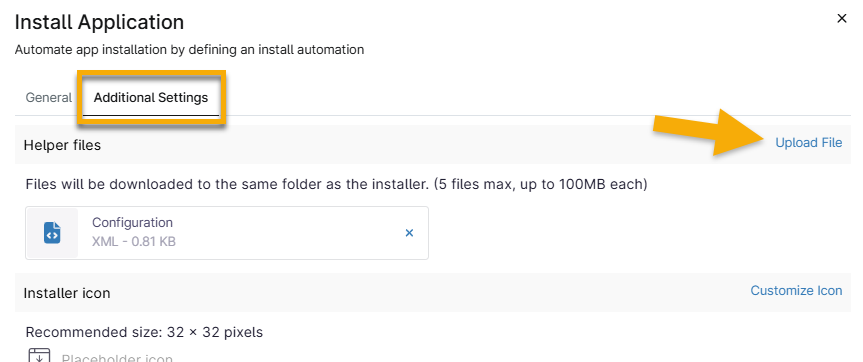
Figure 5: Upload the helper file
- Click Submit.
- If prompted, enter your one-time verification code and then click Continue.
Navigate to one of your test machines and run the automation.
- On the device dashboard, click the action button and select Run Automation → Install Application.
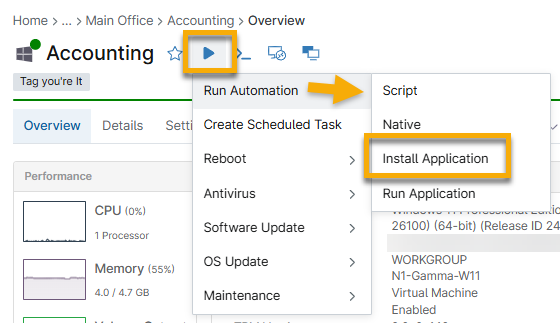
Figure 6: Run the install application automation from a device dashboard
- Choose Microsoft 365 Custom, select the preset parameter you added earlier, and then click Run, Yes, and Run Automation.
You will notice that the application launches, but it may take a few moments to complete the installation. - Choose Excel for testing to confirm customization deployment.
Additional Resources
Refer to Scripting, Automation, CLI: Resource Catalog to learn more about NinjaOne's Automation Library.