
Topic
NinjaOne Remote's background mode enables technicians to remotely access and manage a device without disturbing the end user.
Environment
NinjaOne Remote
Description
- About
- Give Technicians Permission to Access Background Mode
- Enable Background Mode for NinjaOne Remote
- Use Background Mode to Connect to a Device
- Additional Resources
About
- You must enable NinjaOne Remote to use this feature.
- When enabled, technicians with the appropriate permissions will see an option on the device dashboard to initiate a remote session normally or in background mode.
- Technicians are required to pass an MFA check to initiate a remote session in background mode.
- The Activities dashboard shows device events related to background mode sessions established and terminated.
Give Technicians Permission to Access Background Mode
Learn more about assigning permissions or roles to technicians in our User Roles and Permissions document.
- Open the account configuration page for the technician requiring access. Or, open the technician role configuration page to assign permission to multiple technicians.
- Select System permissions and ensure the toggle at the top reflects "Enabled."
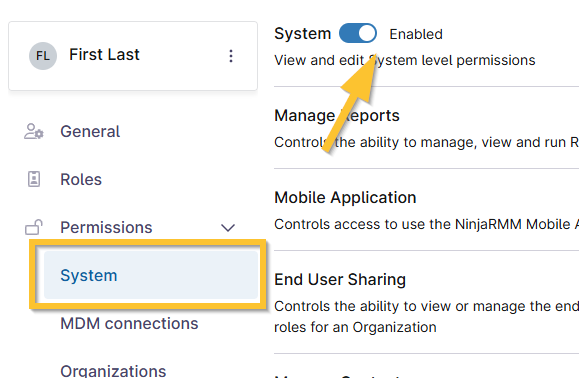
Figure 1: NinjaOne technician configuration page → Enable system permissions
- Find the permission for Background Mode for NinjaOne Remote and select "Allowed" from the dropdown. The permission for Configure NinjaOne Remote should be set to "Allowed," as well.
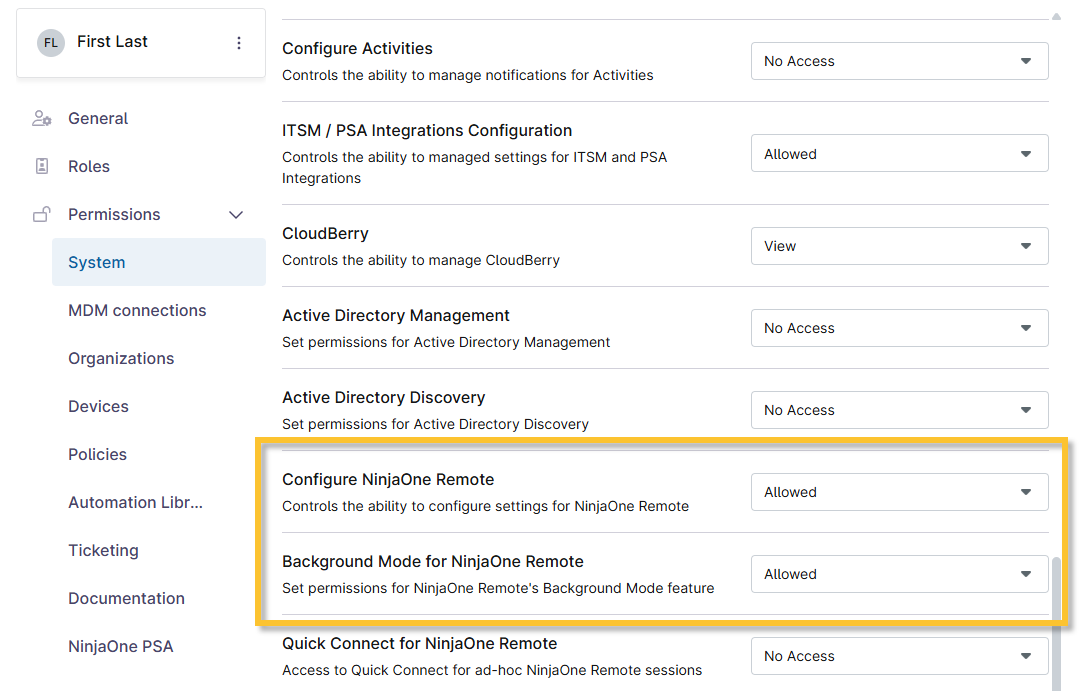
Figure 2: NinjaOne technician configuration page → Remote permissions
- Click Save Changes at the top of the configuration page.
Enable Background Mode for NinjaOne Remote
- Open the NinjaOne Remote app (Administration → Apps → Installed). If you have not already enabled this feature, please refer to NinjaOne Remote: Set up, Download and Install before continuing the process outlined in this document.
- Click Enable on the right side of the Background mode widget.
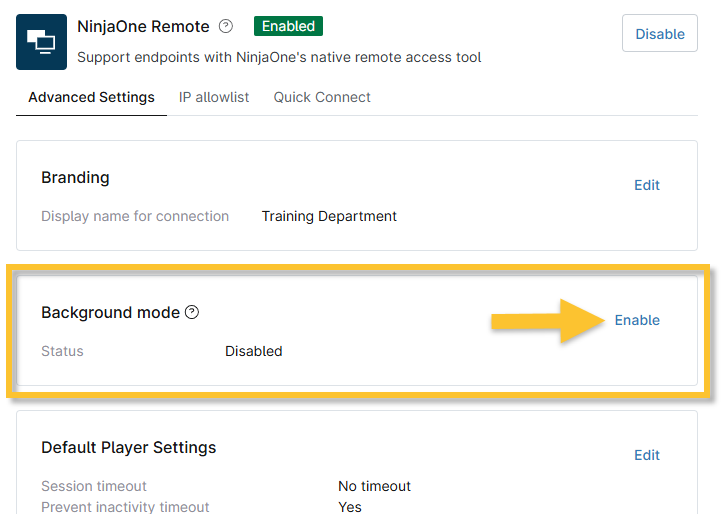
Figure 3: NinjaOne Remote application configuration → Enable background mode
- Confirm by clicking Enable again in the resulting modal popup.
Use Background Mode to Connect to a Device
Move your cursor over the NinjaOne Remote icon on the device dashboard and select Connect in background mode.

Figure 3: NinjaOne device dashboard → Connect in background mode
Additional Resources
For further information about how to manage endpoints with NinjaOne's remote tools, refer to Remote Access: Resource Catalog.