
Topic
This article discusses the NinjaOne SaaS Backup dashboards in NinjaOne.
Environment
- NinjaOne
- NinjaOne SaaS Backup
Description
The NinjaOne SaaS Backup dashboards enable you to view and manage your SaaS backups from a single, central location. You can view NinjaOne SaaS Backup information from two levels: the global level, for an overview of all organizations, or from the organization level, for a more detailed view of each account in an organization.
Select a topic to continue:
Global-Level Dashboard
To view the global-level dashboard, in your NinjaOne instance:
- Navigate to Dashboard → Backup.
- In the Backup drop-down menu, select SaaS → Overview
NinjaOne will display the global-level SaaS backup overview dashboard.
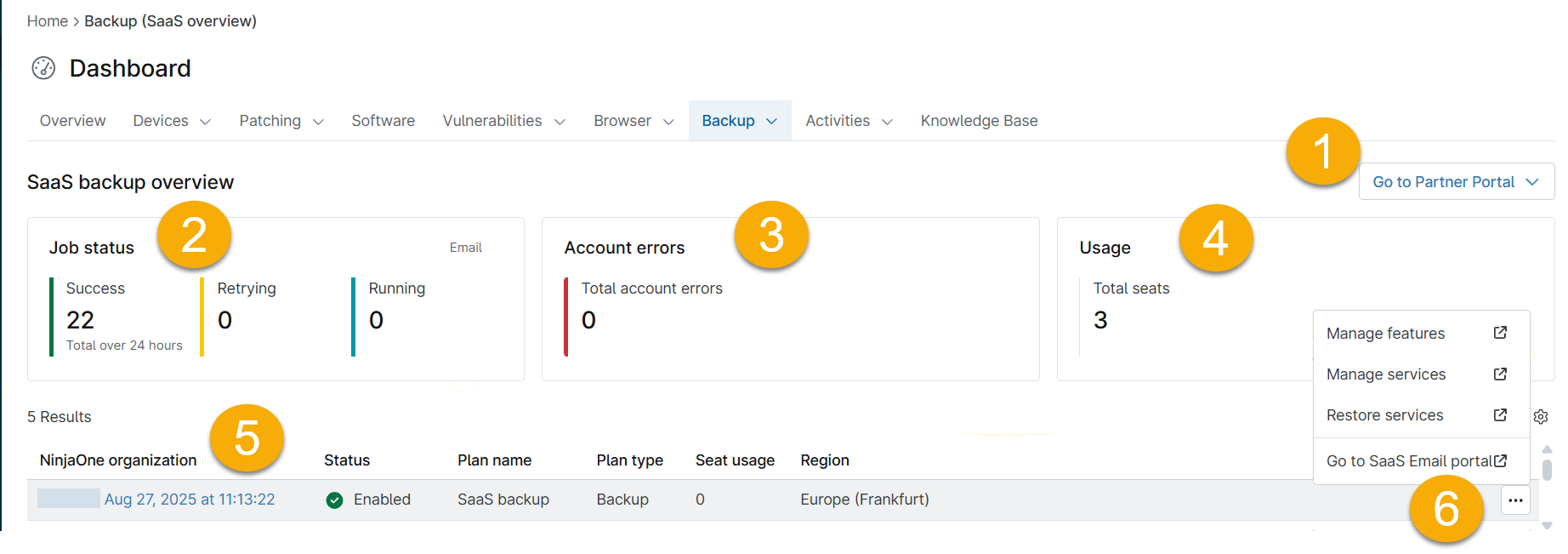
The global-level SaaS backup overview dashboard displays the following information:
- Go to Partner Portal button
Select this button to go directly to your SaaS Backup partner portal. This feature requires access permission. Review NinjaOne SaaS Backup: Technician Role Permissions for more information. - Job status
- Success: The number of agents whose last backup completed successfully.
- Retrying: The number of agents that are retrying after an earlier backup issue.
- Running: The number of agents currently backing up.
- Account errors
This area will display the number of organizations experiencing authentication issues. - Usage
Total seats: This listing shows all licenses in use across all organizations. Organization table
The organization table lists the following information:- NinjaOne organization: The name of the organization.
- Status: Enabled or Disabled.
- Plan name: The name of the plan.
- Plan type: Backup, Archiver, or Entra plans.
- Seat Usage: The number of seats the organization is using.
- Region: The region where we store your backups.
Click the gear icon to sort or re-order the table.
- Actions menu
The Actions menu provides direct access to your NinjaOne SaaS Backup portals without the need for separate logins. Place your cursor over any row in the account table to reveal the actions menu. You can choose any of the following options from the drop-down menu:
- Manage Features will open the Organization Details page in the NinjaOne SaaS Backup Partner Portal
- Manage Services will open the Add Backup page in the NinjaOne SaaS Backup Partner Portal.
- Restore Services takes you to the NinjaOne SaaS Backup Partner Portal dashboard.
- Go to SaaS Email portal takes you to the NinjaOne SaaS Back End-user Portal for the organization you selected.
Organization-Level Dashboard
From the global SaaS dashboard, click an organization name to access the organization-level SaaS dashboard.

The organization-level SaaS dashboard displays the following information:
Service listing
This column lists the various services you back up. Select the service you wish to view.
- Job Status
- Success: Show all backups within the organization that have completed without issue.
- Retrying: View the total number of backup jobs for the organization that did not initiate or complete as expected. NinjaOne is reattempting these jobs.
- Running: Show all backup jobs in progress for the organization that are currently in progress.
Account errors
This column will list the number of accounts that were unable to authenticate with their tenant.
Usage
This area displays the number of licenses in use across the organization.
Go to SaaS Email portal
This button provides a direct link to the organization's NinjaOne SaaS Backup or End-User Portal. This feature requires access permission. Review NinjaOne SaaS Backup: Technician Role Permissions for more information.
- Account table
The account table lists the following information related to the particular end-user account.- User: User name
- Type: Type of account
- Service: Service being backed up (Office 365, Google Workspace)
Job Status: Displays Success, Retrying, or Deactivated.
Click the gear icon to sort or re-order the table.
Actions menu
The Actions menu provides direct access to your NinjaOne SaaS Backup End-user Portal without the need for a separate login. Place your cursor over any row in the account table to reveal the actions menu. You can choose any of the following options from the drop-down menu:
- Manage Services will open the Add Backup page in the NinjaOne SaaS Backup End-User Portal.
- Restore Email items takes you directly to the NinjaOne SaaS Backup End-user dashboard for the user account you selected.
- Restore Full Email will open the main NinjaOne SaaS Backup End-user Portal dashboard.