
Topic
This document shows you how to remove an Apple iOS, macOS, or Android mobile device from NinjaOne.
Environment
- NinjaOne Mobile Device Management (MDM)
- Apple iOS and iPadOS
- Apple macOS
- Android
Description
When removing a mobile device from management in NinjaOne, you can disown, erase, or delete it. Select a category to learn more:
- What is the Difference Between Disown, Erase, or Delete?
- Disown a Device
- Erase a Device
- Delete a Device
- Disable the NinjaOne Apple or Android MDM Application
- Remove or Delete the MDM Enrollment Profile From an Apple Device
- Additional Resources
What is the Difference Between Disown, Erase, or Delete?
Click the hyperlinked option to view instructions on disowning, erasing, or deleting the device from NinjaOne:
- Disown: This only applies to Apple Business Manager (ABM) enrollment. All information will be removed from the NinjaOne database, the enrollment profile will be deleted from the device, and the device will be removed from the ABM portal.
- Erase: The enrollment profile is deleted on the physical device, but the information remains in the NinjaOne database so that a device can be re-enrolled with this option. If the device is personally owned, this will remove the work profile; if the device is company-owned, this will wipe the entire device, including personal data.
- Delete: The device is removed from NinjaOne (if it uses ABM, the data stays in ABM with division and organization information). The enrollment profile is deleted from the device, and all information is removed from the NinjaOne database.
- For Apple iOS, iPadOS, and macOS devices, the Delete Device action will remove the MDM profile and all configurations without wiping the device itself.
- When wiping or deleting a company-owned Android device from MDM, the device is factory reset, and any personal information is removed. When wiping or deleting a personally owned Android device from MDM, only the work profile is removed, and personal data remains intact.
- If an erased device is not deleted from the system, re-enrolling it will add it to the organization to which it was originally mapped.
- Devices can only be disowned if they were enrolled using ADE.
- Technicians must have "View, Update, Delete" permissions enabled for Devices → Default Access to see the Erase Device option on the device dashboard.
Disown a Device
When you disown a device through the ABM (Apple Business Manager), the device will continue to be enrolled. This can only be done on a company-owned device.
Once the device is disowned, it is deleted from the NinjaOne console, and the data is erased. A log is recorded under the Activities tab on the device dashboard.
Erase a Device
| Device Type | Ownership | Erase Device Actions |
|---|---|---|
| Android | Work or company-owned | This erases the device, including all data and contents. It requires the device to be set up as a new device. |
| Android | Personally owned | This erases the Work profile and related Work content stored in that profile from the device, including all apps and files. |
| Apple iOS, iPadOS, macOS | Company owned and Supervised, or Personally owned and Unsupervised | The entire device will be erased, including all personal and managed content. |
To erase a device:
- Navigate to the device dashboard and click the action button next to the device name.
- Move your cursor over Security actions and click Erase Device.

The confirmation modal displays.
Select an option from the drop-down menu, or if you are erasing an Android device, click the Wipe external storage option, if applicable, and then click Erase.
Wipe External Storage (Android): If the device is company-owned, wiping the device restores it to factory defaults. If personally owned, wiping the device removes the work profile, all work-related items, and the SD card.- Enter your NinjaOne account email to confirm that you wish to erase the device.
You will see a confirmation notification in the bottom right corner of the screen. The device still shows on the organization dashboard; however, you can no longer take any actions at the device level.
Erased data is reported in a variety of ways, many of which can be viewed from the Device search grid.
The erased data is shown in the Activities and General sections at the device level. The Last Checked field under General displays the last time the device checked in before being erased. Management status is updated in the database to state that the device is "Unmanaged" and "Erased."
Delete a Device
NinjaOne administrators and technicians with the proper permissions can see which devices have been erased and access device details to determine if the erased devices need to be deleted from the NinjaOne console.
Devices can be deleted from the NinjaOne consoles even if they have not been erased. To delete a device:
- Devices search page: Activate the checkbox to the left of the device name and then click Delete under the search filter.
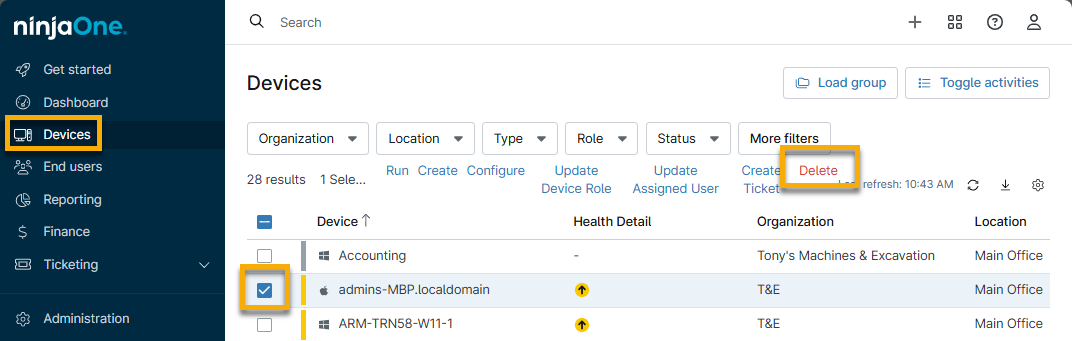
- Device dashboard: Click Edit in the top right corner of the page and then click Delete device.

Disable the NinjaOne Apple or Android MDM Application
The Disable button in the app will only be actionable if the following is true:
- There are no connections or active content tokens for Apple Push Notifications, Automated Device Enrollment with Apple Business Manager or School, Apps and Books, or Android Enterprise.
- Technician has the appropriate account permissions.
To disable the app(s), the system administrator or technician must provide their credentials to verify the MFA. Once disabled, the app(s) can be enabled again at any time.

Remove or Delete the MDM Enrollment Profile From an Apple Device
The previous sections of this article explain how to remove a mobile device from management in NinjaOne. This section explains how to complete the process by removing the MDM profile from the physical device, to clear the policies and allow the device to be re-enrolled if necessary.
- Perform the steps in the Delete a Device section of this article.
- Log in to your ABM account and select a device. Click the ellipsis button in the top right corner and select the option to unassign.

- Return to the NinjaOne console.
- Navigate to Administration → Apps → Installed → NinjaOne MDM Apple.
- Open the Automated Device Enrollment tab and select the ADE profile that was assigned to the device affected by Step 1. Click Edit → Devices → Sync with ABM.
- Verify device entry is cleared out.
- Factory reset the physical device and then go through the setup process.
- Verify the enrollment profile was removed (you can usually confirm this on the device under Settings → General → VPN & Device Management).
Additional Resources
Refer to the following resource(s) to learn more about NinjaOne MDM: NinjaOne MDM: Resource Catalog.