
Topic
Automate OS and software updates to ensure system security and compliance across your entire environment.
Environment
NinjaOne Patching
Index
- Where to find the Global Patching app
- Pre-emptively Reject or Approve a Patch
- Change a Rejection or Approval Rule
- Additional Resources
Where to find the Global Patching app
Under Administration > Apps > Installed, you can access the new NinjaOne Patching configurator.
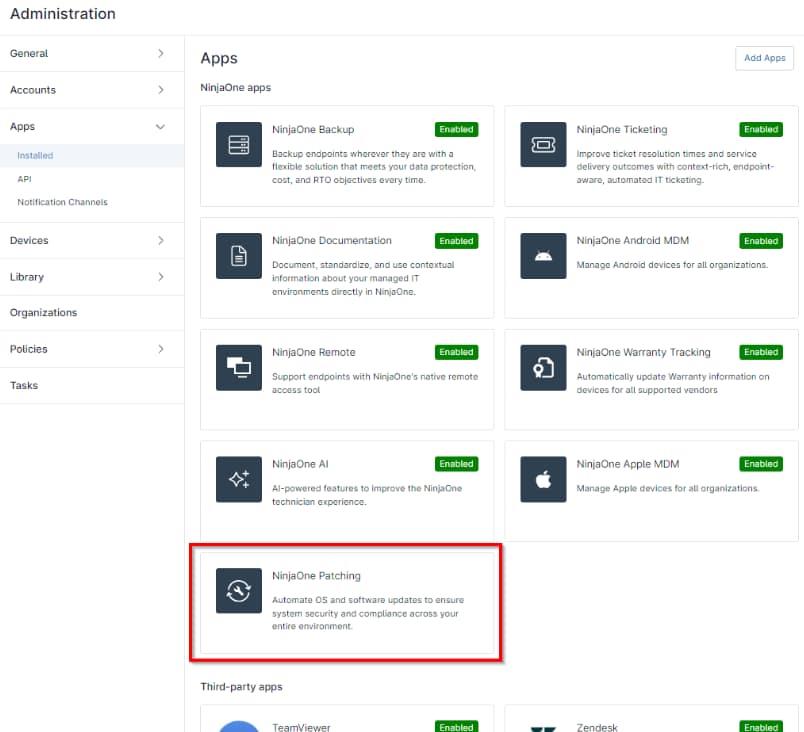
Figure 1: Administration → Apps → Installed → NinjaOne Patching
Pre-emptively Reject or Approve a Patch
- Within the NinjaOne Patching app, click Add.
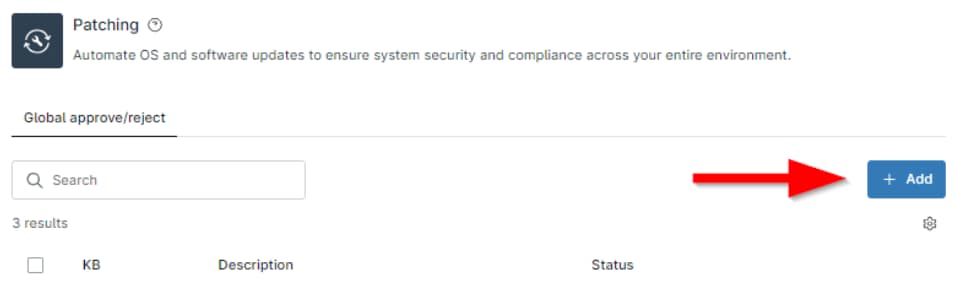
Figure 2: Administration → Apps → Installed → NinjaOne Patching → Add
- Enter the patch KB into the first text field and a description in the second field (required). You can use the description field to state what the patch is for or why it was rejected/approved.
If you need a reference for your existing patch KBs, you can use the Patching > OS patches tab on the system or organization dashboards. KBs also can be found using the "systeminfo" command on a Windows machine. - Select whether the KB will be rejected or approved from the dropdown menu at the far right.
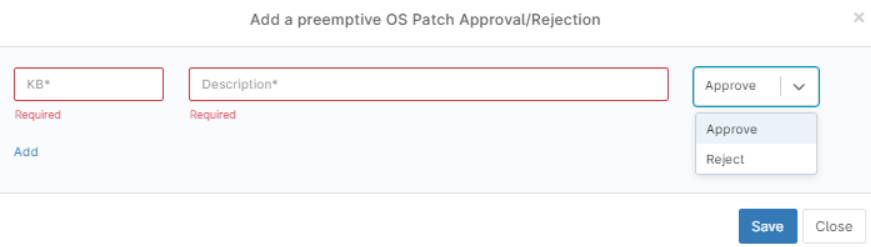
Figure 3: Administration → Apps → Installed → NinjaOne Patching → Add → Configuration modal
- To add multiple rejection or approval rules, use the Add button and then repeat Steps 2 and 3. Additional entries do not need to reflect the same status as the first entry.

Figure 4: Administration → Apps → Installed → NinjaOne Patching → Add → Configuration modal → Add multiple
You can remove additional entries by clicking the X that displays under the KB field.
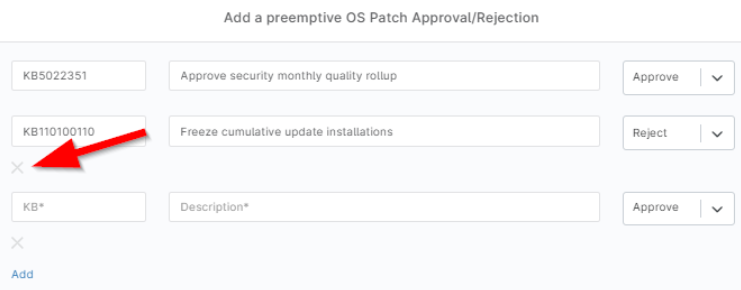
Figure 5: Administration → Apps → Installed → NinjaOne Patching → Add → Configuration modal → Delete
Change a Rejection or Approval Rule
At this time, the approve/reject rule cannot be edited; you must delete it and then create a new one. You can do this in one of two ways:
- Click the box to the left of the KB column and then click the Delete button that appears. This option supports bulk deletion.
- Hover your cursor over the row and then click the ellipsis action button to see the Delete option.

Figure 6: Administration → Apps → Installed → NinjaOne Patching → Delete