
Topic
This article explains how to activate and use NinjaOne's Warranty Tracking feature and view warranty information.
Environment
NinjaOne Endpoint Management
Description
NinjaOne's Warranty Tracking feature automatically retrieves and monitors warranty information for supported devices. It enables you to:
- Track warranty start and end dates.
- Generate alerts before or after warranty expiration.
- Create automated tickets based on warranty status.
- Support device lifecycle planning.
View additional tutorials in our video library.
Select a topic to continue:
- How Warranty Tracking Works
- Supported Devices
- Activate the NinjaOne Warranty Tracking App
- View Warranty Information for an Individual Device
- View Warranty Information in the Devices Search Grid
- Set Warranty Tracking Schedules and Notifications
How Warranty Tracking Works
NinjaOne finds and updates warranty information for devices in the following situations:
- When a user performs an initial activation of the Warranty Tracking app.
- When a user adds a new device to NinjaOne.
- When a user clicks the Sync with manufacturer button in the Devices dashboard.
Additionally, NinjaOne uses a scheduled batch job to capture warranty end dates for supported devices.
Automatic Sync Behavior
NinjaOne's scheduled warranty sync batch jobs use the following parameters:
- Syncs occur every Saturday at 1:00 A.M. UTC.
- NinjaOne checks warranty dates up to six months in the future and up to one year in the past.
- When NinjaOne receives a valid response from supported manufacturer sources, it overwrites any manually entered warranty data.
Supported Devices
NinjaOne supports warranty tracking for workstations, servers, and virtual hosts from the following manufacturers:
- Dell
- Hewlett-Packard (HP) non-Enterprise
- Lenovo
- Microsoft
- Toshiba
Activate the NinjaOne Warranty Tracking App
You must activate the NinjaOne Warranty Tracking app before you can use this feature. To do so, navigate to Administration → Apps → NinjaOne Warranty Tracking and click Enable.
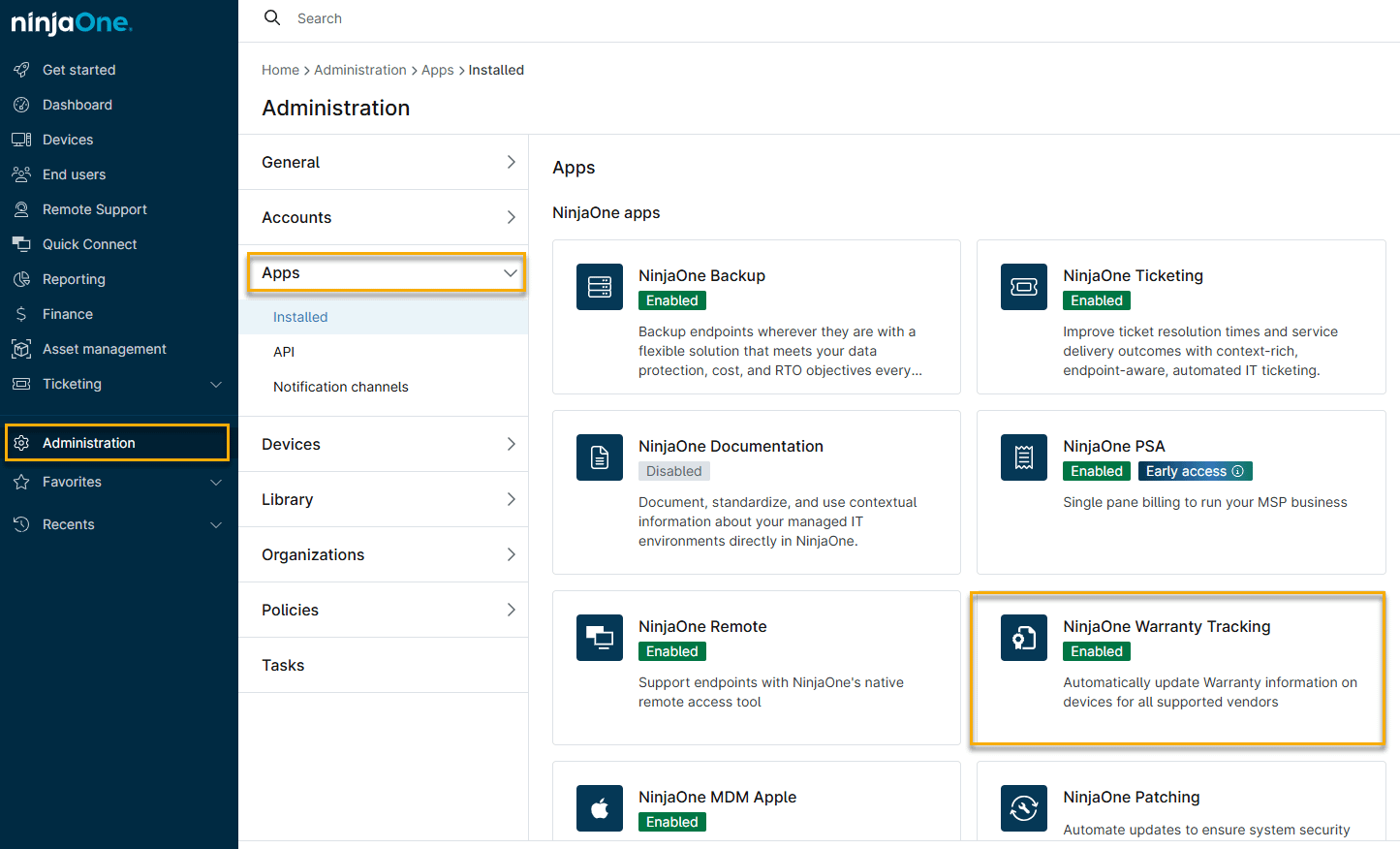
After activation, NinjaOne will automatically populate warranty information in the Devices dashboard. If a user deactivates, then reactivates the app within one week, NinjaOne resumes tracking based on the previous sync time. If more than one week passes before reactivation, NinjaOne performs a new sync.
View Warranty Information for an Individual Device
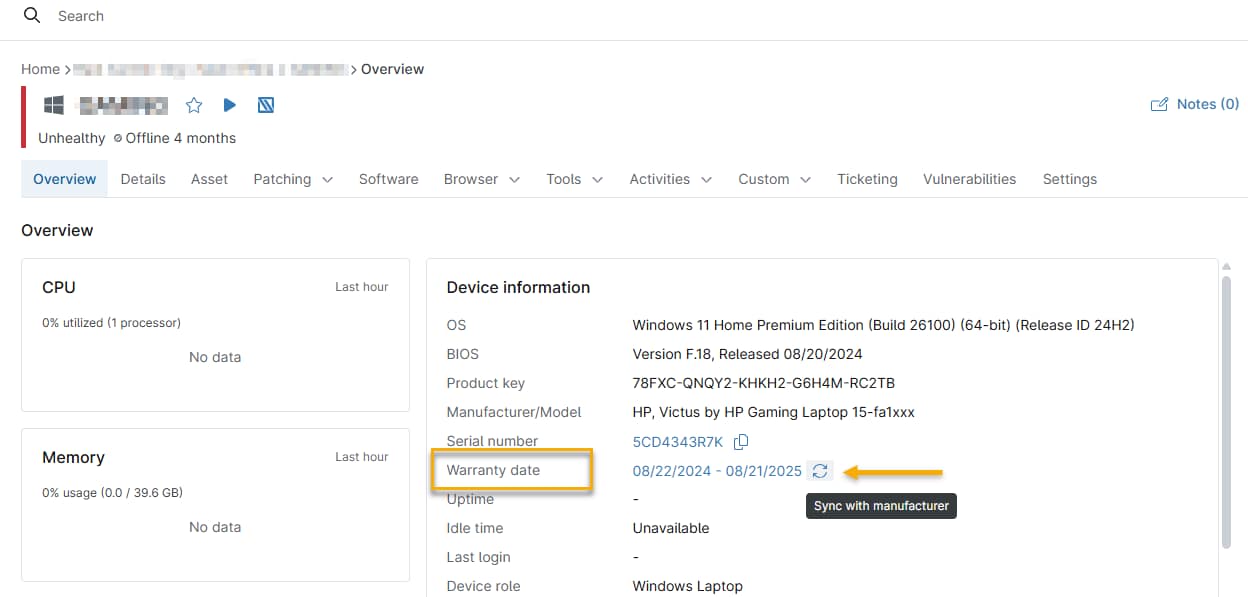
NinjaOne displays warranty information in the device's Overview tab. Locate the Warranty date field in the Device information section. From here, you can:
- Click the Sync with manufacturer icon to refresh the warranty data.
- Click the date link next to Warranty date to edit the start and end dates manually. Note that NinjaOne will overwrite these dates if a manufacturer returns updated information during future automatic warranty sync jobs.
View Warranty Information in the Devices Search Grid
NinjaOne uses Warranty End Date as the primary field to search, filter, and generate warranty expiration alerts or policy-based notifications.
Add the Warranty End Date Column
- In NinjaOne, navigate to Devices, then click the Table settings tool. The Table settings window will open.

- In the Columns menu, begin typing Warranty End Date, then click the entry when it automatically completes to add it to the column stack. You can adjust the column's location in the search grid by clicking its move handle in the column stack and dragging it higher or lower.
Once added, the Warranty End Date column will automatically populate with data as NinjaOne performs all warranty checks.
Filter Devices by Warranty End Date
You can use the Warranty End Date filter to find devices approaching expiration.
Click More filters, then select Warranty End Date.
- The Filter by: Warranty End Date window will open. Enter your filter parameters, then click Apply.
View Devices by Manufacturer Fulfillment Date
Manufacturer Fulfillment Date data represents the date the manufacturer fulfilled or shipped the device. This data is separate from Warranty End Date values.
You can use the Manufacturer Fulfillment Date information to:
- Estimate device age.
- Support asset lifecycle reporting.
- Validate procurement timelines.
Procedure
- In the Devices search grid, add the Manufacturer Fulfillment Date column by clicking the Table settings (gear) icon, as shown in Figure 3.
- In the Table settings window, begin typing Manufacturer Fulfillment into the Columns field, then click the entry when it automatically completes to add it to the column stack.
- After adding the column, click More filters in the Devices search grid, then select the Manufacturer Fulfillment Date filter.
Set Warranty Tracking Schedules and Notifications
You can configure device policies to set warranty expiration notification schedules, manage notification channels, and create ticketing rules.
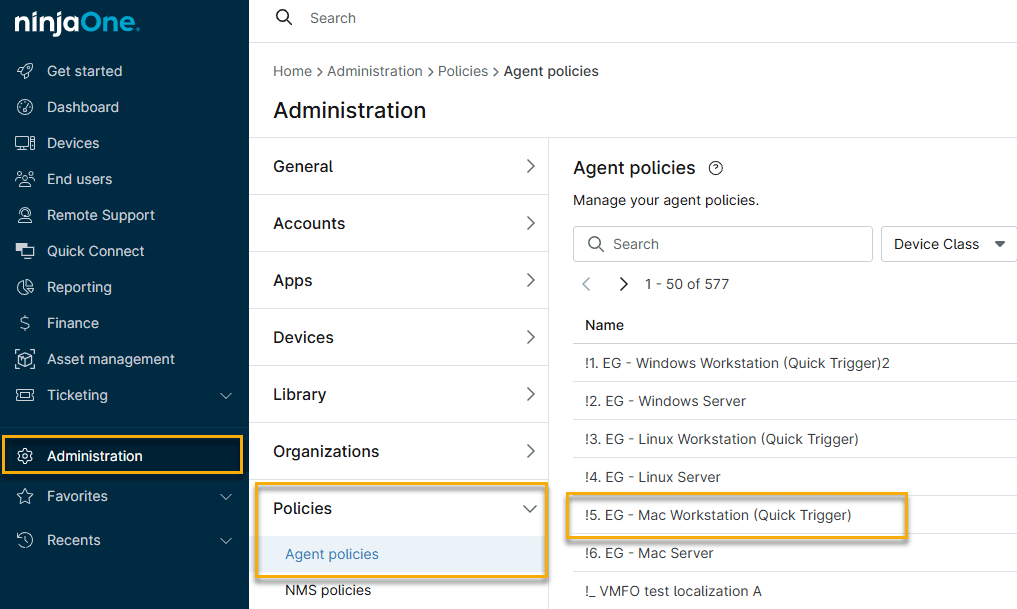
- In NinjaOne, navigate to Administration → Policies → Agent policies, then select a policy from the Agent policies list.
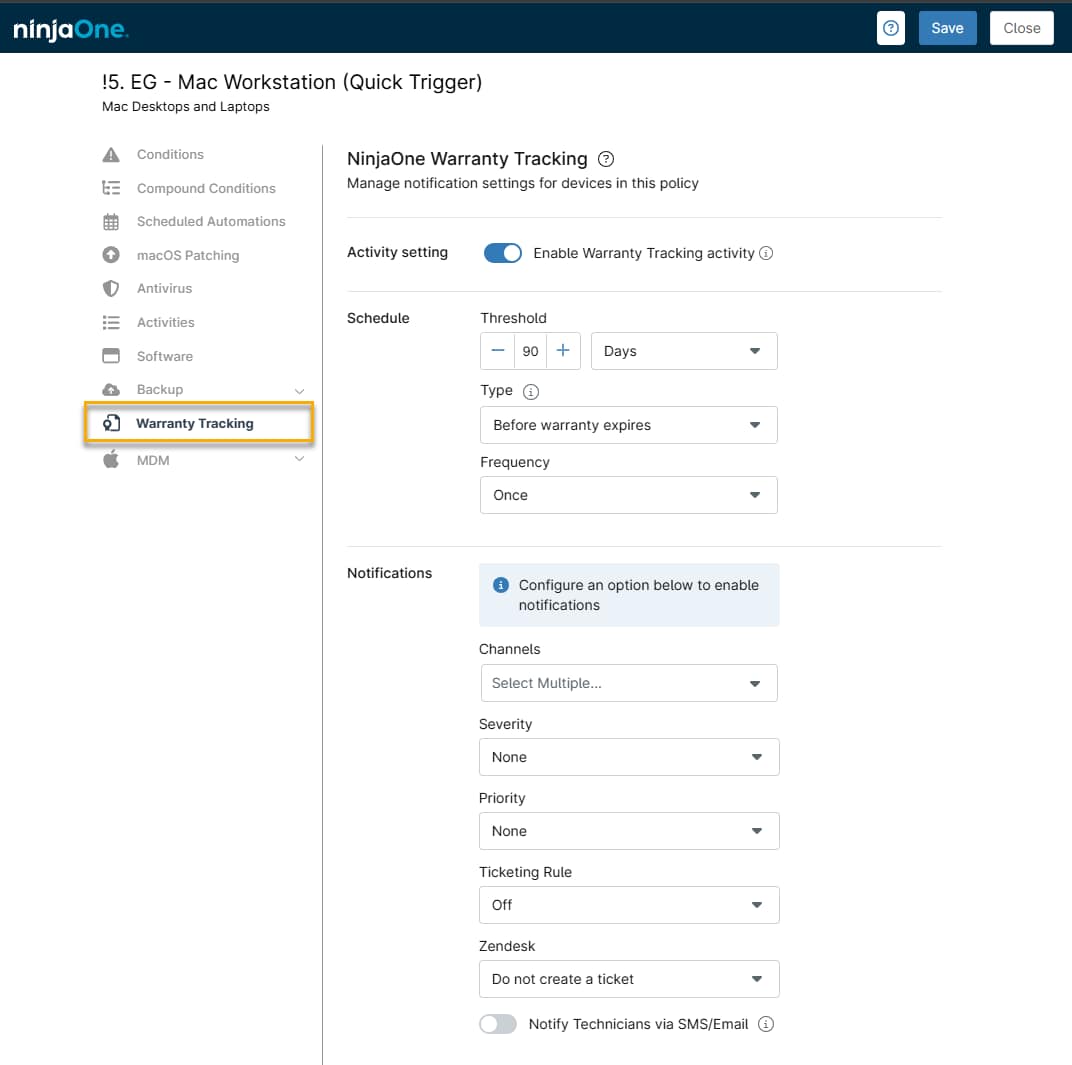
- The policy's configuration options will open. Click the Warranty Tracking tab, then configure the Schedule and Notifications settings to your needs.
Warranty Tracking Settings
The table below explains the warranty tracking settings available.
| Setting | Description |
|---|---|
| Activity setting | Activate this toggle to initiate warranty tracking. |
| Schedule | The alert triggers when the configured time threshold before or after expiration is reached. You can specify the following parameters:
Using the schedule settings in Figure 9 above, NinjaOne would send a notification only once, 90 days before the warranty expires. |
| Notifications | These options control how and to whom NinjaOne sends notifications when warranty conditions exceed the schedule parameters.
|
Additional Resources
Refer to Manage Warranty Information in NinjaOne for more information about device warranties.