Topic
This article discusses how to link your SaaS backups to a NinjaOne Organization for easier backup management.
Environment
NinjaOne SaaS Backup
Description
Linking your preexisting SaaS Backup Organizations allows you to manage them from the NinjaOne Portal.
These instructions assume you are linking an already established NinjaOne SaaS Backup organization to your NinjaOne account. If you need to set up a NinjaOne SaaS Backup organization, refer to NinjaOne SaaS Backup: Integrating Dropsuite accounts into NinjaOne.
Procedure
Once you've activated the NinjaOne SaaS Backup integration on the Administration → Apps page, you're ready to link organizations to back up. To do so, follow these steps:
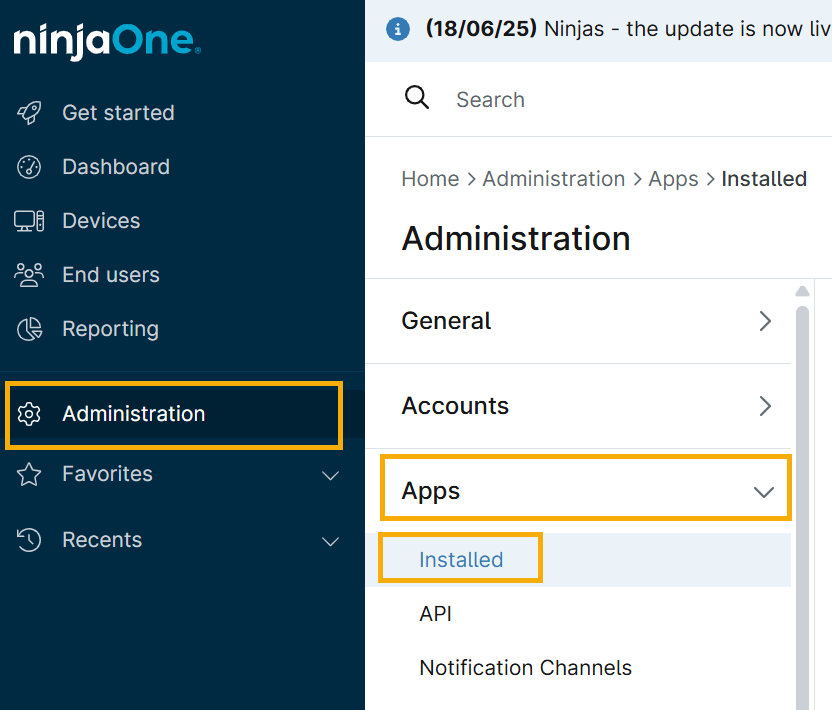
- In the NinjaOne Portal, click Administration in the navigation menu, then click Apps and select Installed from the expanded options.
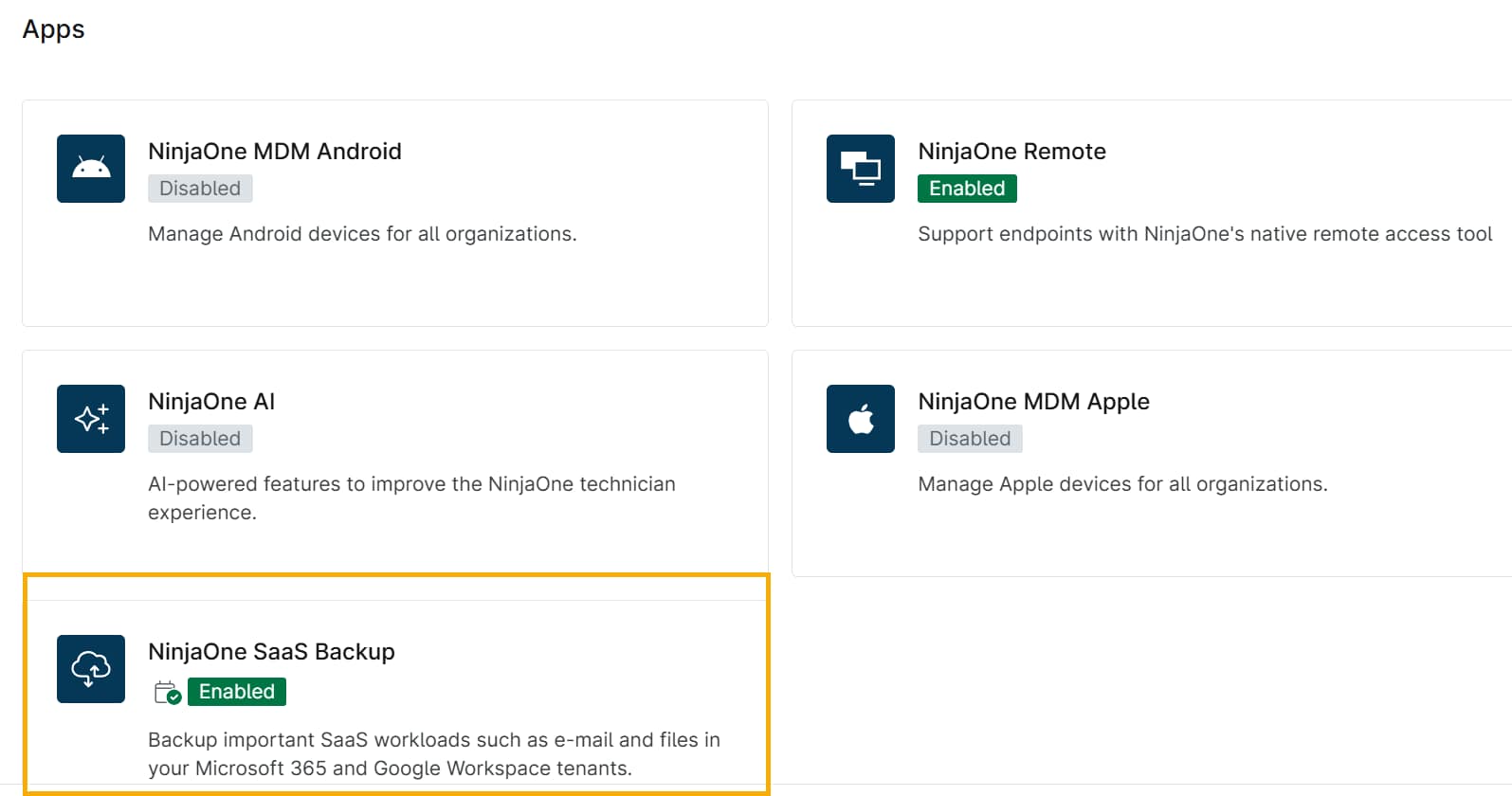
- Scroll through your apps and click the NinjaOne SaaS Backup tile to launch the application.
- In the NinjaOne SaaS Backup application. Click the Organizations tab.
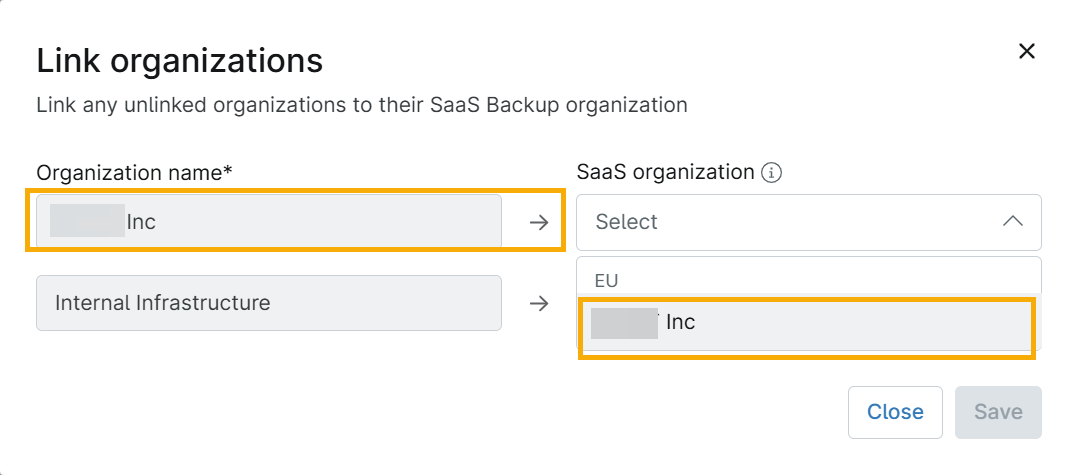
- Move your cursor over Manage Organizations and select Link Existing SaaS Backup Organizations from the drop-down menu. The Link Organizations dialog will appear.
- Select your NinjaOne Organization and the SaaS Backup Organization to link, and click Save.
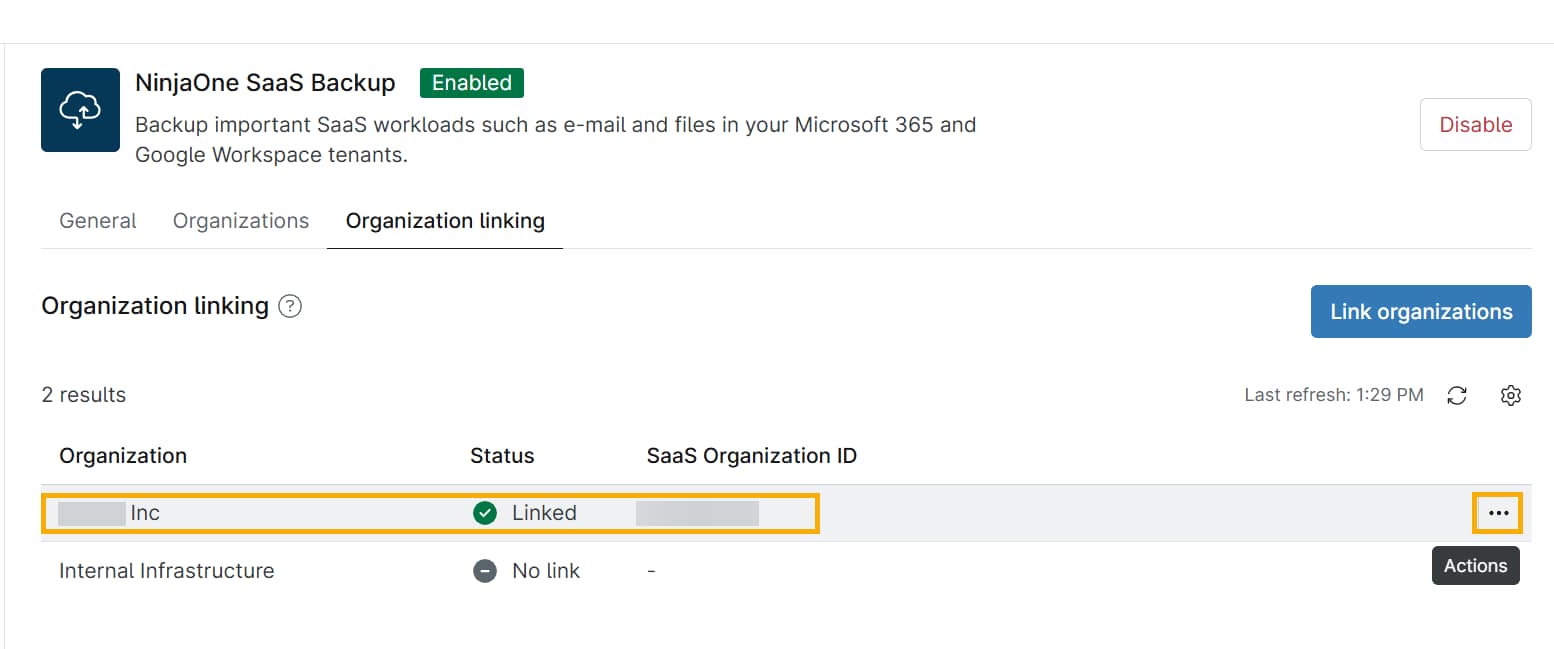
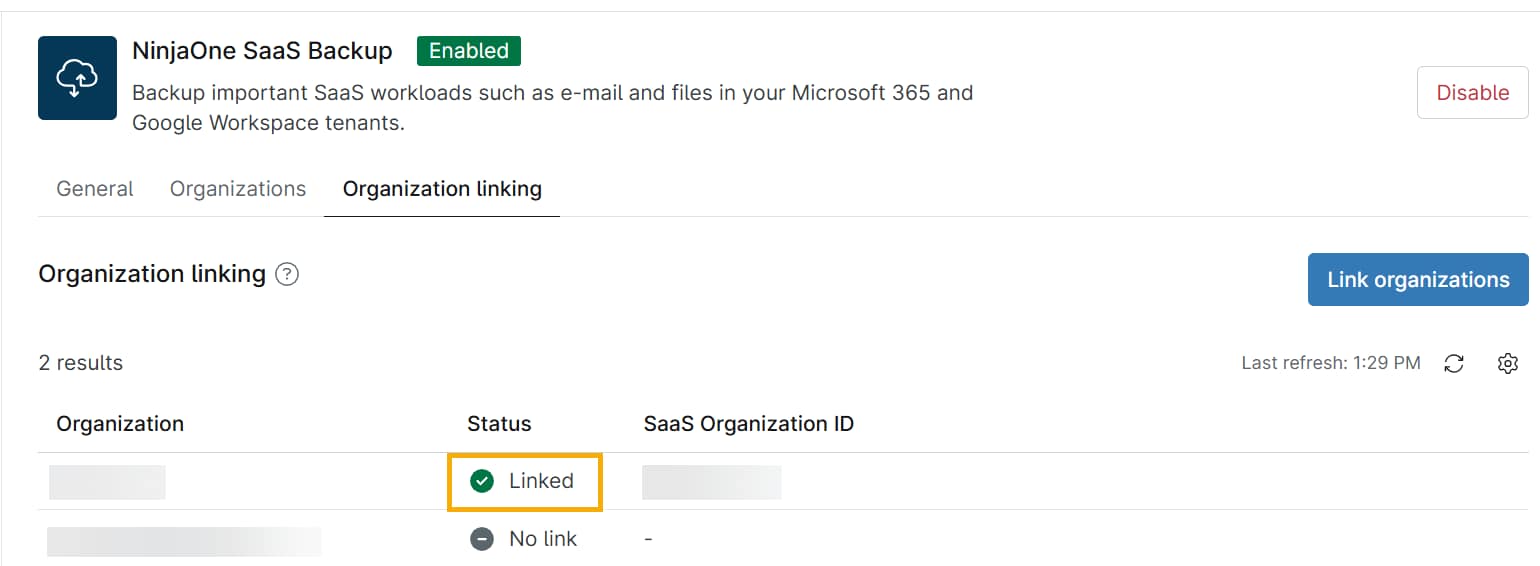
Your organization will now show as Linked in the NinjaOne Portal.
Unlinking a SaaS Backup Organization
To unlink a NinjaOne SaaS Backup organization from Ninja
- In the SaaS Backups app, place your cursor over the NinjaOne Organization linked to the SaaS Backup Organization. Then click the actions menu.
- Select Actions, and click Unlink Organization.