
Topic
This guide provides instructions for generating a NinjaOne agent installer for a Linux device. Refer to NinjaOne Endpoint Management: Linux Agent System Requirements and OS Support before installing NinjaOne on your endpoints.
For information about installing on Mac devices, refer to How to install NinjaOne on a Mac device.
For information about installing on Windows devices, refer to How to install NinjaOne on a Windows device.
Environment
- NinjaOne Agent
- Linux OS
Description
- Generating a NinjaOne Installer
- Copying a Link to the Installer
- Installing the Linux Agent on a Device
Generating a NinjaOne Installer
 | In order to generate the NinjaOne Installer, you first need to set up an organization and create a policy. |
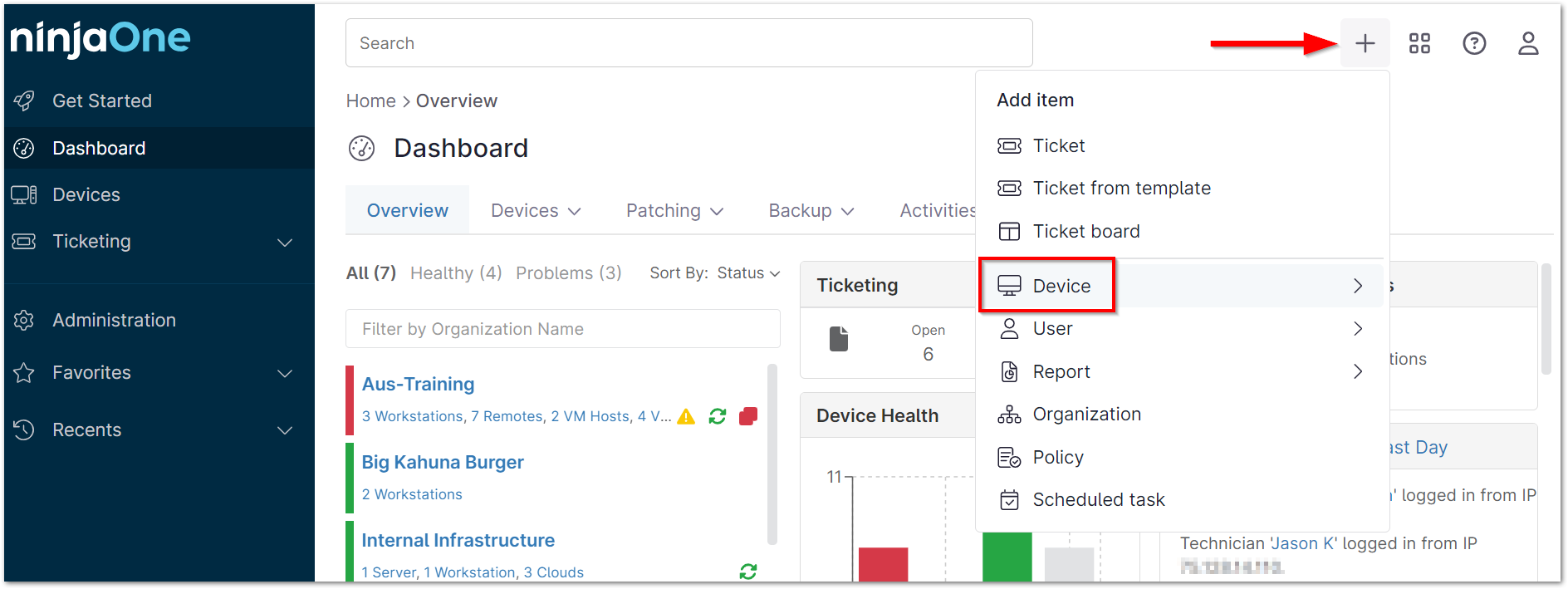
- Once you have setup an organization and created a policy in NinjaOne, click the + sign in the upper right of the NinjaOne console and choose Device.
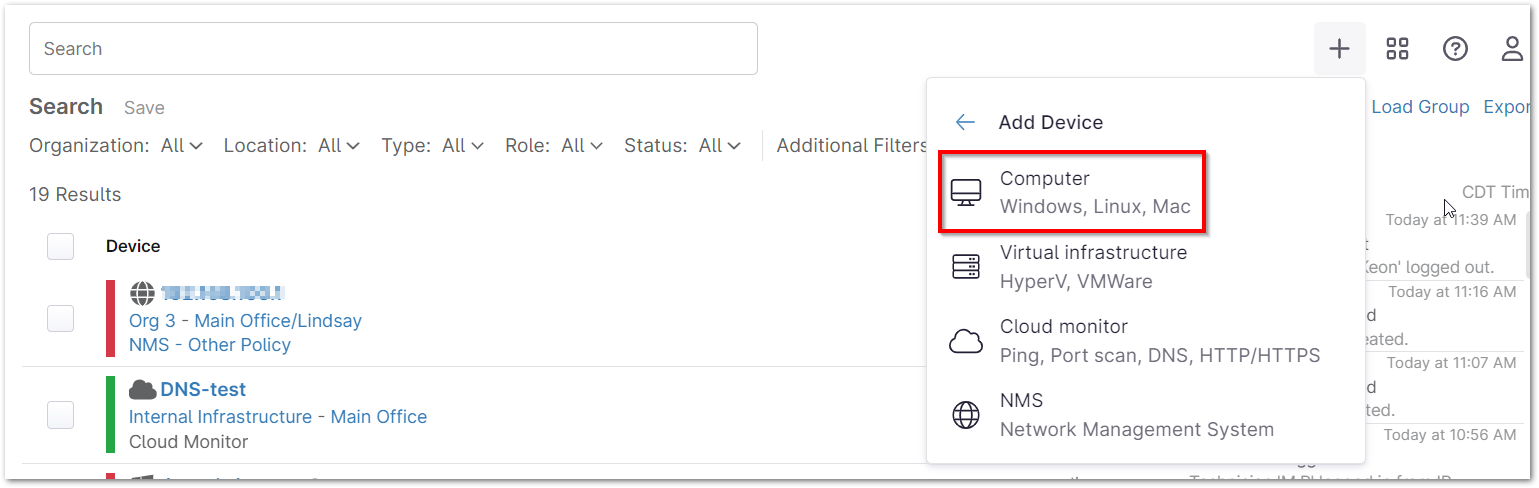
- Select Computer from the menu.
- Select Linux and designate the Organization, Location, Device Role and Distribution type that this device belongs to. Select the Generate Installer button.

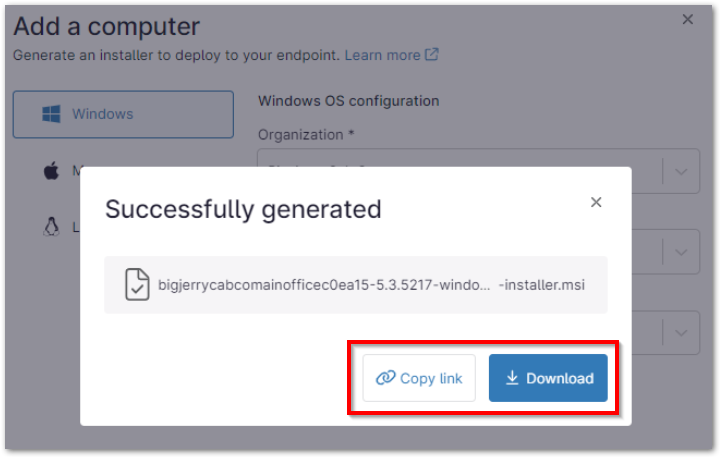
A message displays at the bottom while the installer generates. - Once the installer has been generated, it can be downloaded using the Download button, or the link to the installer can be copied to your clipboard using the Copy link button.
Copying a Link to the Installer
If you'd like to send end users a link that they can click to download the installer, click Generate Installer and select Copy link.
Important Note: This link may expire under the following circumstances:
- Division cached installers are cleared.
- A minor or major agent upgrade is released.
- A bug fix for an installer-related issue is released.
In all other circumstances, the download link will remain available for use.
Installing the Linux Agent on a Device
For Linux machines, the installer must be run via command line. Refer to the following instructions. These instructions work for RPM or Debian/Ubuntu.
RPM
Types
- Red Hat Enterprise Linux (RHEL)
- Fedora
- CentOS
Procedure
Method A
Open a terminal.
wget <rpm package link>Replace <rpm package link> with a link to the RPM package, which can be gathered using the step above.
sudo rpm -i <rpm package name>

ls /opt/NinjaRMMAgent/programfiles
Users should see NinjaRMM program files such as ninjarmm-linagent.
sudo systemctl status ninjarmm-agent.service- Users should see an output of 'Active'.
Method B
- Open a terminal.
Navigate to where the RPM package is stored. (For example, cd ~/Downloads if you downloaded the RPM installer from the Ninja web interface directly onto the machine.)
sudo rpm -i <rpm package name>

ls /opt/NinjaRMMAgent/programfiles
Users should see NinjaRMM program files such as ninjarmm-linagent.
sudo systemctl status ninjarmm-agent.service- Users should see an output of 'Active'.
Debian
Types
- Debian
- Ubuntu
Procedure
Method A
Open a terminal.
wget <deb package link>Replace <deb package link> with a link to the Debian package, which can be gathered using the step above.
sudo dpkg -i <deb package name>

ls /opt/NinjaRMMAgent/programfiles
Users should see NinjaRMM program files such as ninjarmm-linagent.
sudo systemctl status ninjarmm-agent.service- Users should see an output of 'Active'.
Method B
- Open a terminal.
Navigate to where the DEB package is stored. (For example, cd ~/Downloads if you downloaded the Debian installer from the Ninja web interface directly onto the machine.)
sudo dpkg -i <deb package name>

ls /opt/NinjaRMMAgent/programfiles
Users should see NinjaRMM program files such as ninjarmm-linagent.
sudo systemctl status ninjarmm-agent.service
- Users should see an output of 'Active'.