
Topic
This article explains how to configure operating system update settings at the policy level for macOS devices enrolled in NinjaOne Mobile Device Management (MDM).
Environment
NinjaOne MDM
Description
First, you must add the device in NinjaOne and assign it to be managed by NinjaOne MDM. For more information, refer to NinjaOne MDM: Managing macOS; this article also provides general information about MDM macOS policies.
The MDM → OS updates section of the policy configuration page for MDM-enrolled macOS devices allows you to define default behavior for handling OS updates released by Apple and including security improvements to protect against vulnerabilities, bug fixes to resolve issues and improve stability, and sometimes new features or performance enhancements.
Technicians can also manually approve specific OS updates for the policy and deploy them to devices with a defined enforcement deadline.
Select a category to learn more:
- Pre-requisites and Compatibility
- How Approved OS Updates Work
- Define End-user Behavior Around Self-Installing Updates
- Define Device Behavior Around Self-Installing Updates
- Enforce Specific OS Updates on Managed Devices
- Additional Resources
Pre-requisites and Compatibility
The user behavior and device behavior sections within a NinjaOne MDM policy support macOS 14+ devices. Specific settings may require later versions.
We recommend you read the Enforce specific OS Updates on Managed Devices section of this article carefully to understand caveats and considerations when enforcing updates on unsupervised devices.
How Approved OS Updates Work
A typical approved update will behave as outlined in the following example workflow:
- Before approving an update, the technician will define standard device behavior in the OS updates section of a policy. Typically, this will involve delaying when a particular update is available to end users. NinjaOne can delay an update from appearing to a device's user for up to 90 days from its release. Up to the specified delay, the update will not be visible to the end user and cannot be installed by them.
- A technician can approve a particular update (for example, macOS 15.3.1). In doing so, they define an enforcement date and time.
- Upon approval, devices affected by that policy will receive a notification that macOS 15.3.1 has been approved and will be enforced at the specified date and time. The update will automatically download and prepare on devices. Each day, the device's user will receive a reminder that this update will be enforced at the specified time. Notifications become more frequent during the final 24 hours before the enforcement deadline.
- Even if the approved update would normally be hidden due to a delayed configuration in the policy, users will be able to install it at a time of their choosing via these notifications, and through the normal device System Settings.
- If the enforcement deadline passes before the device has updated, the device will force the update to occur. If the user is actively using a device, they will receive a 60-second countdown before the installation begins. If the device is not actively in use, the update will occur without requiring any user interaction.
In NinjaOne, you can approve individual OS updates either from the Enforce updates section of OS Updates tab in the policy, or from the Patching → OS patches tab on the dashboard.
- When viewing available updates in the policy, an approved update will show in the Approved tab if the enforcement date is still in the future. If the enforcement deadline is in the past, it will show in the Enforced tab.
If a policy contains multiple OS updates in the Enforced tab (that is, multiple OS updates are past the enforcement deadline), devices that are on a low enough OS version may perform updates sequentially. NinjaOne recommends cleaning up enforced updates in the policy so that only the highest enforced version remains. This ensures that devices will update directly to the highest enforced version. Multiple OS updates may be defined with enforcement deadlines in the future, as long as the enforcement deadlines are different for each version.
Important Considerations About Self-Installing Updates
For macOS policies, you can specify different delay periods for major, minor, and non-OS software updates that are deployed through the native macOS software update flow.
Define End-user Behavior Around Self-Installing Updates
This section explains how to configure your policy to manage the device's user behavior when an update is enforced.
- In NinjaOne, click Administration in the left navigation pane and select Policies. You can find the macOS policy under Agent policies, even if the device is enrolled in NinjaOne MDM. To learn more about NinjaOne policies, refer to NinjaOne Policies: Resource Catalog.
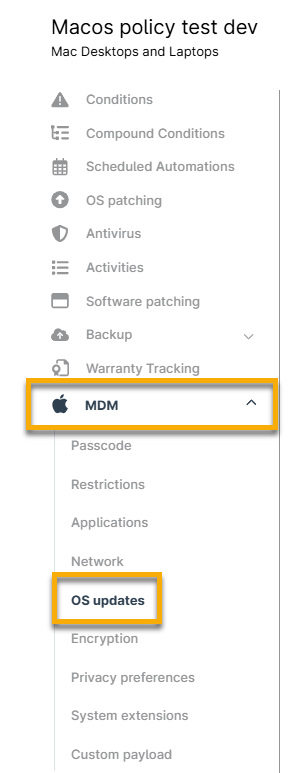
- Expand the MDM menu and select OS updates.
- Define the types of updates that can be self-installed or when upgrades can be installed.
- Select the optional checkboxes to delay major, minor, or new non-OS software updates.
- If you activate the option to delay when an update can be self-installed, a new field displays that allows you to specify how many days to delay by. Users cannot see available updates until the specified time from the day that particular update is available.
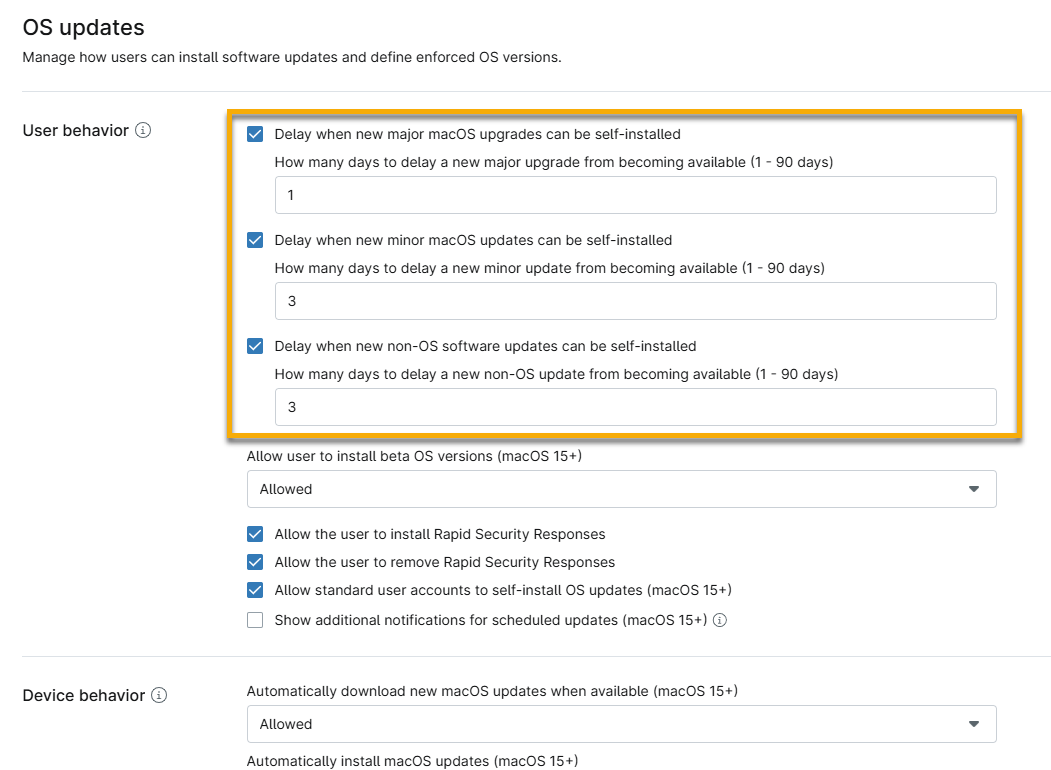
- Define whether users are allowed to install beta versions of the OS. From the drop-down menu, select "Allowed," "Always on," or "Always off."
- Select other optional checkboxes to activate additional rules:
- Allow the user to install Rapid Security Responses: Users may install the Rapid Security Response software on their devices. Refer to Apple documentation to learn more: About Rapid Security Responses for iOS, iPadOS, and macOS - Apple Support (external).
- Allow the user to remove Rapid Security Responses: Users may remove the Rapid Security Response software from their devices.
- Allow standard user accounts to self-install OS updates (macOS 15+): OS updates for devices using macOS 15 and newer will automatically install.
- Show additional notifications for scheduled updates (macOS 15+): Users will receive (approximately) daily notifications about the enforcement of OS updates approved in NinjaOne. Notifications become more frequent as the specified enforcement deadline approaches. If disabled, users will still receive a notification 1 hour before the enforcement deadline.
Any specific updates enforced through NinjaOne will override these delays and take effect as specified.

Define Device Behavior Around Self-Installing Updates
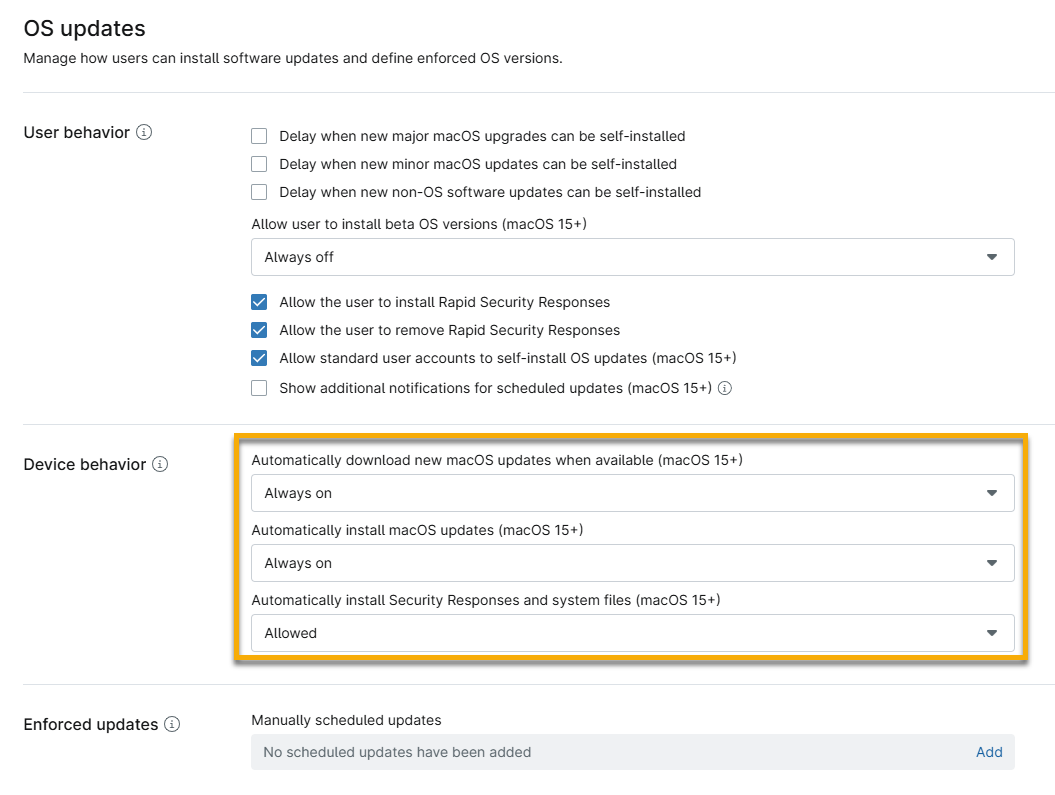
Use the Device behavior section to define whether to automatically download or install new iOS updates when available. The following settings can be configured:
- Automatically download new OS updates when available.
- Automatically install OS updates.
- Automatically install security responses and system files. Enabling this allows important security improvements to be delivered to the device between software updates.
Enforce Specific OS Updates on Managed Devices
The Enforced updates section allows technicians to manually schedule updates. Click Add to open a new configuration modal, allowing for more refined update settings.
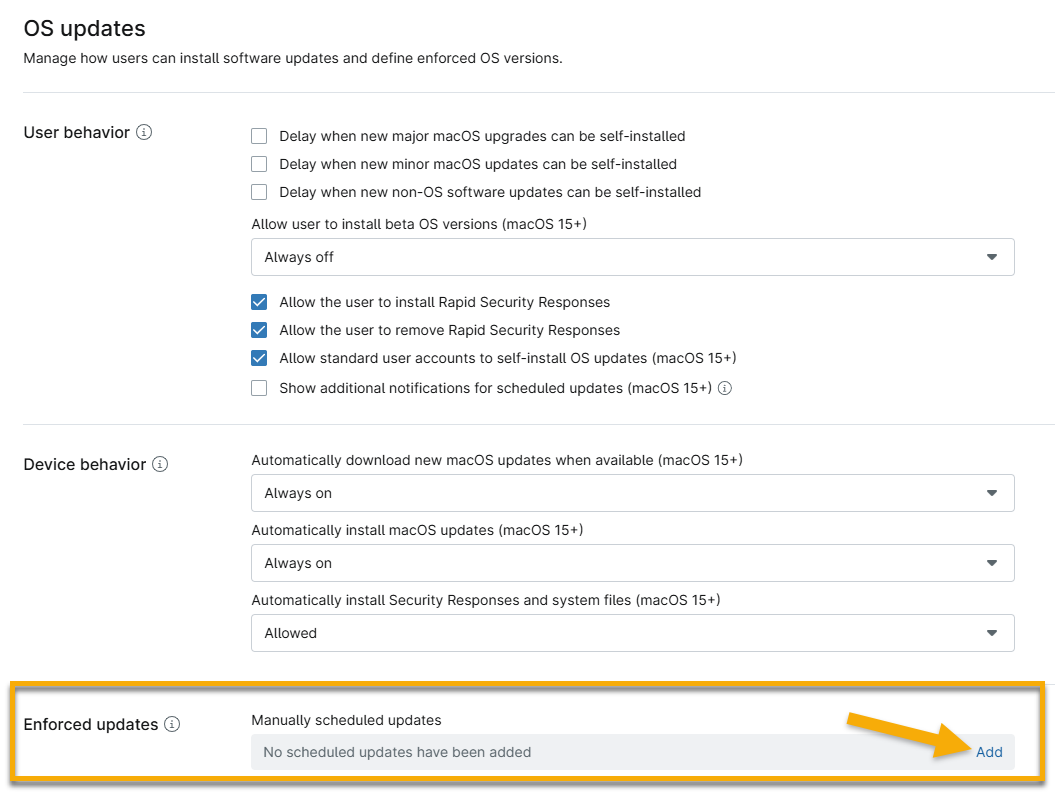
You can enforce a deadline to schedule a specific version update or allow devices to skip it by approving a specific OS update from a list of all updates that Apple has currently made available. When approving, you specify an enforcement deadline, ensuring that the device will update by that time. Once an OS Update is approved and sent to a device, it will behave as described in the How Approved OS Updates Work section of this article.
NinjaOne supports manually scheduled updates for both supervised and unsupervised devices, but there is an important caveat for the latter: Supervised devices will enforce any approved update; unsupervised devices will only enforce the latest available version of each update branch.
For example, imagine the following versions are available: 17.7.1, 17.7.2, 18.1, 18.1.1. An unsupervised device will only support updates to iOS 17.7.2 or 18.1.1. If an update to 17.7.1 or 18.1 is scheduled to an unsupervised device in this scenario, the device will not enforce it.
To approve or reject an update, perform the following steps:
- Click Edit in the Enforced updates section.
In the Manually scheduled updates modal, open the section you need to update based on the descriptions in the following table.
Section Description Approved Schedule an update for a specific OS version. The user will be notified and permitted to update once the OS version is approved. When the enforcement date passes, the device will automatically update. Rejected NinjaOne will not enforce this update. Once the time period specified in the delay configuration in the policy passes, it will become visible to end users. Within the delay period, a rejected update will not be visible. Enforced This section populates based on any approved updates where the enforcement date has passed. If many different updates are enforced, devices on older OS versions may update sequentially. NinjaOne recommends that you clean up enforced updates in the policy so that only the highest enforced version remains. This ensures that devices will update directly to the highest enforced version. You may define multiple OS updates with future enforcement deadlines, as long as the enforcement deadlines are different for each version. - Click Add.

- When rejecting an update, you only need to select the version from the drop-down menu. When approving an update, you must select the version from the drop-down menu and then select a day and time to complete this update.
- Click Add.
- Click Apply in the modal, then click Save in the policy editor.
You can add or remove manually scheduled updates at any time. To remove an update, move your cursor over the entry and click the ellipsis action button to see the Delete option.
Additional Resources
Refer to the following resource(s) to learn more about NinjaOne MDM: NinjaOne MDM: Resource Catalog.