
Topic
This article provides instructions and requirements for setting up, downloading, and installing NinjaOne Remote.
Environment
NinjaOne Remote
Description
NinjaOne Remote is a comprehensive remote access solution designed to bridge the gap between users and their devices. It empowers technicians and end users with seamless remote control capabilities, transforming any internet-connected device into a portal to another computer. Whether for troubleshooting IT issues or accessing work files from home, NinjaOne Remote offers a reliable and user-friendly interface, ensuring smooth and secure connections every time.
NinjaOne's native remote access tool provides, at a minimum, the following abilities:
- You can remotely manage software updates, security patches, and maintenance tasks across multiple devices, ensuring that all machines are up to date and secure.
- You can access office computers, including all your usual applications and files, when working from home,
- You can access end user devices without requiring confirmation, even from the NinjaOne mobile application. Refer to NinjaOne Platform: The Mobile Application for more information.
- When accessing remote machines, you are able to set monitors to display a blank screen (Microsoft Windows 10 20H1 2004 and above). This feature requires administrator privileges.
- You are able to transfer files or record during a session.
- You can use remote printing. This feature requires administrator rights and the Quick Connect launcher to start in elevated mode with administrator privileges. Refer to NinjaOne Remote: Quick Connect for more information about Quick Connect.
View additional tutorials in our video library.
Select a category to learn more:
- How NinjaOne Remote Works
- Enabling NinjaOne Remote
- Granting Permission to Use NinjaOne Remote
- Installing NinjaOne Remote on Devices
- Additional Resources
How NinjaOne Remote Works
NinjaOne Remote operates with the NinjaOne RMM agent for devices integrated into NinjaOne over port 443 (standard Secure Sockets Layer [SSL]). NinjaOne Remote supports the use of HTTP(S) and SOCKS5 proxies with network support.
- As a security measure, when a user initiates a connection from the player device to a remote (streamer) device, NinjaOne automatically terminates the connection if the player device's WAN IP address changes.
- NinjaOne acts as a rendezvous point to relay remote session traffic from the source device to the target device.
- As a best practice, we recommend against launching remote connections via mobile browsers. However, you can allow specific URLs for different remote instances.
Allowlisting and Compatibility
NinjaOne Remote Player is compatible with:
- Microsoft Windows 10 (1709), Windows Server 2016 (1709), and newer.
- Apple macOS 12.0 (Monterey) and newer.
- Google Android
- Apple iOS
NinjaOne Remote Streamer is compatible with:
- Microsoft Windows Server 2008 R2 (not SP or SP2; sas.dll is available only from Windows 7/2008 R2)
- Apple macOS 12.0 (Monterey) and newer.
- Google Android
- Apple iOS
The NinjaOne Remote protocol itself primarily uses port 443 (standard SSL), but will use Transmission Control Protocol (TCP) port 7075 as a backup if port 443 does not respond. If the protocol successfully connects to port 7075, it will continue to use that port until it fails to connect.
Using SSL inspection (via a firewall or proxy) for your organization can interfere with secure connections. To avoid this, exclude NinjaOne Remote URLs from SSL inspection policies.
Refer to NinjaOne Global Allowlist (Whitelist) Information for complete allowlisting requirements. You must follow both the global and regional requirements for your location.
Default Streamer Settings
The NinjaOne Remote Streamer uses H.264 hardware encoding support for Apple macOS desktop and mobile. Automatic updates are enabled by default when a new version is released. You can manage settings at Administration → Apps → Installed → NinjaOne Remote → Default Streamer Settings.
NinjaOne will not update all devices at the same time. When a new release is available, NinjaOne will use a randomized timer (between 2 and 8 hours) for each endpoint in the division to ensure that bandwidth is not negatively impacted. If a device is waiting for the update to start, you can initiate it immediately by starting a remote session.
Offline devices will update immediately when they come back online.
Paths and Directories
This section contains the file paths and directory locations for the NinjaOne Player, NinjaOne Streamer, and QuickConnect Launcher (QCLauncher) apps.
Windows
Player (as a non-Administrator): C:Users{username}AppDataRoamingNinjaRemotencplayer.exe
Player (as Administrator): C:Program FilesNinjaRemotencplayer.exe
Player logs — %temp% (C:Users<user_name>AppDataLocalTemp)
Streamer: C:Program FilesNinjaRemotencstreamer.exe
Streamer logs — C:WindowsTemp
QC launcher: C:UsersPublicNinjaRMM LLC QClauncher.exe
QC streamer: C:UsersPublicNinjaRMM LLC QCncstreamer.exe
QC logs (Win) — C:UsersPublicNinjaRMM LLC QClogs [LAUNCHER'S LOG]
Dump files — C:WindowsSystem32*_nc_.dmp
MacOS
Player (application): Applications (Users/{username}/Applications/NCPlayer.app)
Player (executable): /Applications/NinjaRemote/ncplayer.app/Contents/MacOS/ncplayer
Streamer (application): /Users/{username}/Applications/NinjaRemote/ncstreamer.app
Streamer (executable): /Applications/NinjaRemote/ncstreamer.app/Contents/MacOS/ncstreamer
NC Streamer logs — Applications/NinjaRemote/logs
NC Player logs — click the 'i' icon in the Player to see the path to logs or run 'echo $TMPDIR' in Terminal
QC launcher (application): /Users/Shared/NinjaRMM LLC QC/launcher.app
QC launcher (executable): /Users/Shared/NinjaRMM LLC QC/launcher.app/Contents/MacOS/launcher
QC launcher logs — /Users/Shared/NinjaRMM LLC QC
Enabling NinjaOne Remote
To configure NinjaOne Remote for organizations and devices, you must first enable it as an installed application. If you do not have the option to activate NinjaOne Remote in Administration → Apps because you are not on the latest version of NinjaOne, you can still enable it at the organization level.
Enable the NinjaOne Remote App
Follow this procedure to enable the NinjaOne Remote app prior to connecting with NinjaOne Remote.
- In NinjaOne, navigate to Administration → Apps → Installed.
- On the Apps page, click NinjaOne Remote to open the app's configuration page, then click Enable.
Configure Advanced Settings
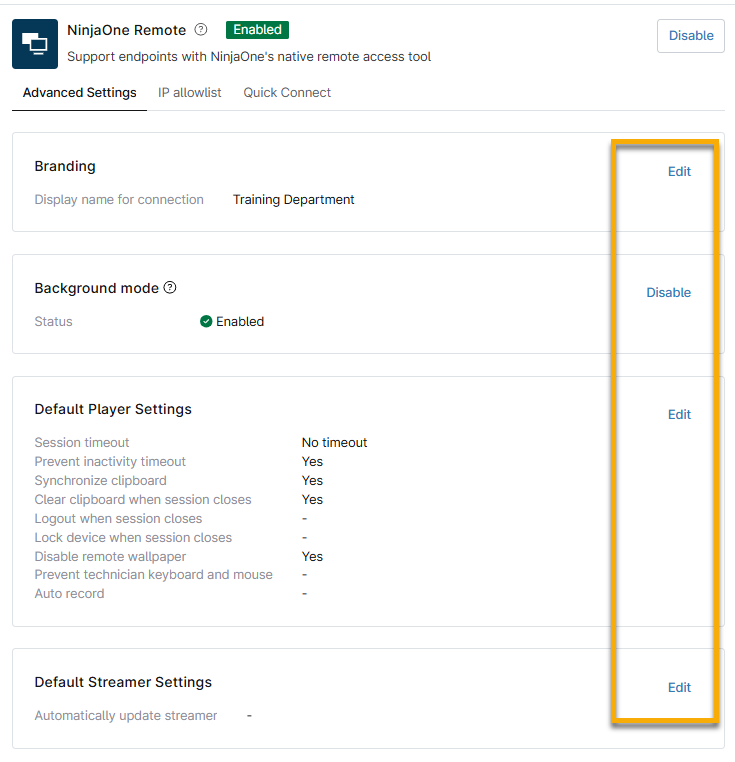
On the NinjaOne Remote configuration page's Advanced Settings tab, you can configure the following settings:
| Setting | Description |
|---|---|
| Branding | Choose a name from the drop-down menu. NinjaOne will display this branding when a technician connects to their endpoint via remote access. |
| Background mode | This option enables technicians to remotely access and manage a device without disturbing the end user. For more information about the background mode feature, refer to NinjaOne Remote Background Mode. |
| Default player settings | Here, you can configure the following session settings:
You can also activate the checkboxes to enable the following session commands:
|
| Default streamer settings | This option allows you to update the streamer when a new version becomes available automatically. |
Adding an IP Allowlist
By adding an IP allowlist, you can ensure continuous remote access by preventing session termination when NinjaOne detects a trusted, pre-approved WAN IP address. The allowlist will not restrict NinjaOne Remote sessions to those initiated from the added IPs. The IP allowlist instead prevents termination if the player device switches to one of the listed IPs during the connection. Refer to NinjaOne Platform: Restrict User Login by IP Address to learn more.
- In the NinjaOne Remote configuration app, click the IP allowlist tab.
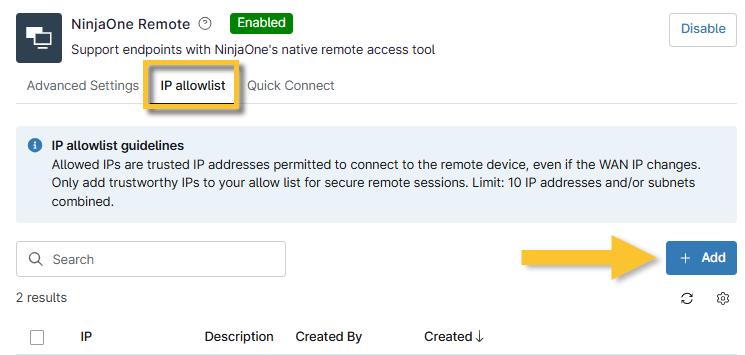
- Enter a WAN IPv4 address or subnet and a description (optional), then click Add.
- Continue adding IP addresses as needed.
- To adjust the table display, click the gear icon below the Add button to open the Table settings window.

Granting Permission to Use NinjaOne Remote
System administrators have access to NinjaOne Remote by default. You must manually grant access to other technicians. To learn more about permissions, refer to NinjaOne Accounts: User Roles.
Technician User Permissions
To give a technician access to use NinjaOne Remote, perform the following steps.
- Navigate to the configuration page for the technician or role needing NinjaOne Remote access.
- Open the Devices → Permissions. If the device permissions are not already enabled, activate the toggle to turn them on.
- Select Ninja Remote from the Remote Access drop-down menu.
- In NinjaOne, navigate to Administration → Accounts → All users.
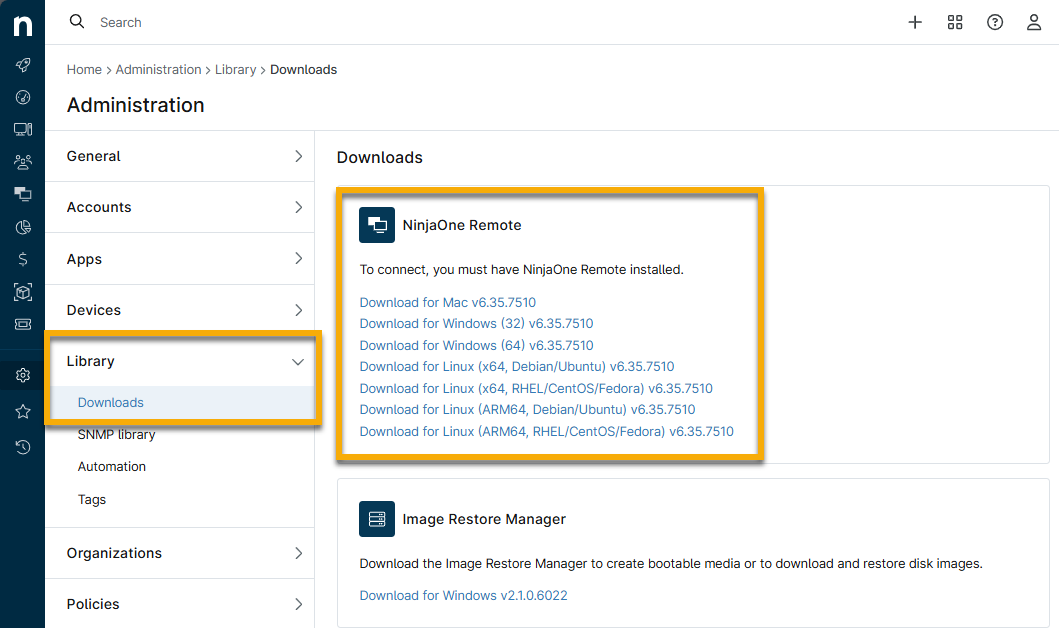
There are two places where you can download this app:
- When you initiate a connection via NinjaOne Remote, a window appears with the link to download the NinjaOne Remote app. This link populates based on your machine's detected OS.
- Navigate to Administration → Library → Downloads. In the NinjaOne Remote module, you will find links to installers for both Apple macOS and Microsoft Windows (32-bit or 64-bit).
Terminology
For a complete list of acronyms and terms used throughout the NinjaOne Dojo, refer to our NinjaOne Terminology article.
Additional Resources
Refer to the following resources for more information about NinjaOne Remote: