
Topic
This article discusses the Remote File Browser, one of the remote tools available on the NinjaOne platform.
Environment
NinjaOne Endpoint Management
Description
The Remote File Browser, part of NinjaOne's suite of remote tools, allows you to view, edit, and download files on endpoint devices remotely.
Select a topic to continue
- Accessing the File Browser
- Navigating Through the File Browser
- Working With Folders and Files
- Additional Resources
Accessing the File Browser
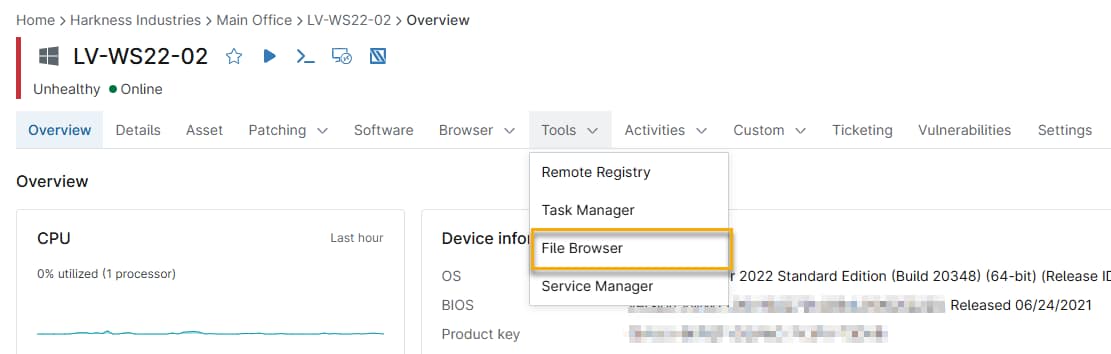
In the Device Overview, click the Tools tab, then select File Browser from the drop-down menu.
Navigating Through the File Browser
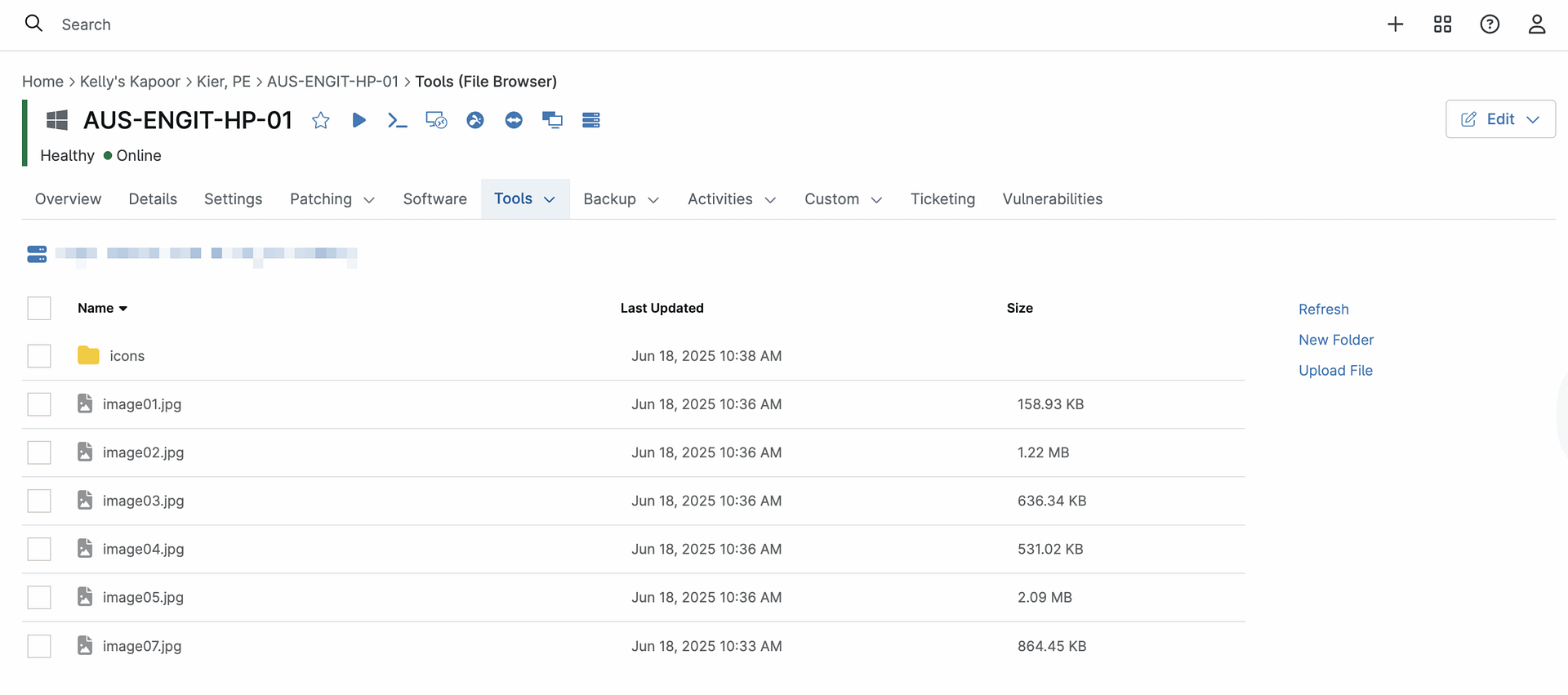
Click the folder names to navigate through the file tree. The system will display the navigation path above the file list. Click any portion of the path to navigate backwards.
- Click the File folder symbol to return to the root folder.
- Select Refresh to display any potential changes to its content.
- Select New Folder to create a new folder.
- Select Upload File to upload a new file.
Working With Folders and Files
Working With Folders
Follow these procedures to add, delete, rename, and copy folders in the Remote File Browser:
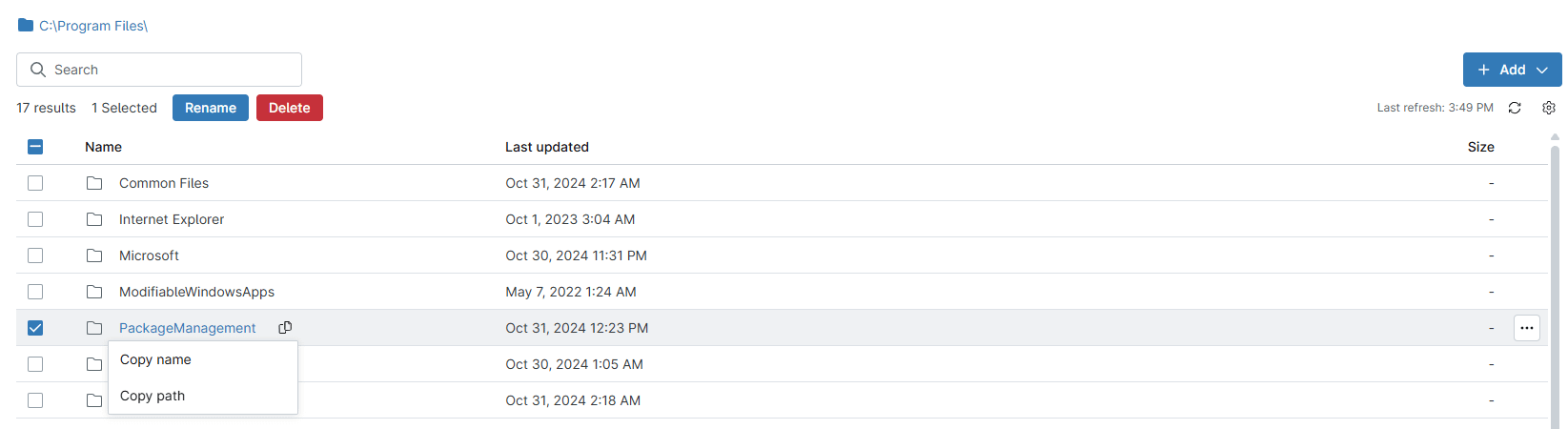
Select the checkbox next to a folder. Once selected, you can perform the following actions:
- Add a folder: Click the Add button, then select New Folder from the drop-down menu.
- Delete a folder: When the folder is selected, click the Delete button.
- Rename a folder: When selected, click the Rename button.
- Copy name: Place your cursor over the file icon next to the file name, then select Copy name from the drop-down menu.
- Copy path: Place your cursor over the file icon next to the file name, then select Copy path from the drop-down menu.
Working With Files
Follow these procedures to upload, download, delete, rename, and copy files in the Remote File Browser:
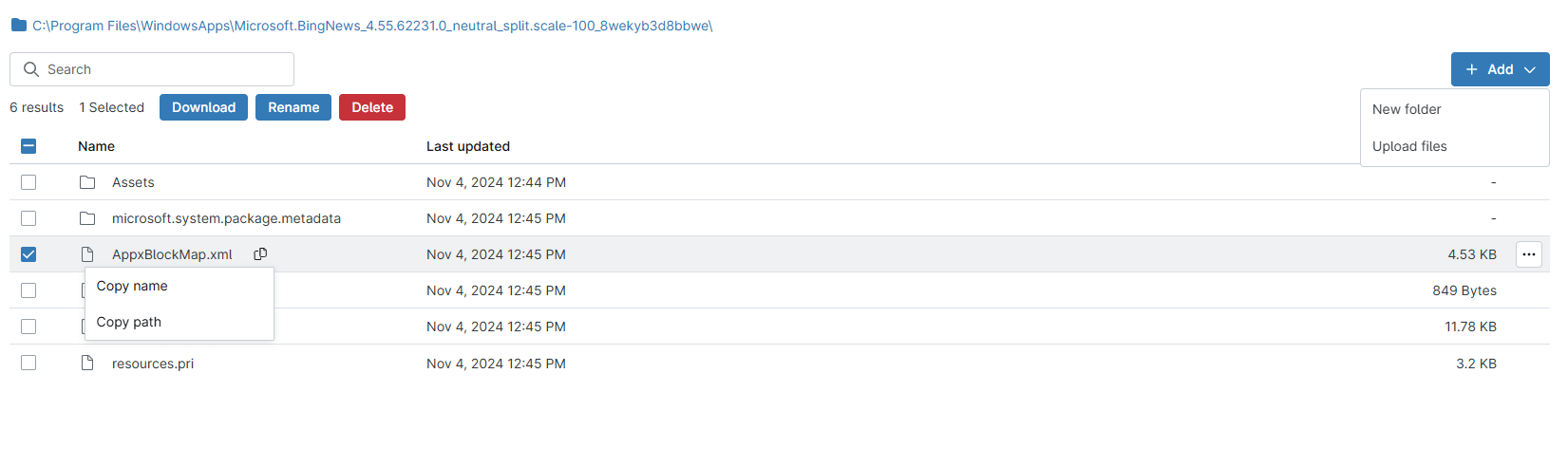
Expand a folder to list the individual files, then select the checkbox next to a file. Once selected, you can perform the following actions:
- Upload a file: Click the Add button, then select Upload Files from the drop-down menu.
- Download a file: When selected, click the Download button.
- Delete a file: When the file is selected, click the Delete button.
- Rename a file: When selected, click the Rename button.
- Copy name: Move your cursor over the file icon next to the file name, then select Copy name from the drop-down menu.
- Copy path: Move your cursor over the file icon next to the file name, then select Copy path from the drop-down menu.
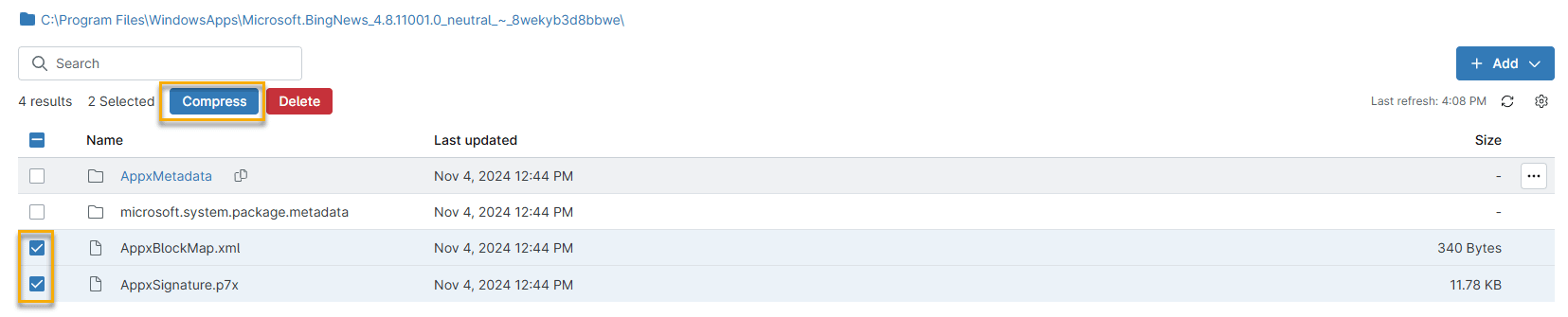
Compressing and Downloading Multiple Files
Select two or more files, then click the Compress button. Select the new compressed file that appears and click Download.
Additional Resources
To learn more about NinjaOne's remote troubleshooting tools, refer to our Remote Tools article.