
Topic
This guide explains how to have a smooth and efficient onboarding process within NinjaOne.
Environment
NinjaOne
Description
NinjaOne gives you real-time visibility and control over every device from one endpoint management tool. Monitor device health, configurations, and compliance status instantly. Automate repetitive IT tasks like patching, configuration, deployments, and compliance enforcement. Quickly identify issues, automate resolutions, and support end users anywhere. To get started setting up NinjaOne, refer to the sections below.
Getting Started
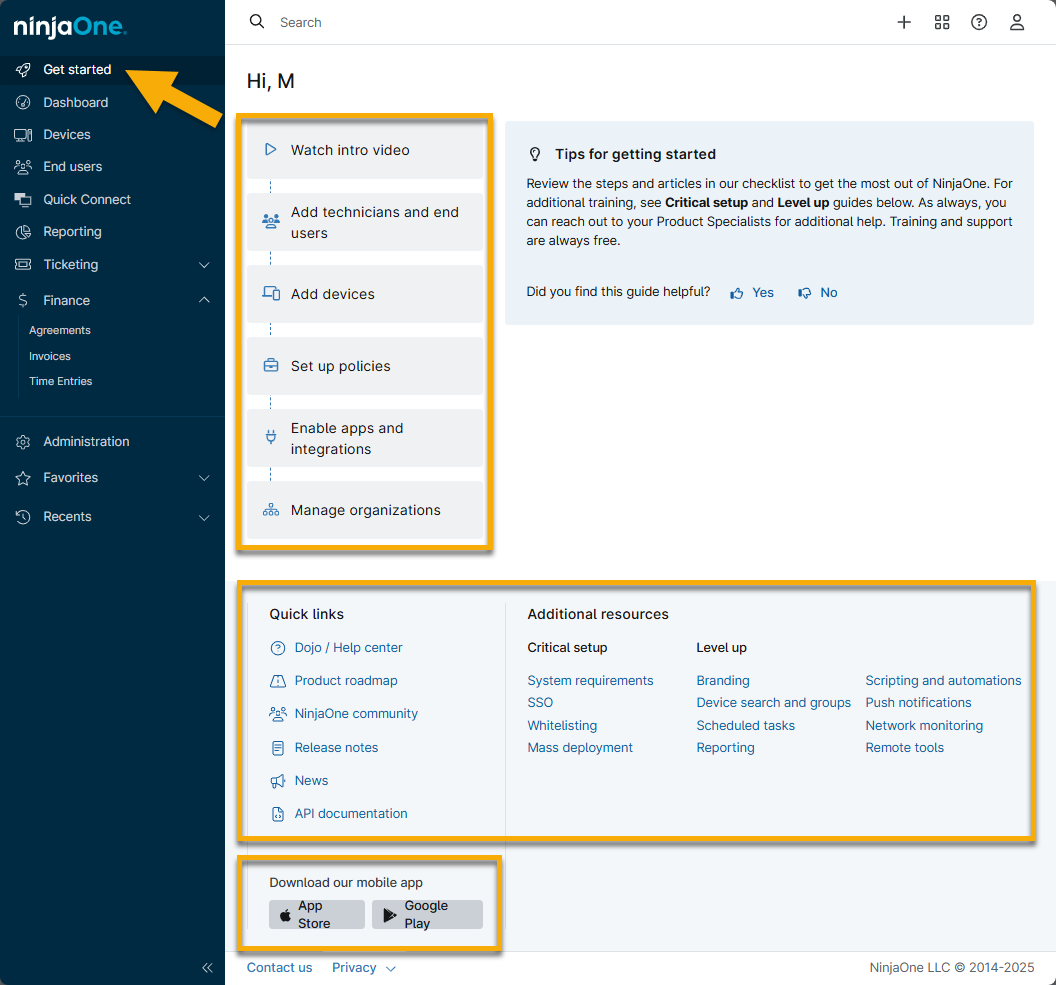
In addition to the helpful articles and videos here in the NinjaOne Dojo, we offer training directly in NinjaOne. Click Get Started in the navigation pane to start your training.
Click through each section to access how-to videos designed to give technicians and end users a clear understanding of how to use NinjaOne successfully and effortlessly.
Below the training videos, you can find more help, such as links to helpful areas within the Dojo and direct navigation to our most popular articles. Refer to Using the Ninja Dojo to Search for Help for more information.
Create and Edit Settings in NinjaOne
Many of these settings can be created/edited from multiple sections in NinjaOne. For this guide, however, we focus on the Administration tab in the navigation pane.

There are several sections in the Administration tab. Explore the links below to learn more about each section.
General
The General tab includes the sub-tabs below. Click the links to access additional guides for each topic.
| Sub-tab Name | Purpose |
|---|---|
| Settings | Configure your organization name (as used in the dialog box any time you initiate a reboot on an endpoint), time zone settings, locale settings, NinjaOne agent uninstall prevention, advanced installer options, and deduplication. |
| Branding | Configure your branded website and systray icon. |
| Activities | Enable notifications and/or ticket creation for any system activities. |
Accounts
The Accounts tab includes the subtabs below. Click the links to access additional guides for each topic.
| Sub-tab Name | Purpose |
| Technicians | Create, edit permissions for, or delete technicians. |
| End Users | Create, edit permissions for, or delete end users. |
Technician Roles End User Roles | Create roles with specified permissions that can be applied multiple technician or end user accounts. |
| Identity Provider | You can configure SAML or SSO for your account. Refer to Login Security Configuration (SAML/SSO). |
| Security Settings | Set the multi-factor authentication (MFA) global administrative idle time security settings, determine which technicians can set password reset and invitation acceptance options, and restrict user logins by IP addresses. |
| Contacts | Create contacts for NinjaOne Ticketing. Contacts can be added to the CC field on a ticket for tracking and visibility. |
Apps
The Apps tab allows you to set up any of NinjaOne's third-party integrations or native application features, which can increase your productivity and maximize your business potential.
Click the links to review additional guides for each topic.
| Sub-tab Name | Purpose |
| Installed | View apps that have been or can be installed. They are broken into two groups: NinjaOne native apps and third-party apps. |
| API | Manage documentation and view examples of what can be done with NinjaOne's public API. Generate an API key or view the documentation and examples. |
| Notification Channels | For information about setting up notification channels, refer to Notification Channels. |
Devices
The Devices tab allows you to configure customized device roles, role custom fields, global custom fields, and health statuses.
| Sub-tab Name | Purpose |
| Groups | View a list of all groups in NinjaOne. Groups are collections of devices that meet user-defined search criteria. Refer to Search and Grouping to learn more. |
| Roles | Assign different role custom fields to device roles which can then be applied to devices. For more information about setting up device roles, refer to Device Roles. |
| Role Custom Fields | Create and track role custom fields. These fields can then be assigned to a role and applied to specific devices. For more information about setting up custom fields, refer to Custom Fields. |
| Global Custom Fields | This is similar to the role custom fields section; however, the fields created here will be global and, as such, appear on all devices regardless of their role. |
| Health Status | Configure the different health statuses in NinjaOne. For more information about setting up health statuses, refer to Health Statuses. |
Library
The Library tab contains options for managing software downloads, automations, and more.
| Sub-tab Name | Purpose |
| Downloads | View and use the download links for software within NinjaOne. |
| SNMP Library | Custom SNMP (Simple Network Monitoring Protocol) allows users to add custom OIDs (Object Identifiers) to use with NMS (Network Monitoring Services). Refer to NMS: Custom SNMP. |
| Automation | Create and manage custom scripts and run/install applications in NinjaOne. For more information about the Automation Library feature, refer to our Automation Library documentation. |
| Tags | Manage system tags. Refer to NinjaOne Device Tags. |
Organizations
The Organizations tab allows you to create and configure the customers that you onboard and manage with NinjaOne; it is the shell through which you can assign policies.
Refer to NinjaOne Endpoint Management: Creating and Editing Organizations for more information.
Policies
A policy is a set of conditions, scripts, and various settings, such as patching, remote access, and antivirus, that you can apply to a group of devices assigned to that policy.
NinjaOne provides a predefined list of default policies that include default condition monitoring. You can identify these default policies by the word Default next to their names, which indicates that you cannot delete the policy. You can either edit the primary parent policies or create new policies. New policies can be completely custom or inherit values from primary policies.
Refer to Policies: Create a New Policy and Policy Management: Resource Catalog for more details.
| Sub-tab Name | Purpose |
| Agent Policies | View policies that govern devices on which the NinjaOne agent is installed (including Windows, Mac, and Linux devices broken down by device type) |
| NMS Policies | View policies that govern your network devices (including Firewalls, Dial Managers, Routers, and more). Reference: NMS: Policy Management. |
| VM Policies | View policies that govern Hyper-V and VMWare virtual machines (broken down by Host and Guest policies). |
| MDM Policies | View policies that control mobile devices (Apple or Android). |
Tasks
The Tasks tab allows you to create and manage scheduled tasks, where you may run scripts against a combination of devices, organizations, and groups.
For more information about Scheduled Tasks, refer to our Scheduled Tasks documentation.
Additional Resources
For more information on getting started with NinjaOne, refer to these resources:
- Onboarding Automation with NinjaOne
- MDM: Resource Catalog
- Reporting: Resource Catalog
- Patching Resource Catalog
- Remote Access: Resource Catalog
- SaaS Backup Resource Catalog
- Ticketing Resource Catalog
- Custom Fields: Resource Catalog
- User Management: Resource Catalog
- NinjaOne Agent: Resource Catalog
- Policy Management: Resource Catalog