
Topic
This article describes how to view and work with NinjaOne NMS in the Devices dashboard.
Environment
NinjaOne Network Management System (NMS)
Description
From the Devices search page, you can run actions, create tickets, and edit organization, device role, assigned user, tags, and asset status. You can navigate to the device dashboard from the Devices search page.
From the NMS device dashboard, you can perform all of the same actions and view additional details, including assets, activities, custom fields, and settings.
Index
Select a category to learn more.
Find NMS Devices in NinjaOne
You can view your NMS-managed devices from the NinjaOne Devices search page. In NinjaOne, click Devices, then click the Type drop-down menu and select NMS.
Refer to Find and Manage Endpoints from the Devices Search Page to learn what actions you can take on your devices from this page.

View Managed NMS Data on the Device Dashboard
Select an NMS device from the Devices search page to open the NMS device dashboard.
The Overview tab on the device dashboard provides a summary of a device's details. NinjaOne will show the device's details in the Device information card. The information displayed will vary, depending on the type of device.
You can find additional information in the Details or Settings tabs.
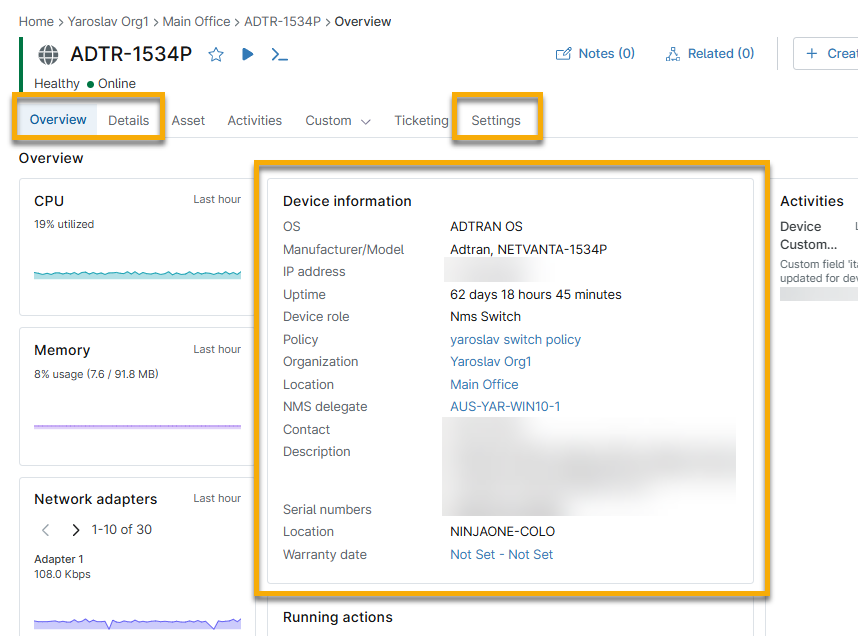
The following items relate to NMS device management (Items with an asterisk require valid SNMP credentials to view):
- OS*
- Manufacturer/Model*
- IP address
- Uptime*
- Device role
- Policy
- Organization
- Location
- NMS delegate
- Contact*
- Description*
- Serial numbers*
- Location
- Warranty date
Editing Device Information
Follow these steps to edit device information:
- In the device's dashboard, click the Settings tab, then click Edit in the Device information card.
- The Edit device information window will open. Here, you can edit the following settings:
| Setting | Description |
|---|---|
| Display name | Define a name for the device. This name will appear on dashboards and reports. |
| Organization | The organization to which the device belongs. You cannot change the organization for NMS devices. |
| Monitor by | Choose the parameter by which NinjaOne will monitor the device. You can select from the following:
|
| Monitor by IP address | Enter the IP address that NinjaOne will monitor. |
| Device role | Change the device role. Note that changing the device's role will impact its policies and delete custom field values not present in the tabs associated with the new role. |
| Location | Select the physical location of the device within your organization. |
| Assigned user | Select the user within your organization who should act as the owner of the device. |
Changing Policies
You can switch between management policies on the Settings page.
- In the device's dashboard, navigate to Settings → Policy, then click Change.
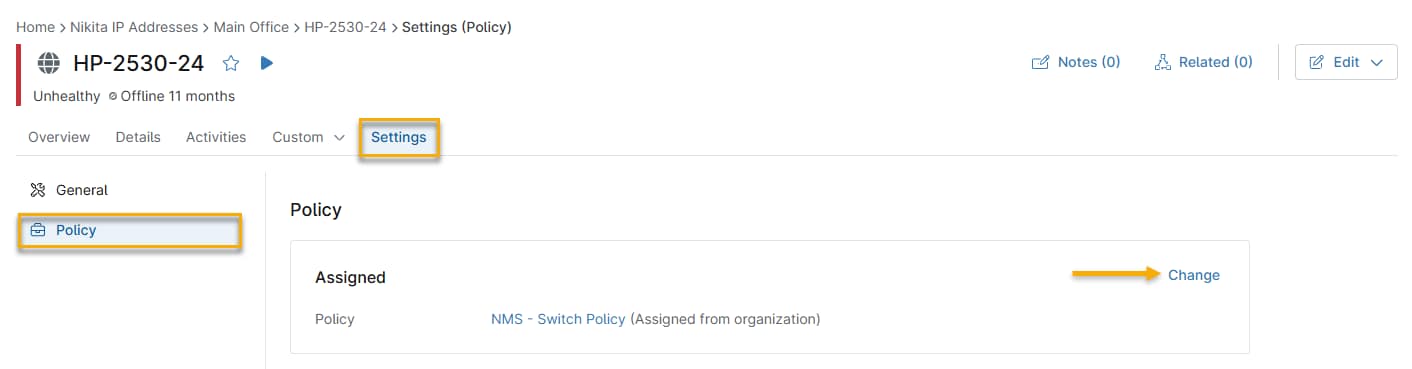
- Choose the new policy from the drop-down menu, then click Update.
Viewing Device Activity
On the devices dashboard, NinjaOne will show activities taking place on the device in the Activities card.
Open the Activities tab to filter activity by type, status, user, and date range.

The following items are related to NMS device management:
- Credential changes
- Settings adjustments
- Policy updates
- SSH and Telnet sessions
- Maintenance mode entry and exit
- Condition triggers and resets
Viewing NMS Asset Information
If you have NinjaOne IT Asset Management activated, you can track and manage the lifecycle of your NMS devices. Refer to NinjaOne IT Asset Management (ITAM): Getting Started with ITAM for more information.
Viewing NMS Custom Field Information
Custom fields allow you to publish data about a user, endpoint, organization, or location in NinjaOne. You create the custom fields and then use those fields to populate the Custom tabs on the dashboards. Refer to NinjaOne Custom Fields: Getting Started for more information.
Viewing NMS Ticketing Information
NinjaOne Ticketing allows users with the appropriate account permissions to create, track, and resolve tickets without the need for third-party software. Refer to NinjaOne Ticketing: Getting Started for instructions.
Additional Resources
Refer to NinjaOne NMS: Resource Catalog to learn more about managing NMS devices in NinjaOne.