
Topic
This article explains how to activate the ServiceNow integration in NinjaOne.
Environment
- NinjaOne Integrations
- ServiceNow
Description
Want to learn more about NinjaOne's integrated vendors? Check out our video library.
ServiceNow improves work processes by using Information Technology Service Management (ITSM) and Service Project Management (SPM) platforms. It accelerates security operations with its security solution that provides device alerts and automation.
NinjaOne integrates with ServiceNow to help MSPs and Corporate IT Admins understand and manage their deployed assets through a single view, where administrators and technicians can monitor device health.
The ServiceNow and NinjaOne integration creates a centralized platform for admins and technicians, enabling them to track the physical and software health of their assets. This integration streamlines daily operations, enhancing efficiency and effectiveness.
The integration works with your existing ServiceNow account and automatically maps devices using the asset's serial number (primary identifier), device name (secondary identifier), or macOS address. Admins can map or create devices in NinjaOne, enabling data to flow smoothly between ServiceNow and the NinjaOne agent.
Index
Select a category to learn more:
Integration Scope
The following list details the ServiceNow capabilities available through NinjaOne.
- Authentication
- Tickets and incidents
- Policy configuration for conditions
- Uses ticket templates imported from the ServiceNow portal
- Condition re-triggers can be appended to tickets
- Condition resets can be used to update tickets
- Associate the device with the ticket
- Remotely access the device from the incident
- Ticket templates
- Import ticket templates from the ServiceNow portal
- Set default template
- Display template usage
- Delete unused templates
- Device mapping
- Map device roles for a single or multiple devices
- Sync for new devices and updates through ServiceNow
- Use ServiceNow's built-in fields
- Organization mapping
- Sync devices on demand
- Display Sync status
Prerequisites
To activate the ServiceNow application in NinjaOne, you must have a working ServiceNow account and a user with an administrator role. You must ensure this user includes the following role:
x_nrmm_ninjaone_in.ninjaone.integration_adminTo learn more about ServiceNow
Install the NinjaOne App in ServiceNow
Activating the ServiceNow Marketplace app enables you to automatically sync information between NinjaOne and ServiceNow, such as device and organization configurations. To learn more, refer to ServiceNow Scheduled Data Imports for Device Configuration.
- Navigate to the ServiceNow Store (external link) and search for NinjaOne.
- Open the integration tile.
- Click Get.
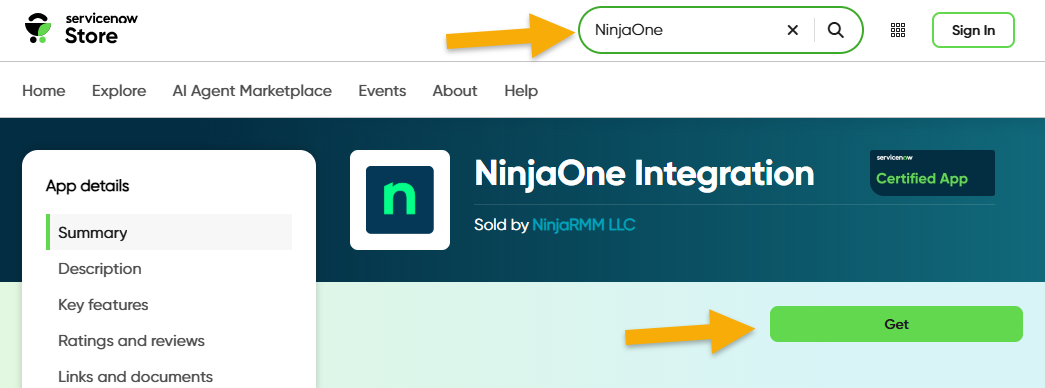
Figure 1: ServiceNow store → NinjaOne integration
- Log in with your administrator role credentials for ServiceNow.
1. Add the NinjaOne Application Registry to ServiceNow
NinjaOne uses the ServiceNow Application Programming Interface (API) to interact with the platform. For example, when a condition alert triggers in NinjaOne, it can optionally create and update incidents in ServiceNow. To enable this functionality, you must create and provide OAuth credentials so NinjaOne can securely access the Incidents Table.
Learn how: NinjaOne Integrations: Enable ServiceNow - 1. Add the NinjaOne Application Registry to ServiceNow.
2. Create an API User in ServiceNow
You must create an application programming interface (API) user in ServiceNow to facilitate the connection between it and NinjaOne.
Learn how: NinjaOne Integrations: Enable ServiceNow - 2. Create an API User in ServiceNow.
3. Configuring NinjaOne Table Access
Learn how: NinjaOne Integrations: Enable ServiceNow - 3. Configure NinjaOne Table Access.
4. Configure API Credentials in NinjaOne
Creating the API user and application registry in ServiceNow allows you to activate the ServiceNow application in NinjaOne. However, the integration will be one-sided until you complete the following steps in NinjaOne.
Learn how: NinjaOne Integrations: Enable ServiceNow - 4. Configure API Credentials in NinjaOne.
Enable ServiceNow in NinjaOne
Use the following table to complete any applicable fields. Then, click Save.
| Field | Data |
|---|---|
| Instance Name | Enter the data from your ServiceNow account. You can find this value in the URL bar between https:// and service-now.com.  |
| Client ID | Enter the Client ID copied from the ServiceNow Application Registry record. (This should not be the client data you created in NinjaOne; it is the data created for the new application registry.) 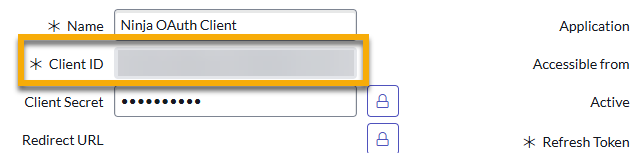 |
| Client Secret | Enter the Client Secret copied from the ServiceNow Application Registry record.  |
| API Username | Enter the User ID copied from the ServiceNow API user record. |
| API Password | Enter the password copied from the ServiceNow API user record. 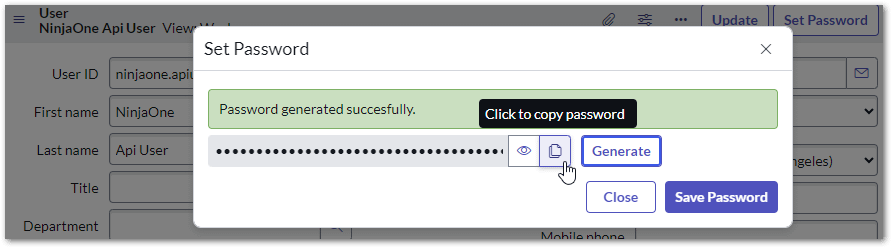 |
Configure ServiceNow Settings in NinjaOne
Once you have activated the ServiceNow integration in NinjaOne, new tabs will appear on the configuration page.
Incident Templates
When synchronized with NinjaOne, you can use ServiceNow incident templates to resolve health status alerts and triggered conditions. You must first create the ticket template in ServiceNow using "Incident [Incident]" for the Table field and then configure the mapping in NinjaOne.
Learn how: NinjaOne Integrations: ServiceNow Incident Templates.
Configuration Item Mapping
Use the Configuration Item Mapping tab on the ServiceNow application management page to map ServiceNow's Configuration Management Database (CMDB) with device roles in NinjaOne. Each organization can contain multiple mappings.
Learn how: NinjaOne Integrations: ServiceNow Configuration Item Mapping.
Organization Sync
The Organization Sync tab in the ServiceNow application page in NinjaOne allows system administrators and technicians with the appropriate permissions to add, delete, or update the mapping structure for organizations in NinjaOne to device role mappings. The incident in ServiceNow will reflect the corresponding company or organization information when it is created.
Each organization has its own configuration mapping structure to specify whether it allows incidents or tickets and shows the sync's status (active, pending, in queue, deleted, inactive).
Learn how: NinjaOne Integrations: ServiceNow Organization Sync.
Sync History
To ensure a seamless integration between NinjaOne and ServiceNow, you must map your incident workflows, configuration items, and organizations. Successful mapping will optimize the data flow between the two software platforms, ensuring seamless integration and data exchange.
Learn how: NinjaOne Integrations: ServiceNow Sync History.
Additional Resources
The following knowledge article will help you get the most out of NinjaOne's integration with ServiceNow: ServiceNow integration documentation in NinjaOne.