
Topic
This article explains how to determine the assigned user for Microsoft Intune devices synced through NinjaOne.
Environment
- NinjaOne Integrations
- Microsoft Intune
- Microsoft Windows
Description
Use the Microsoft Intune integration in NinjaOne to identify the devices on the network and review saved jobs and their history. To enable this integration, refer to NinjaOne Integrations: Getting Started with the Microsoft Intune Integration.
When you have enabled the Microsoft Intune integration in NinjaOne, you can define user-to-device relationships for your managed assets, which enables you to take informed action or route support requests.
Match Assigned Users to Their Devices
When you update a user assignment in Microsoft Intune, NinjaOne will update the assignments during the next sync cycle. If NinjaOne cannot match the userID to an account in NinjaOne, the device will remain unassigned.
Refer to NinjaOne SCIM: Using Microsoft Entra ID Groups to Create End User and Technician Accounts for more information.
To initiate the sync cycle in NinjaOne, you must add Microsoft Intune as a service provider by performing the following steps:
- Navigate to Administration → Accounts → Identity Provider. Select Add Provider.

- Enter a unique identifier for the Display name. This can be the email domain that uses this integration.
- For What email domains will authenticate using this integration?, enter all characters following the @ in the target email domains.
- Copy the Reply URL and identifier data from NinjaOne, and paste it in the appropriate field in the SSO provider's settings.
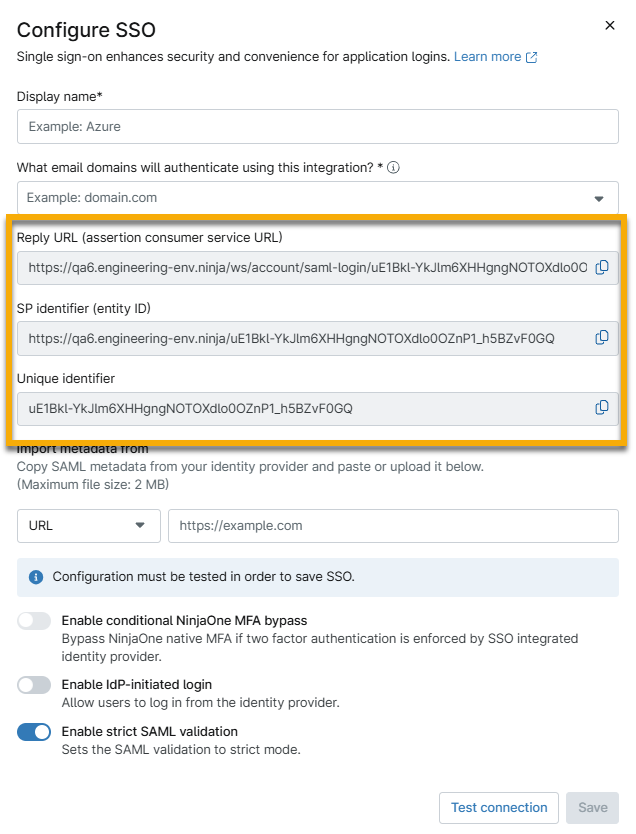
- Copy the metadata from your IDP and paste it into the Import metadata from field. You can use a URL, file, or XML data; select the applicable option from the drop-down to the left of the text field.
- For more information about the Enable conditional NinjaOne MFA bypass option, refer to Skip Multi-Factor Authentication (MFA).
- Test and establish the connection.
- After testing the connection, you may be prompted to log in. When the test succeeds, click Save, and on the resulting page, click Enable. Single sign-on will now be active.
Additional Resources
Refer to the following resources for more information about the Microsoft Intune integration in NinjaOne: