
Topic
This article provides an explanation of script variables and guidance on how to use them.
Environment
NinjaOne automation and scripting
Description
Please make a selection to learn more:
- What are Variable Types?
- Using a Variable in the Script Editor
- Visualization of a Script with Variables
- Sending Script Variables to an Agent
- Additional Resources
What are Variable Types?
When creating scripts in the Automation Library, you have the option to add multiple types of script variables which affect the interactive form that is present when a script is run. Variables are supported in Batch, PowerShell, ShellScript and VBScript.
See the table below for a brief explanation of each variable type.
| Variable Type | Description |
|---|---|
| String/Text | Used for anything that needs letters, numbers and/or characters as a combination. Examples include usernames, URLs, and sentences. Important Note: The following special characters cannot be used: Å Ä Ö &|;$><`! |
| Integer | Used for anything that needs a whole number without decimal points. |
| Decimal | Used for anything that needs a number with decimal points (e.g., 3.145). |
| Checkbox | Used for anything that needs a true or false value. |
| Date | Used for anything that needs to represent a date. Important Note: The script uses an ISO 8601 format. |
| Date/Time | Used for anything that needs to represent a date and time. Important Note: The script uses an ISO 8601 format. |
| DropDown | Used for anything that needs to represent a choice with multiple options. |
| IP Address | Usef for anything that needs to represent an IP address. |
Using a Variable in the Script Editor
Once the desired variables are set on the right side of the script editor, they can be utilized within the script by clicking CTRL + Space on your keyboard and then selecting the option from the resulting pop-up box. Hover over the variable to see a description and click it to insert it into the script.
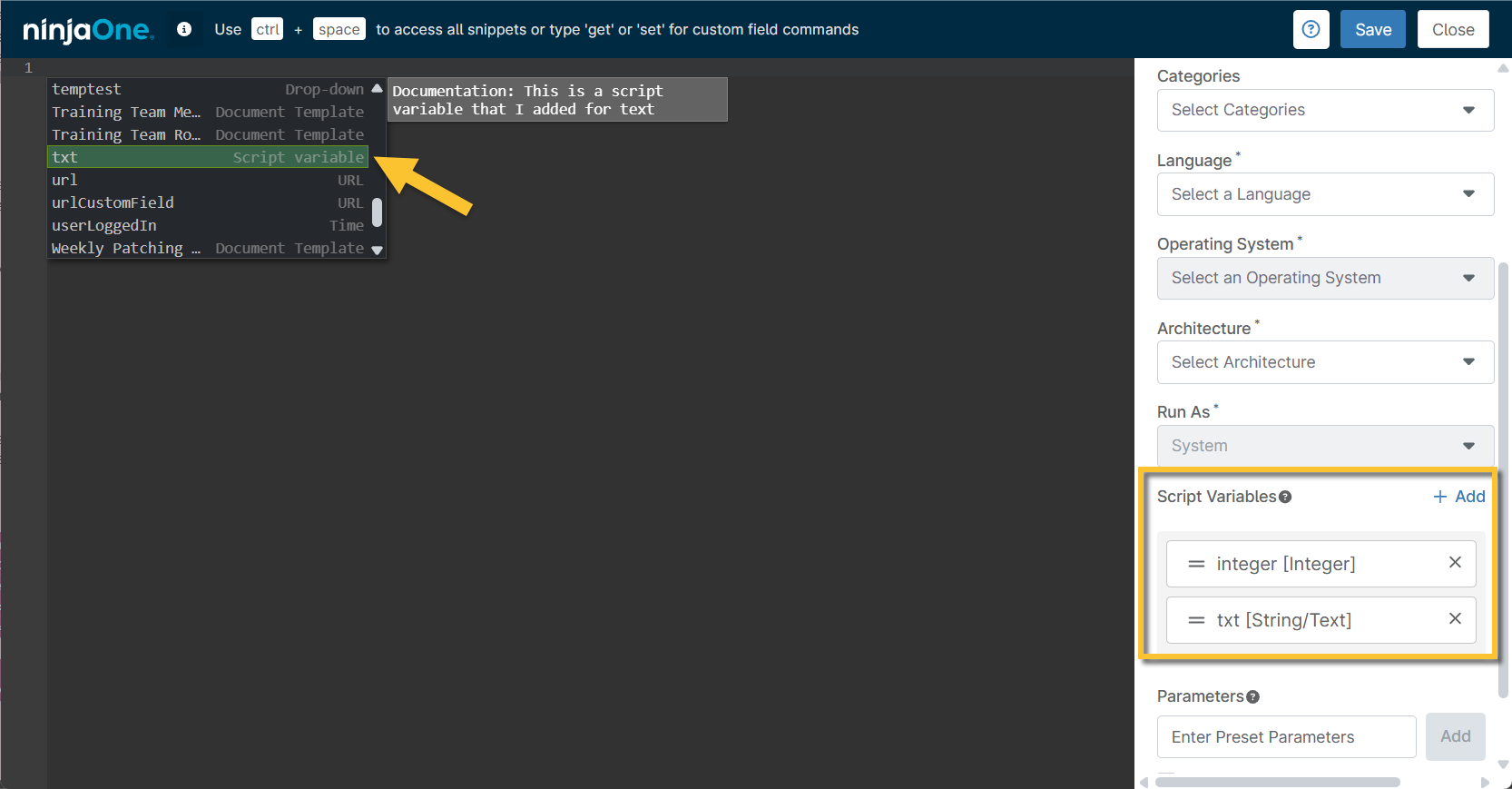
Figure 1: NinjaOne script page → Add and use variables (click to enlarge)
You can also enter variables manually by referencing them by name as they appear in the input box on the right.
Different scripting languages require different inputs to reference the variable—see the table below for examples.
| Scripting Language | Reference Example |
|---|---|
| PowerShell | $env:<variablename> |
| Batch | %<variablename>% |
| VBScript | <variablename> = CreateObject("WScript.Shell").ExpandEnvironmentStrings("%variablename%") |
| ShellScript | $<variablename> |
Please note that all variables are set as strings to the code you are writing so you may need to convert or cast values. Please see the section on script execution to see the values that get sent across and their format.
Visualization of a Script with Variables
Variables are rendered differently based on the selections chosen in the script editor. See below for an example of how different variables look on a script that is prepared to be executed for a device.
Note that if a variable was marked as mandatory, an asterisk (*) displays next to the variable name. If this field is not filled out by the user running the script, or a default value was not provided, then the script will not run—the required field will turn red, and users will be prompted to enter a value to proceed.
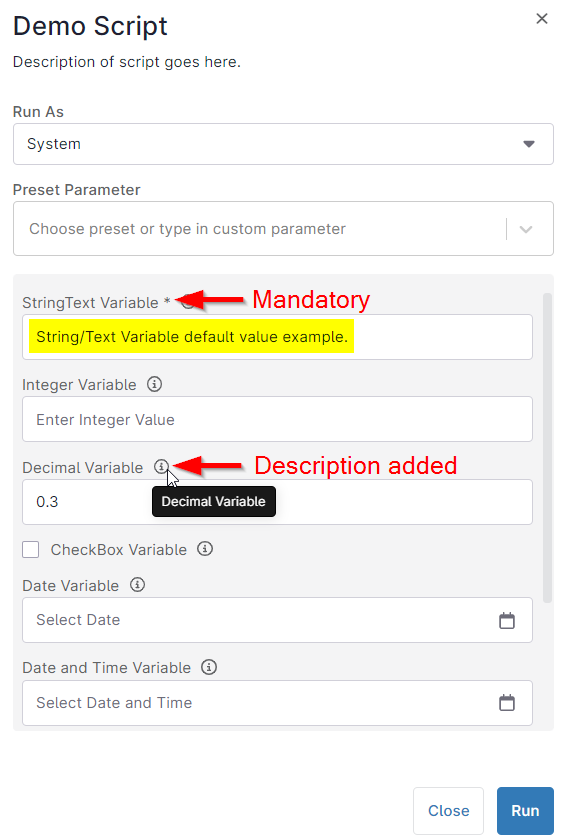
Figure 2: Example of variable fields in a NinjaOne script
Sending Script Variables to an Agent
Important Notes:
- Script variables that are submitted empty (no value added) are always sent as an empty string. We recommend checking for an empty value if you have not marked a script variable as mandatory.
- Script Variables that are sent to the agent are not strongly typed. All values will be sent as a string. If you wish to cast these to a certain type, you will need to do this in your own code.
Certain languages allow you to cast/convert strings into strongly typed objects in code. For example, PowerShell can convert to a date/time as follows:
$Test1 = [datetime]$ENV:Test1You can convert to a Boolean value as follows:
$Test2 = [System.Boolean]::Parse($ENV:Test2)There are some simple rules that the script engine follows when sending script variables to an agent:
| Variable Type | Script Engine Rule |
|---|---|
| String/Text | Sent purely as the string that was entered (i.e., “Hello World”). |
| Integer | Sent as whole numbers (i.e., "314"). |
| Decimal | Sent as floating-point numbers (i.e., "3.14"). |
| Checkbox | When checked, checkboxes are sent as a string ‘true’ value. When unchecked, checkboxes are sent as a string 'false' value. |
| Date | Sent as an ISO 8601 formatted string in form of YYYY-MM-ddT00:00:00.000+00:00 |
| Date/Time | Sent as an ISO 8601 formatted string in form of YYYY-MM-ddTHH:MM:SS.SSSZ (i.e., 2023-07-28T03:00:00.000+01:00). |
| DropDown | Sent as a string of whatever value is selected. |
| IP Address | Sent as a string of whatever IP Address is entered. |