
Topic
This article shows you how to create ticket templates for your ConnectWise Manage integration and how to create tickets from NinjaOne alerts.
Environment
- NinjaOne Integrations
- ConnectWise Manage
Description
When the ConnectWise Manage integration is enabled in NinjaOne, you can create ticket templates that work with triggered conditions and control what happens when a condition is reset.
Select a category to learn more:
Important Considerations
- You must map the NinjaOne organization to a ConnectWise company for tickets to be successfully created.
- To create tickets successfully, the service board associated with your ticket template must have a default team assigned in the ConnectWise UI.
Ticket Templates
You will use ticket templates to automate ticket creation from triggered conditions. You can create multiple templates and configure them to automate certain information depending on the issue that needs to be resolved.
To create a new ticket template:
- Click New Ticket Template in the Ticket Templates section of the configuration options.

Figure 1: Create a new ticket template in NinjaOne for ConnectWise
- Assign the new ticket template a name and board at a minimum. Optionally, configure the data that will auto-populate when a ticket is created. You also have the option to select the ticket title contents, which allows you to choose from several factors that you would like to include in the ticket title when tickets are created using this template.
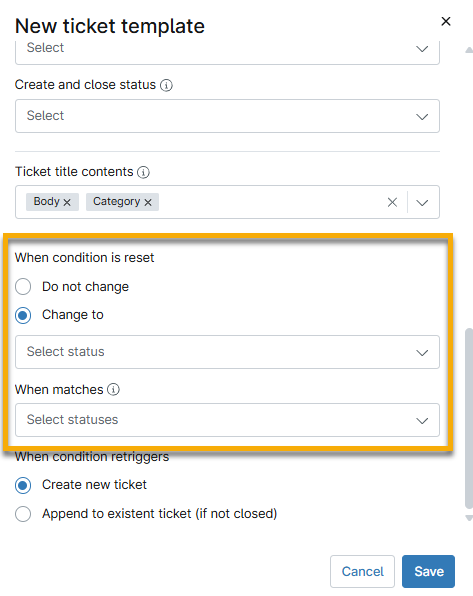
- Choose what will happen to the status of the ConnectWise ticket when a condition is reset in NinjaOne.
You should notice two additional drop-down menus if you select Change to for When condition is reset. The drop-down menu indicates the status that the new ticket will change to if the current status reflects what is selected from the When matches drop-down menu. If you do not select an option from the When matches drop-down menu, any status will initiate the Change to status upon condition reset.
For example, when you set When matches to "New" and Change to to "In Progress," the alert is reset, and the current ticket status is "New," so it will automatically update to "In Progress."
Configure NinjaOne Alerts to Create ConnectWise Tickets
You can create tickets from a triggered condition. Using a ticket template for a triggered condition will automate ticket creation, applying all the settings you configured for the template, as covered in the previous section.
- Navigate to Administration → Policies.
- Select a policy to open the configuration page.
- Click Add a condition or click an existing condition to edit it. Refer to our Policies: Condition Configuration article to learn about creating policy conditions.

Figure 3: Add a condition in NinjaOne
- From the ConnectWise drop-down menu, choose "Create a ticket" or "Create and close a ticket." Click Apply to confirm and save.
- If you choose to create a ticket, an additional drop-down menu will be displayed. Pick the template you want to use for this alert.
You can create tickets for four components in NinjaOne:
- Conditions
- Scheduled Scripts
- Cloud Monitor conditions
- Device activities
Additional Resources
Refer to the following resources to learn more about the ConnectWise integration in NinjaOne: