
Topic
This article explains how to use NinjaOne's mobile device application (app).
The NinjaOne mobile app is separate from the NinjaOne Assist app, which is optimized for end users. For more information about NinjaOne Assist, refer to NinjaOne Platform: The Assist Mobile Application.
Environment
NinjaOne Platform
Description
NinjaOne's mobile app allows you to access data from your NinjaOne environment as well as many integrated features straight from your iOS or Android device.
There are some cosmetic differences between the iOS screenshots shown in this article and the appearance of the Android version of the app.
View additional tutorials in our video library.
Index
Select a category to learn more:
- System Requirements
- How to Log in to the NinjaOne Mobile App
- Log Out of the NinjaOne App
- Additional Resources
System Requirements
The NinjaOne mobile app is compatible with the following operating systems (OSs):
- Android version 8 or newer is supported.
- Apple iOS 6 is currently compatible with the NinjaOne mobile app and is supported by iOS 12 or later.
- The app is available on iPad and iPod Touch devices and is optimized for iPad.
- At this time, NinjaOne's mobile app is not compatible with iPhone XS.
The mobile app supports text-based, time-based, and hardware-based authentication.
You can use Near Field Communication (NFC) or Universal Serial Bus (USB) hardware keys with the proper adapter.
How to Log in to the NinjaOne Mobile App
To use the NinjaOne mobile application, you must first download it from your mobile store (Apple Store or Google Play Store). Then, perform the following steps.
- Open the app on your phone.
- Below the login fields, select Environment to change your region, if necessary. The app should automatically detect the correct region based on your local settings.
- Enter your NinjaOne credentials, select whether you would like to remain signed in after exiting the app, and then tap Sign In.
- Depending on the identity management or authentication type you use to log in to NinjaOne, you may be redirected to the IdP login or prompted to provide a confirmation code.
Once you're logged in, there are four or five key areas within the NinjaOne mobile app, depending on whether you have enabled the related features. Select a category to learn more:
Home
There are three different types of dashboards within the NinjaOne mobile app. Select an option to learn more:
System Dashboard
The System Dashboard will be the page that you see when you first select Home from the menu at the bottom of the mobile app.
Overview Tab

This area will show you how many devices in your NinjaOne environment have:
 OS Patches (Failed or Pending)
 Software Patches (Failed or Pending)
 Alerts in Progress
 Threats Detected (Active, Blocked, or Quarantined)
 Servers Down
 Pending Reboots
 Node Approvals (Pending)
 Maintenance Mode
 Active Tasks
Sections that currently have affected devices (and therefore need attention) will automatically filter to the top of the list. If you tap on one of these sections, you can filter further into the area that needs attention. For example, tapping Software Patches will bring you to the Windows patching dashboard, which shows a list of all current Pending, Failed, or Approved third-party software patches on devices in your NinjaOne environment.
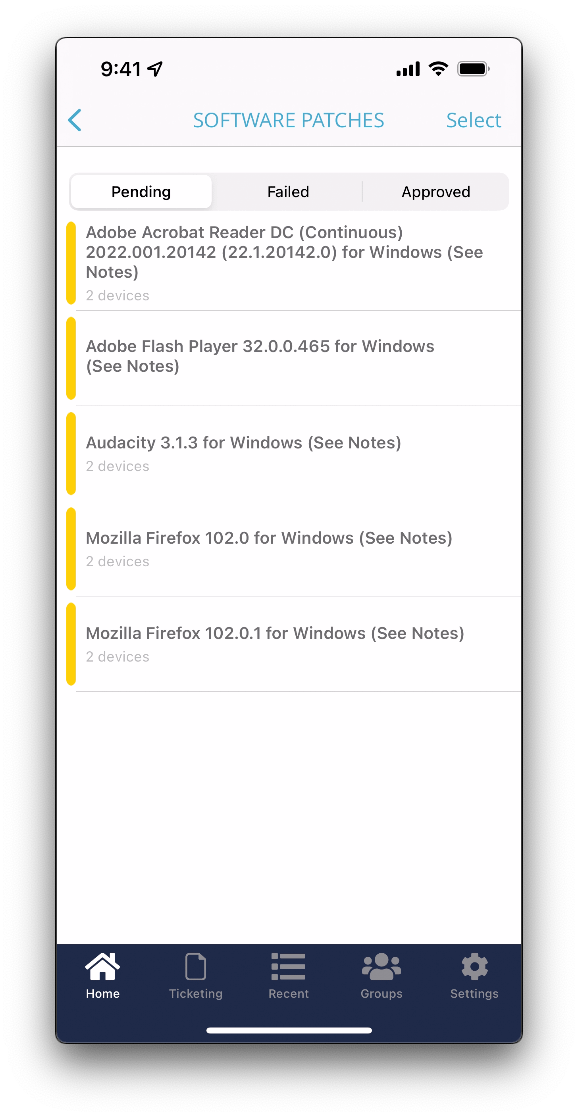
In this example, you can also take action on these pending patches. Simply tap Select in the top right corner and check off the patches you want to take action on, tap Finish, and choose to Approve or Reject.

Organizations Tab

This area will show a list of all of the organizations in your NinjaOne environment. You can easily see the number of each device type in each organization and the organization's health. If an organization is in the yellow or red status, you will notice a symbol (or symbols) indicating what areas need attention. For more information about health statuses, refer to NinjaOne Endpoint Management: Customize Device Health Statuses.
Additionally, if you tap on one of these items, it will take you to the organization dashboard for said organization.
Activities Tab

This area is the same as the Activity Feed that is visible from the NinjaOne web app. From here, you will find all system and device-related activities for your NinjaOne environment. For more information, refer to NinjaOne Endpoint Management: Device and System Activity Notification Feed.
Organization Dashboard
The organization dashboard has a similar layout to the system dashboard, but the data displayed will be specific to the organization in question only. You can navigate to the organization dashboard by tapping on an organization from the list in the Organizations tab on the system dashboard, or by simply searching for an organization in the search field.
Overview Tab
This area will show you how many devices in the organization have:
- Threats Detected (Active, Blocked, or Quarantined)
- Alerts in Progress
- Servers Down
- OS Patches (Failed or Pending)
- Software Patches (Failed or Pending)
- Pending Reboots
- Node Approvals (Pending)
 Maintenance Mode
- Active Tasks
Similar to the system dashboard, sections that currently have affected devices (and therefore need attention) will automatically filter to the top of the list. If you tap on one of these sections, you can filter further into the area that needs attention. For example, tapping OS Patches will bring you to the Windows patching dashboard, which shows a list of all current Pending, Failed, or Approved OS patches on devices in your NinjaOne environment, and also allows the opportunity to perform actions such as approving or rejecting patches.
Devices Tab

This area will show a list of all of the devices in the organization in question. You can easily view the devices' health. If a device is in the yellow or red status, you will notice a symbol (or symbols) indicating what areas need attention.
Additionally, if you tap on one of these items, it will take you to the device dashboard for said device.
Activities Tab
While this Activity Feed is similar to the Activities tab on the system dashboard, this area will only show data that is pertinent to the organization in question.
Device Dashboard
The device dashboard allows you to view device-specific information and to perform actions such as running automations or initiating a remote connection. You can navigate to the device dashboard by tapping on a device from the list in the Devices tab on the organization dashboard, or by simply searching for a device in the search field.
Performing Actions

From any page on the device dashboard, you will have access to the Actions/Manage button. Similar to the action button icon within the NinjaOne Web console, this button will serve as your hub to run actions on a device.
The following actions are currently available from the action button, depending on policy settings and enabled applications:
- Run a script: This option allows you to run any scripts from your Automation Library on the device. After selecting a script to run, you will be prompted to designate preset parameters and credentials to run the script with (if applicable).
- Splashtop: If you have the Splashtop integration enabled, use this option to initiate a remote connection to the device in question. In order to use this feature, you must have the Splashtop for RMM app installed on your phone. You will be prompted to download it from your app store if you do not have it installed.
- TeamViewer: If you have the TeamViewer integration enabled, use this option to initiate a remote connection to the device in question. In order to use this feature, you must have the TeamViewer app installed on your phone. You will be prompted to download it from your app store if you do not have it installed.
- RDP: From here, you can initiate a remote session using our Cloud Remote Desktop Protocol (RDP) feature. In order to use this feature, you must have Microsoft's Remote Desktop app installed on your phone. You will be prompted to download it from your app store if you do not have it installed.
- Ninja Remote: If you have NinjaOne Remote enabled and configured for the device's policy, use this option to initiate a remote connection to the device in question.
- Task Manager: The Task Manager and Windows Services sections of our Remote Tools are available from here. Select the Processes or Services tab after selecting Task Manager from this menu.
- You can end a task by pressing and holding on a process.
- You can stop, start, or change the startup type of a service by pressing and holding a service.
- Wake-on-LAN: If configured, this feature can be used to wake a sleeping device. More information about configuration can be found in our Wake-on-LAN – NinjaOne Dojo article.
- Maintenance: This mutes device notifications and alerts while the device is within the maintenance mode window. More information on this feature can be found in the Maintenance Mode documentation.
- Reboot: From here, you can quickly trigger a reboot on a device. This functionality is the same as running the reboot script we include in our native scripts.
Status Tab
This section provides quick graphs of data about the CPU and Memory usage of the device you're viewing. Additionally, you'll see if the device currently has any:
- Active Tasks
- Alerts in Progress
- Threats Detected
Sections that currently apply to the device (and therefore need attention) will automatically filter to the top of the list. If you tap on one of these sections, you will find more information about the active tasks, alerts, or detected threats. For example, tapping Active Tasks will allow you to view the specific tasks currently running on the device.
Overview Tab
The overview provides general information about the device. It is similar to the General section on the device dashboard in the NinjaOne web app.
Activities Tab
While this Activity Feed is similar to the Activities tab on the system dashboard and the Activities tab on the organization dashboard, this area will only show data that is pertinent to the device in question.
Ticketing
If NinjaOne Ticketing is enabled in your environment, and you have permissions to Ticketing data, the Ticketing area will be available at the bottom of the screen.
Boards
The first tab that will open by default is the Boards tab. From here, you'll find a list of your available ticketing boards.

Tap on a board to view the list of tickets within that board. You'll find the ticket status, ticket number, ticket type, subject, and associated organization.

Tap on the ticket from the list to open it. The Details tab will be selected by default, which displays the details for the ticket. You can also tap Edit in the top right corner to edit any of these details.
Feed
The Feed tab allows you to review any public or private comments, in addition to adding a public or private comment.

When adding a comment, you can also attach a file or photo or tag another technician.
Recent
This tab functions similarly to the Recents menu on the left side of the NinjaOne console. From here, you will find the most recent devices and organizations that you have viewed during your current session on the NinjaOne mobile app. For more information, refer to NinjaOne Platform: Viewing Recent and Favorited or Saved Content.

Groups
This tab allows you to easily view any groups that you have created within the NinjaOne web app. For more information, refer to NinjaOne Endpoint Management: Search and Grouping.
When you tap on a group, you will find a list of the devices that currently meet the criteria of that group.
You can then tap on a device to navigate to the device dashboard for that particular device.
Settings
This tab allows you to configure app-based notifications and view some general account-related information.
Notifications
In this section, you can first choose whether you would like to enable app-based notifications from the NinjaOne app. Then, you can choose whether you would like to customize the alerting schedule for the device, and the severity, priority, and whether sounds should be enabled.
If you do not enable the Customize for this device option, your app-based notifications will respect the alerting schedule that you have set for your user within the full NinjaOne web app.
Account
From here, you can view the version of the mobile app that you are currently running in addition to our Terms of Use, Privacy Policy, and EULA (all of which are located in Legal). You will also notice an indicator as to whether MFA is enabled. You can also sign out of your NinjaOne account from this area.
Contact Us
The links in the Contact Us section allow you to email our Support Team to create a ticket or submit a feature request.
Log Out of the NinjaOne App
There are three ways to close the app, which can impact your experience when re-opening the app.
- Sign Out: This method forces the MFA prompt when you return.
- Swipe Up and Close: This method signs you out and closes the session to prevent the mobile device battery from draining. The MFA is prompted when you log back in.
- Switch to Another App: This method keeps your current session on the NinjaOne app open; you will not be prompted to enter MFA when you return.
Additional Resources
For a list of frequently asked questions about the mobile app, refer to NinjaOne Mobile App: FAQ.