
Topic
Learn how to modify your policies and configure their settings in NinjaOne.
To learn how to create a new policy, refer to NinjaOne Policies: Create and Manage a Policy.
Environment
NinjaOne Endpoint Management
Description
A policy is a collection of conditions, actions, and various settings, such as patch management and antivirus configurations, which can be collectively applied to a group of devices that are managed by that policy.
Select a category to learn more:
- Overview of the Policy Management Table
- Update Policy Status and Name
- Learn About Agent Policy Settings
- Learn About NMS Policy Settings
- Learn About VM Policy Settings
- Learn About MDM Policy Settings
- Additional Resources
Overview of the Policy Management Table
Policies are categorized by device type in NinjaOne. To access them, go to Administration and open the Policies tab. Select a category to view default and custom policies.

You can add or remove columns from the policy management page by clicking the gear icon.

The following table provides a description of these columns.
| Column Name | Description or Purpose |
|---|---|
| Device Class | Shows the device operating system and endpoint type (server, desktop, laptop, workstation, appliance, firewall, or others.). |
| Overrides | Indicates how many devices in that policy have been modified with a device-level override. Click the number hyperlink to navigate to the Devices search page, where the affected devices are displayed. |
| Devices | Shows the number of devices affected by the policy. Click the number hyperlink to navigate to the Devices search grid, where the affected devices are displayed. |
| Organizations | Shows the number of organizations that use this policy for a particular device class. |
| Status | Indicates whether the policy is enabled or disabled. Disabled policies can be applied to organizations and/or individual devices, but the policy will not be enforced. |
| Last Updated | Indicates the amount of time passed since the policy was last changed. |
| Parent policy | If the policy is inherited, this column shows which policy was used to inherit those values. |
Update Policy Status and Name
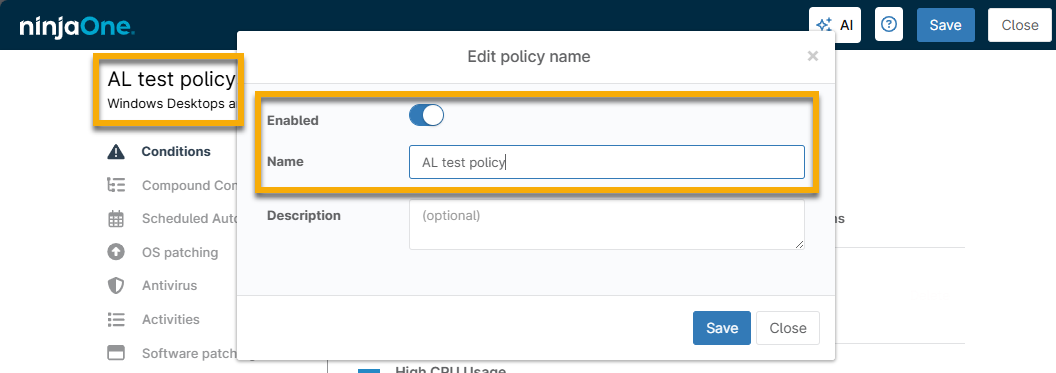
You can enable or disable policies. When disabled, the policy configurations will not be applied to any associated devices. An administrator or technician may decide to disable a policy while building out policy configurations and rules and then enable it when all settings are ready to be deployed to the managed devices.
All policy changes are sent to devices when it is enabled and the administrator or technician clicks Save.
To change a policy status or display name, open the policy editor and click the policy name.
Learn About Agent Policy Settings
Select a category to learn more about configuring settings for it in the policy (policy settings may vary depending on device type):

- Conditions
- Compound Conditions
- Scheduled Automations
- OS Patching
- Antivirus
- Activities
- Software Patching
- Backups
- Warranty Tracking
- MDM
Conditions
Conditions are set at the policy level and allow you to proactively monitor systems with minimal configuration.
When the selected condition meets the configured criteria, such as missing software or memory threshold, NinjaOne can assign a severity and priority, send notifications to specific recipients, run an automation, or create a ticket.
For more information, refer to Policies: Condition Configuration.
Compound Conditions
Compound conditions allow administrators to combine multiple conditions for more precise device targeting and monitoring. This option offers the ability to apply or “stack” multiple conditions to define precise conditions more granularly under which alerts are triggered, or actions are taken.
For more information, refer to NinjaOne Policies: Compound Conditions.
Scheduled Automations
Scheduled automations allow you to run actions from the NinjaOne Automation Library on the endpoints at specific times.
For more information, refer to Policies: Scheduled Automations.
OS Patching
Patch management software, such as that included with NinjaOne, gives users a complete, centralized view of their patch compliance rate and automates the identification, downloading, and deployment of patches across your managed devices.
For more information about this section, refer to Windows Patch Management: Setup or Insights for Better Patch Management
| Setting | Information |
|---|---|
| Status | Turns the following settings on or off for configuration. |
| Mode |
|
| Scan schedule | The time the scan for available patches starts. |
| Update schedule | The time when the available patches are downloaded and then applied to the endpoint(s). |
| Pre or Post-automation execution | Automation execution allows you to run a script before or after an update or to cancel an update if the pre-script fails to run. |
| Reboot options | If you set the policy to prompt a reboot until accepted by the user, the dialogue prompt does not time out; if you configure multiple prompts to notify the user, they will only see the subsequent prompts after closing out of the first prompt. This means that a reboot prompt can persist indefinitely unless forced or configured to reboot when the user logs out. |
| Security Update Approvals | Approvals are split into three sections: Security updates, Advanced, and General. There are three different approval options for each patch type: Approve, manual, and reject. |
| Patch Intelligence AI approvals overrides | Change automated approvals if NinjaOne AI detects an issue with a path. Refer to NinjaOne Patching: Windows Patch Intelligence AI Approval Overrides for more information. |
| Overrides | Any patches whose statuses you choose to manually override for the policy show up under the Overrides section. If you click the "'X' approved and 'X' rejected patches" link, you can view the overridden patches and remove the overrides if you wish. |
Antivirus
NinjaOne works with several third-party applications to provide antivirus options.
Activities
Policy activities allow you to enhance and create alerting, visibility, and safety options around specific endpoint events.
Depending on the device type and applications enabled, you may see different options for activity notifications. For example, NinjaOne Backup supports Windows 8 and newer, Windows Server 2012R2 and newer and macOS Monterey, so backup activities will not be available for Linux policies.
Refer to NinjaOne Policies: Policy Activities or NinjaOne Platform: Device and System Activity Notification Feed for more information.
Software Patching
The Software patching tab allows you to configure software patch management and automatically push specific software to your devices.
For more information about software patch management, refer to Windows Third-Party Software Patch Management.
Under the Software → Software tab, you can automatically push specific software to your device. For more information, refer to How to automatically push supported software to devices.
Backups
To learn more about backups, refer to the following documentation:
- File/folder backups: NinjaOne Backup: File/Folder Backup Plans
- Image backups: NinjaOne Backup: Image Backup Plans
- General: NinjaOne Backup: Setup Guide
Warranty Tracking
In NinjaOne, you can enable automatic warranty tracking for Dell, Lenovo, Toshiba, Hewlett Packard (HP), and Microsoft. Supported hardware includes workstations, servers, and virtual hosts.
To learn more, refer to Enable Warranty Tracking.
MDM
This section appears in Agent policies for macOS devices. When you enroll a macOS device in NinjaOne MDM and install the agent, a technician can perform all capabilities granted by both the RMM and MDM platforms.
You may also see this section in other operating system policies with the Custom payload option enabled.
To learn more, refer to NinjaOne MDM: Managing macOS and NinjaOne Apple MDM Policy Settings: Custom Payloads.
Learn About NMS Policy Settings
To learn more about configuring settings for NMs policies, refer to NinjaOne NMS: Policy Management.
Learn About VM Policy Settings
Currently, you can only configure conditions for VM policies. To learn more, refer to NinjaOne Mobile Device Management (MDM): Resource Catalog.
Additional Resources
To learn more about policies in NinjaOne, refer to: Policy Management: Resource Catalog.