
Topic
This article answers frequently asked questions about Windows patch management.
For more articles on patching in NinjaOne, refer to our Patching Resource Catalogue.
Environment
- NinjaOne patch management
- Windows OS
Description
General FAQ
- How are registry settings for WSUS servers written in NinjaOne?
- Will NinjaOne still function to patch the OS if we disable Windows updates in GPO?
- Is there a limit to the number of languages reboot prompts triggered by NinjaOne and the Systray icon can be translated to? Is there a way to know the translated languages?
- Is the NinjaRMM agent compatible with Windows 11?
- How will Windows classify the patch and upgrade to Windows 11?
- How do I make sure that my Windows 10 devices doesn’t get upgraded to Windows 11?
- How does NinjaOne's Windows patch management tool work?
- When will the Windows 11 upgrade patch be available for my managed machines through NinjaOne's Windows patch management tool?
- What's the difference between NinjaOne's Windows patch management tool and Windows Updates?
- What happens when Microsoft releases a new patch?
- I found a security update available through Microsoft, but it is not being picked up in NinjaOne's patch scan cycles. Why is this the case?
- How do I prevent a specific patch from installing on my devices?
- How do I configure NinjaOne to deploy drivers or feature updates?
- Can I configure my Windows patch management settings to prevent Windows Defender from deploying patches (such as definition updates)?
- What versions of Windows are compatible with NinjaOne's Windows patch management tool?
- Where does the data in the Reboot Required field come from when viewing the list of Pending/Approved/Rejected patches?
- What does the data in the Installed/Attempted By field mean when viewing the list of Installed/Failed patches?
- How can you change the language on the Windows Patch Management reboot prompt?
- Why do patches sometimes still appear in the Installed list in NinjaOne, even though I have uninstalled them locally from the machine?
- After feature updates are performed on machines, the Installed list appears empty. Why does this occur?
- When the option to wake a system for patching is enabled, how does NinjaOne wake the device?
- Is it possible for devices to require a reboot following a scan cycle, rather than an apply cycle?
- Does the last scan date listed under "View Update History" in the local Windows Update application reflect scans that were run via NinjaOne?
- Will NinjaOne patches display under "View Update history" locally on the device?
- Why is a manual Scan and Apply job timing out?
- Does NinjaOne do BIOS updates?
General FAQ
How are registry settings for WSUS servers written in NinjaOne?
If "Control" mode is disabled within NinjaOne, automatic OS updates are disabled. If you configure changes to WSUS in NinjaOne, those changes are also applied to the registry.
Will NinjaOne still function to patch the OS if we disable Windows updates in GPO?
If you don't want users to manually run Windows Update, you can use this GPO: https://learn.microsoft.com/en-us/windows/deployment/update/waas-wu-settings#remove-access-to-use-all-windows-update-features.
Is there a limit to the number of languages reboot prompts triggered by NinjaOne and the Systray icon can be translated to? Is there a way to know the translated languages?
This specific message (and its variations depending on if the reboot will happen in a certain amount of time) is available in all the languages we support: English, German, French, Spanish, Italian, Dutch, Swedish, Norwegian, Danish, Portuguese, Polish, and Russian.
Is the NinjaRMM agent compatible with Windows 11?
NinjaOne has tested the NinjaRMM agent and its integrated components on both new and upgraded installations of Windows 11, and we added it as a supported OS to our System Requirements and OS Support documentation. Contact Support if you encounter any issues.
How will Windows classify the patch and upgrade to Windows 11?
According to the Windows 11 overview article from Microsoft, the Windows 11 upgrade is classified as a feature update:
For administrators managing devices on behalf of their organization, Windows 11 will be available through the same familiar channels you use for Windows 10 feature updates today. You will be able to use existing deployment and management tools, such as Windows Update for Business, Microsoft Endpoint Manager, and Windows Autopilot. For more information, see Plan for Windows 11.
How do I make sure that my Windows 10 devices don’t get upgraded to Windows 11?
Windows Updates work as follows: The Feature Update for Windows 11, 22H2, will be suggested for Windows 10 devices. If you have approved this feature update, NinjaOne will upgrade your Windows 10 devices to Windows 11. To prevent this, you must select “Stay on Windows 10 for now” on the local Windows Updates GUI.
You can use the following script to automate the command:
reg add HKLMSOFTWAREPoliciesMicrosoftWindowsWindowsUpdate /f /v TargetReleaseVersion /t REG_DWORD /d 1
reg add HKLMSOFTWAREPoliciesMicrosoftWindowsWindowsUpdate /f /v TargetReleaseVersionInfo /t REG_SZ /d 22H2
reg add HKLMSOFTWAREPoliciesMicrosoftWindowsWindowsUpdate /f /v ProductVersion /t REG_SZ /d "Windows 10"
Use this line to unblock the command:
reg add HKLMSOFTWAREPoliciesMicrosoftWindowsWindowsUpdate /f /v TargetReleaseVersion /t REG_DWORD /d 0
In NinjaOne, you can find approval settings for the "Feature Updates" patch type under Windows Patches → Advanced Approval(s) in your OS patch management policy settings.
- Reject will block the patch (and any other feature updates) from being installed on your managed machines when the system finds it during a scan.
- Approve will push the patch to your managed machines during the next apply cycle after the system finds it during a scan.
- Manual will allow you to choose whether to reject or approve the patch when the system finds it during a scan.
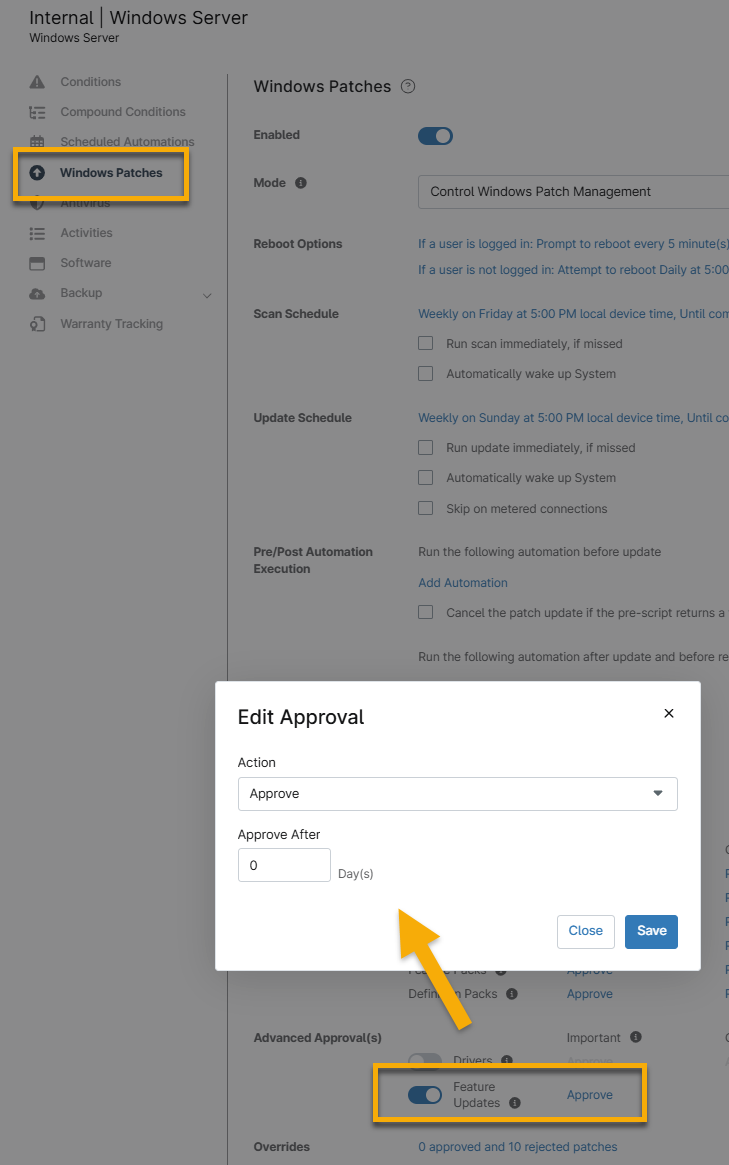
Figure 1: Edit approval for feature updates at the policy level in NinjaOne
Refer to Policies: Windows Patch Management for more information about configuring these settings.
How does NinjaOne's Windows patch management tool work?
The executable for NinjaOne's patch management tool is in the NinjaOne agent's installation directory. This executable handles patch detection and installation via the Windows Update Agent API. Depending on policy configurations, a typical WPM scan cycle will run up to three scans:
- A scan for recommended updates that includes everything under Important in the Approvals section of the OS patching policy settings.
- A scan for the Optional updates and Feature Updates (if enabled).
- A scan for Drivers (if enabled).
When will the Windows 11 upgrade patch be available for my managed machines through NinjaOne's Windows patch management tool?
Refer to Windows Patch Management: Patch Availability for more information.
What's the difference between NinjaOne's Windows patch management tool and Windows Updates?
NinjaOne's Windows patch management and Windows Updates both pull directly from the Windows Update catalog of all available patches. NinjaOne detects the patch history during a scan and reports on patches installed using Windows Updates outside of NinjaOne. However, it is essential to note that NinjaOne cannot block a customer from installing a patch via Windows Update.
What happens when Microsoft releases a new patch?
Microsoft distributes newly released patches through service channels. If the device can detect the update during a local update scan, NinjaOne can also detect those patches during the next patch management scan. If the device cannot detect the patch, NinjaOne does not display it either, because NinjaOne uses the results and data from Windows Updater.
NinjaOne only detects patches if they are available when you run a Windows Patch scan. It is important to note that running a patch scan locally on a device bypasses any Windows patch management policy settings configured in NinjaOne.
I found a security update available through Microsoft, but it is not being picked up in NinjaOne's patch scan cycles. Why is this the case?
In limited cases, there may be a delay between when Microsoft releases a security update and when that patch is available directly through Windows Update. The Windows Update catalog typically adds patches on the second Tuesday of every month. NinjaOne cannot pick up these patches during a scan cycle until Windows Update adds them to the catalog.
Click here for a list of recent patches available via Windows Update and, in turn, NinjaOne's patch management functionality. For more information about patch availability, refer to Windows Patch Management: Patch Availability.
How do I prevent a specific patch from installing on my devices?
To prevent a patch not yet found in a scan from installing on your devices, you can add a preemptive rejection for the KB at the policy or global level. Alternatively, you can manually reject a patch for your devices/policies if NinjaOne finds it in a scan. Refer to Windows Patch Management: Approving and rejecting patches for more information.
How do I configure NinjaOne to deploy drivers or feature updates?
You can configure driver and feature update patching similarly to other patch types. Under the Windows Patches policy settings, navigate to the Advanced Approval section, check the boxes next to Drivers and/or Feature Updates to enable them, and designate your preferred approval option (approve, manual, or reject).
If you prefer to deploy feature updates outside NinjaOne's patch management functionality, use the following script resource: Custom Script: Upgrade Windows 10 build.
Can I configure my Windows patch management settings to prevent Windows Defender from deploying patches (such as definition updates)?
No. NinjaOne's Windows patch management tool cannot disable Windows Defender from deploying patches.
What versions of Windows are compatible with NinjaOne's Windows patch management tool?
Most of the operating systems outlined in our System Requirements and OS Support documentation are compatible with our Windows patch management. However, many versions of Windows Vista, Windows 7, and Windows Server 2008 do not support Windows patch management because Microsoft has discontinued an outdated Windows Update service endpoint (Windows Update SHA-1-based endpoints discontinued for older Windows devices).
You can update devices running Windows 7 SP1, Windows Server 2008 R2 SP1, and Windows Server 2008 SP2 to allow for Windows patch management per the steps in the Microsoft article linked above.
Where does the data in the Reboot Required field come from when viewing the list of pending/approved/rejected patches?
This data is pulled directly from the Microsoft Update Catalog data for each patch.
What does the data in the Installed/Attempted By field mean when viewing the list of installed/failed patches?
- A value listed as NinjaRMM Scheduled Update indicates that the patch was installed during a scheduled Windows patch management update cycle per the device's policy settings.
- A value listed as NinjaRMM: <Technician Name> indicates that the technician in question triggered an ad-hoc Windows patch management update cycle, which installed the patch on the device.
- A value listed as NinjaRMM Update Engine indicates that the patch was installed by NinjaOne's legacy update engine.
- Any other value indicates that the patch was not installed by NinjaOne's Windows patch management tool.
If the patch is not installed by NinjaOne, the value listed is completely dependent on the entity that installed the software (for example, this field may be blank). Some examples of other values you may see here are as follows:
- WUSA
- Windows Defender
- UpdateOrchestrator
- MoUpdateOrchestrator
How can you change the language on the Windows Patch Management reboot prompt?
The Windows Patch Management reboot prompt will use the language of the OS installed. At this time, it supports French, German, Spanish, and English.
Why do patches sometimes still appear in the Installed list in NinjaOne, even though I have uninstalled them locally from the machine?
This is due to the nature of Microsoft's history. In some cases, when patches are uninstalled locally on a machine, they will continue to be displayed in the Installed list within NinjaOne.
After feature updates are performed on machines, the Installed list appears empty. Why does this occur?
This is due to Windows functionality that may clear local patching history from a machine when a feature update is installed. When this occurs, the Installed Patch list is displayed as empty, but the OS version for the device updates to display the expected Windows version.
When the option to wake a system for patching is enabled, how does NinjaOne wake the device?
This option uses a Windows API function to set a device's wake-up time. Devices can be woken from a sleep state. The system must have wake timers enabled for this feature to work.
Is it possible for devices to require a reboot following a scan cycle, rather than an apply cycle?
As of Version 9.0, Scan cycles no longer trigger reboots. This prevents unexpected device reboots and makes scans safe to run.
Does the last scan date listed under "View Update History" in the local Windows Update application reflect scans run via NinjaOne?
No. NinjaOne cannot update the Last Scan Date in the Windows Update application. That date reflects the last time a manual patch scan was run by Windows Update, rather than NinjaOne.
Will NinjaOne patches display under "View Update history" locally on the device?
Patches installed through NinjaOne do not display. However, locally installed patches are still shown under "Update history" on the device.
Why is a manual Scan and Apply job timing out?
The duration time set within the policy is also applied for manual scans/apply cycles.
Does NinjaOne do BIOS updates?
NinjaOne controls any patches pushed through Microsoft, which occasionally include BIOS updates. For consistency, we recommend using custom scripting for BIOS updates, which you can find in our Script Share: Patch Management article.
Patch Scheduling FAQ
- Can I have a Windows patch scan and update cycle scheduled to run at the same time?
- Does a scan cycle run immediately prior to an application cycle occurring?
- Why am I receiving a Reboot Required notification for Windows Patching, and can I stop it from automatically rebooting?
Can I have a Windows patch scan and update cycle scheduled to run at the same time?
We recommended separating the scan and update schedules by at least an hour to allow enough time for one action to complete before the other starts. If you do schedule your scan and update cycles to run at the same time, or if an apply cycle starts before the scan cycle has had the chance to complete, the scan is skipped or terminated, and the update cycle will take priority.
Does a scan cycle run immediately prior to an application cycle occurring?
Yes. During a Windows patch management application cycle, a scan is also run prior to applying updates.
Why am I receiving a Reboot Required notification for Windows Patching, and can I stop it from automatically rebooting?
"Reboot Required" notifications initiate from the patch management options set up at the policy level. Technicians can choose from several options, including whether to allow the end user to accept a reboot, reboot with notification, or reboot automatically. If your patch management schedule was set up to prompt a user to reboot, the technician has an additional option to force a reboot after a specified number of prompts.
Below is an example of a reboot-required notification as the end user sees it and the reboot setup options as the technician sees them. Technicians also have a dialog box to add custom messages, so the reboot-required notification message may vary according to customer specifications.
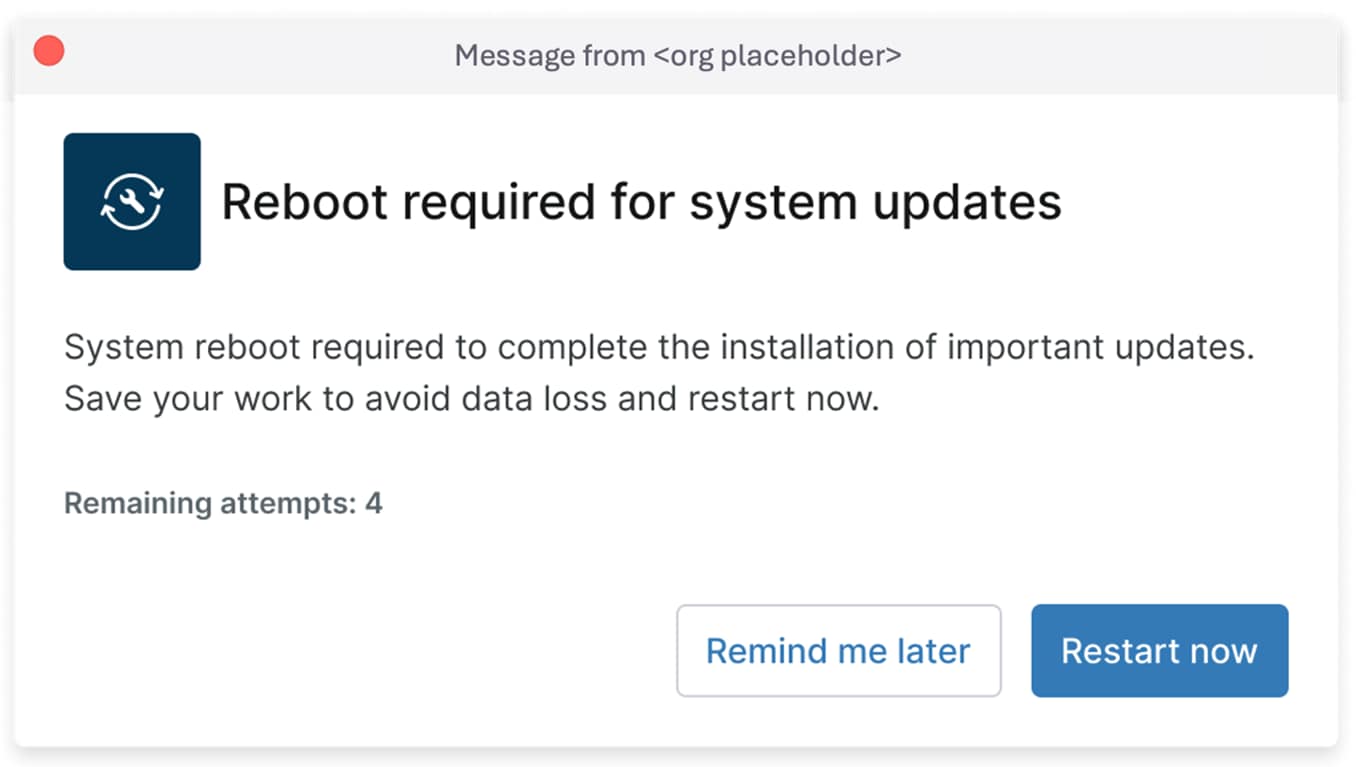
Figure 2: "Reboot required" prompt example (click to enlarge)
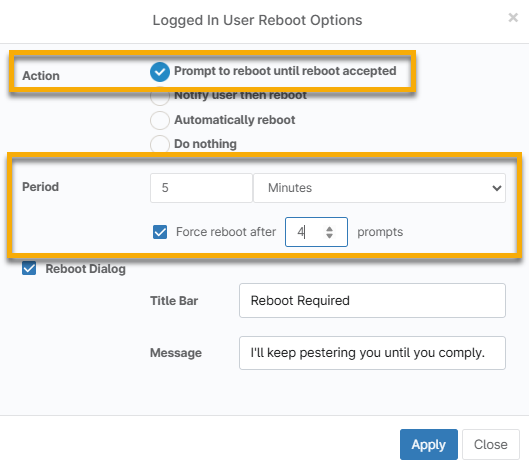
Figure 3: Example of the "reboot required" prompt configuration (click to enlarge)
Patch Availability FAQ
- How does NinjaOne know what to patch?
- What happens if a patch is not available?
- How can I install a patch if it is not available in NinjaOne?
- Why does this have to be done manually?
- Will a scheduled automatic reboot happen even if users are still signed in but not actively using the machine?
The following is a list of frequently asked questions regarding patch availability with NinjaOne's Windows patch management tool.
How does NinjaOne know what to patch?
Microsoft distributes newly released patches through service channels.
- If the device can detect the update in question during a normal, local update scan, NinjaOne can also detect those patches during the next patch management scan.
- If the device cannot detect the patch, NinjaOne does not display it either, as NinjaOne utilizes the results and data from Windows Updater.
NinjaOne only detects patches if they are available when a Windows Patch scan is run. It is important to note that a Windows Patch running locally on a device bypasses any Windows patch management policy settings configured in NinjaOne (so, patches would not be approved or rejected according to the configured policy settings).
What happens if a patch is not available?
In limited cases, there may be a delay between when Microsoft releases a security update and when that patch is available directly through Windows Update. Microsoft slow rolls patches to all Windows devices over time, which is why you will see them available on one device but not another, even if you run a manual update directly on the devices. Click here for a list of Security Updates from Microsoft.
Microsoft typically adds patches to the Windows Update catalog on the second Tuesday of every month. Before these patches are added, NinjaOne cannot pick them up during a scan cycle. Click here for a list of recent patches available via Windows Update and, in turn, NinjaOne's patch management functionality.
How can I install a patch if it is not available in NinjaOne?
If the device's Windows Update service does not yet see the patch available from Microsoft, you must install the patch manually.
If you do not want to wait for Microsoft to tell the device that the patch is available for that device, there are two options:
- Run Windows update manually on the device(s) to catch the patch as soon as it is available. You may have to do this several times if the patch is still unavailable from Microsoft.
- Download the patch from the Microsoft Update catalog and manually install it via the command line or a custom script.
Why does this have to be done manually?
- NinjaOne does not keep a patch repository for delivering patches to devices.
- NinjaOne uses the local Windows Update service on the individual device, which in turn contacts Microsoft servers to find out what patches are available for it based on multiple factors. Once the update service gets its catalog of available patches, NinjaOne then tells the device when to install them based on your settings inside the NinjaOne console.
Will a scheduled automatic reboot happen even if users are still signed in but not actively using the machine?
No. We also do not advise rebooting an idle computer, as you could lose important unsaved data and open, unfinished work.