
Topic
This article describes the process for patching Windows endpoints via NinjaOne's patch management features.
For general details about leveraging patch management in NinjaOne, refer to our Patching Resource Catalogue.
Environment
- NinjaOne patch management
Description
In NinjaOne's Windows patch management, you can use the Control mode to either approve or reject patches before a scan detects them. If you prefer, you can also manually approve or reject patches by Knowledge Base (KB) number or patch ID after the scan identifies them. Depending on your policy settings, the system will categorize the patch as Approved, Rejected, or Pending.
Select a topic to continue.
- How NinjaOne Prioritizes Approvals and Rejections at Different Levels
- Preemptively Approving or Rejecting Patches
- Automatically Approving Patches Based on a Designated Number of Days
- Manually Approving or Rejecting Patches
- Manually Rejecting or Approving Patches in the Pending State
- Manually Scanning for or Applying Updates
- Uninstalling Patches
How NinjaOne Prioritizes Approvals and Rejections at Different Levels
There are four different levels at which NinjaOne could approve or reject a patch:
- Device-level overrides
- Policy-level overrides
- Global preemptive approvals/rejections
- Policy-level automated approvals/rejections
NinjaOne prioritizes the closest level to the device in the patch approval process. Device-level overrides take precedence, followed by policy-level overrides, global approvals or rejections, and automated approvals or rejections at the policy level.
When there are clashes between Knowledge Base (KB) and Patch ID at the same level (device, policy, or global), NinjaOne prioritizes patch rejections above all else. If the KB rejects a patch but the Patch ID approves it, NinjaOne will reject the patch. Similarly, if the Patch ID rejects a patch but the KB approves it, NinjaOne will also reject the patch.
For an overview of various avenues in the patch approval process, refer to the following diagram.

Figure 1: Patch approval scenarios (click to enlarge)
Preemptively Approving or Rejecting Patches
Only system administrators can preemptively approve or reject patches at the global level.
You can only preemptively approve or reject patches by KB. You cannot preemptively approve or reject a patch without an associated KB (such as a driver).
Preemptively Approving or Rejecting Patches at the Global Level
To approve or reject a patch at the global level:
- Navigate to the NinjaOne Patching App at Administration → Apps → Installed → NinjaOne Patching.

Figure 2: NinjaOne Apps Administration (click to enlarge)
- Click Add,
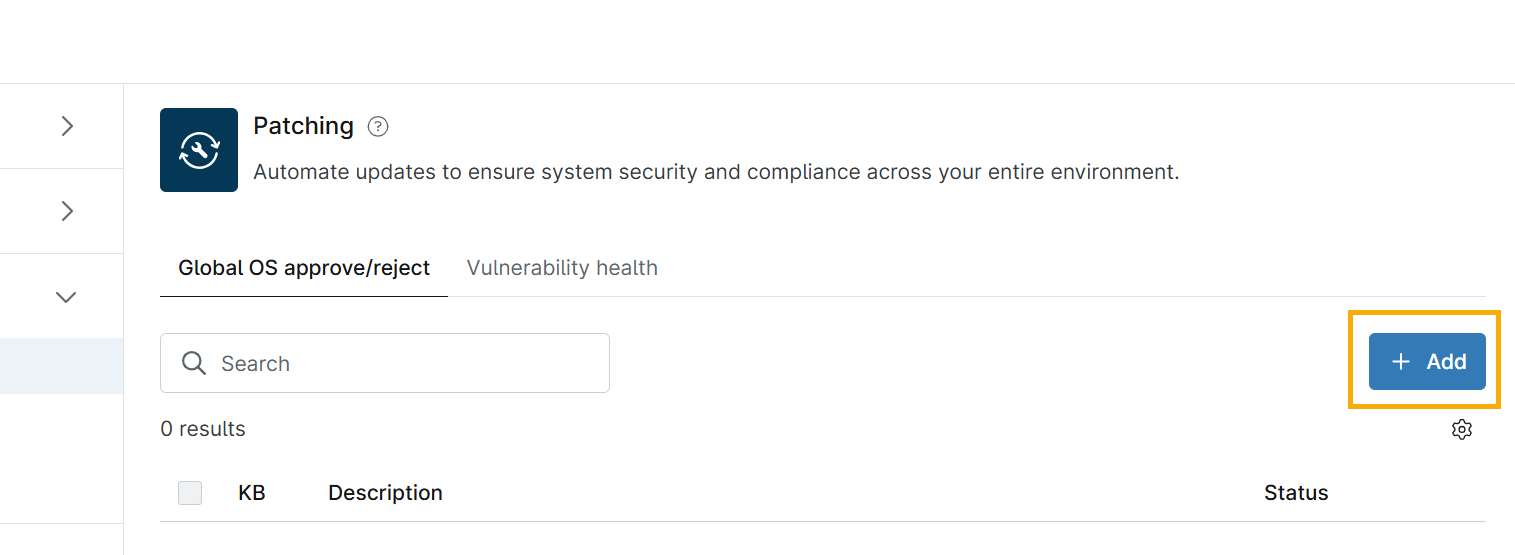
Figure 3: The Patching App (click to enlarge)
- Enter the KB number for the patch and select Approve or Reject.
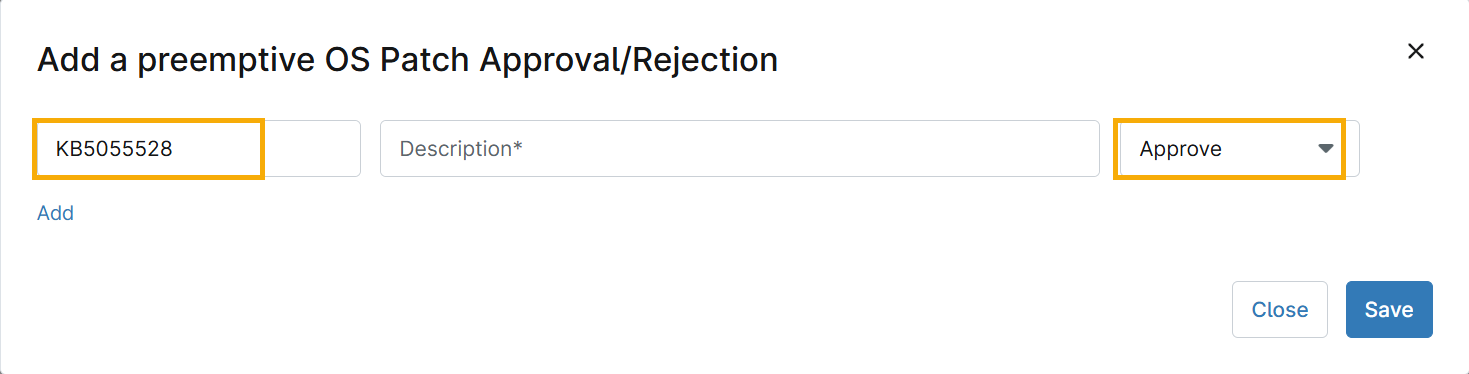
Figure 4: KB selection (click to enlarge)
- Refer to Automate Patching Approval / Rejection for more information.
Preemptively Approving or Rejecting Patches at the Policy Level
You can approve or reject a patch at the policy level via the following workflow.
- In NinjaOne, navigate to Administration → Policies → Windows Patches.
- Ensure that the Enabled toggle switch is active.
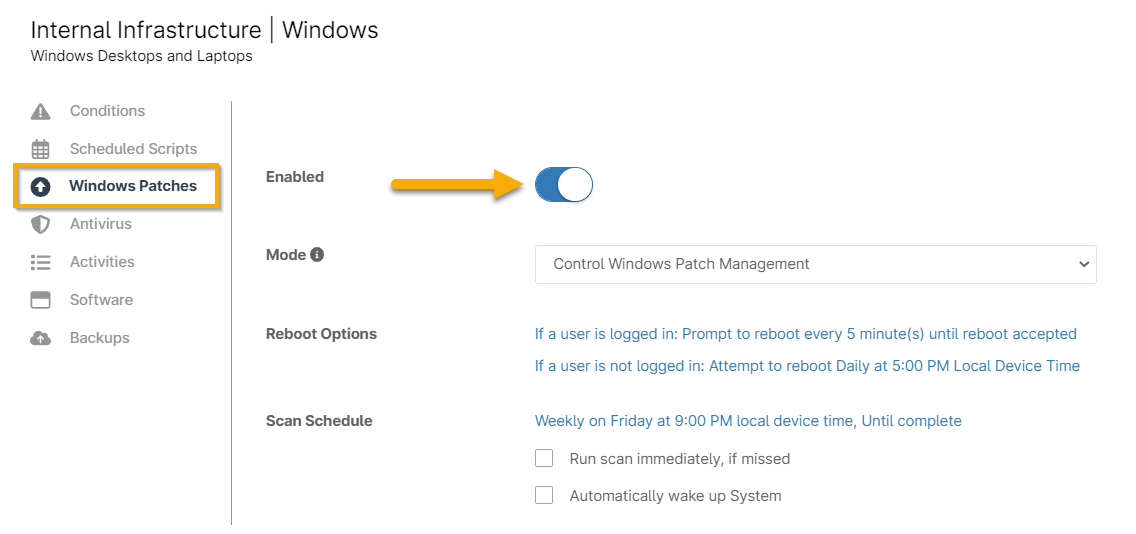
Figure 5: The Enable Policy slider (click to enlarge)
- Scroll to the Overrides section of the Windows Patches pane.
- Click the link listing the current number of approved and rejected patches, as shown in the following screenshot.

Figure 6: approved and rejected patch overrides (click to enlarge)
- The Overrides editor modal will appear, listing all patches that meet the following criteria:
-
- The patch category approval was set to Manual, and you then approved or rejected the patch for the policy.
- The patch category approval was set to Approve, and you then manually rejected the patch for the policy.
- The patch category approval was set to Reject, and you then manually approved the patch for the policy.
- Click Add.

Figure 7: Adding an override (click to enlarge)
- The Add a preemptive OS Patch Approval/Rejection modal will appear.
- Enter the KB for the patch to approve or reject preemptively, and a description of the patch. Then, from the drop-down menu, choose Approve or Reject.
- To add an additional patch to approve or reject, click Add.
- To save the configuration, click Save.
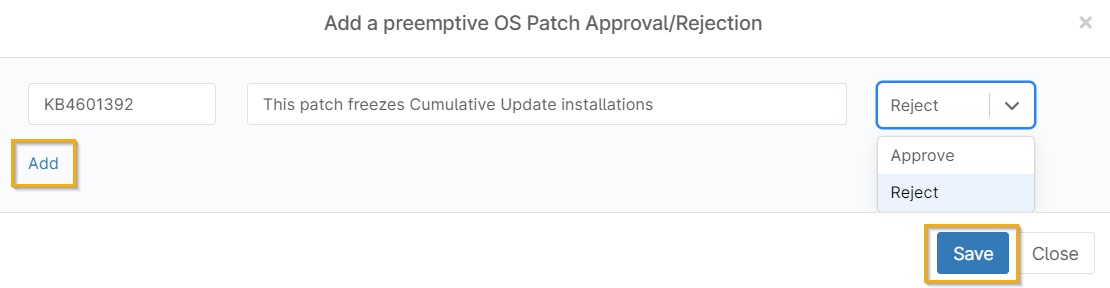
Figure 8: Add a preemptive OS Patch Approval/Rejection (click to enlarge)
Automatically Approving Patches Based on a Designated Number of Days
In the NinjaOne Policy Editor, you can automatically approve Windows patches after a specific number of days. You can set a limit of up to 30 days for all updates. You can also approve feature updates for up to 365 days. This delayed approval helps reduce risks from potentially faulty patches. You can configure each patch type with its own unique delay period.
When you set a patch to Approve After X Day(s), the countdown starts from the release date, not from when NinjaOne identifies the patch.
Follow these instructions to approve patches after a specified number of days automatically.
- In NinjaOne, navigate to Administration → Policies → Windows Patches.
- Scroll to the Approvals section.
- Click Approve next to the patching options you'd like to customize.
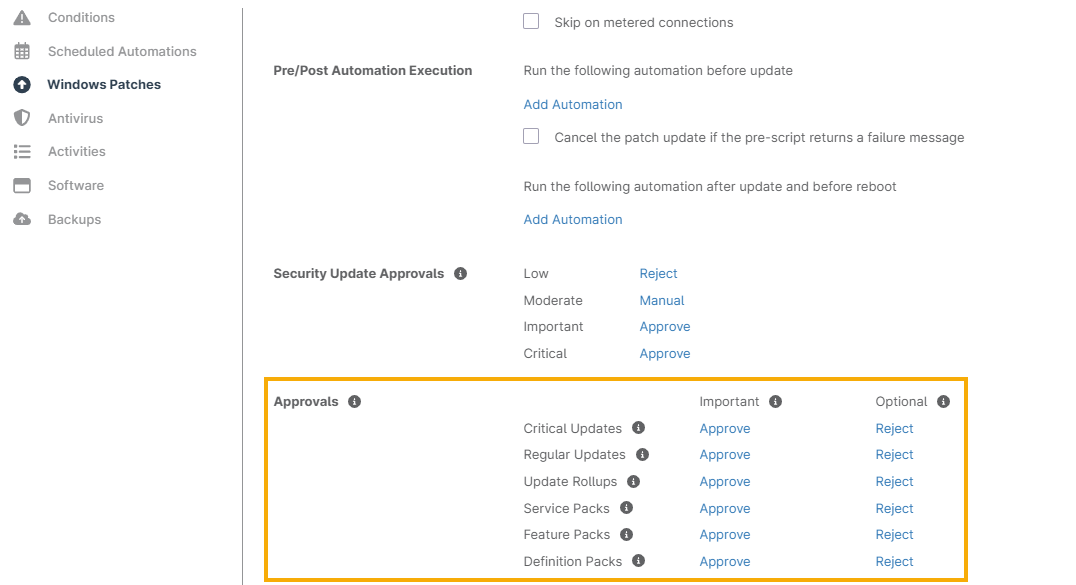
Figure 9: Configuring approvals (click to enlarge)
- Clicking the Approve button opens the Edit Approval window, where you can customize the approval time frame.

Figure 10: Edit Approval (click to enlarge)
Manually Approving or Rejecting Patches
You can manually approve or reject patches via the system dashboard. To learn more, refer to our Dashboards: Patch Management article. The following approval and rejection options are available.
| Approval/Rejection Options | Description |
|---|---|
| Approve/Reject by KB | KB labels on patches from Microsoft indicate a specific update. Multiple patches can share the same KB label. If you approve or reject a patch based on its KB, you automatically approve or reject all patches associated with that KB. |
| Approve/Reject by Patch ID | The Patch ID is a unique identifier for Microsoft patches. You might find multiple patches with the same KB number, but each will have its own unique Patch ID. When you approve or reject a patch, we recommend you use its specific Patch ID to ensure you are targeting the correct one. |
| Approve/Reject for this device | Select this category to create a device-level override for a specific device only. You can access this option when you view a pending, approved, or rejected patch from the device level. |
| Approve/Reject for policy/policies | This option creates a policy-level override for the policies linked to the devices with a pending, approved, or rejected patch. You can choose this workflow when viewing a patch at the system dashboard, organization dashboard, or device level. |
Manually Rejecting or Approving Patches in the Pending State
If a patch is waiting for approval or rejection, decide whether to approve or reject it. Determine if the patch logic should use the KB number or Patch ID, and specify whether it applies to the device or the policy:
- In NinjaOne, navigate to the Dashboard page.
- Move your mouse over the Devices tab.
- Select Approvals > Pending.
- Click the name of the device you'd like to manage.
- On the device's Overview page, scroll to the Health section.
- Click the downward-pointing chevron next to the patch to be approved or rejected.
- In the menu, select whether you want to reject or approve the patch and whether to do so by KB or Patch ID for the device or the policy.
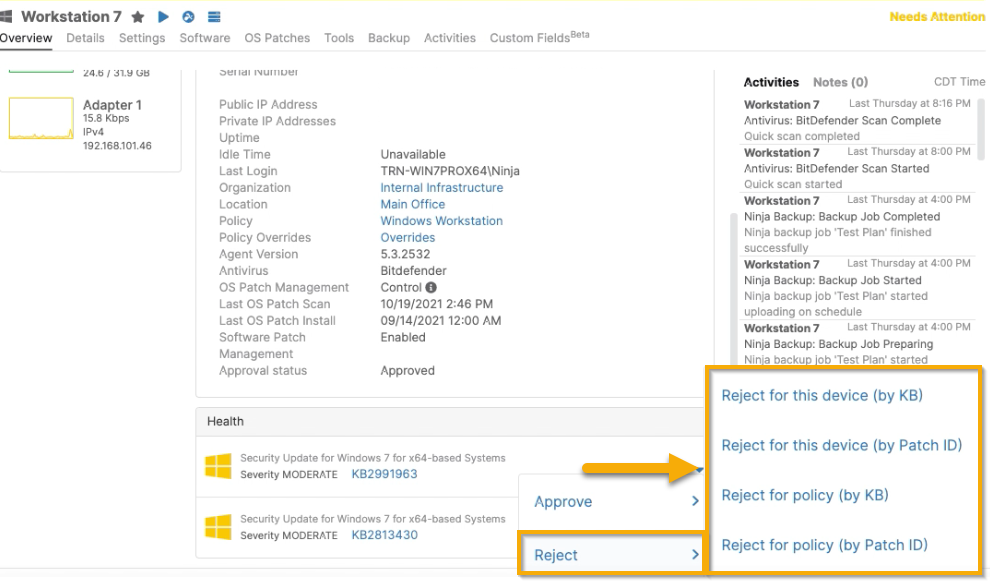
Figure 11: Approving or rejecting a patch (click to enlarge)
Manually Scanning for or Applying Updates
NinjaOne can initiate an on-demand patch scan and update cycle on any endpoint. NinjaOne installs all available updates and will reboot the device if necessary. If a device hasn’t received a patch update in over 60 days, it might need several reboots to apply all updates because some updates depend on others being installed first.
To manually scan for or apply updates to a single device:
- In NinjaOne, navigate to the Devices page.
- Click the name of the device you'd like to manage.
- On the device's Overview page, move your cursor over the ▶ (play) button in the top navigation menu.
- Select Software Update. Then, click Scan or Apply.
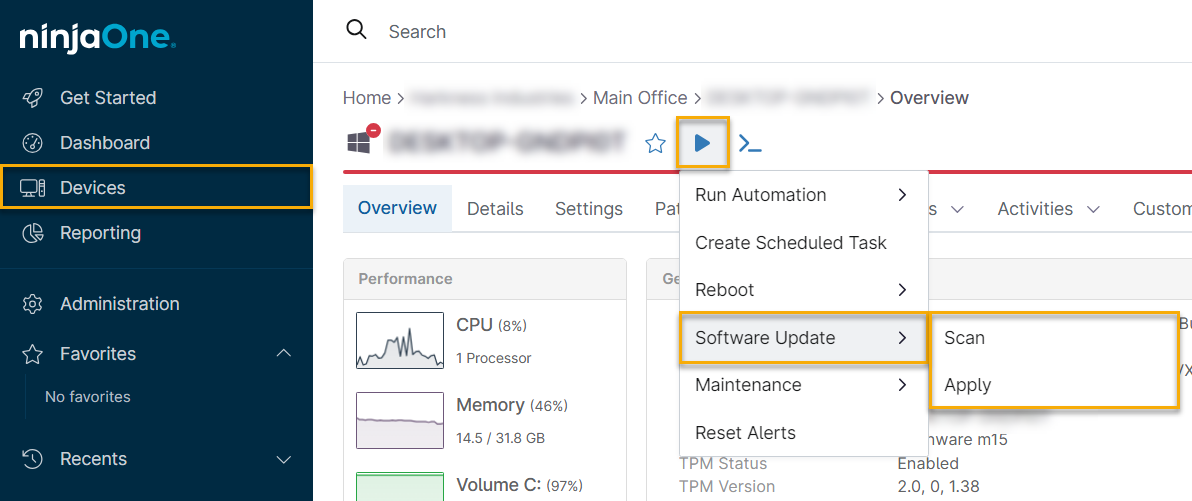
Figure 12: Scanning or updating an individual device (click to enlarge)
To run an ad-hoc scan or update on multiple devices:
- In NinjaOne, navigate to the Devices page.
- Select the check boxes next to the names of the devices you'd like to include in the scan or update cycle.
- Move your mouse over the Run option in the menu at the top of the list.
- Select Software Update. Then, click Scan or Apply.
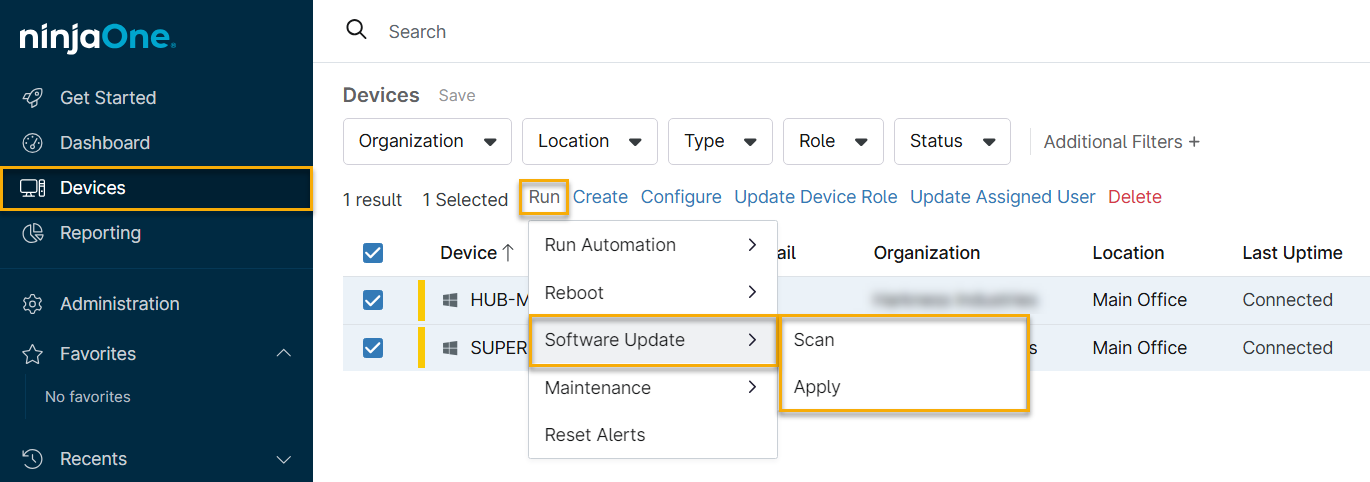
Figure 13: Scanning or updating multiple devices (click to enlarge)
- Ensure that Windows patch management is enabled for the policy applicable to your devices and verify that they are online. The Additional Filters option lets you locate these devices quickly.
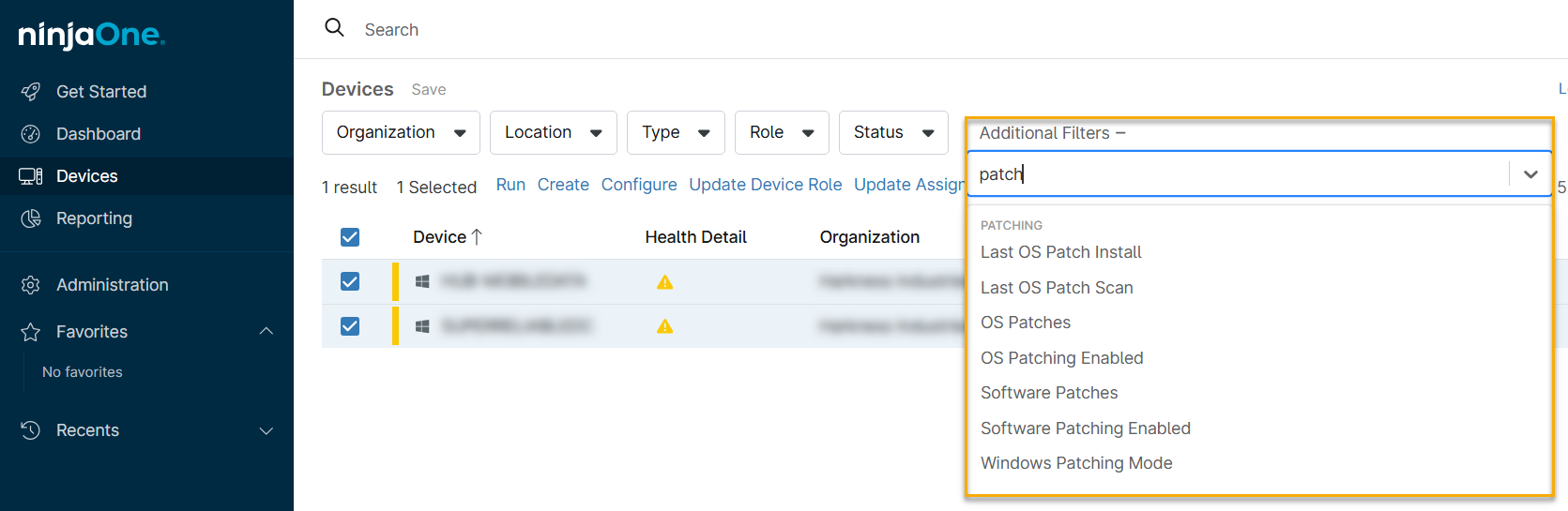
Figure 14: Additional Filters (click to enlarge)
You can also see the Windows patch status at the device level. If you have patches set to manual approval or rejection, you can take those actions from the Overview tab on the device dashboard.

Figure 15: OS Patch Management status (click to enlarge)
Uninstalling Patches
You can uninstall individual patches from the device detail page. To do so, perform the following steps.
- In NinjaOne, navigate to the Devices page.
- Click the name of the device you'd like to manage.
- On the device's Overview page, move your cursor over the Patching menu.
- Select OS patches. Then, click Installed.

Figure 16: Installed OS patches (click to enlarge)
- Move your cursor over the patch row and click the ellipsis button on the right side.
- Click Uninstall.
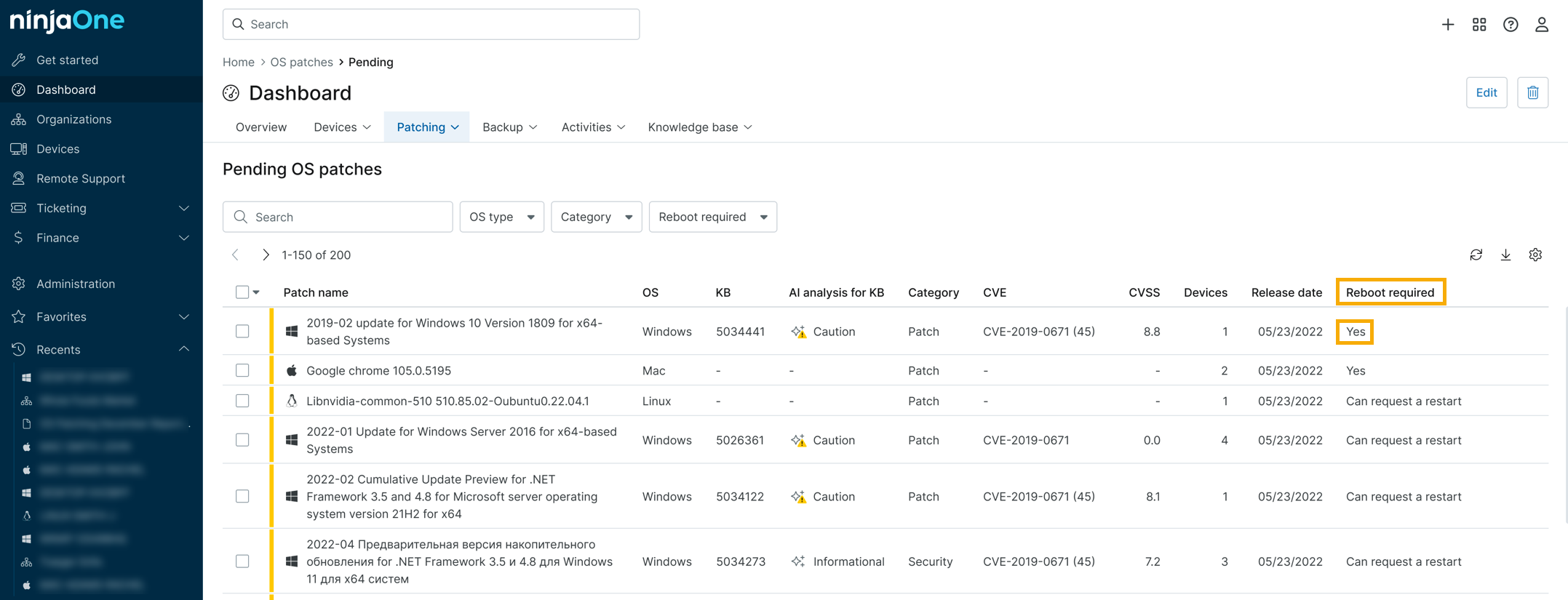
Figure 17: Uninstall (click to enlarge)
Figure 18: Uninstall supported (click to enlarge)