
Topic
This article describes how to use automation, CLI, and API with NinjaOne's Documentation feature.
Environment
NinjaOne Documentation
Description
You can use NinjaOne's Public API and the ninjarmm-cli component to manage your documents and templates in NinjaOne.
Select a category to learn more:
Scripts
- Navigate to Administration > Library > Automation > Add > New script.

- From here you can access the NinjaOne custom snippets. Custom snippets are building blocks within scripts that say, "read this" or "write this", which assist in the creation of a script that interacts with Documentation.
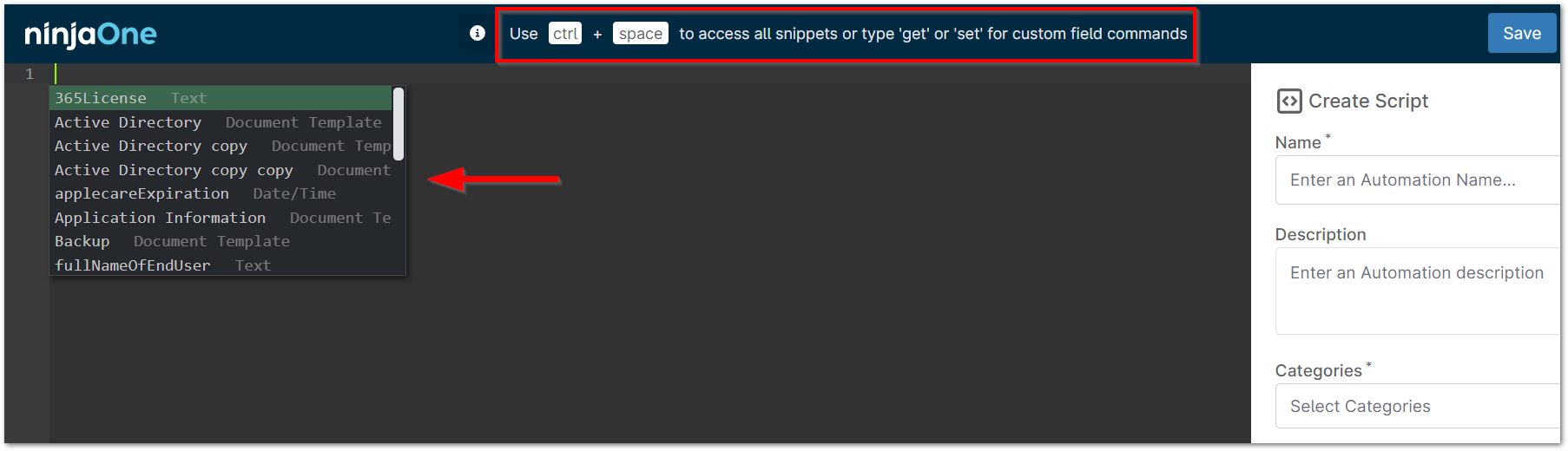
- To get started, select the programming language of choice, operating system, and architecture. Use ctrl + space to bring up the snippets menu.
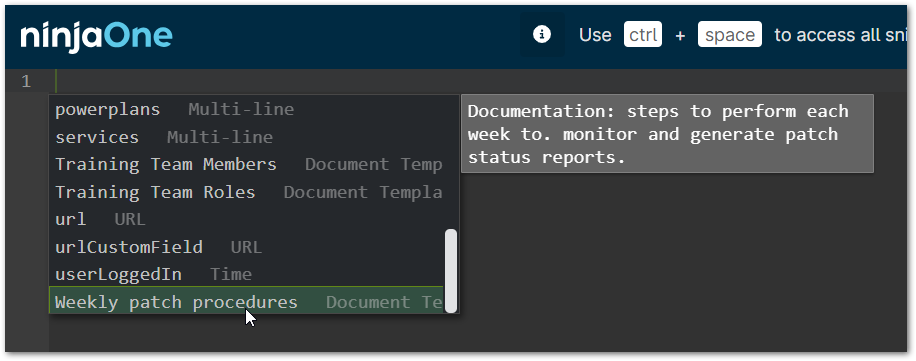
Now, when you run the script on a device (either by Scheduled Task, Scheduled Script, or ad-hoc), you can have information automatically pulled from the referenced Documentation.
CLI
Documentation fields can be read from through the CLI; this includes allowing HTML to be passed through the CLI to set the value of WYSIWYG fields. For more detailed information about scripting and Documentation, please see Custom Fields and Documentation: CLI and Scripting. For more information about WYSIWYG HTML, please see WYSIWYG: Supported HTML and Inline Styling.
The following is an example of the interface pertaining to Documentation for Windows CLI:
templates - get list of the templates, which has documents and attributes

documents "<template id/name>" - get list of the documents for template by id or name (quotes required)

get "<template id/name>" "<document name>" <attribute name> - get attribute from document by document name and template id/name (quotes required)

get "<single template name>" <attribute name> - get attribute from single document by template name (quotes required)

org-set "<template id/name>" "<document name>" <attribute name> "<attribute value / comma-separated values list>" - set attribute to the specified document/attribute by document name and template id/name (quotes required)
 org-set "<single template name>" <attribute name> "<attribute value / comma-separated values list>" - set attribute to single document/attribute by template name (quotes required)
 org-clear "<template id/name>" "<document name>" <attribute name> - clear value of document by document name and template id/name (quotes required, represents as NULL)
 org-clear "<single template name>" <attribute name> - clear value of single document by template name (quotes required, represents as NULL)
 org-options "<template id/name>" "<document name>" <attribute name> - get list of the valid values for document attribute name by document name and template id/name (actual for drop-down and multi-select attributes)
 org-options "<single template name>" <attribute name> - get list of the valid values for single document attribute name by template name (actual for drop-down and multi-select attributes)
This can also be accessed using the PowerShell interface on Windows, which is:
Ninja-Property-Docs-Templates
Ninja-Property-Docs-Names $TemplateId
Ninja-Property-Docs-Names "$TemplateName"
Ninja-Property-Docs-Get $TemplateId "$DocumentName" $AttributeName
Ninja-Property-Docs-Set $TemplateID "$DocumentName" $AttributeName
Ninja-Property-Docs-Get-Single "templateName" "fieldName"
Ninja-Property-Docs-Set-Single "templateName" "fieldName" "new value"
Ninja-Property-Docs-Clear
Ninja-Property-Docs-Options
API
Documentation fields can be created and updated through public API endpoints with client_credential authentication and allows the integration of third-party services. For more information, please see NinjaOne Public API Operations.