
Topic
This article describes their characteristics and explains how to generate them.
To learn how to enable SentinelOne in the NinjaOne console, refer to SentinelOne: Integration Guide.
Environment
- NinjaOne Integrations
- SentinelOne
Description
SentinelOne uses tokens to access the API (Application Programming Interface) management console. You can also leverage tokens to enable the SentinelOne integration with NinjaOne. Select a topic to continue.
- About API Tokens in SentinelOne
- Generating an API Token
- API Token Health and Re-Sync
- API Token Expiration and Renewal Notifications
About API Tokens in SentinelOne
Prerequisites
The Account scope access level must be enabled for the SentinelOne user under Scope of Access. For additional scope of access requirements, refer to SentinelOne: Integration Guide – NinjaOne Dojo.
SentinelOne API Token Characteristics
Users must have a token to access the API management console. There are several considerations to keep in mind when you're provisioning tokens for SentinelOne:
- A SentinelOne user can have only one token.
- You can automate the renewal of this token. We recommend using any role that supports options for extending the 30-day expiration.
- The API token is required to leverage scripts.
- The API token bypasses Two-Factor Authentication (2FA).
- Securing the API token is your responsibility.
- You can revoke or regenerate the token from the SentinelOne console (these options are under User Details after you generate your token) or via the API.
API Token Best Practices
To ensure the security and performance of your API integration, observe these best practices:
- Save the downloaded API token to the file or location that your API requests use.
- To share scripts, every user should save their API token with the same path name.
- Secure the API token file against accidental leakage or malicious tampering.
Generating an API Token
Each NinjaOne user can generate only one token, which remains valid for 30 days. To do so, complete the following workflow.
https://{your domain name}.sentinelone.net/docs/en/control-api-token-generation.html for details about how to assign these permissions.- Log in to your SentinelOne Web Management Console.
- In the top navigation menu, click the account name drop-down menu and select My User.
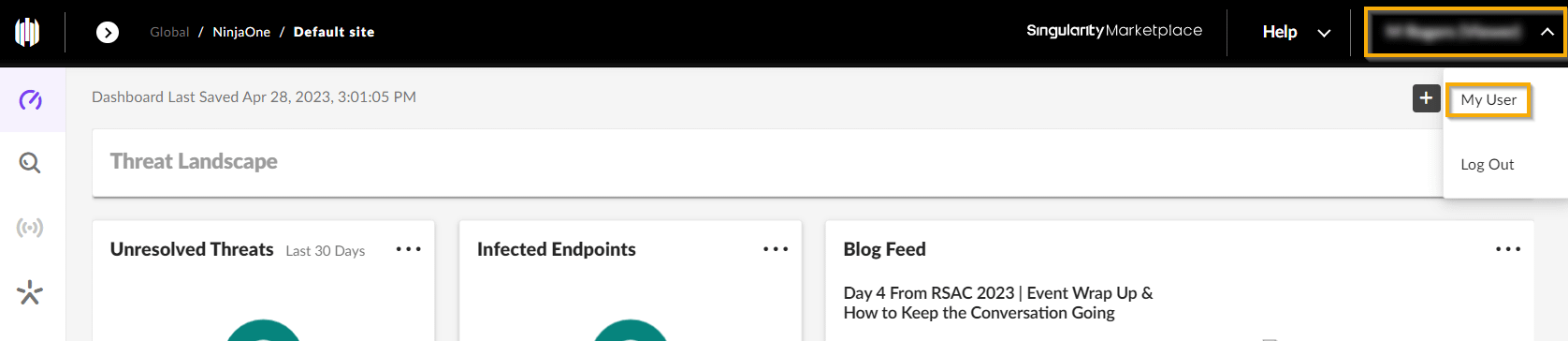
Figure 1: Account name → My User (click to enlarge)
- On the user detail pane that opens, click the Actions button.
- In the Actions drop-down menu, navigate to API Token Operations.
- If this is the first time you're generating a token for this account, select Generate API Token. If you are generating a new token for the user, select Regenerate API Token.
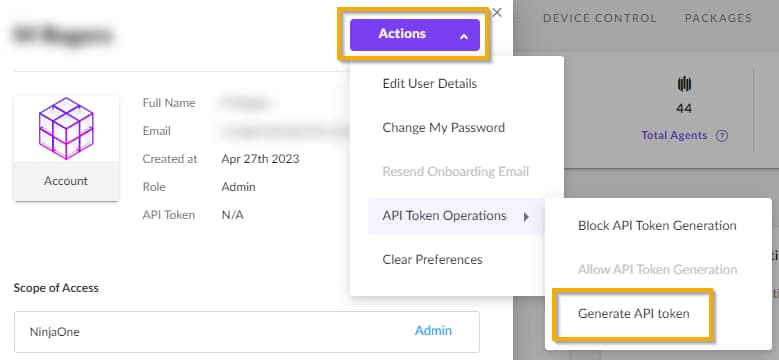
Figure 2: Actions → API Token Operations → Generate API token
- SentinelOne will generate a new API token and display it in a one-time use window.
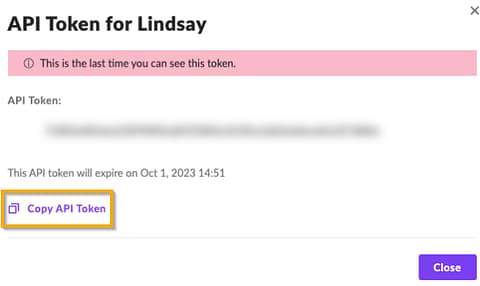
Figure 3: Actions → API Token Operations → Generate API token
- Copy the API Token value to your computer's clipboard.
- Click Close.
- In NinjaOne, navigate to Administration → Apps → Installed → SentinelOne → General.
- In the Settings category, click Edit.
- Paste the copied value into the API Token field.
- Click Save.
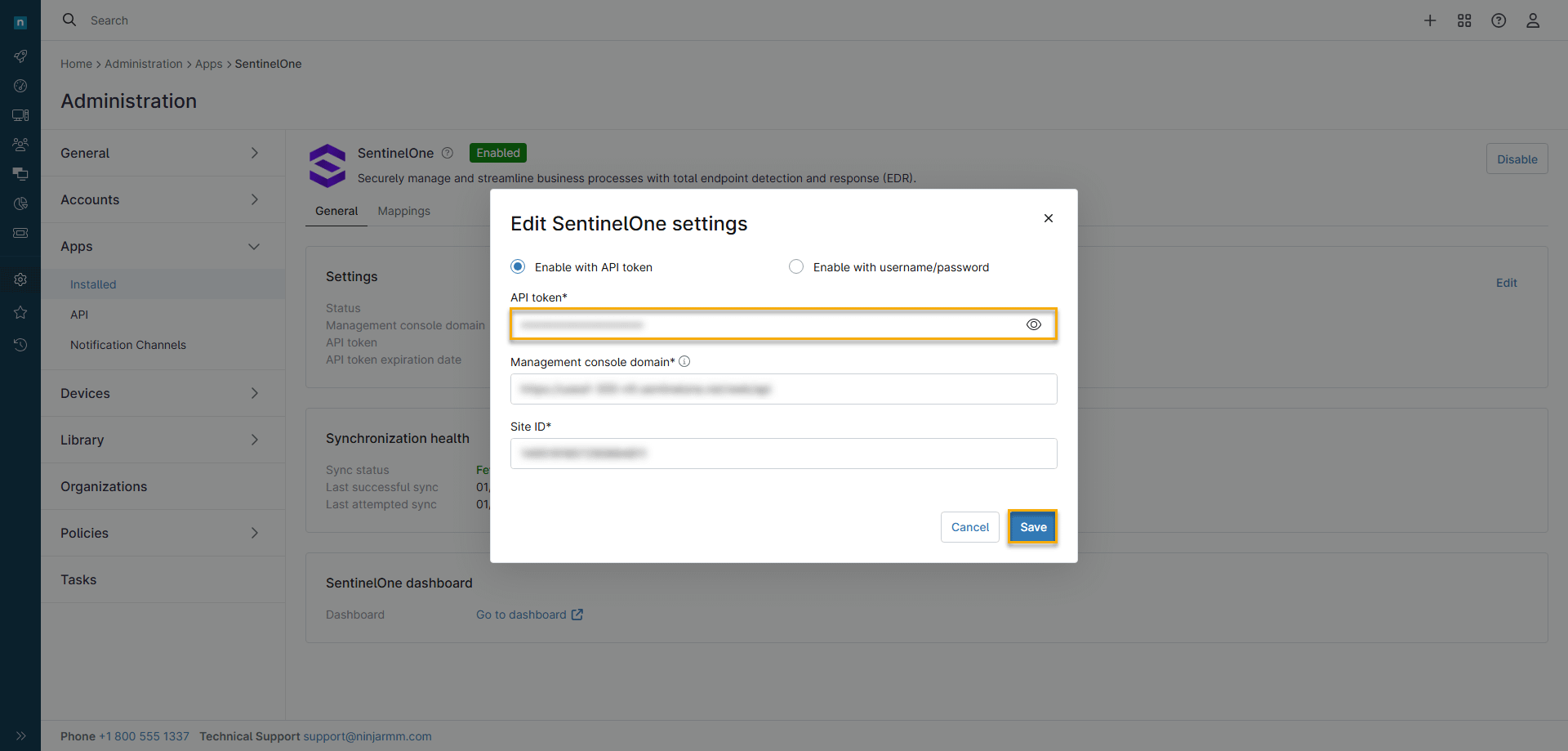
Figure 4: Edit SentinelOne settings (click to enlarge)
API Token Health and Re-Sync
The Synchronization Health section of the SentinelOne app in your NinjaOne instance reports the integration's synchronization status. If the authentication token is invalid, the Sync status field will read Unknown, even if Settings → Status reports Connected.
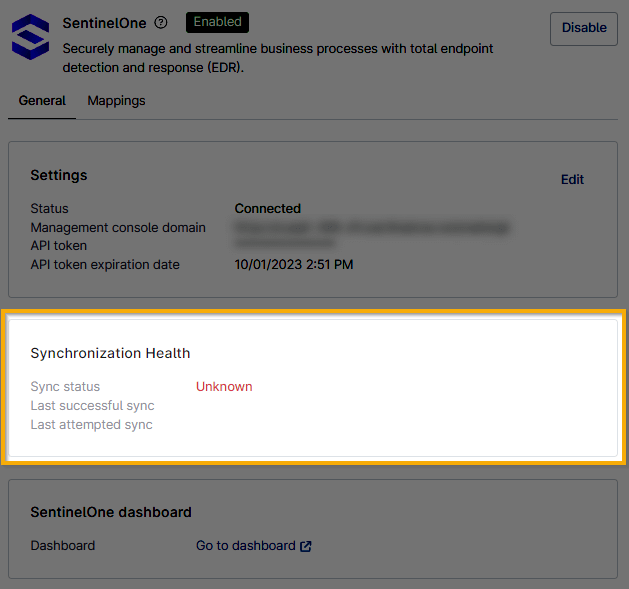
Figure 5: Synchronization Health (click to enlarge)
When synchronization is successful, the Sync status field will read Fetch complete. It will also report the dates and times of the most recent attempted and successful synchronizations.
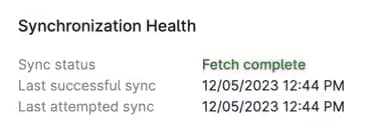
Figure 6: Sync status
The integration syncs up to six times every five minutes. In the event of a failure, the Re-sync button shown in Figure 7 will appear in the Synchronization Health section of NinjaOne's SentinelOne integration app.
If you see a status other than Fetch complete, click the button to reset the API poller and attempt another synchronization.

Figure 7: Re-sync (click to enlarge)
API Token Expiration and Renewal Notifications
NinjaOne automatically attempts to renew tokens. After generating the original token, you can set up notifications that alert you to auto-renewal failures leading to token expiration that necessitates manual renewal.
To do so, perform the following steps:
- In NinjaOne, navigate to Administration → General → Activities.
- Find the activities for SentinelOne.
- Enable the notifications you'd like to receive. If re-sync is required and fails, the integration will break; at a minimum, we recommend enabling Integration Re-sync Required and Integration Disabled to ensure you are always aware of critical service disruptions.
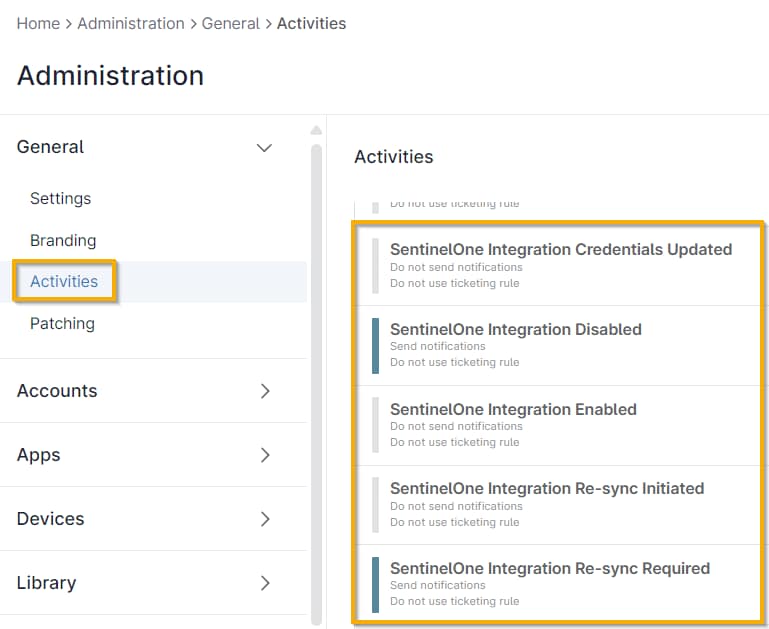
Figure 8: Administration → General → Activities (click to enlarge)
- You can review synchronization health at any time in NinjaOne by navigating to Administration → Apps → Installed → SentinelOne → General.
Figure 9: Synchronization Health (click to enlarge)