
Issue
In rare cases, SentinelOne will detect the NinjaOne Patcher or other NinjaOne components (lockhart.exe, Remote, or others) as a threat.
Environment
- NinjaOne integrated vendors
- SentinelOne
Cause
The cause of this issue is currently unknown.
Resolution
NinjaOne recommends creating a Certificate Exclusion in your SentinelOne Web Management portal. If you are using a Unified Exclusion, refer to the section of this article titled Creating Alerts Exclusions in Unified Exclusions Management.
To create the exclusion, perform the following steps:
- Sign in to the SentinelOne Web Management console at the account level.
- Click Sentinels on the left navigation menu.
- Click EXCLUSIONS in the top navigation menu.
- Click New Exclusion → Create Exclusion.
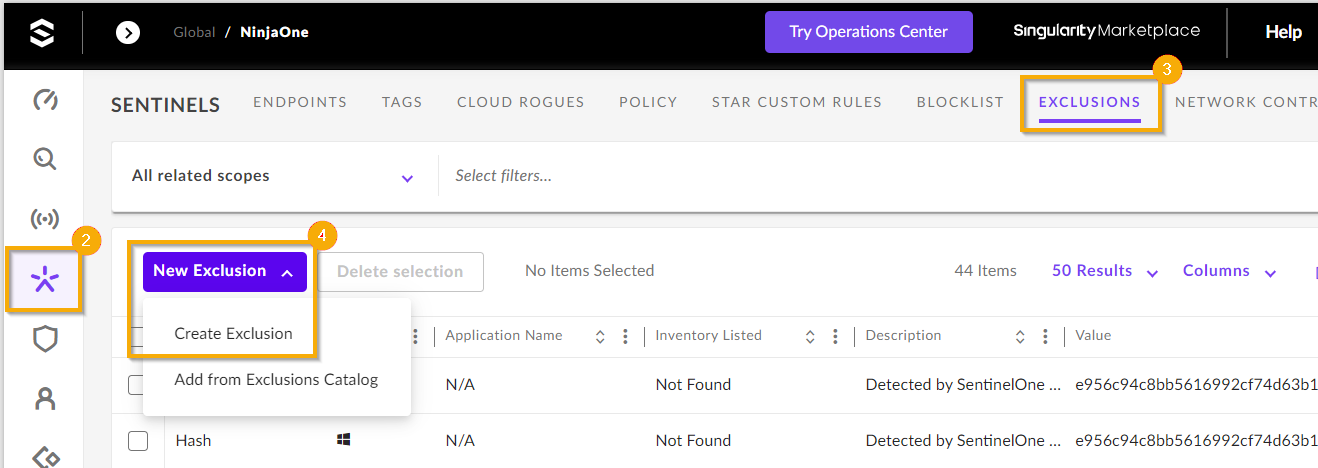
Figure 1: Create a new exclusion in SentinelOne (click to enlarge)
- Enter the data exactly as follows:
- Exclusion Type: Certificate
- OS: Windows
- Signer Identity: NinjaOne LLC
If the customer is in an environment managed by NinjaOne, both the "NINJARMM, LLC" and "NINJAONE, LLC" signed certificates must be part of the exclusions. New consoles not managed by NinjaOne can allow only "NINJAONE, LLC" signed certificates. The SentinelOne Agent 23.4 SP2 introduces exclusions for the NinjaOne executables. - Click Threats to test if NinjaOne Products will be properly excluded.
- Once the information has been entered correctly, click Save.

Figure 2: Configure the new exclusion
Creating Alerts Exclusions in Unified Exclusions Management
To create the alerts exclusion, perform the following steps:
- Set the general details for the exclusion:
- Sign in to the SentinelOne Web Management console at the account level.
- Click Sentinels on the left navigation menu.
- Click EXCLUSIONS in the top navigation menu.
- Click New Exclusion → Create Exclusion.
- Give the exclusion a unique identifier for Exclusion Name.
- For Scope, NinjaOne suggests creating the exclusion on the narrowest scope possible. To change the Scope, select Global, an account, site, or group.
- Enter the data exactly as follows:
- Exclusion type: Alerts
- Operating System: Select the platform that the exclusion applies to (Windows, macOS, or Linux).
- If the Operating System selected is Windows, select the Origin of the alert that you want to suppress:
- EDR: Suppress alerts related to Endpoint Detection and Response (EDR) engines.
- Identity: Suppress alerts related to Identity Detection engines.
- Click Continue.
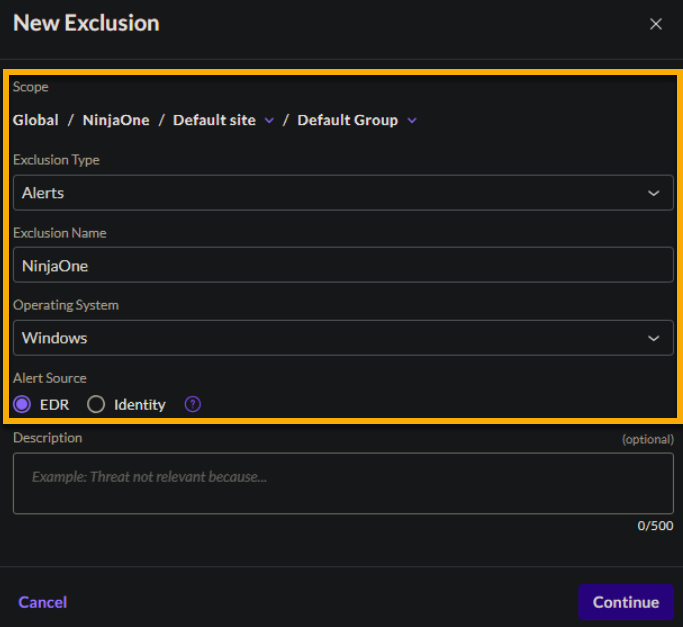
Figure 3: Configure the alert exclusion in SentinelOne (click to enlarge)
A summary of the exclusion details shows with the option to Create Condition and set specific Detection Engines.
- Set conditions for the alert exclusion.
- On the exclusion details page, click Create Condition.
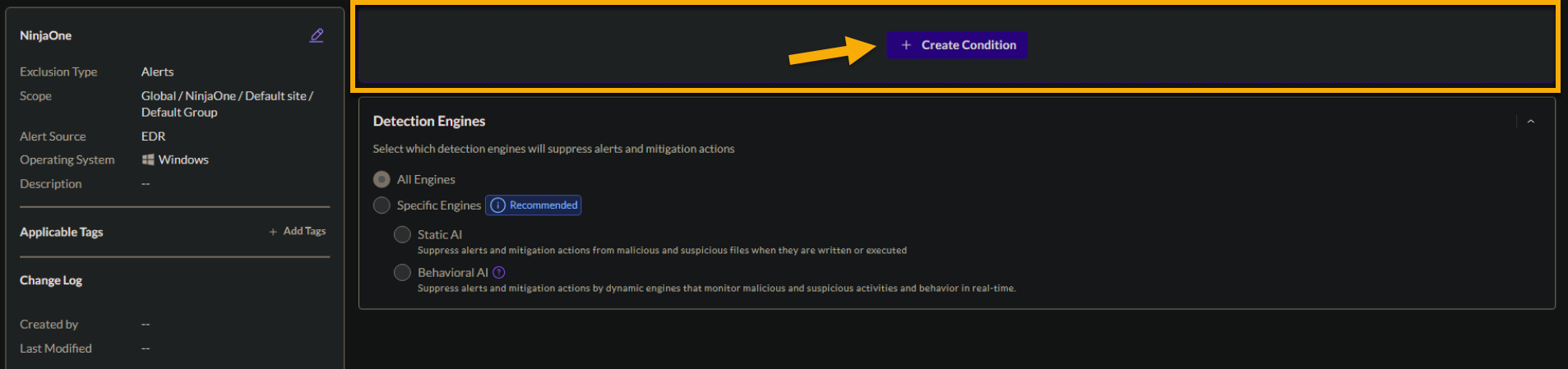 Figure 4: Create a condition for an exclusion (click to enlarge)
- On the Condition Creation page, click Publisher (also known as "certificate").
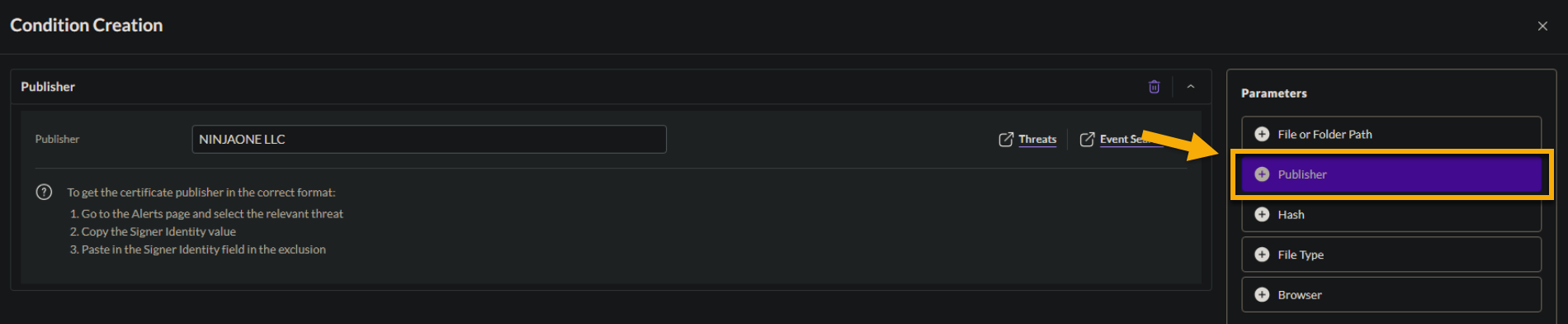
Figure 5: Select "Publisher" for the condition parameter (click to enlarge)
Enter the value for the parameter, exactly as follows: "NINJAONE LLC."
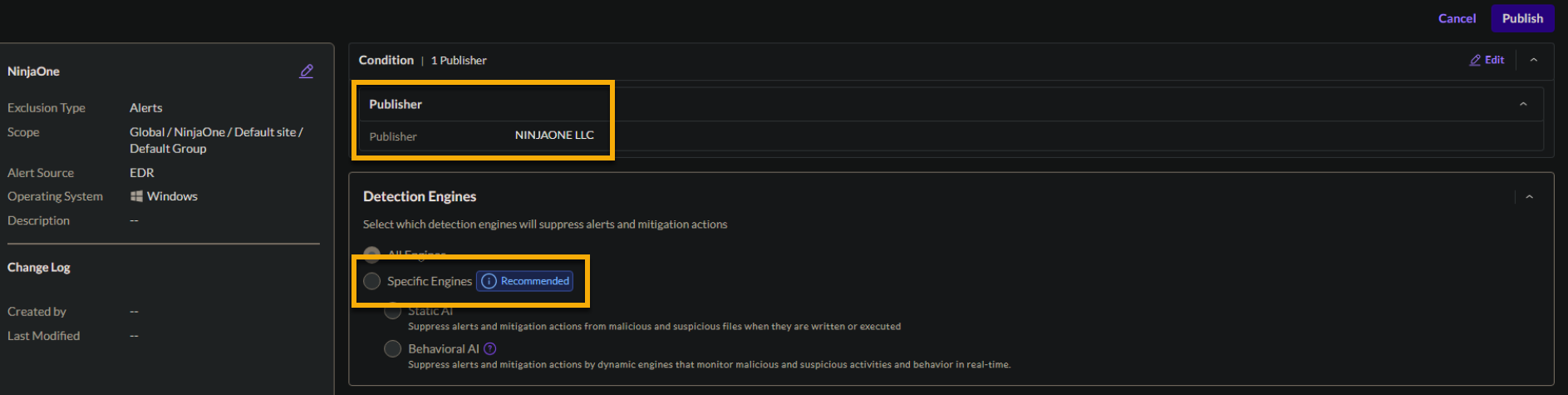
Figure 6: Provide the publisher's name for the condition and optionally specify detection engines (click to enlarge)
Click Save.
To apply the exclusion, click Publish.
Additional Resources
The following learning content will help you fully utilize the Bitdefender GravityZone feature set.