
Topic
This article describes some of the columns that you can use to filter the Devices search page in NinjaOne. To learn about how to use the Devices search page, refer to Find and Manage Endpoints from the Devices Search Page.
Environment
- NinjaOne Endpoint Management
- All operating systems
Description
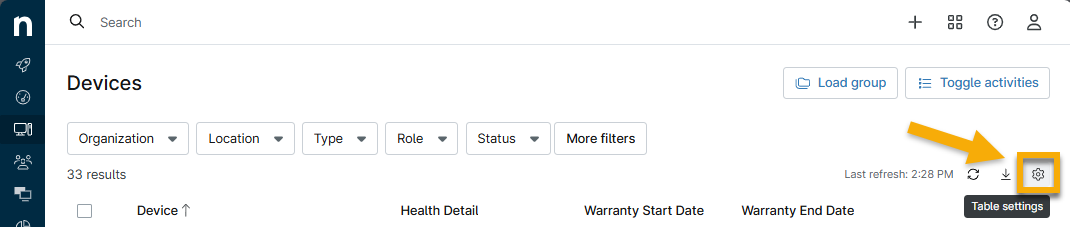
You can add or remove specific columns on the Devices search page by clicking the table settings gear icon.
Select a category to learn more:
Column Descriptions
Some column names are self-explanatory. The following table describes columns that may not be as intuitive. If you would like a column description added to this article, reach out to your account manager or NinjaOne Support and request a Dojo update.
The following table does not include custom field columns, because those names are dependent on your customizations. When you add a custom field as a column to the Devices search page, the inherited value for that field will display.
| Column Name | Description or Purpose |
|---|---|
| Agent Install Timestamp | This is the date and time that the NinjaOne agent was installed on the device. |
| Agent Version | This is the current version of the NinjaOne agent installed on the device. |
| Assigned User | This column reflects the name of the user assigned to the device. Being assigned to a device is not the same as having access to it. Multiple users can have access to a device, but only one user can be assigned responsibility over it. |
| Contact Time | This is the time since the NinjaOne agent communicated with the device server. |
| Content token | This column is relevant to Apple MDM. To learn more about Apple MDM content tokens, refer to NinjaOne MDM: Apple Apps and Books. This column shows the name of the content token in use. |
| Disk Volume Usage | This column shows you how much disk space is being used on a connected device. Not all device types will provide this data. |
| Health Status | This column pulls information from how you have device health statuses configured in NinjaOne. For more information, refer to Customize Device Health Statuses in NinjaOne. |
| Last Boot Time | This describes the last time the device was rebooted or started up. It is not related to the time the device was checked into the platform. |
| Last Login | This column shows the username of the individual who most recently logged in to NinjaOne using the device in question. |
| Last Uptime | This is the time since the device has been up and running. Cloud monitors use the last time the monitor submitted results or show "Connect" if the device is currently up. |
| Latest Note | This column provides the most recent note that a user added to the device dashboard. To learn more about notes, refer to Device Notes & Related Items. |
| Lifecycle State | This column is related to the NinjaOne ITAM device lifecycle. Show whether a device is approved, staged, or decommissioned. Refer to NinjaOne IT Asset Management: Resource Catalog to learn more. |
| Manufacturer Fulfillment Date | This is the recorded date that the device was delivered to you from the manufacturer. |
| Needs Reboot | This column will reflect either a "Yes" or a "No." If the device needs a reboot to finalize a process, this column will update, and a reboot icon will also display in the Health Detail column. |
| OS Install Date | This is the date that the operating system was installed on the device. |
| Processor | This column provides the name of the central processing unit (CPU) for the device. |
| Quarantined Threats Count | This column will populate if quarantined threats are discovered. Quarantined threats are related to the antivirus software installed on the device. |
| Reboot Reason | The purpose of the column is to provide a reason the device was rebooted. |
| Tags | This column shows the name of system tags added to the device. For more information about tags, refer to Getting Started with NinjaOne Device Tags. |
| Uptime Status | MDM devices will show "Managed," and agent-based RMM devices will show "Connected." |
| Video Card | This column provides the name of the video card, if one is present on the device. Video cards may also be referred to as "graphics cards." |
| Warranty Dates | These columns reflect the recorded start and end for the device warranty. To learn more about warranty dates in NinjaOne, refer to Enable Warranty Tracking. |
| Approved Patches Count | The sum of all approved OS patches will appear in this column. |
| Installed Patches Count | This column shows the sum of all installed OS patches on the device. |
| Approved Software Patches Count | Use this column to view all approved software patches on the device. |
| Installed Software Partches Count | This column lists the total number of installed software patches on the device. |
| Last OS Patch Scan | This column displays the date of the last OS patch scan. |
Frequently Asked Questions
Select a question to view the answer:
- Some devices are not connected but show a Health Status of "Healthy." However, most unconnected devices show a health status of "Unknown." What triggers this?
- Why might a device that is connected not show data in the Agent Version column?
- When NinjaOne releases a new version, what do I need to do to update the device to that version?
- What is the purpose of Reboot Reason, and how should I interpret "WINDOWS_PM" as the column data?
- Why does the processor not display for all devices?
Some devices are not connected but show a Health Status of "Healthy." However, most unconnected devices show a health status of "Unknown." What triggers this?
You can override the health status for offline servers to prevent them from appearing as unhealthy in NinjaOne; this could be the source of the issue. If you have not configured these settings, reach out to NinjaOne Support for resolution.
Why might a device that is connected not show data in the Agent Version column?
Only Agents, Network Management System (NMS) Servers, and NMS Targets have this field; MDM-managed devices do not.
When NinjaOne releases a new version, what do I need to do to update the device to that version?
Nothing is required. The agent will automatically update itself the next time it checks in with the platform.
What is the purpose of Reboot Reason, and how should I interpret "WINDOWS_PM" as the column data?
"WINDOWS_PM" refers to Microsoft Windows Patch Management. We are currently working on improving the data provided in this column.
Why does the processor not display for all devices?
Only Agents, NMS Servers, and NMS Targets have this field; MDM-managed devices do not.
Additional Resources
Refer to the following resources to learn more about device management in NinjaOne: