
Topic
There are some cases in which you may want to be able to generate a list of devices that have been offline for a certain period of time or longer. There are a couple of ways to accomplish this:
Search by device downtime
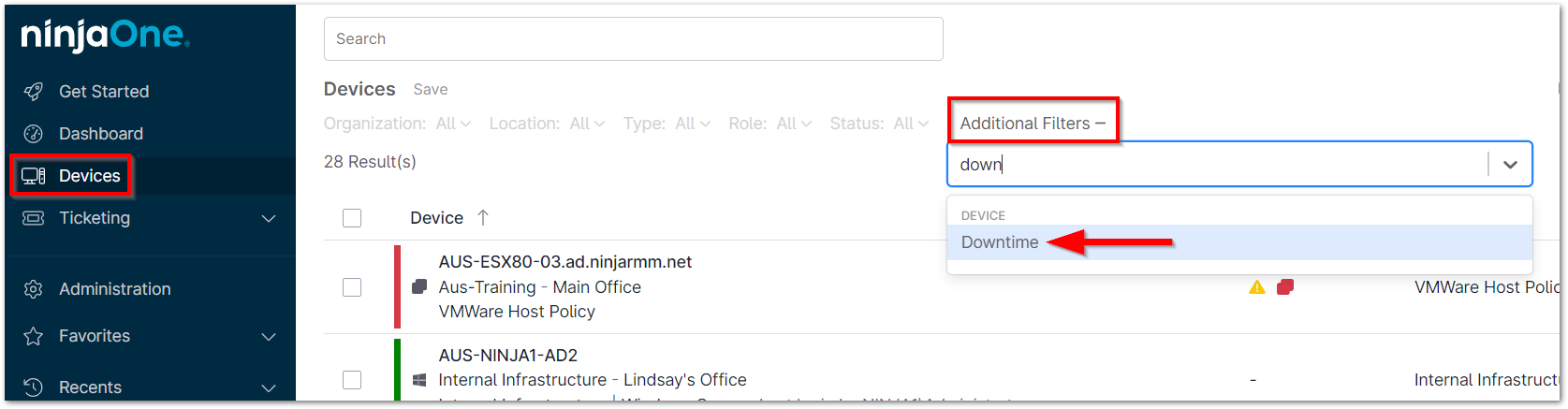
- Navigate to the Devices tab in NinjaOne and select the filter for Downtime (this can be found under Additional Filters at the top of the page).
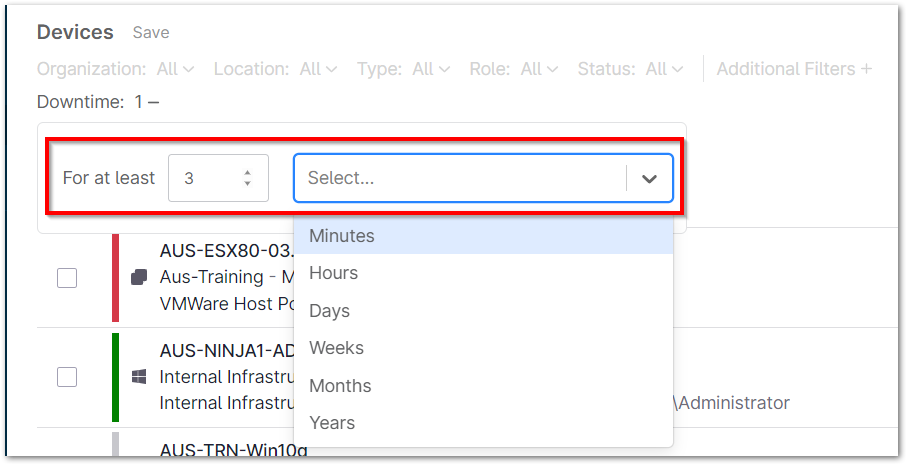
- Specify the minimum number of minutes, hours, days, weeks, months, or years of downtime that you would like to filter for.
 Important Note: You may add any additional desired filters during this step, as well (such as filters for particular organizations or device types).
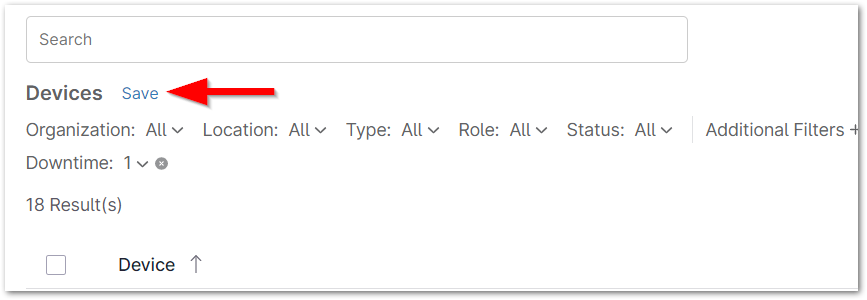
 - If desired, you may save this search criteria to create a dynamic device group for future use by clicking Save at the top of the page. See our Search and Grouping documentation for more information.
Search for devices that are currently down
- Navigate to the Devices tab in NinjaOne and select "Down" from the Status dropdown.
 Important Note: You may add any additional desired filters during this step, as well (such as filters for particular organizations or device types).
 - If desired, you may save this search criteria to create a dynamic device group for future use by clicking Save at the top of the page. See our Search and Grouping documentation for more information.
- Click the header column for Last Uptime to filter the data chronologically. If you do not see the Last Uptime column, click the table settings icon to add it.
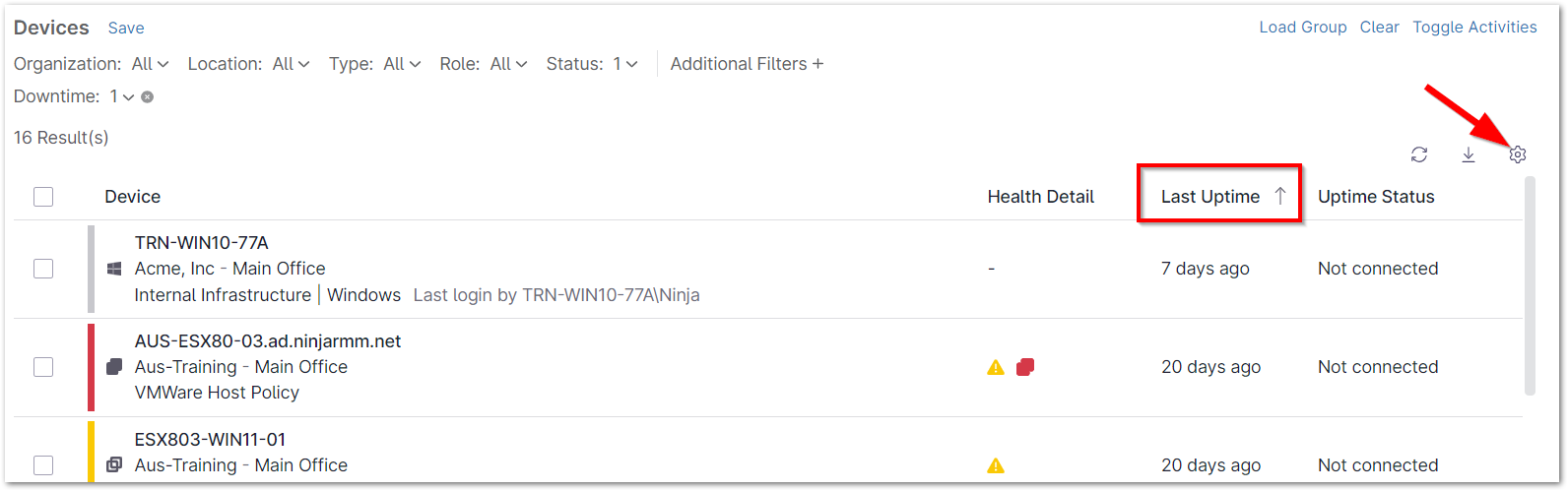
The list of devices is now sorted based on how recently they have connected to the NinjaOne console. The most-recently connected devices display at the top of the list. The longer a device has been offline, the further towards the bottom of the list it appears.