
Topic
This article describes the process for cloning virtual endpoints that are managed by NinjaOne.
Environment
NinjaOne Endpoint Management
Description
- Clone a Mac device or virtual monitor
- Clone a Windows device or virtual monitor
- Notes about improperly cloned machines
Cloning an Apple macOS Device or VM
Before installing NinjaOne Agent on the device to be used as your base image, you need to create a file and name it skipreregister.
(/Applications/NinjaRMMAgent/programfiles/config).
The following values need to be removed:
- Password
- MachineId
- DataSubmitTime
- NodeId
- WriteJsonOutputFile
The only values that remain in the file should be the version and the patcher version.
After performing these steps, you can snapshot your image.
Cloning a Microsoft Windows Device or VM
At some point during the setup of the device or VM to be used as the base image for cloning, you will install the NinjaOne Agent. Once it is installed, the service starts and registers with the Ninja console. Before taking the snapshot of the image, stop the NinjaOne Agent service and run the file below called "noclone".
This file removes the existing registration information from the device. The next time the NinjaOne Agent starts it registers as a new device.
Important Notes:
- If you are using Ninja Backup with the cloned machine, perform the cloning process before enabling Ninja Backup for said device at the organization editor level.
- Leave the NinjaOne Agent service stopped and take your snapshot. If you reboot the device at any point, you need to stop the NinjaOne Agent service again prior to taking the snapshot.
- When you first boot up the device or VM you cloned the image to, the NinjaOne Agent service starts and registers with the Ninja console as if it were a new device.
Notes About Improperly Cloned Machines
While the above process is always recommended in order to properly clone machines with NinjaOne Agent installed, Ninja does take some steps in an attempt to manage improperly cloned machines.
- The NinjaOne Agent uses hardware IDs based on each physical network adapter's universally unique identifier (UUID) and medium access control (MAC) addresses to identify the machine.
- When cloning in VMware, the desired configuration for the base template can be found at Broadcom's Techdocs Portal (external link).
- Potential issues may arise if the UUIDs are the same—these issues can be resolved by following the resolution in this article from the Broadcom knowledge base (external link).
- Ninja tracks changes to your hardware over time and updates its internal ID as your hardware changes.
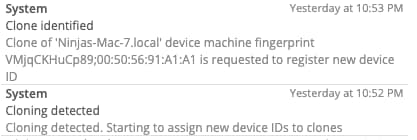
- Ninja automatically de-clones any that are detected. After the de-cloning process, you will have N new nodes in your dashboard (depending on the number of clones).
- If a clone is detected, there is a new entry that will be shown in your Activity Feed.
- Ninja Backup specific notes:
- If the Ninja Backup agent is installed on the machine, it will be deactivate on the clone after the de-cloning process.
- If Ninja Backup fails to match the current machine ID with the one used during previous logins, then Ninja Backup will deactivate backups on this machine to prevent corruption. The original node will continue to back up as normal - only the new clones will be deactivated.